How to Enable or Disable Virtual Machine Platform in Windows 11

Virtual Machine Platform is a built-in Windows 11 feature. It provides the lightweight virtualization layer that WSL 2 (Windows Subsystem for Linux) and Docker Desktop rely on to run Linux tools and developer programs in a safe, isolated space. With it turned on, you can use these tools directly inside Windows 11 without third-party virtualization software. It is not the same thing as Hyper-V, and it is available in both Windows 11 Home and Pro.
You need to turn this feature on if you plan to use WSL 2, Linux environments, or Docker Desktop with its WSL 2 backend, or if you want to test software on your PC. If you do not run any developer tools, you can turn it off to free up system resources. Be aware that turning it off will stop WSL 2 distributions and anything else that depends on it from starting.
Open Settings , click System, select Advanced, expand Virtual Workspaces, and toggle Virtual Machine Platform on. Restart your PC to complete the change. Alternatively, search “Turn Windows features on or off”, check Virtual Machine Platform, click OK, and restart.
Enable Virtual Machine Platform Using Settings
You can enable Virtual Machine Platform in the Settings app by opening the System section, going to the Advanced page, and switching the feature on. No command-line tools are needed. This method suits you if you prefer the standard graphical interface.
If you do not see it on your PC, skip to the Windows Features method below. It does the same job and works on every edition and build.
- Open the Windows Settings app. Click the Start menu and select Settings, or press Win+I. The Settings window opens with a list of categories on the left.
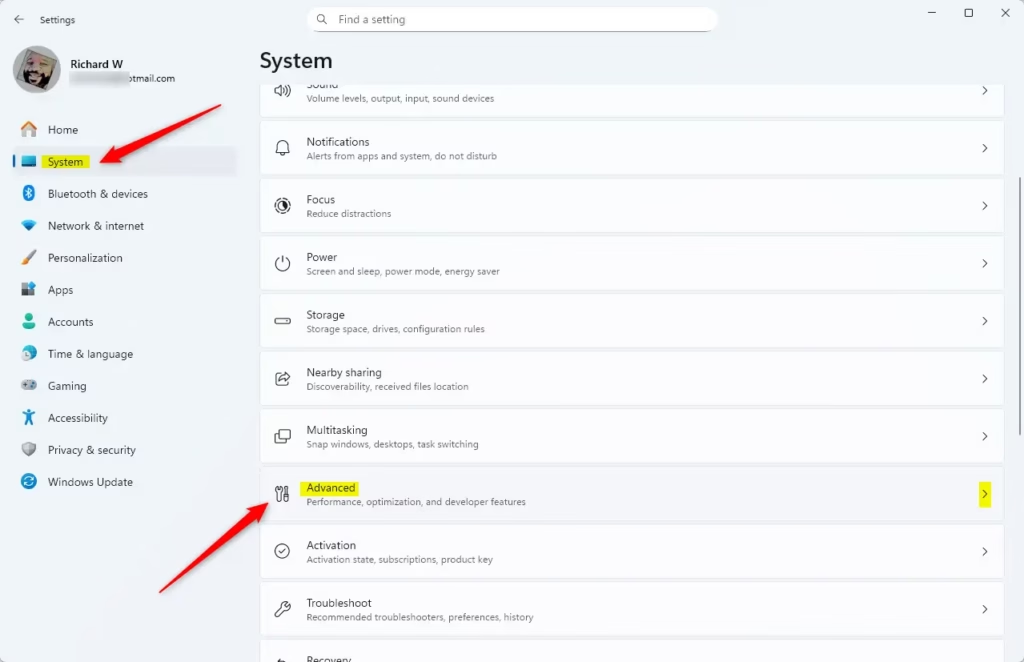
- Click System on the left side. The System settings appear on the right.
- Select Advanced on the right to expand it. If you cannot find it, your build does not have this page yet.
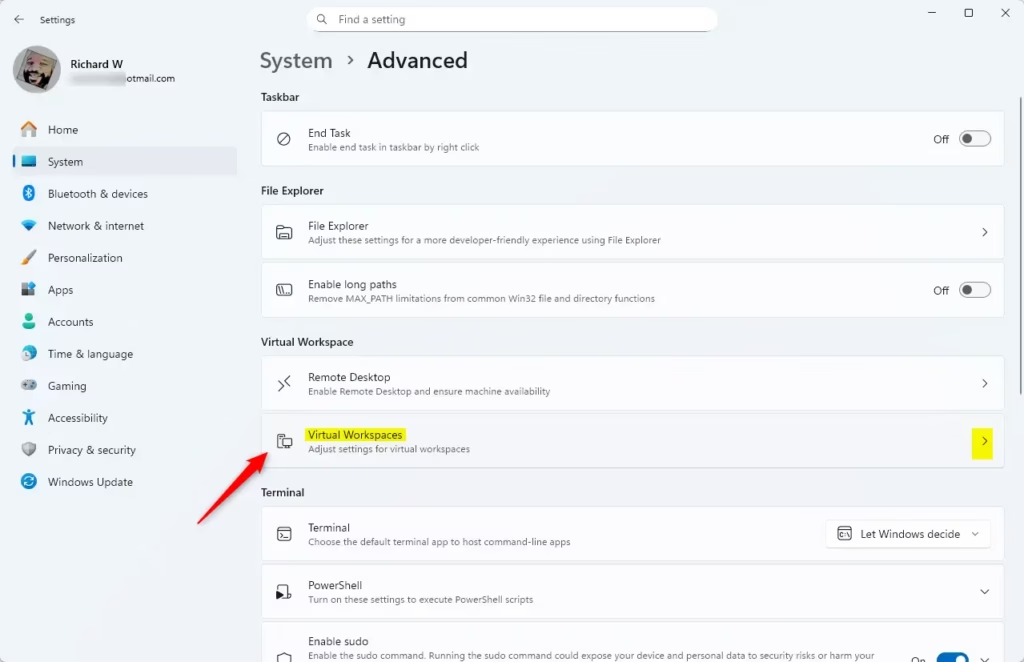
- Click on Virtual Workspaces to expand it. You should now see the virtualization options listed under it.
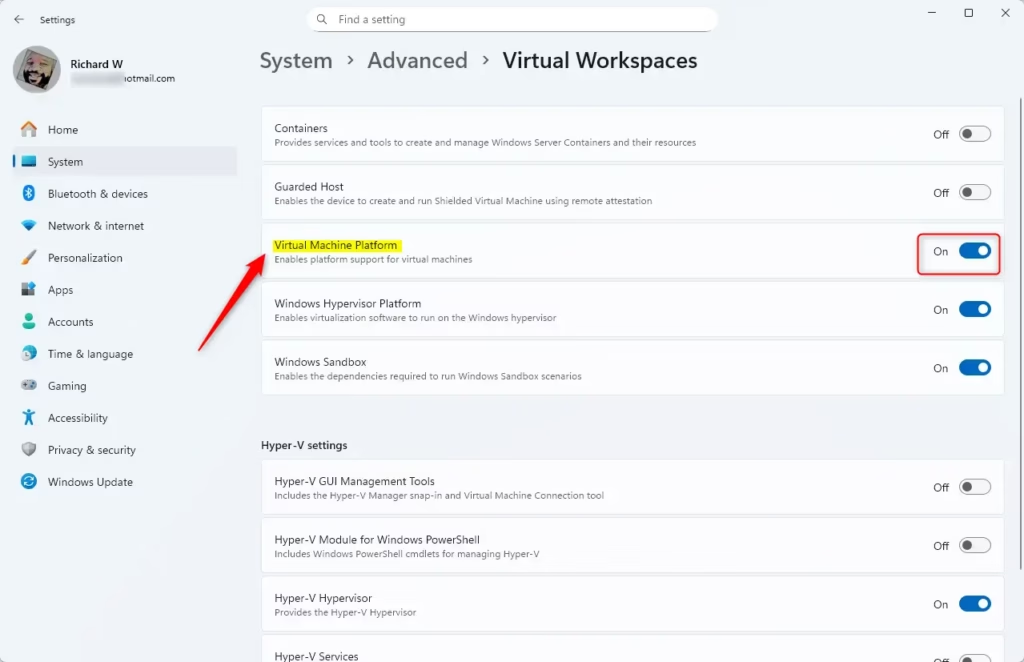
- Toggle the Virtual Machine Platform button on to enable it, or off to disable it. Windows may take a few seconds to apply the change and then ask you to restart.
- Close the Settings app. Restart your PC afterwards, because the change does not take full effect until you do.
Enable Virtual Machine Platform Using Control Panel
You can also enable Virtual Machine Platform from the Windows Features window, the classic list of optional Windows components. It is the most reliable graphical method because it is present on all editions of Windows 11, Home included, and lets you turn features on or off without downloading anything extra.
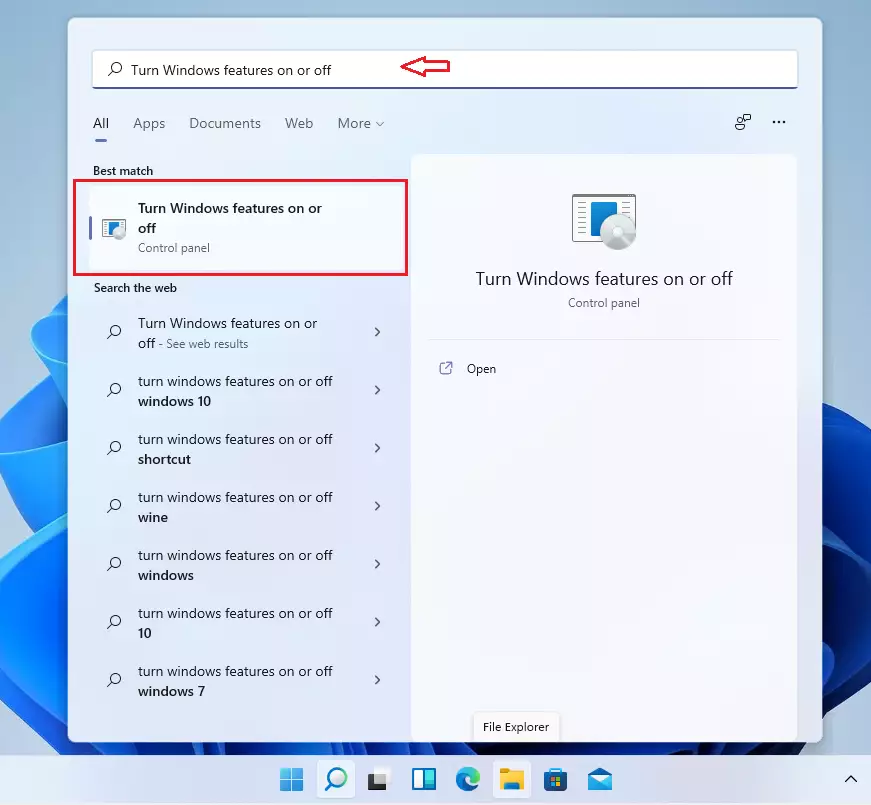
- Click Start and type “Turn Windows features on or off” in the search bar.
- Select the result to open the Windows Features pane. Give it a moment: the list of features can be empty for a few seconds while Windows loads it.
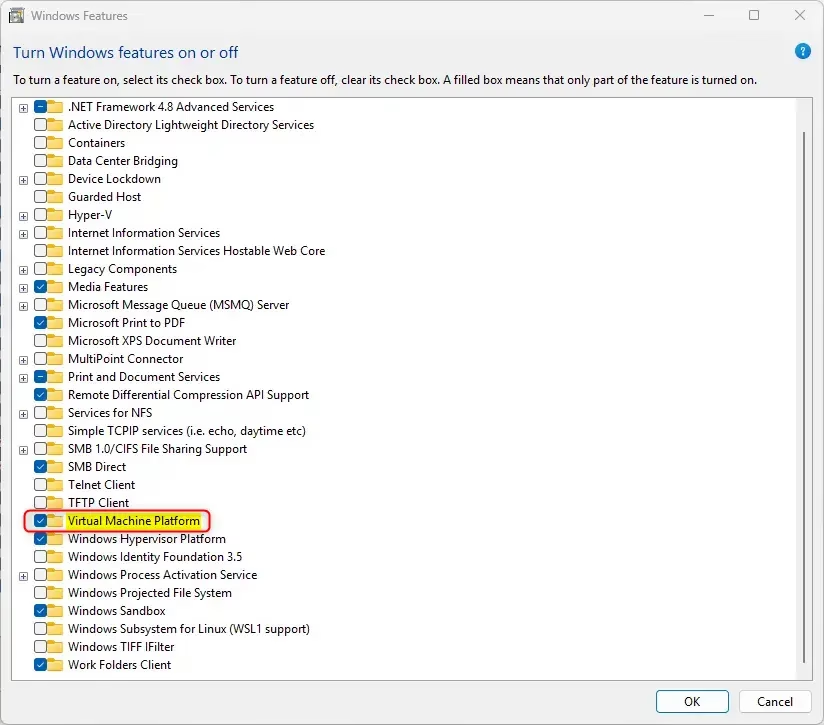
- Scroll down and check the box next to Virtual Machine Platform to turn it on. Then click OK.
- To turn it off, uncheck the box and click OK.
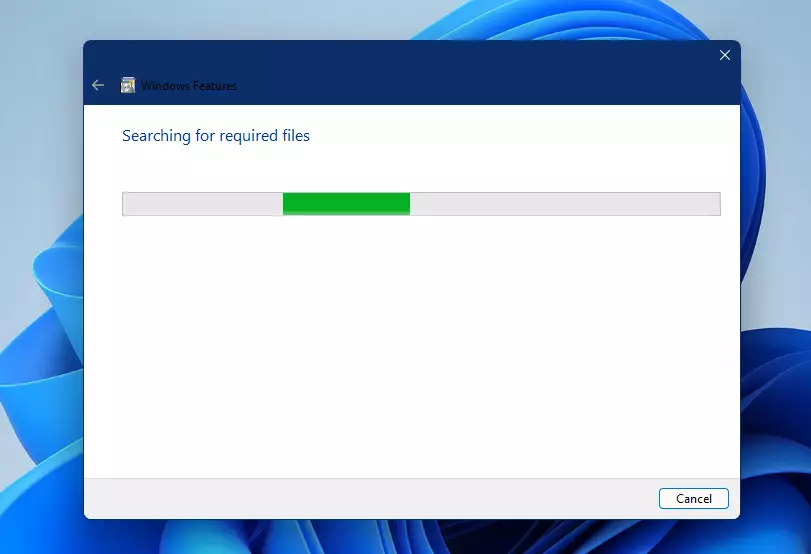
You’ll then see a message asking you to restart your computer to complete the process. Save your work and close your apps before you restart.
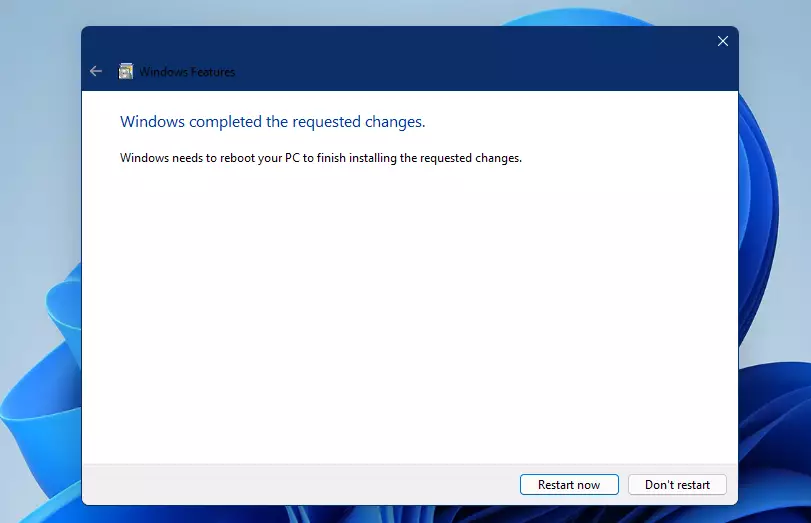
- Restart your computer. You can click Restart now in the message, or restart from the Start menu later. The change is not active until you do.
After restarting, Virtual Machine Platform will be active. You can now create virtual machines and run different operating systems. Keep in mind that tools such as WSL 2 also need hardware virtualization to be turned on in your PC’s BIOS or UEFI settings. If a tool reports that virtualization is disabled, check that setting.
Enable Virtual Machine Platform Using Command Prompt
You can enable Virtual Machine Platform from Command Prompt by running a short command with administrator rights. The command uses the built-in Deployment Image Servicing and Management tool (DISM) to switch the feature on. This method is useful when you want to repeat the setup on several PCs or follow a written checklist. You still need to restart afterwards.
- [REQUIRES ADMIN PRIVILEGES] Click Start , search for Command Prompt, right-click on it, and select Run as administrator. If a User Account Control prompt appears, click Yes. The title bar of the window should read “Administrator: Command Prompt”. Without administrator rights the command will fail with an error saying elevated permissions are required.

- Copy and paste this command, then press Enter. A progress bar runs, and when it finishes you should see a message saying the operation completed successfully:
DISM /Online /Enable-Feature /FeatureName:"VirtualMachinePlatform"To turn it off, run this command instead:
DISM /Online /Disable-Feature /FeatureName:"VirtualMachinePlatform"- Restart your computer. DISM may offer to restart for you. If so, type Y to accept, or type N and restart yourself later.
Virtual Machine Platform should now be installed and enabled. If you ran the disable command instead, it is now turned off. To check, open the Windows Features window described in the previous method and look at the Virtual Machine Platform box.
Enable Virtual Machine Platform Using PowerShell
You can enable Virtual Machine Platform from PowerShell by opening an administrator window and running a single cmdlet. This is a quick option if you prefer scripting or modern command tools, and it is easy to drop into a setup script.
- [REQUIRES ADMIN PRIVILEGES] Open the Start menu and search for PowerShell. Right-click the result and select Run as administrator. If a User Account Control prompt appears, click Yes. The title bar should read “Administrator: Windows PowerShell”.
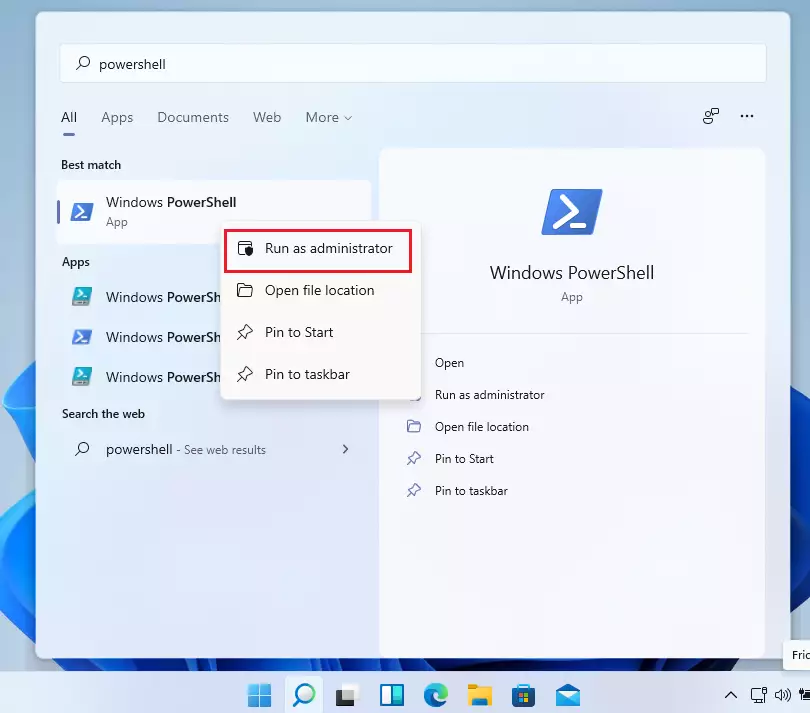
- Type this command to enable Virtual Machine Platform, then press Enter. When it finishes, the output should show that a restart is needed:
Enable-WindowsOptionalFeature -Online -FeatureName "VirtualMachinePlatform"To disable it, run this command instead:
Disable-WindowsOptionalFeature -Online -FeatureName "VirtualMachinePlatform"- Restart your computer for the changes to take effect.
Summary
You can enable or disable Virtual Machine Platform in Windows 11 using four different methods, depending on your preference. They are the Settings app, the Windows Features window, Command Prompt, and PowerShell. All four change the same feature, so use whichever suits you.
- Settings app — The easiest method for most users, but only on recent Windows 11 builds that have the Advanced page
- Control Panel — Uses the older Windows features panel, and works on every build and edition
- Command Prompt — Requires admin privileges; use the DISM command
- PowerShell — Requires admin privileges; use the Enable-WindowsOptionalFeature command
No matter which method you choose, always restart your computer after enabling or disabling the feature. Once enabled, you can create virtual machines and test different operating systems for development and testing purposes. If you later want to undo the change, repeat any one of the methods and choose the off or disable option, then restart again.
Have a question about this guide?
Answered by AI from this guide. Good questions may be added to this page — please don't include personal details.
Did this guide fix your problem?

About the Author
Richard
Tech Writer, IT Professional
Richard is a writer at Geek Rewind who turns complex IT tasks into clear, step-by-step guides. He draws on years of hands-on experience in system administration and enterprise IT operations, focusing on Windows, Linux and WordPress: the problems people actually run into, and the fixes that work. His server and WordPress guides come from systems he runs himself. Richard builds and maintains the platform behind Geek Rewind, from its Ubuntu servers and Nginx configuration to its custom WordPress plugins. Many new tutorials start with readers' questions, and he's always glad to answer them in the comments.
No comments yet — be the first to share your thoughts!