Silence Notification Sounds in Windows 11

To silence every notification chime, clear Allow notifications to play sounds in Settings System Notifications The change applies immediately and needs no administrator rights. It works the same on Windows 11 Home and Pro.
Notification sounds (the short chimes Windows and apps play when a banner appears) can be muted in three ways. You can mute them for all apps, for one app, or for a set period with Do not disturb. This post covers each method, then explains why a sound can keep playing after you turn it off.
The steps match Windows 11 version 22H2 and later. On Windows 11 21H2, some labels use different wording.
To turn off notification sounds in Windows 11, open Settings System Notifications, expand the Notifications row, and clear Allow notifications to play sounds. The change takes effect immediately, needs no administrator rights, and works on Windows 11 Home and Pro. To mute a single app instead, use the app’s own page in the Notifications from apps list.
Turn Off the Notifications Sounds Setting for All Apps
This method stops Windows from playing a sound for any notification, while banners still appear on screen. It is the quickest fix when you want a quiet PC but still want to see alerts.
To silence every notification sound:
- Open Settings . Press the Win plus I, or right-click Start and choose Settings. The Settings window opens.

- Click System in the left menu. The System page lists Display, Sound, Notifications and other categories.
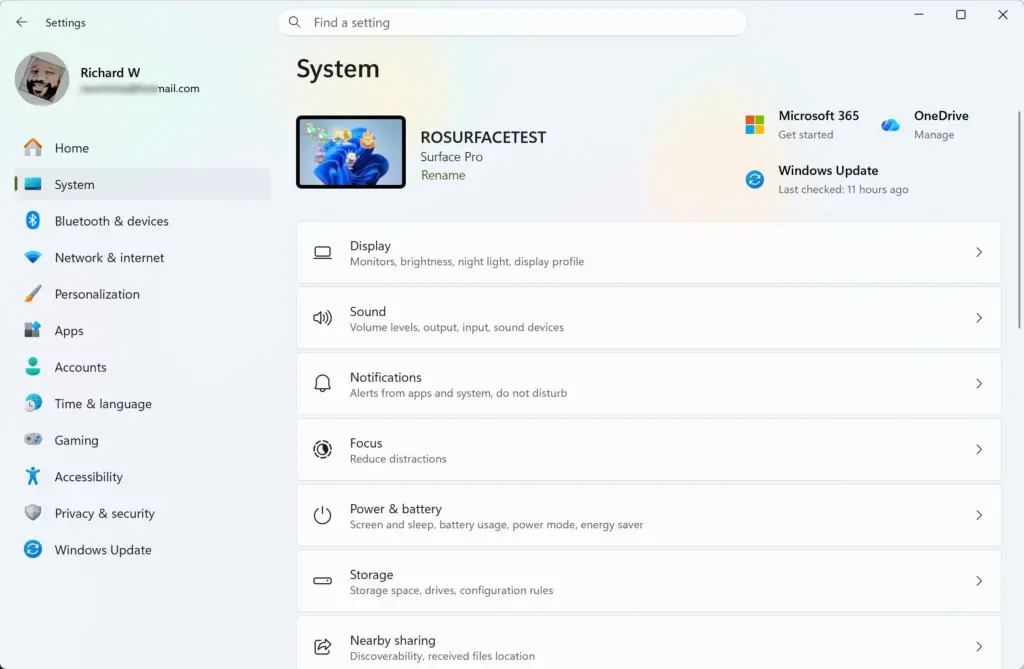
Settings › System - Click Notifications. The path is Settings System Notifications, and the page opens with a Notifications switch at the top.
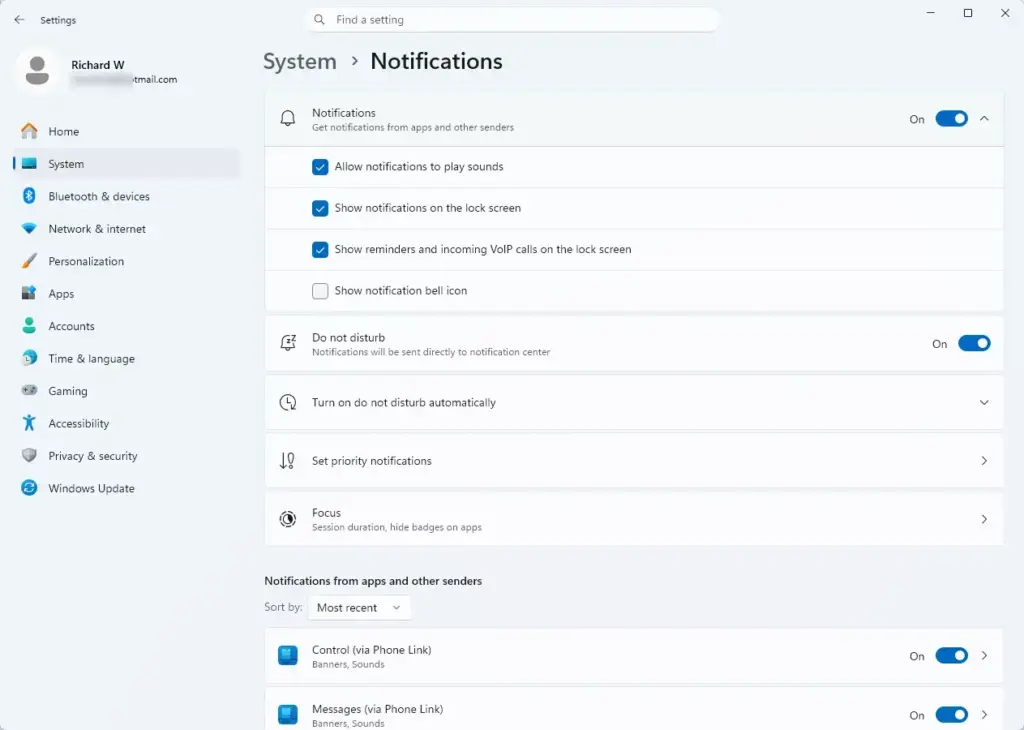
- Expand the Notifications row. Click the small arrow at the right end of the row. A list of extra options drops down.
- Clear Allow notifications to play sounds. Depending on your build, this option is a checkbox or a switch. The checkbox empties, or the switch moves to Off.
- Close Settings. Windows saves the change as you make it, and you do not need to restart.
To test it, trigger a notification you normally hear, such as an incoming email or a message from a chat app. The banner should appear in silence.
If you cannot see Allow notifications to play sounds
If that switch is off, Windows hides or greys out everything beneath it. Turn the switch on, expand the row, then clear the sound option.
If the whole Notifications page is locked or missing options, a work or school account may manage your PC. Policies set by an organization override Settings, and only your IT administrator can change them.
Silence Notification Sounds for One App Only
Muting one app is the better choice when a single chat app, calendar or email client is the noisy one. Every other app keeps its sound. This change is also per user account, so other people who sign in to the PC keep their own settings.
To turn off the sound for a single app:
- Open Settings System Notifications. Press the Win plus I, click System, then click Notifications.
- Scroll to the Notifications from apps and other senders list. Each app that has sent a notification appears here with its own switch.
- Click the app name. Click the name itself, not just the switch, so the app’s own page opens.
- Find Play a sound when a notification arrives. This option sits under the app’s main Notifications switch.
- Turn off Play a sound when a notification arrives. Clear the checkbox or move the switch to Off, depending on your build.
- Go back and repeat for any other noisy app. Click the back arrow at the top of the page to return to the list.
Why an app is missing from the list
Windows adds an app to the list only after it sends its first notification through Windows. A newly installed app, or one that has never alerted you, will not appear yet. Trigger one notification from the app, then reopen the page.
Some desktop programs also draw their own pop-ups instead of using Windows notifications. Those never appear here, so change their sounds in the app’s own settings. The section on sounds that keep playing covers this.
Silence Sounds Temporarily with Do Not Disturb
Do not disturb is a mode that sends notifications straight to the Notification Center without banners or sounds. It is the right tool when you need quiet for an hour or a meeting. Nothing is permanently changed, and you switch it off when you are done. It is part of Windows 11 22H2 and later. Earlier builds called a similar feature Focus assist.
To turn on Do not disturb from the taskbar :
- Click the date and time in the taskbar corner. You can also press the Win plus N. The Notification Center (the panel that stores missed notifications) opens.
- Click the bell icon at the top of the Notification Center. The icon changes to show Do not disturb is on, and new notifications arrive without a sound or banner.
- Click the bell icon again when you want alerts back. Missed notifications wait in the Notification Center until you read or clear them.
The same switch is in Settings System Notifications, labelled Do not disturb. That page also lets you set Do not disturb to turn on by itself, for example while you duplicate your display or play a game. For automatic rules, such as turning Do not disturb on while you game, read our guide to silencing notifications automatically with Do Not Disturb in Windows 11.
What Do not disturb does not do
Do not disturb holds back notifications and their sounds. It does not mute your speakers or stop media, alarms inside apps, or a video call from making noise. If you need absolute silence, use the volume controls or mute button as well.
Mute the Default Notification Sound in Control Panel
Control Panel still holds the older Sound dialog, which lets you assign or remove the sound Windows plays for each notification (the Notification entry on the Sounds tab). Use this method if you want to keep other settings untouched but remove the standard chime. Apps that use the standard Windows notification event are affected. Apps that use their own sound are not.
You do not need administrator rights (permission to change settings for the whole PC). The change applies to your user account, because the sound scheme (the saved set of sounds Windows plays for system events) belongs to that account.
To remove the default notification sound:
- Open Control Panel . Click Start, type Control Panel , and press Enter.
- Click Hardware and Sound. If your view is set to icons, click Sound and skip the next step.
- Click Sound. The Sound dialog opens with several tabs.
- Click the Sounds tab. A list titled Program Events appears with a drop-down called Sounds below it.
- Scroll down the Program Events list and select Notification. It sits in the Windows group.
- Open the Sounds drop-down and choose (None). It is at the top of the list.
- Click Apply, then click OK. The default notification chime is now silent.
This changes every event, including errors and device connections, so use it only if that is what you want.
How to restore the original sound
Return to the same Sounds tab, select Notification again, and pick a sound from the drop-down. Click Test to hear each choice before you save it. If you changed the sound scheme, choose Windows Default in the Sound Scheme drop-down to restore the standard sounds for all events.
When a Notification Sound Still Plays
A sound that survives all the steps above almost always comes from outside the Windows notification system. These are the usual sources, in the order worth checking.
The app has its own sound setting
Chat apps, email clients, browsers and meeting software often play their own alerts. Open the app’s settings and look for a Notifications or Sounds section. Turning off the sound there is the only fix, because Windows does not control it.
Websites can also send notifications through your browser. Those sounds follow the browser’s settings and the notification rules in Windows for that browser app.
Another notification type is making the noise
Not every Windows sound is a notification. Alarms, timers and Focus session alerts in the Clock app use separate sounds. If the Focus alarm is the one you hear, see how to customize end of focus alarm sounds in Windows 11.
Windows suggestions and tips can also produce a banner that you did not expect. You can switch those off separately in 3 easy steps to disable Windows 11 tips notifications.
The app volume is the better lever
If you only need an app to be quiet and not its notifications, lower its volume instead. Go to Settings System Sound and open Volume mixer. Each running app has its own slider. This affects all audio from that app, not only alerts.
Notes on Versions, Accounts and Restarts
None of these methods needs a restart or administrator rights. Settings and the Control Panel Sound dialog write changes to your own user profile, so you do not have to sign out.
Home and Pro behave the same here. The only difference you may see is on a work or school PC, where your organization's management settings (called Group Policy) or a device management tool can lock notification options. In that case the controls are missing or greyed out, and your administrator has to change them.
Each user account keeps its own notification settings, which has one more effect. If you create a new user account later, it starts with the default notification settings. Repeat the steps for that account.
Turn Notification Sounds Back On
Every change above is reversible, and nothing is deleted. To restore sounds for all apps:
- Open Settings System Notifications. Press the Windows key plus I, click System, then click Notifications.
- Expand the Notifications row. Click the arrow at the right end of the row.
- Select Allow notifications to play sounds. The checkbox fills, or the switch moves to On.
For a single app, open the app from the Notifications from apps and other senders list and turn on Play a sound when a notification arrives. For the Control Panel change, select Notification on the Sounds tab and choose a sound instead of (None). Our post on how to turn on or off notification sounds in Windows 11 covers the same toggle if you need a second reference.
What to Do Next
With the sounds off, check where the banners themselves go. Our guide to turning on or off Show Notifications in Notification Center in Windows 11 shows how to control whether missed alerts pile up there. If you want quiet only at set times, set up the automatic rules in Do Not Disturb so you never have to switch it on by hand.
Have a question about this guide?
Answered by AI from this guide. Good questions may be added to this page — please don't include personal details.
Did this guide fix your problem?

About the Author
Richard
Tech Writer, IT Professional
Richard is a writer at Geek Rewind who turns complex IT tasks into clear, step-by-step guides. He draws on years of hands-on experience in system administration and enterprise IT operations, focusing on Windows, Linux and WordPress: the problems people actually run into, and the fixes that work. His server and WordPress guides come from systems he runs himself. Richard builds and maintains the platform behind Geek Rewind, from its Ubuntu servers and Nginx configuration to its custom WordPress plugins. Many new tutorials start with readers' questions, and he's always glad to answer them in the comments.
No comments yet — be the first to share your thoughts!