How to Turn On or off Show Notifications in Notification Center in Windows 11

Notification Center in Windows 11 opens with Win+N. You choose which apps keep their alerts there under Settings System Notifications To turn it on or off for an app, open that app’s page and use the Show notifications in notification center box. The setting controls whether an app’s alerts are kept in the Notification Center after they appear.
Notifications come from your installed apps, email programs, and Windows itself. They tell you about new messages, updates, and reminders. The setting is per app and per user account, so changing it for one app does not affect the others or other people who use the PC.
Windows 11 can show notifications in three places:
- On the lock screen (Win+L)
- In Notification Center (Win+N)
- In notification banners at the lower-right corner of your screen above the taskbar
Each of these can be controlled separately for each app. This tutorial covers the Notification Center option. It lets you silence a noisy app without losing alerts from the ones you care about. There are two ways to do it: the Settings app, which is the easy way, and Registry Editor, which is a backup method. Let’s see how.
To open Notification Center, press Win+N. To control which apps keep their alerts there, open Settings System Notifications, select the app under Notifications from apps and other senders, and check or uncheck Show notifications in notification center. The change applies immediately, with no restart needed.
Option 1Use Settings
The Settings app is the quickest way to change this, and it works the same on Windows 11 Home and Pro. These steps turn alerts in the notifications center on or off for one app at a time.
- Press Win+I to open Settings . The Settings window opens on the System page.
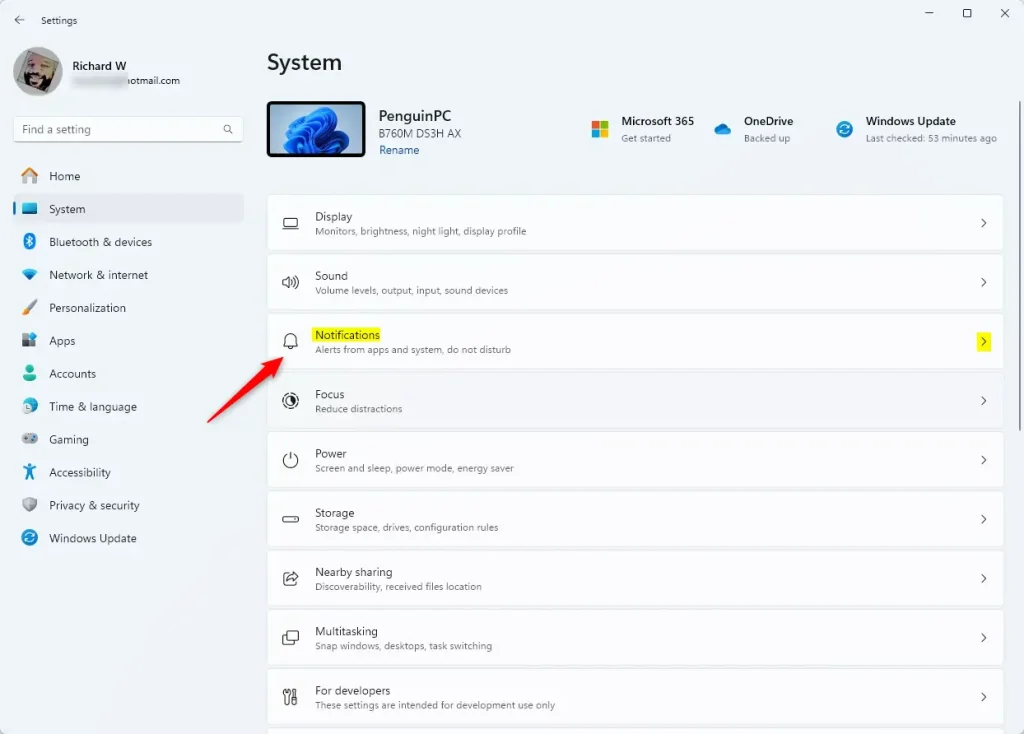
- Click System, then click Notifications. You should now see the main notification options and, further down, a list of apps. (see screenshot below)
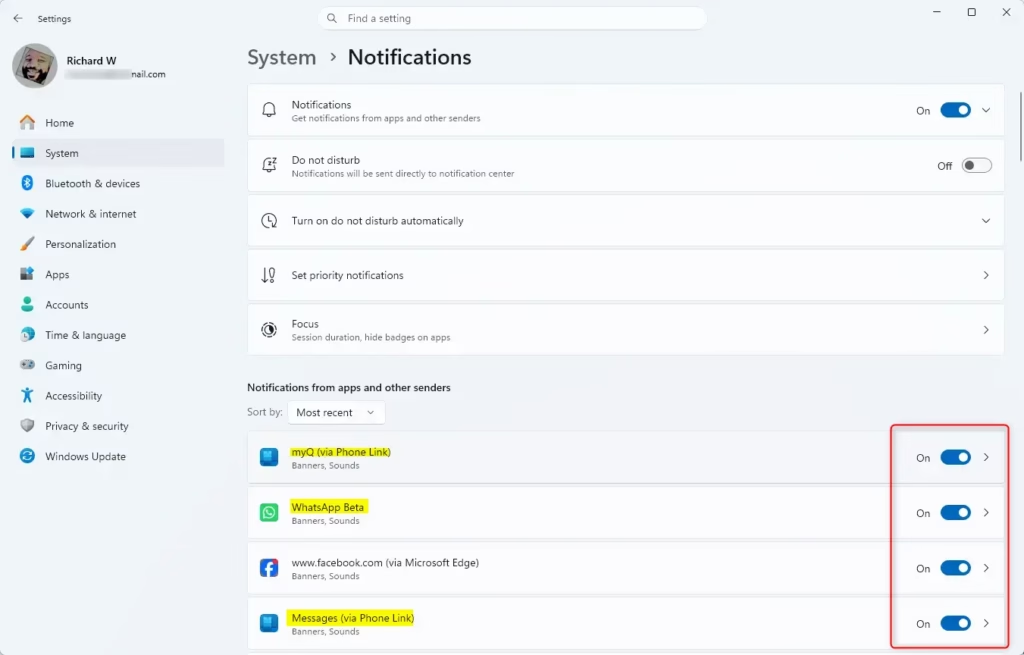
- Click the app you want to change under Notifications from apps and other senders. For example: "Messages (via Phone Link)". The settings page for that app opens. (see screenshot below)
If the app is not in the list, it has probably not sent a notification yet. Apps usually appear here after their first alert.
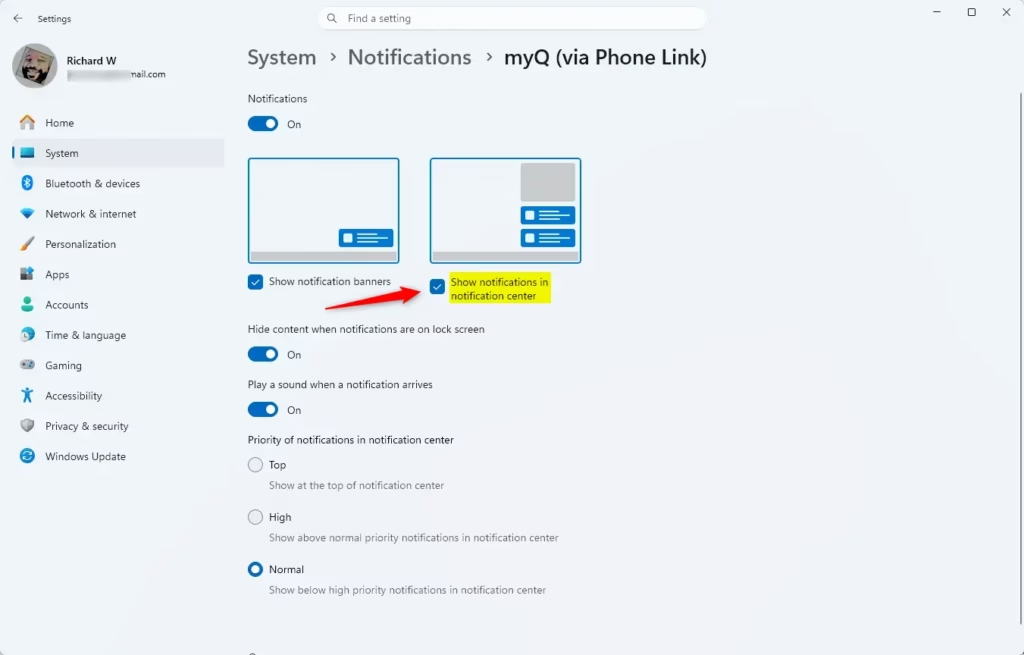
- Check or uncheck Show notifications in notification center. Check the box to turn it on, and uncheck it to turn it off. The change applies right away. There is no Save button. (see screenshot below)
When an app's notifications are switched off completely, the options under it are hidden or unavailable. Also keep in mind that turning off notification banners does not remove the app from Notification Center. These are separate options.
- Close Settings. No restart is needed. To undo the change, come back to the same page and flip the box.
Option 2Use Registry Editor
This is useful if the Settings page does not work for you or if you need to change it by script or on several accounts. Registry Editor is available on both Home and Pro. Be careful in it: a wrong change can cause problems, so consider exporting the key first (File Export) so you can restore it later.
These steps make an app show its notifications in the notification center again, which is the default, by removing any override.
- Open Registry Editor. Type
regedit.exeinto the taskbar search box and press Enter. If Windows asks for permission, click Yes. - Go to the notification settings key. Navigate to this location in the left pane of Registry Editor:
HKEY_CURRENT_USER\Software\Microsoft\Windows\CurrentVersion\Notifications\Settings
- Click the app you want to change under the Settings key. For example: "Microsoft.YourPhone_8wekyb3d8bbwe!YourPhoneMessages". Its values appear in the right pane.
Each app has its own key, named after the app. If you are not sure which key belongs to an app, check the Settings page first. Apps that have never sent a notification may not have a key yet.
Turn On Show Notifications from an App
What happens? The app will show notifications in your notification center.
This is the default configuration. To go back to it, delete the value as shown below.
- Delete the ShowInActionCenter value. In the right pane of the app's key, right-click the ShowInActionCenter DWORD value and click Delete. A confirmation prompt appears.
If you do not have a ShowInActionCenter DWORD, the app already allows alerts in Notification Center, so there is nothing to delete.
- Click Yes to confirm. The value disappears from the right pane.
Turn Off Show Notifications from an App
These steps stop one app from adding alerts to Notification Center by setting the ShowInActionCenter value in that app's key. Other apps keep working as before.
- Open the app's key. Follow the same steps as above to select it under the Settings key.
- Right-click an empty area in the right pane. If ShowInActionCenter already exists, double-click it instead and skip to step 5.
- Click New, then click DWORD (32-bit) Value. A new value appears in the right pane with its name ready to edit.
- Type
ShowInActionCenterfor the name and press Enter. - Double-click the value and type
0for the Value data. Then click OK. The value now shows in the right pane with the data you entered.
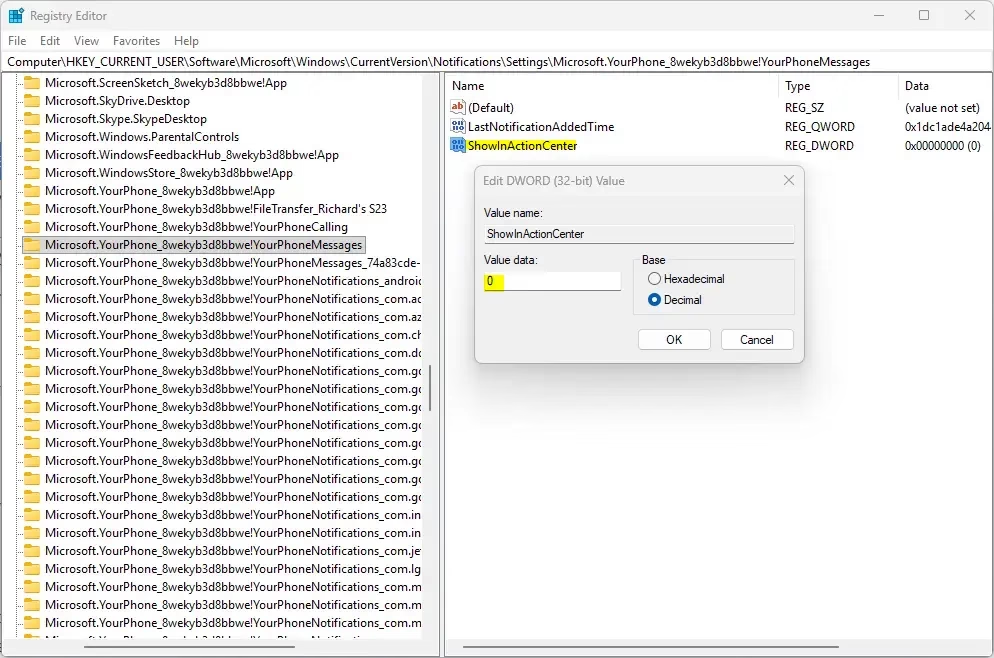
- Close Registry Editor. If the change does not show up in Settings right away, close and reopen Settings, or sign out and back in.
The configuration process is complete. To reverse it later, delete the ShowInActionCenter value as described in the earlier section.
Summary
The Settings app is the right tool for routine changes. Registry Editor works as a backup method when you need more control or when the Settings page is not behaving. Either way, Windows now follows your preference for which apps keep alerts in Notification Center.
Frequently asked questions
Why isn't the notification bar showing up in 🪟 Windows 11?
The notification bar usually disappears because notifications are turned off, or because Windows Explorer has stalled. Open Settings, select System, then Notifications, and check that the Notifications toggle is on. If it already is, press Ctrl+Shift+Esc to open Task Manager, find Windows Explorer, and select Restart.
How do I re-enable notifications?
To turn notifications back on, press Win+I to open Settings and select System, then Notifications. Switch on the Notifications toggle at the top. Scroll to the app you want and turn on its Show notifications in notification center setting. The change takes effect right away, so you do not need to restart the PC.
How do I disable notifications on 🪟 Windows 11?
To turn off notifications for every app, open Settings, select System, then Notifications, and switch off the Notifications toggle. To silence one app, leave that toggle on and turn off only that app's Show notifications in notification center setting. The change affects only this app and this user account.
How can I stop the annoying notifications?
Turn off the apps that cause the noise. Open Settings, select System, then Notifications, and find the app. Switch off Show notifications in notification center, then turn off its banner and lock screen options too. For a quieter session, turn on Do not disturb from the Notifications quick setting in the taskbar.
Still have a question?
Answered by AI from this guide. Good questions may be added to this page — please don't include personal details.
Did this guide fix your problem?

About the Author
Richard
Tech Writer, IT Professional
Richard is a writer at Geek Rewind who turns complex IT tasks into clear, step-by-step guides. He draws on years of hands-on experience in system administration and enterprise IT operations, focusing on Windows, Linux and WordPress: the problems people actually run into, and the fixes that work. His server and WordPress guides come from systems he runs himself. Richard builds and maintains the platform behind Geek Rewind, from its Ubuntu servers and Nginx configuration to its custom WordPress plugins. Many new tutorials start with readers' questions, and he's always glad to answer them in the comments.
No comments yet — be the first to share your thoughts!