How to Turn On or off End of Session Sound in Windows 11 Focus


The end-of-session sound in Windows 11 Focus is a notification that plays when your Focus timer finishes. It is a short chime that tells you the work block is over, so you don’t need to watch the clock.
Windows 11’s Focus feature helps you concentrate by managing work intervals with the Clock app. By default, it plays a specific sound when a Focus session ends. The sound comes from the Clock app, so the switch to change it is in the Clock app’s own settings, not in the main Windows Settings app.
You can turn off this end-of-session sound to create a quieter environment, which is helpful if you find the chime disruptive during focused work, in a shared office, or on a call. You can turn it back on at any time. Changing it does not affect the timer itself or your session history.
Open the Clock app, select Settings at the bottom left, scroll to the End of session sound tile, and switch the toggle to Off. The change saves immediately, with no Save button or restart needed. Your Focus timer still ends on schedule; only the chime is silenced.
Why change this setting?
The end-of-session sound in Windows 11 alerts you when your focus time concludes. Some people like this notification. Others find it disruptive during deep work. You can keep the sound on or turn it off, depending on your preference.
What happens when you are done?
After you complete these steps, Windows 11 will follow your choice. At the end of your next focus session, the Clock app will either stay silent or play the sound, depending on how you set the toggle. Either way, the session still ends on schedule. Only the audio changes. The change applies to your user account and stays in place until you switch the toggle again, so you do not need to restart the PC. Now, let’s look at how to manage this sound.
How to manage the End of Session sound
You manage the end of session sound in Windows 11 by opening the Clock app and changing your Focus settings. This alert plays an audio cue when your timer finishes, so you know your work block is done and it is time for a break. The steps below work the same on Windows 11 Home and Pro, because the setting belongs to the Clock app and not to a Windows policy.
First, open the Clock app:
- Open the Start menu. The Start menu appears with the search box at the top.
- Type "Clock" into the search box. The Clock app should appear at the top of the results.
- Select the Clock app from the results to open it. The Clock window opens, with a list of sections on the left side.
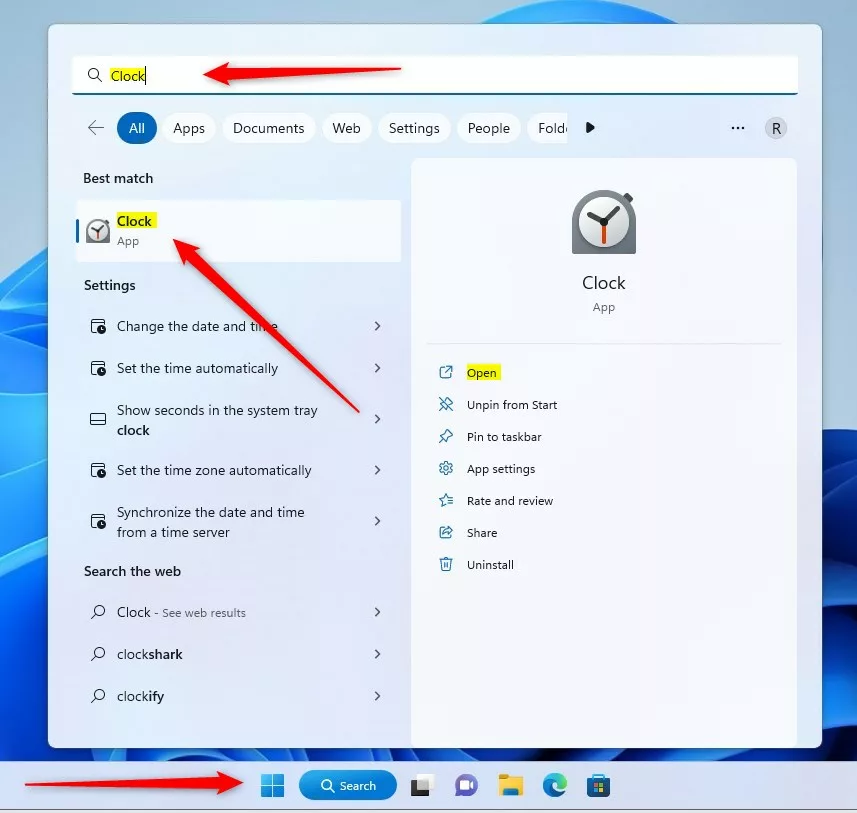
If the Clock app does not show up in search, it may be missing or out of date. You can reinstall or update it from the Microsoft Store. Once the app opens, follow these steps:
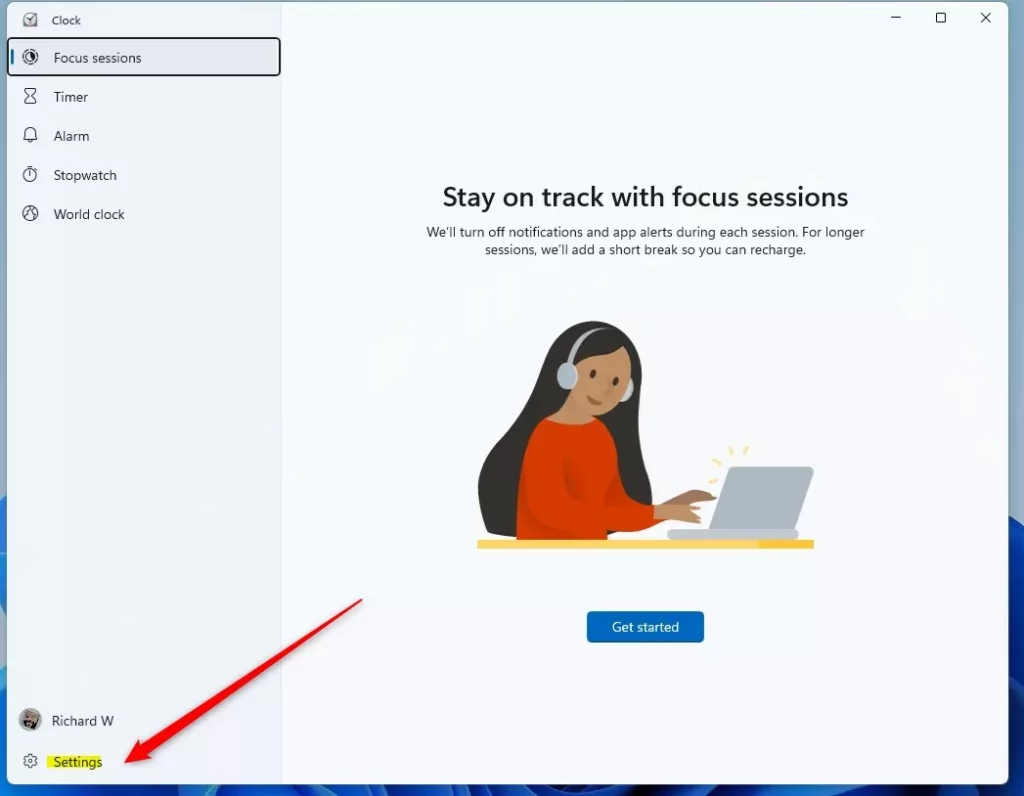
- Click the Settings button located at the bottom left corner of the app. The Clock settings page opens. If you can't see the button, make the window taller or larger, since it can be hidden in a small window.
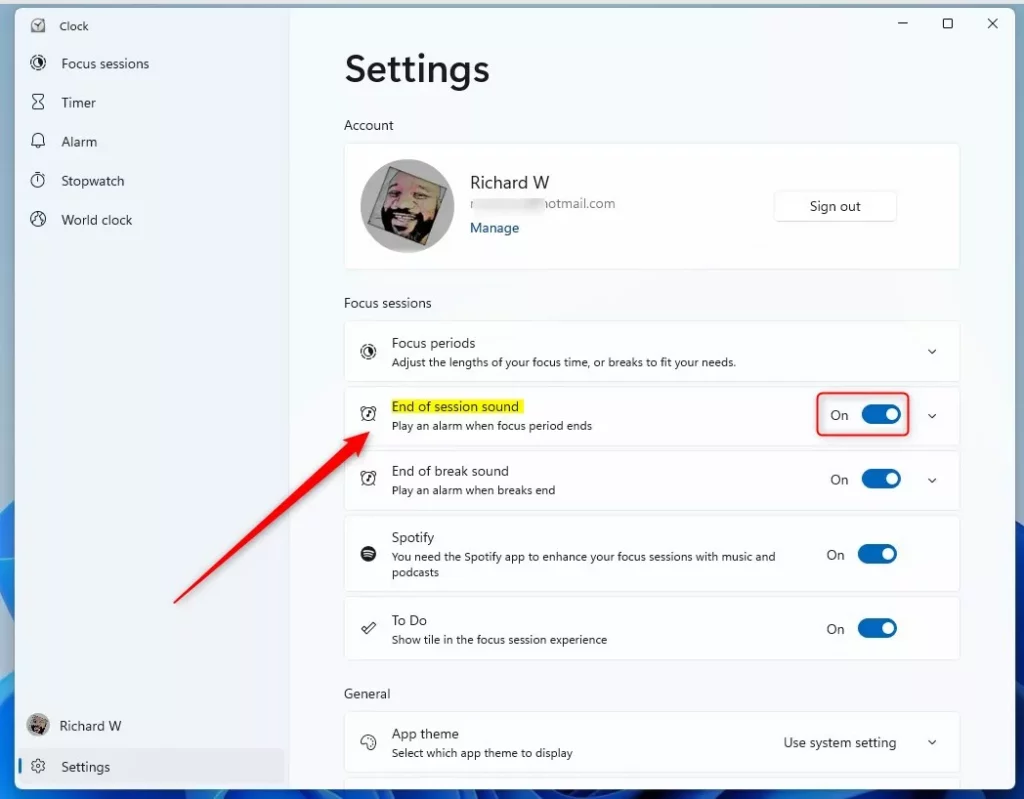
- Look for the End of session sound tile. It sits in the Focus-related settings, so you may need to scroll down the page to find it.
- Use the toggle switch on the right to turn the sound On or Off. The label next to the switch changes to show the new state, and the change is saved right away. There is no Save or Apply button. To undo it, flip the same switch back.
Customization and Limitations
You must use the default sounds provided by the Clock app version 11.2210.39.0.0. This limitation helps ensure Windows 11 runs smoothly and without issues. If you want a different sound, your only choices are the built-in ones the app offers. Otherwise, turn the sound off and use another reminder.
Troubleshooting Focus Session Sounds
If your Focus Session sound isn't playing in Windows 11, first check your system volume and make sure your speakers aren't muted. Also confirm that the right output device is selected, such as your speakers or headphones, and that the volume for the Clock app is not turned down in the volume mixer.
If it is on and you still hear nothing, update the Clock app from the Microsoft Store and restart the app. Notification settings, such as Do not disturb, can also silence alerts, so check those if the problem continues.
For more details, check the official Microsoft Clock app documentation.
Summary
Windows 11 lets you control the alarm sound that plays when a focus session ends, giving you flexibility for your work routine. A single toggle in the Clock app settings turns it on or off, and you can change it whenever your needs change.
Was this guide helpful?

About the Author
Richard
Tech Writer, IT Professional
Richard is a writer at Geek Rewind who turns complex IT tasks into clear, step-by-step guides. He draws on years of hands-on experience in system administration and enterprise IT operations, focusing on Windows, Linux and WordPress: the problems people actually run into, and the fixes that work. His server and WordPress guides come from systems he runs himself. Richard builds and maintains the platform behind Geek Rewind, from its Ubuntu servers and Nginx configuration to its custom WordPress plugins. Many new tutorials start with readers' questions, and he's always glad to answer them in the comments.




[…] recent updates, Microsoft made Do Not Disturb easier to use. It’s part of the new Focus tools that help you stay focused by hiding distractions but still letting important alerts come […]