How to Configure Focus Sessions in Windows 11

Focus sessions in Windows 11 help you block distractions. They hide flashing taskbar apps and silence alerts for a set period, such as 30 minutes. The tool lives inside the Clock app, so you can track daily goals, take timed breaks, and play background music without installing extra software.
You can start a session right away from the notification panel or the Clock app. In the Clock app you can also change your timer lengths, break schedule, and sound choices to fit how you work.
Open the Clock app, select the Focus sessions tab, set your desired session length using the timer, and click the start button. Do Not Disturb activates immediately, hiding taskbar notifications and silencing alerts for your chosen duration.
What are Focus sessions and how do they work?
A focus session is a built-in time management tool. It blocks digital distractions so you can concentrate on one task. When you start a session, Windows does four things for you:
- It turns on Do Not Disturb, so notification banners stop sliding onto your screen and alert sounds are silenced.
- It hides flashing app badges on your taskbar, so nothing tempts you to click away.
- It starts a visual timer, so you can see how much of the session is left.
- It lets you work in timed blocks with short breaks, if you turn breaks on.
Do Not Disturb is switched off again when the session ends or when you stop it yourself. Notifications that arrived during the session are not lost. You can read them in the notification center afterward.
Working this way helps you concentrate deeply. You can finish tasks faster and have more free time later.
How to start a Focus session in 🪟 Windows 11
You can start a session in two ways. Both take just a few clicks, and both use the pre-installed Clock app. Use whichever is closer to hand.
Option 1Start from the Clock app
- Open the Start menu, type Clock, and select the Clock app from the results. The Clock app window opens.
- Choose the Focus sessions tab in the left-hand navigation. You should see a timer with a time length and a start button.
- Set the session length. The default is 30 minutes, and you can raise or lower it.
- Click the start button. The timer begins counting down and Do Not Disturb turns on.
Option 2Start from the notification center
- Press the Win+N. The notification center opens.
- Find the focus section at the top of the panel. Adjust the session length if you want a different one.
- Click the start button there. The session starts without opening the full Clock app.
To end a session early, open the Clock app and stop the timer. Do Not Disturb then turns off and your taskbar badges return.
From the calendar and notification area
Start a session straight from the taskbar without opening any standalone apps. Click on the clock and date in the bottom-right corner of your screen, use the plus and minus buttons to set your desired time, and click the Focus button to begin your work session right away.- Look at the bottom-right corner of your screen and click on the clock and date.
- At the bottom of the panel that appears, look for the Focus section.
- Use the plus and minus buttons to set how long you want your Focus session to last.
- Click the Focus button to start your session right away.
From the Settings app
- Click the Start button and open the Settings app.
- Click on System on the left side menu.
- Click on Focus from the main options.
- Click the Start focus session button near the top of the screen.
From the Clock app
- Click the Start button, type Clock, and open the app.
- Click on the Focus sessions tab on the left menu.
- Choose your desired time using the arrows.
- Click the blue Focus button to begin.
How to configure and personalize your Focus sessions
You can change how Focus behaves to match your personal work habits. Windows 11 lets you adjust timer lengths, sound alerts, and visual elements.
Accessing Focus settings
- Open the Settings app from your Start menu.

Settings - Go to System and then click on Focus.
Customizing timer and break options
Adjust your work blocks and rest periods to fit your personal habits. You can easily adjust the timer length for your work blocks, set break durations, and choose whether Windows plays a soft sound when your session ends or when it is time to take a break.
Do not disturb during focus
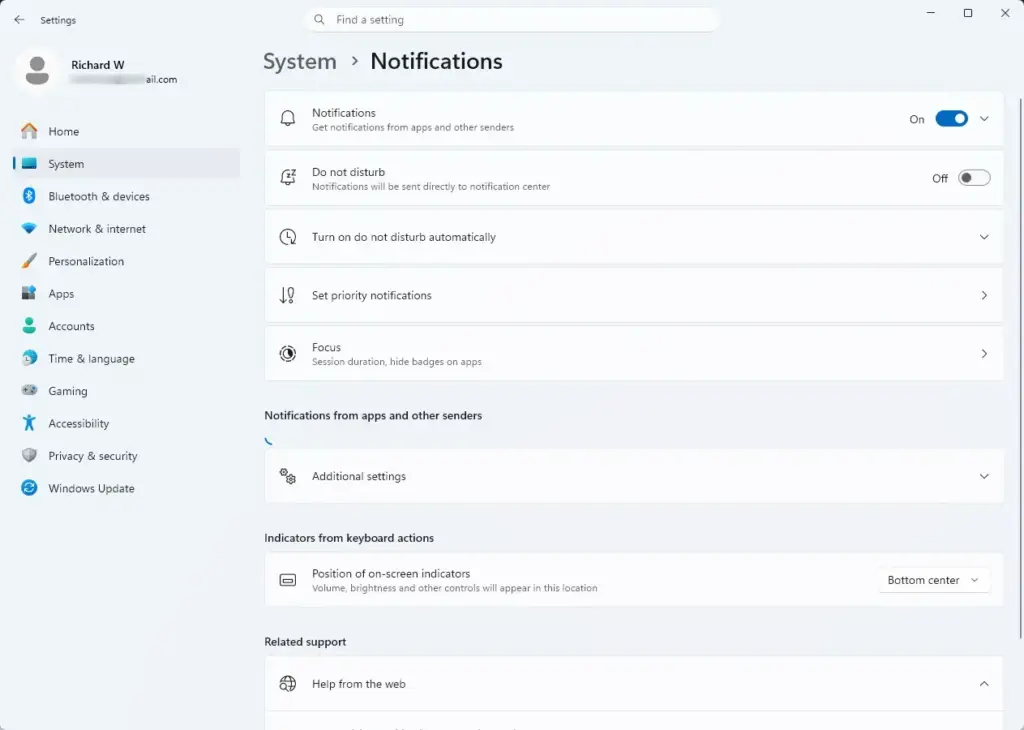
Do Not Disturb stops notification banners and alert sounds from interrupting your work. You can easily check or change your notification rules by opening the Settings app, going to system settings, clicking on notifications, and scrolling down to the rules for when you use Focus.
To check or change your notification rules during Focus:
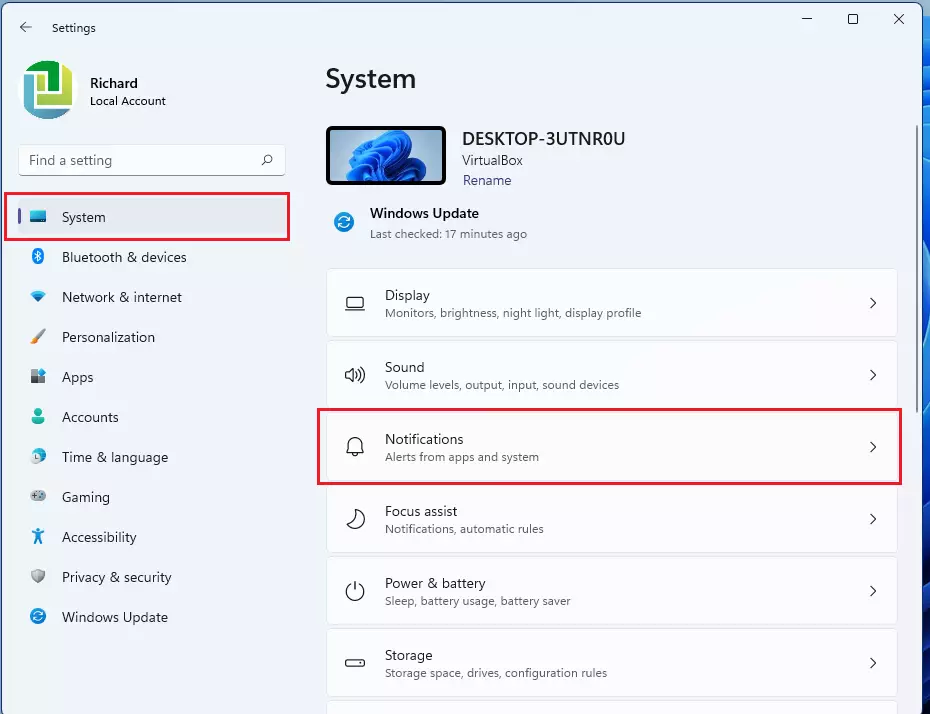
- Open the Settings app and select System.
- Click on Notifications.
- Scroll down to find rules for when you are presenting, duplicating your screen, or using Focus.
- Ensure that notifications are set to hide automatically during Focus sessions. You can also set up a priority list of specific contacts or urgent apps that are allowed to bypass Do Not Disturb if an emergency happens.
Connecting external tools for a better workflow
Focus sessions in Windows 11 do more than just silence your computer. You can link external apps and task managers to keep everything organized.
Keep track of tasks with Microsoft To Do
Play audio from Spotify during focus sessions
Connecting your Spotify account to the Windows Clock app lets you play music or ambient noise during work periods. Many people work better when listening to audio, and you can link a Spotify account directly inside the Windows Clock app to select your favorite focus playlist and play it with a single click when your session begins.
Advanced productivity tricks for 🪟 Windows 11
You can combine basic Focus settings with other Windows 11 features to create a better distraction-free workspace.
Combine Focus with Virtual Desktops
Combining Focus with virtual desktops in Windows 11 keeps your personal tasks and work projects completely separate to avoid clutter that ruins your concentration. You can press the Win+Tab on your keyboard to open Task View, click the new desktop button at the top of the screen, and set up a clean workspace just for your deep work sessions.
- Press the Win+Tab on your keyboard to open Task View.
- Click the New desktop button at the top of the screen.
- Switch to your new work desktop before you start your Focus session. This separates your personal icons and open windows from your work environment.
Streamline your taskbar and visual environment
Streamlining your taskbar and visual environment in Windows 11 hides flashing app icons and unnecessary items that draw your eyes away from your work. You can do this quickly by opening the Settings app, selecting personalization, clicking on taskbar, and turning off badge notifications for chat apps so your screen stays clean and distraction-free.

- Open the Settings app and select Personalization.
windows 11 notifications tile windows 11 notifications tile - Click on Taskbar.
- Hide unnecessary taskbar items and turn off badge notifications for chat apps. By combining a clean taskbar with a Windows Focus session, you remove almost every visual distraction.
Summary
Focus sessions in Windows 11 offer a complete system to block out digital distractions, manage your time, and get more work done. By combining the built-in timer, Do Not Disturb mode, virtual desktops, and simple taskbar tweaks, you can create the ideal work environment and start your sessions easily from your settings, taskbar, or Clock app.
Frequently asked questions
Should focus be on or off?
Turn focus on when you need to concentrate on a task without interruptions. Keep it off during normal work when you want to receive notifications and alerts normally. It's your choice based on what you're doing right now.
Does 🪟 Windows 11 have a focus mode?
Yes. Windows 11 has Focus sessions, a built-in tool in the Clock app that blocks distractions by silencing notifications, hiding taskbar alerts, and running a timer. You can customize session length, break duration, and notification settings.
How to disable focus sessions in 🪟 Windows 11?
Open the Clock app and go to Focus sessions. Turn off the toggle at the top to disable the feature entirely. To end a running session early, select the active timer and choose to stop it.
What does focus session mean?
A focus session is a timed period where Windows blocks digital distractions to help you concentrate. It silences notifications, hides flashing app badges, and runs a countdown timer. Sessions typically last 25 to 60 minutes with built-in breaks.
Still have a question?
Answered by AI from this guide. Good questions may be added to this page — please don't include personal details.
Did this guide fix your problem?

About the Author
Richard
Tech Writer, IT Professional
Richard is a writer at Geek Rewind who turns complex IT tasks into clear, step-by-step guides. He draws on years of hands-on experience in system administration and enterprise IT operations, focusing on Windows, Linux and WordPress: the problems people actually run into, and the fixes that work. His server and WordPress guides come from systems he runs himself. Richard builds and maintains the platform behind Geek Rewind, from its Ubuntu servers and Nginx configuration to its custom WordPress plugins. Many new tutorials start with readers' questions, and he's always glad to answer them in the comments.
No comments yet — be the first to share your thoughts!