How to Link Spotify to Focus Sessions in Windows 11

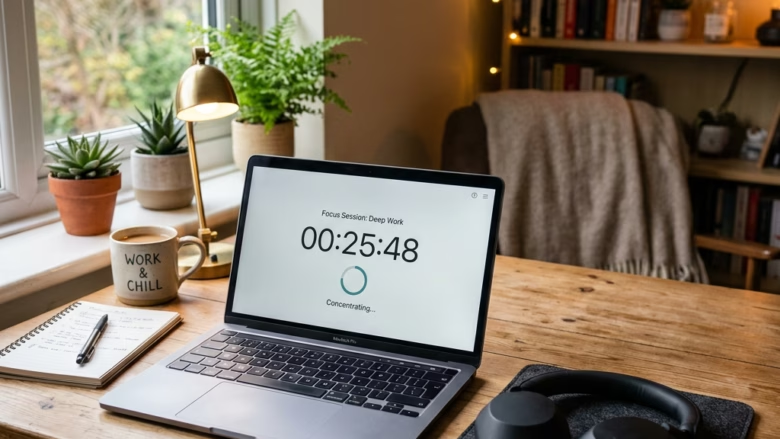
Linking Spotify to Focus Sessions in Windows 11 plays music in the background while you work and blocks screen distractions. Focus is a built-in tool inside the Windows Clock app. It turns on Do Not Disturb so notifications stop popping up, and it hides flashing taskbar alerts while your timer runs.
Open the Clock app, select Focus sessions from the left menu, click the button to link your Spotify account, sign in to Spotify and approve permissions, choose a playlist, set your session length, then click Start focus session. Your playlist plays and Do Not Disturb turns on.
Connecting your Spotify account lets you pick a playlist that starts playing the moment your timer begins. You can set up a custom timer, such as a 45-minute work block paired with a calm instrumental playlist, to help you stay on task without touching your phone.
Before you start, check three things:
- You have a Spotify account. A free account generally works, but ads can interrupt a free account’s playback. A Premium account avoids that.
- Windows 11 is fully updated, and the Clock app is updated through the Microsoft Store. An old version of Clock may not show the Spotify option.
- You can sign in to Spotify in a browser. The link step opens a sign-in window, and you will need your Spotify login.
Here is how to link the account and start a session:
- Click Start, type Clock, and open the Clock app. If it is missing, install it from the Microsoft Store.
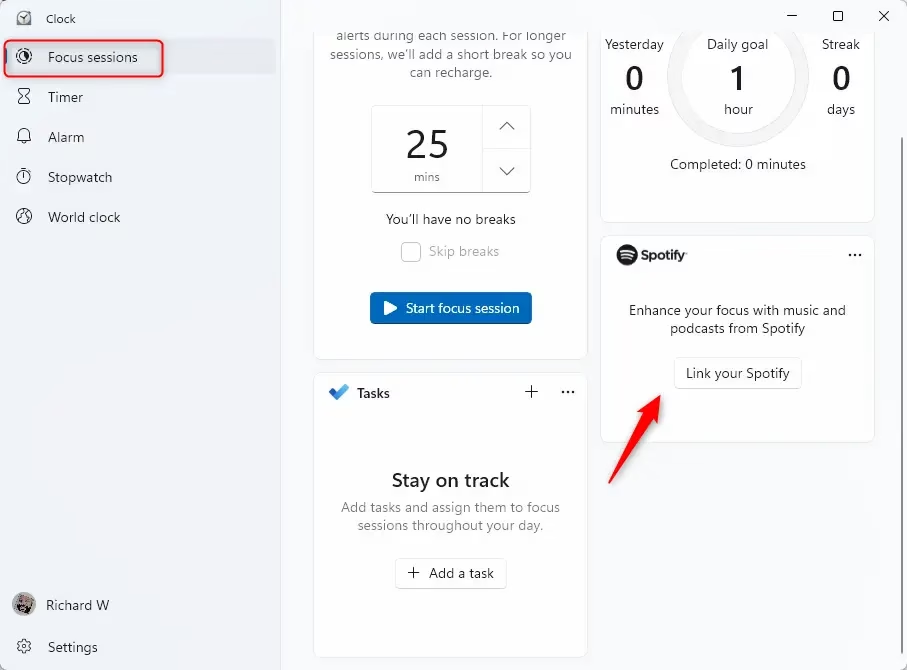
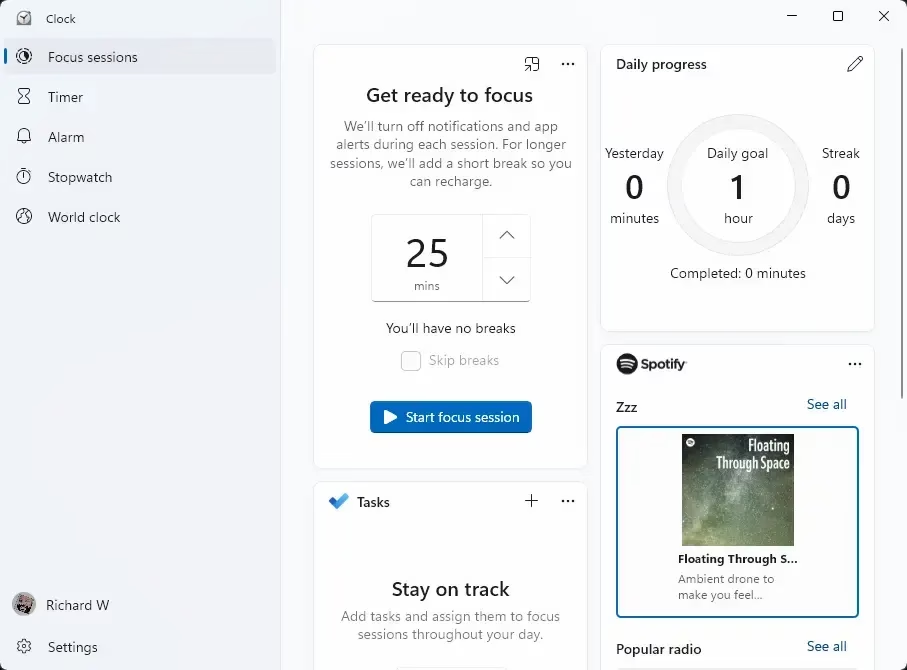
- In the left-hand menu, select Focus sessions. You should see a timer dial, a session length setting, and a Spotify panel.
- Find the Spotify section and click the button to link your account. A sign-in window opens.
- Sign in to Spotify and approve the permission request. When you return to the Clock app, your Spotify details should show in the Focus sessions page.
- Choose a playlist from the Spotify panel. Pick something without lyrics if words distract you.
- Set your session length. For the example above, choose 45 minutes. If you want scheduled rest periods, turn on the breaks option.
- Click Start focus session. The timer begins counting down, your playlist starts, and Do Not Disturb turns on.
If the Spotify option is missing or the sign-in fails, update the Clock app in the Microsoft Store, restart the app, and try again. Spotify and Windows Clock both need a working internet connection. A restart of Windows is not normally needed.
To undo the link, open Spotify’s account settings in your browser and remove the Microsoft or Windows app from the apps allowed to access your account. You can also stop a running session at any time with the stop button in the Clock app, which turns Do Not Disturb back off.
Here’s How:
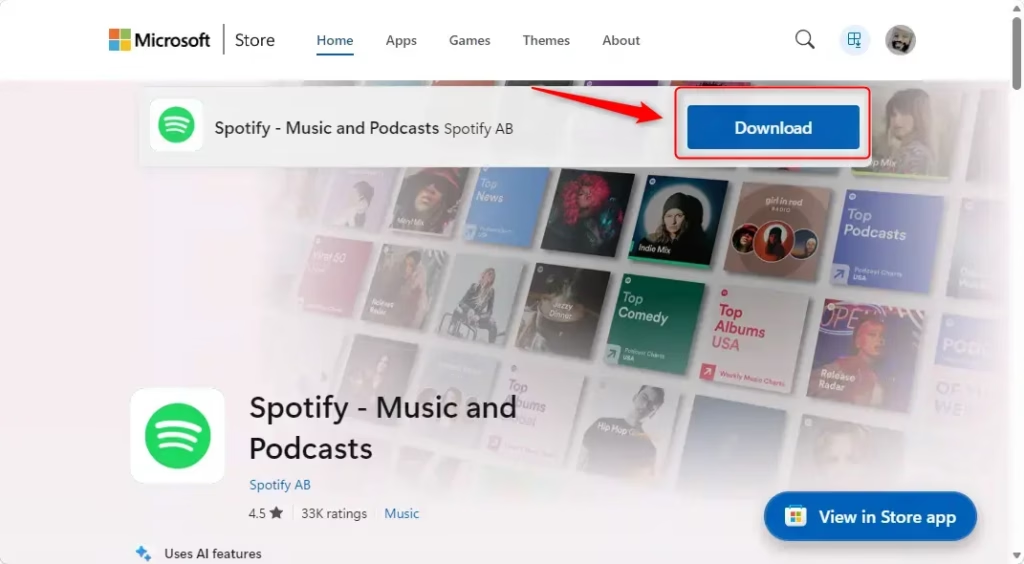
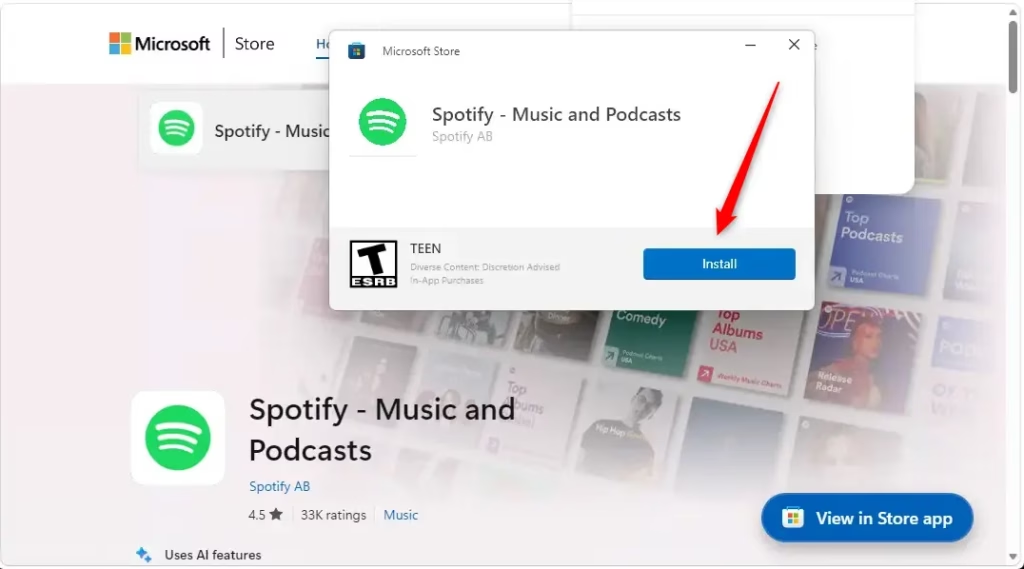
Spotify Focus Sessions Windows integration lets you play background music while using the built-in timer. To set this up, open the Clock app, make sure you have the Spotify app installed and log in to your account through the settings menu to connect your music directly to your work timers.- Open the Clock app. Clock
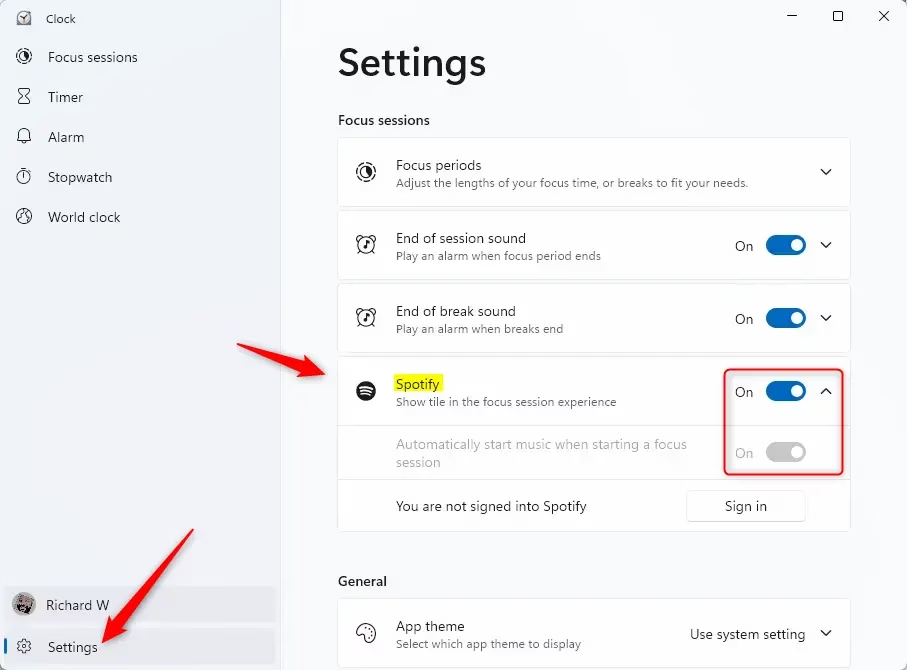
- Click Settings in the left side of the Clock app.
- Click Spotify to open its settings.
- Turn on Spotify if it’s not already on.
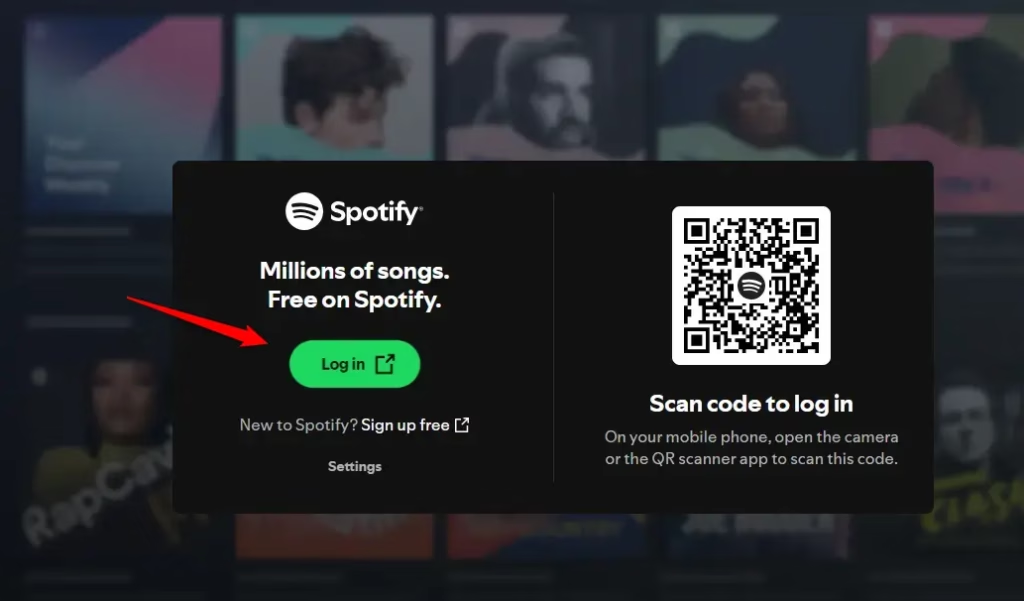
- Click Sign in if you’re not signed into Spotify.
- Sign in to Spotify. Click Agree and Open Clock if a window appears.
- Spotify is now linked to your Clock app. You can use it during focus sessions.
Summary
You’ve successfully linked Spotify to Focus Sessions in Windows 11. Install Spotify, open the Clock app, go to Settings , click Spotify, and sign in. Your music now plays during focus time. Stay focused and productive with your favorite songs.
Have a question about this guide?
Answered by AI from this guide. Good questions may be added to this page — please don't include personal details.
Did this guide fix your problem?

About the Author
Richard
Tech Writer, IT Professional
Richard is a writer at Geek Rewind who turns complex IT tasks into clear, step-by-step guides. He draws on years of hands-on experience in system administration and enterprise IT operations, focusing on Windows, Linux and WordPress: the problems people actually run into, and the fixes that work. His server and WordPress guides come from systems he runs himself. Richard builds and maintains the platform behind Geek Rewind, from its Ubuntu servers and Nginx configuration to its custom WordPress plugins. Many new tutorials start with readers' questions, and he's always glad to answer them in the comments.
No comments yet — be the first to share your thoughts!