Want Spotify Auto-Play During Focus Sessions in Windows 11?


You can automatically play Spotify music whenever you start a focus session in Windows 11.
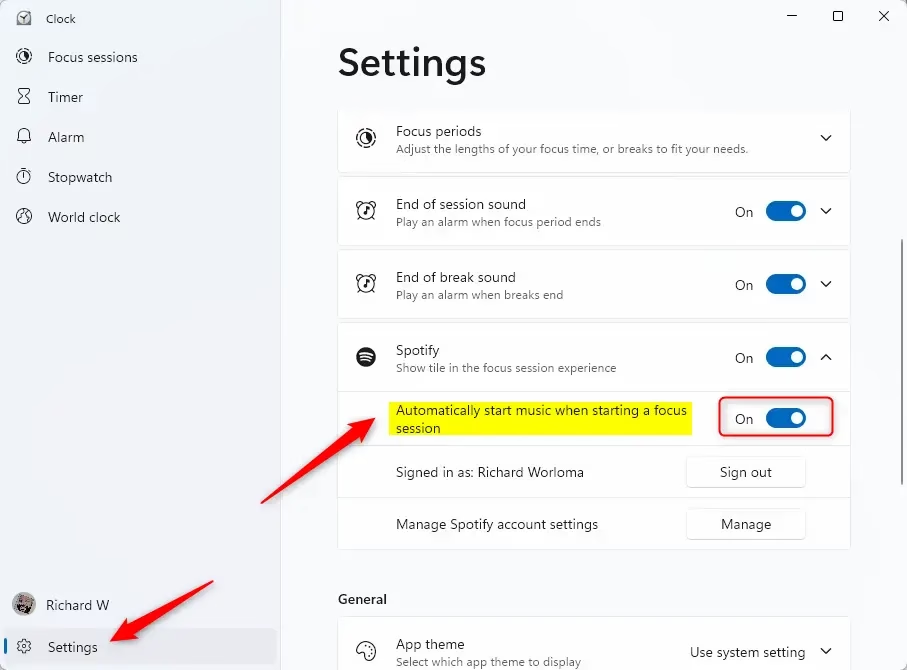
Open the Clock app, navigate to Settings, expand the Spotify section, and toggle the “Automatically start music when starting a focus session” option on or off. This setting controls whether Spotify plays during your Windows 11 focus sessions.
What Is Focus?
Think of a focus session in Windows 11 as a personal productivity boost, designed to help concentration by cutting down on distractions.
Why Use Spotify with Focus?
Connecting a Spotify account to the Clock app (Windows’ built-in timer and focus tool) means music starts playing automatically when a focus session begins. This behavior is active by default, but adjustments remain fully available.
What You Need
Open Spotify before you change this setting.
Steps to Enable or Disable Automatic Spotify Playback
Open the Clock app to change this setting.- Open the Clock app.
- Click or tap Settings in the left pane of the Clock app.
- Click or tap Spotify in settings to expand it.
- Turn on (this is the default) or off the option that says Automatically start music when starting a focus session. Choose what works for you.
Learn More
Focus: Stay on Task Without Distractions in Windows (a Microsoft Support article)
Summary
Managing Spotify auto-play for Windows 11 focus sessions lets users decide if music aids concentration.
Was this guide helpful?

About the Author
Richard
Tech Writer, IT Professional
Richard is a writer at Geek Rewind who turns complex IT tasks into clear, step-by-step guides. He draws on years of hands-on experience in system administration and enterprise IT operations, focusing on Windows, Linux and WordPress: the problems people actually run into, and the fixes that work. His server and WordPress guides come from systems he runs himself. Richard builds and maintains the platform behind Geek Rewind, from its Ubuntu servers and Nginx configuration to its custom WordPress plugins. Many new tutorials start with readers' questions, and he's always glad to answer them in the comments.


No comments yet — be the first to share your thoughts!