How to Stop Spotify from Starting Automatically on Windows 11


Spotify auto-launching on Windows 11 opens the music app in the background the moment you turn on your PC, which adds extra seconds to your boot time and uses system memory right away. You can stop this behavior in under a minute by changing settings inside the app or by using Task Manager (the tool Windows uses to manage running apps and startup programs).
Disabling background startup speeds up your computer start and keeps your screen free of unwanted pop-ups.
Open Spotify, go to Edit Preferences Show Advanced Settings Under “Startup and windows behavior,” change “Open Spotify automatically after you log into the computer” to No. Alternatively, disable Spotify in Windows Task Manager ’s Startup tab.
Method 1Change Spotify Settings
You can disable Spotify auto start directly from the app settings if you want to stop the music player from opening when you turn on your PC. Open the Spotify app, go to the preferences menu, and turn off the startup setting so it stays closed until you open it yourself.
- Open Spotify from your Start menu or desktop icon.
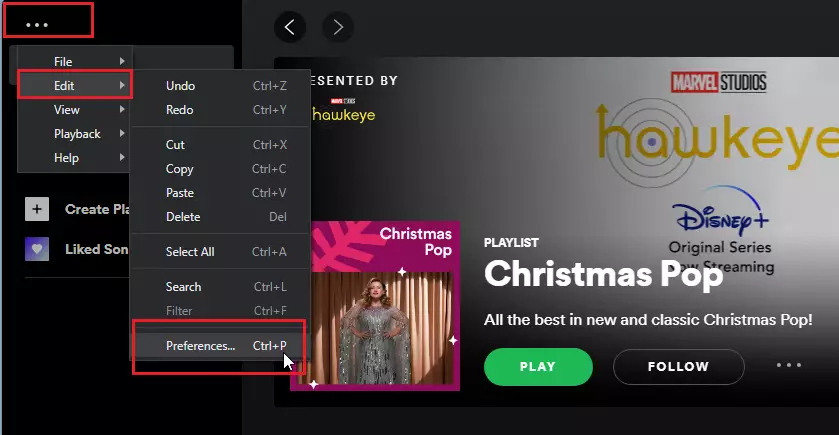
- Click the three dots (…) in the top-left corner.
- Go to Edit Preferences.
Scroll to the bottom of the page.
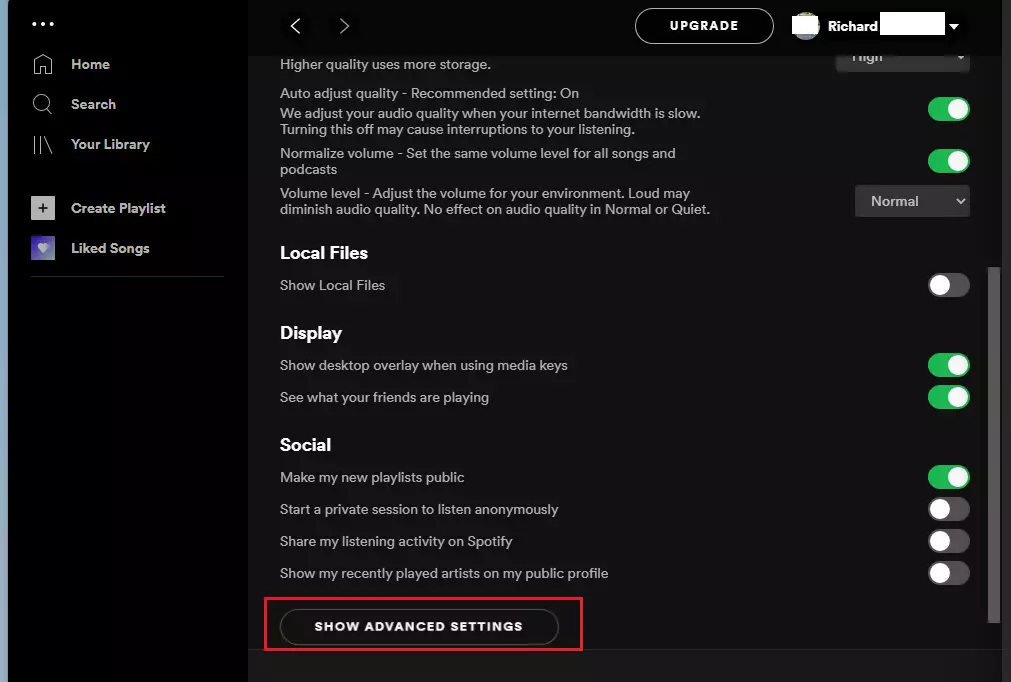
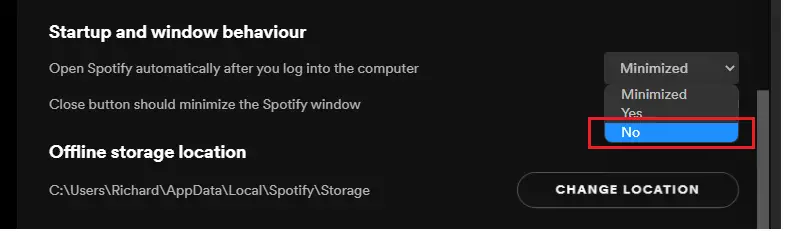
Click Show Advanced Settings, locate the Startup and windows behavior section, and change "Open Spotify automatically after you log into the computer" to No.
Method 2Use Task Manager
Task Manager (a built-in utility that controls which programs run at startup) lets you disable Spotify auto start if the setting inside the app is not working. Open Task Manager, go to the startup tab to find the app in the list, and turn off its permission to run when Windows boots up.
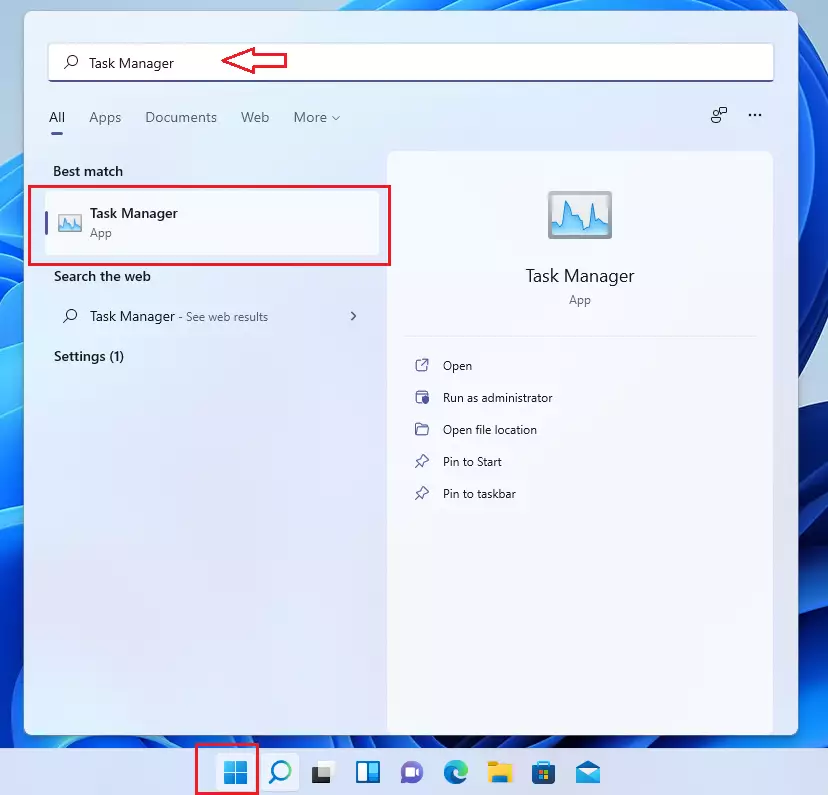
- Click the Start button and type "Task Manager."
- Select the Task Manager app from the list.
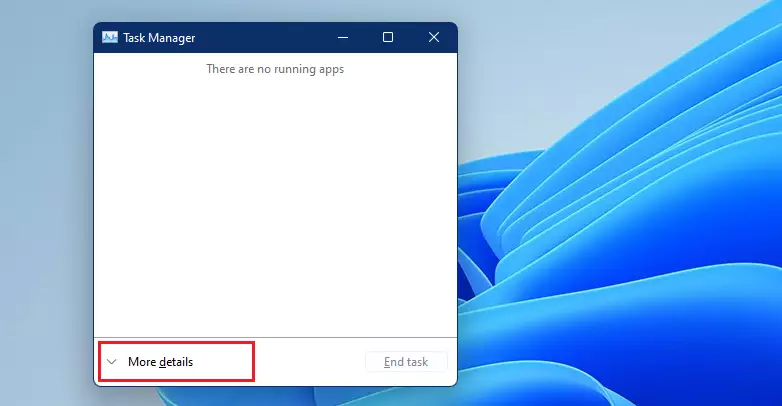
Open Task Manager and select the Startup tab. If the tab isn't immediately visible, click 'More details' at the bottom of the window to show all tabs.
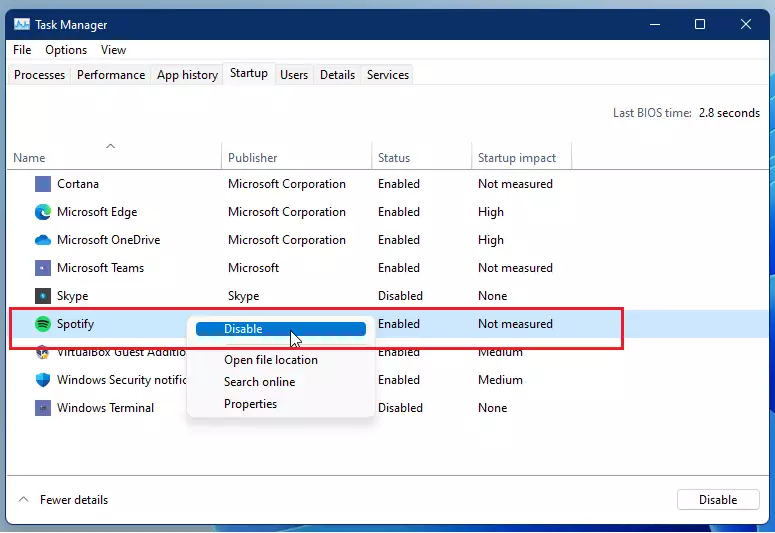
Find Spotify in the list. Right-click it and select Disable.
Summary
This guide covered two methods for preventing Spotify from launching automatically on your PC.
If you found this guide helpful, please consider liking and subscribing.
Was this guide helpful?

About the Author
Richard
Tech Writer, IT Professional
Richard is a writer at Geek Rewind who turns complex IT tasks into clear, step-by-step guides. He draws on years of hands-on experience in system administration and enterprise IT operations, focusing on Windows, Linux and WordPress: the problems people actually run into, and the fixes that work. His server and WordPress guides come from systems he runs himself. Richard builds and maintains the platform behind Geek Rewind, from its Ubuntu servers and Nginx configuration to its custom WordPress plugins. Many new tutorials start with readers' questions, and he's always glad to answer them in the comments.


No comments yet — be the first to share your thoughts!