What to Do When Your Printer Stops Appearing in Devices and Printers
A missing printer in Devices and Printers usually means one of three things. The Print Spooler service (the part of Windows that manages printing) stopped running, the printer driver got corrupted or deleted, or Windows lost its connection to the device. Restarting the Print Spooler fixes the problem in most cases, so try that first before you reinstall anything.
Advertisement
Your printer might disappear from one place but still show up in another. It could vanish from Devices and Printers in the Control Panel 🎛️ but still appear in Settings under Printers & scanners, or the other way around. This guide covers both locations so you can check everywhere.
Work through the steps in order. Most people get their printer back without reinstalling the driver or doing anything complicated. Usually the first two or three steps do the job. Some later steps remove devices or look at the registry, so the guide points out where to create a restore point first.
⚡ Quick Answer
Restart the 🔄 Print Spooler service to bring a missing printer back into Devices and Printers. Press Win+R, type services.msc, press Enter, right-click Print Spooler, and select Restart (or Start if Restart is greyed out). If the printer still doesn’t appear, the spooler’s stuck print job files may be corrupted, and clearing them from 📁C:\Windows\System32\spool\PRINTERS usually fixes it.
Advertisement
Why Printers Disappear From This List
A printer usually drops out of Devices and Printers for one of these reasons. Knowing which one fits your situation tells you which section below to start with.
The Print Spooler service (the background process that manages print jobs and printer detection) has crashed or stopped.
A recent Windows Update 🔃 replaced or removed the printer driver.
The printer is a USB device and the port, cable, or USB controller dropped the connection.
The printer is a network or Wi-Fi 📶 device that went to sleep, changed IP address, or lost its network connection.
The device is still installed but hidden from view because Windows is only showing non-hidden devices.
On a work or school PC, a Group Policy setting managed by IT is filtering which printers show up.
If the printer vanished right after an update, the driver is the likely cause. If it vanished after a power cut or moving the printer, look at the cable or network first. If every printer vanished at once, start with the spooler.
Restart the Print Spooler Service
This step alone fixes the problem more often than anything else on this list. It restarts the Print Spooler (a background service that detects and manages your printers) without changing your driver or settings.
Advertisement
Requirement: stopping and starting the spooler, and deleting files from the spool folder, both need administrator rights. Sign in with an admin account, or be ready to enter admin credentials when Windows asks. The spool folder may also need elevation to open, so File Explorer might show a prompt before it lets you in (covered in the second set of steps).
Open the Services app. Press Windows key + R, type services.msc, and press Enter. You'll see a list of every Windows service on your PC. Run dialog
Scroll down and find Print Spooler in the list.
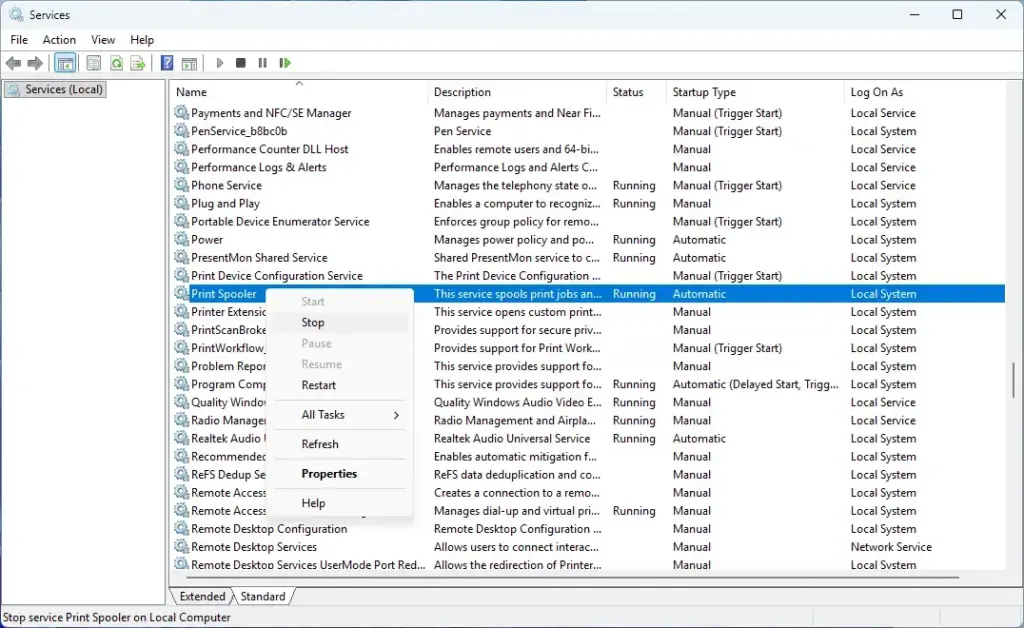
Right-click Print Spooler and select Restart. If Restart is greyed out, select Start instead. This means the service had already stopped completely. The Status column should now read Running.
Close the Services window and reopen Devices and Printers. Check whether your printer is back in the list.
If restarting the service throws an error, or the service won't start at all, the spooler's queue files may be corrupted. Clear them out before trying again:
Open Services and stop the Print Spooler service (right-click it, select Stop). The Status column should go blank.
Open File Explorer and go to C:\Windows\System32\spool\PRINTERS. If Windows says you need to provide administrator permission to access the folder, select Continue and approve the prompt.
Delete every file inside that folder, but leave the folder itself in place. These are stuck print job files, not printer settings, so deleting them is safe and won't remove your printer or driver. If Windows says a file is in use, the spooler is still running. Go back and confirm it is stopped.
Go back to Services and start the Print Spooler service again (right-click it, select Start). Then check Devices and Printers once more.
Run the Printer Troubleshooter
Windows 11 has a built-in troubleshooter that checks for the most common printer problems automatically, including missing devices. It runs through the Get Help app, so Get Help may open when you start it.
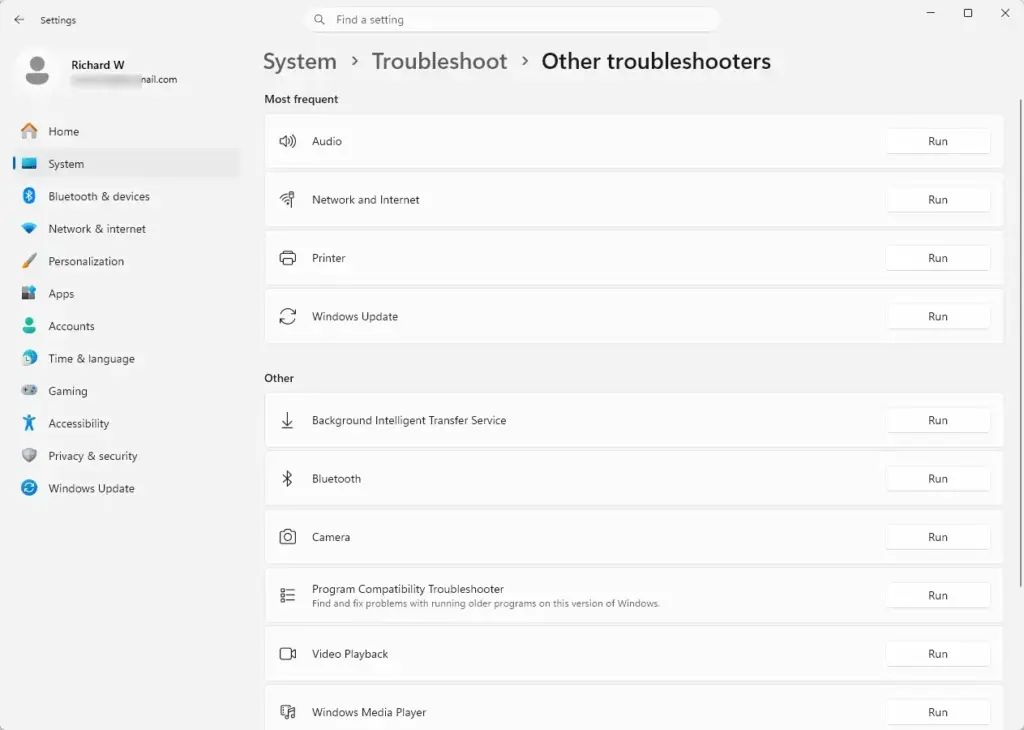
Open Settings›System›Troubleshoot
Select Other troubleshooters. You'll see a list of troubleshooters. Settings › System › Troubleshoot › Other troubleshooters
Find Printer in the list and select Run. Get Help opens and starts the printer troubleshooter.
Follow the prompts. Windows will scan for spooler errors, driver issues, and offline devices, and tell you what it found and fixed.
If the troubleshooter reports "we couldn't identify the problem," that doesn't mean nothing is wrong. It means the fix needs to be manual, so move on to checking hidden devices and drivers below.
Advertisement
Check for Hidden Devices
Windows might be hiding a printer that's installed but not currently reachable. This happens with USB printers that got unplugged or network printers that went offline.
Open Devices and Printers (search for it from the Start menu, or run control printers from the Run dialog).
Check whether the printer shows up greyed out or with a small warning icon. A greyed-out icon means Windows still has the printer installed but can't currently reach it. That's a connection problem, not a missing-driver problem.
Open Device Manager (right-click the Start button and select it) and go to the View menu.
Select Show hidden devices. Expand Print queues or Printers and look for your device listed as greyed out.
⚠️WarningThe next step removes a device entry.
It's low risk, but create a restore point first so you can roll back if something goes wrong. Also note the current driver. In Device Manager, right-click the printer, select Properties, open the Driver tab, and write down the provider and version.
To create the restore point, search the Start menu for "Create a restore point" and open it. On the System Protection tab, select your Windows drive and choose Create. If Create is greyed out, protection is turned off for that drive. Select Configure and turn it on first.
Back in Device Manager, right-click the greyed-out printer and select Uninstall device. If a checkbox offers to delete the driver software, leave it cleared for now.
Reconnect the printer (or power it on) and let Windows reinstall it automatically. This won't affect any other devices or settings.
Check Printers & Scanners in Settings
Windows 11 keeps printer management in two places. A device can appear in one but not the other depending on how it was installed.
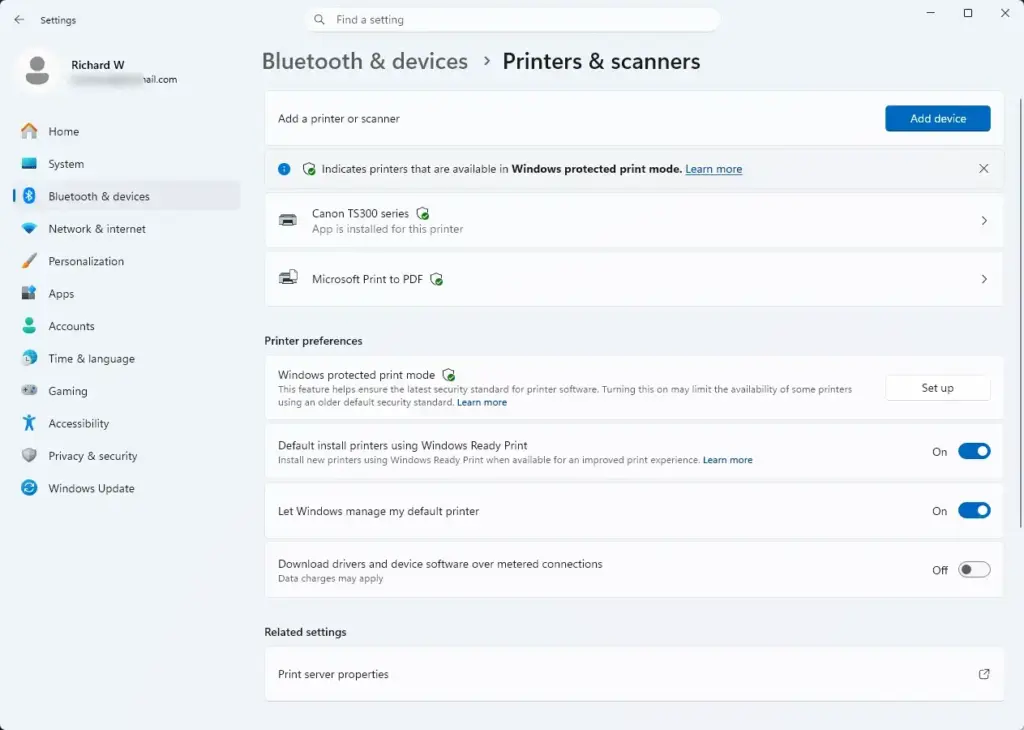
Open Settings›Bluetooth & devices›Printers & scannersSettings › Bluetooth › Printers
Check whether your printer is listed here even if it's missing from Devices and Printers. If it is, select it and check its status. If it's listed here, you can still print from it.
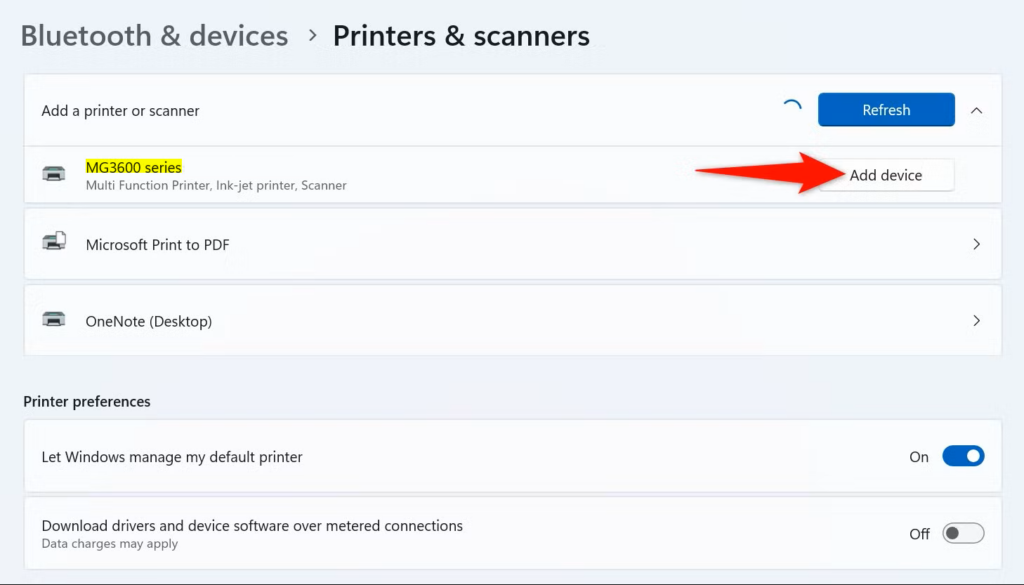
If it's not listed here either, select Add device at the top and let Windows search for it.
If Windows doesn't find it automatically, select Add manually, then Select a shared printer by name or Add a local printer or network printer with manual settings, depending on how the printer connects. Windows 11 Add device screen searching for wireless printers.
Update or Reinstall the Printer Driver
If the printer still doesn't appear after restarting the spooler and checking hidden devices, the driver itself may be missing or corrupted. This is especially common right after a Windows Update. If you haven't already, create a restore point and note the current driver version as described in the hidden devices section, because the steps below uninstall a device.
Advertisement
Open Device Manager and expand Print queues or Printers.
Right-click your printer (if it's listed at all) and select Update driver, then Search automatically for drivers.
If Windows says the best driver is already installed but the printer still won't show up, check Windows Update for a driver. Open Settings›Windows Update›Advanced options›Optional updates If a driver update for your printer is listed under Driver updates, select it and choose Download & install.
If that doesn't help, uninstall the device: in Device Manager, right-click it and select Uninstall device. Reinstalling a driver won't affect saved documents or print history. You will need to reconfigure any custom print preferences (like default paper size) afterward.
Go to the printer manufacturer's website and download the current driver for your exact model and your version of Windows. Run the installer and reconnect the printer when prompted.
If you can't find a driver for your exact model, check whether the manufacturer offers a universal or "class" driver. Most manufacturers keep one for older models that Windows Update no longer ships automatically.
For network printers, you may not need a manufacturer driver at all. Windows 11 can install its built-in Microsoft IPP Class Driver, which talks to most modern network printers directly. If you add a network printer and Windows picks that driver, it's working as intended.
One more thing to know on newer Windows 11 builds: Windows Protected Print Mode blocks third-party printer drivers. If it's turned on, printers that depend on a manufacturer driver may not appear or may stop working. On a work PC, IT may have enabled it. On your own PC, check whether it was turned on before you spend time reinstalling drivers it will block.
Check USB Connections and Ports
For USB-connected printers, a loose cable or a failing port is one of the most common causes of a printer silently disappearing.
Advertisement
Unplug the USB cable from both the printer and the PC, then plug it back in firmly on both ends. Listen for the Windows connect sound, which tells you the PC noticed the device.
Try a different USB port on your PC, ideally one directly on the back of a desktop rather than a front-panel port or a hub.
Try a different USB cable if you have one. Cables fail more often than people expect, especially on printers that get moved around.
Open Device Manager and check under Universal Serial Bus controllers for any entry with a yellow warning icon, which indicates a USB problem separate from the printer itself.
Check Network and Wi-Fi Printers
Network printers disappear from the list for different reasons than USB ones. Usually the PC and printer are no longer on the same network path.
Confirm the printer is powered on and connected to your network. Most printers have a small screen or status light showing Wi-Fi or Ethernet connection status. Wake it up if it's in sleep mode.
Check whether the printer's IP address changed. Many home routers reassign IP addresses periodically, which breaks a connection set up with a fixed address (where you told the PC to look for the printer in one specific spot). Check the printer's network settings menu for its current IP address and compare it to what's configured on the PC.
Open Command Prompt and run ping followed by the printer's IP address to confirm the PC can actually reach it on the network. If the ping times out, the problem is network connectivity, not Windows.
Make sure both the PC and printer are on the same network. This matters especially if your router broadcasts separate 2.4GHz and 5GHz networks, or a guest network, since devices on different networks often can't see each other.
If the ping works but the printer still won't show up, try adding it again by IP address or let Windows use the Microsoft IPP Class Driver, as described in the driver section.
Check for Group Policy Restrictions on Managed PCs
If this is a work, school, or domain-joined computer, an IT administrator may have configured policies that control which printers a user can see or connect to. This isn't something you can fix yourself in most cases.
⚠️WarningLooking is safe. Changing values is not.
Before you open Registry Editor, create a restore point (search the Start menu for "Create a restore point") so you have a way back if you do edit something.
Advertisement
Open Registry Editor by pressing Windows key + R, typing regedit, and pressing Enter. This requires administrator rights, and editing the wrong value in Registry Editor can cause other problems, so don't change anything here unless you're confident about what you're editing. Run dialog
Navigate to HKEY_LOCAL_MACHINE\SOFTWARE\Policies\Microsoft\Windows NT\Printers\WPP to check whether printer-related policies exist on this machine. If this key exists and contains values you didn't set yourself, the restriction is coming from a managed policy, and you should contact your IT department rather than change it.
Also check HKEY_LOCAL_MACHINE\SYSTEM\CurrentControlSet\Control\Print\Printers, which is where Windows stores its list of installed printer entries at the system level. If your printer's entry exists here but not in Devices and Printers, that's a sign the spooler service needs restarting rather than a driver problem. Go back to the Print Spooler section above.
Don't delete or edit values here unless you know exactly what they do. If you're not sure, skip the Registry Editor and stick with the Settings app and Device Manager steps above instead. They're safer and easier to undo.
Add the Printer Manually as a Last Resort
If none of the above brings the printer back, add it again from scratch. This doesn't delete any documents you've printed before, and it's fully reversible. You can remove the printer again the same way if it doesn't work.
Open Settings›Bluetooth & devices›Printers & scanners
Select Add device and wait for Windows to scan. Windows 11 Add device screen searching for wireless printers.
If your printer isn't found, select The printer that I want isn't listed. This option appears in the older Add Printer wizard, which you can reach from Devices and Printers by selecting Add a printer.
Choose the matching option: a local printer with manual port settings, a network printer by name, or a Bluetooth printer, depending on how the device connects.
Follow the prompts to select or install the driver, then finish the wizard. Your printer should now appear in both Devices and Printers and Printers & scanners.
If This Didn't Work
If the printer still won't show up after all of this, the problem is more likely hardware than software. Try the printer on a different PC if you have one available, which tells you immediately whether the fault is with Windows or the printer itself.
If you manage multiple printers or print servers regularly, it's also worth getting familiar with the Print Management console, which gives a more detailed view of driver versions and print queues than Devices and Printers ever shows. And if driver conflicts are a recurring problem on this PC, checking Device Manager for other flagged hardware issues is a good next habit to build.
Advertisement
Frequently asked questions
Why are my devices not finding my printer?
Your printer isn't showing up because the Print Spooler service (which manages printing) has stopped, the driver got corrupted, or Windows lost connection to the device. Check that the printer is powered on and connected. Restart your computer first. If that doesn't work, restart the Print Spooler service through Services in Windows.
Why is my printer suddenly not showing up?
A Windows Update often removes or corrupts printer drivers, causing printers to vanish. The Print Spooler service may have crashed. Restart your computer and check Settings under Printers & scanners to see if it reappears. If not, restart the Print Spooler service or reinstall the driver from your printer manufacturer's website.
Why would printers disappear from my computer?
Printers disappear when the Print Spooler service stops running, a Windows Update removes the driver, or the USB connection fails. Your printer might still appear in one location but not another—check both Devices and Printers in Control Panel and Settings under Printers & scanners. Restarting the Print Spooler usually fixes the problem.
How to find a printer that won't show up?
Check Settings under Printers & scanners first—your printer may appear there even if it's missing from Devices and Printers. Restart the Print Spooler service in Services. Verify the printer is on and connected. If you use a USB printer, try a different USB port. Reinstall the driver from your printer's support page if these steps don't work.
Still have a question?
Answered by AI from this guide. Good questions may be added to this page — please don't include personal details.
📬 Get new Windows tips in your inbox
One email when we publish something worth your time. No spam, unsubscribe anytime.
Richard is a writer at Geek Rewind who turns complex IT tasks into clear, step-by-step guides. He draws on years of hands-on experience in system administration and enterprise IT operations, focusing on Windows, Linux and WordPress: the problems people actually run into, and the fixes that work.
His server and WordPress guides come from systems he runs himself. Richard builds and maintains the platform behind Geek Rewind, from its Ubuntu servers and Nginx configuration to its custom WordPress plugins.
Many new tutorials start with readers' questions, and he's always glad to answer them in the comments.
One email when we publish a guide worth your time — new Windows features, the fixes that actually
work, and a heads-up when Microsoft breaks something. Unsubscribe in one click.
📬 Get new Windows tips in your inbox
One email when we publish something worth your time. No spam, unsubscribe anytime.



No comments yet — be the first to share your thoughts!