What Happens When You Disable the Windows 11 Print Spooler Service Completely

Disabling the Windows 11 Print Spooler service stops all printing on your computer. The Print Spooler is a Windows background service (a program that runs automatically) that manages every print job sent to your printer. That covers a physical printer connected to your desk, a printer on your network, and a virtual printer like Microsoft Print to PDF.
When you turn off Print Spooler completely, nothing prints. You cannot print to any printer type until you turn the service back on. The quickest way to disable it is to open the Services app, find Print Spooler, set it to Disabled, and click Stop. You can reverse the change the same way at any time. The re-enable steps for all three methods are near the end of this article.
This article covers what stops working when you disable it, why you might want to turn it off, and how to disable and re-enable it. There is also a Group Policy option that blocks remote attacks without turning printing off. Every method here changes a system service, so you need administrator privileges to make the change.
Disabling the Print Spooler service in Windows 11 stops all printing on your PC, including USB, Wi-Fi and network printers, plus virtual printers such as Microsoft Print to PDF. To turn it off, open the Services app, find Print Spooler, set Startup type to Disabled, and click Stop. You need administrator privileges, and you can reverse the change the same way.
What the Print Spooler Service Does
The Print Spooler is a background Windows service that manages everything you send to a printer. It sits between your apps and your printers. When you click Print in Word, Edge or any other app, the app does not talk to the printer directly. It hands the job to the Print Spooler. The spooler saves the job to disk, puts it in a queue, and sends it to the correct printer driver when the printer is ready.
The service name is Spooler, and the program behind it is spoolsv.exe. In Task Manager it appears as Spooler SubSystem App. Queued jobs are stored as temporary files in C:\Windows\System32\spool\PRINTERS until they finish printing.
The spooler also does more than queue jobs:
- It loads and manages printer drivers.
- It keeps the list of installed printers that Settings and apps display.
- It handles printer sharing, so other computers on your network can print through your PC.
- It runs the virtual printers built into Windows, such as Microsoft Print to PDF.
Because so much depends on it, turning it off affects more than you might expect.
What Stops Working When the Print Spooler Is Disabled
Here is what you will notice once the service is stopped and disabled. Knowing this in advance saves you from troubleshooting a "broken" printer later when the real cause is the disabled service.
All printing, including network printers
No app can print. It makes no difference whether the printer is connected by USB, over Wi-Fi, or shared from another computer. Every print job goes through the spooler, so without it there is nothing to send the job.
Depending on the app, you will see one of the following when you try to print:
- The print dialog opens but shows no printers.
- An error message saying the Print Spooler service is not running.
- A generic error such as "Operation could not be completed," often followed by an error code.
- The app appears to do nothing when you click Print.
All of these point to the same cause. Check the service state first (the Task Manager section below shows how) before you reinstall drivers or blame the printer.
Microsoft Print to PDF and other virtual printers
People often miss this one. Microsoft Print to PDF is a printer as far as Windows is concerned, so it needs the spooler too. With the service disabled, you cannot use Print to save a web page or document as a PDF.
The same applies to any other virtual printer you have installed. Examples include Microsoft XPS Document Writer (if present), OneNote print-to-notebook printers, and third-party PDF printers.
Many apps, including Microsoft Office, offer a Save as or Export option for PDF that does not use the print system.
The Printers & scanners page in Settings
With the spooler disabled, open Settings Bluetooth & devices Printers & scanners Your printers will not appear in the list. Add device will not find or install a printer either.
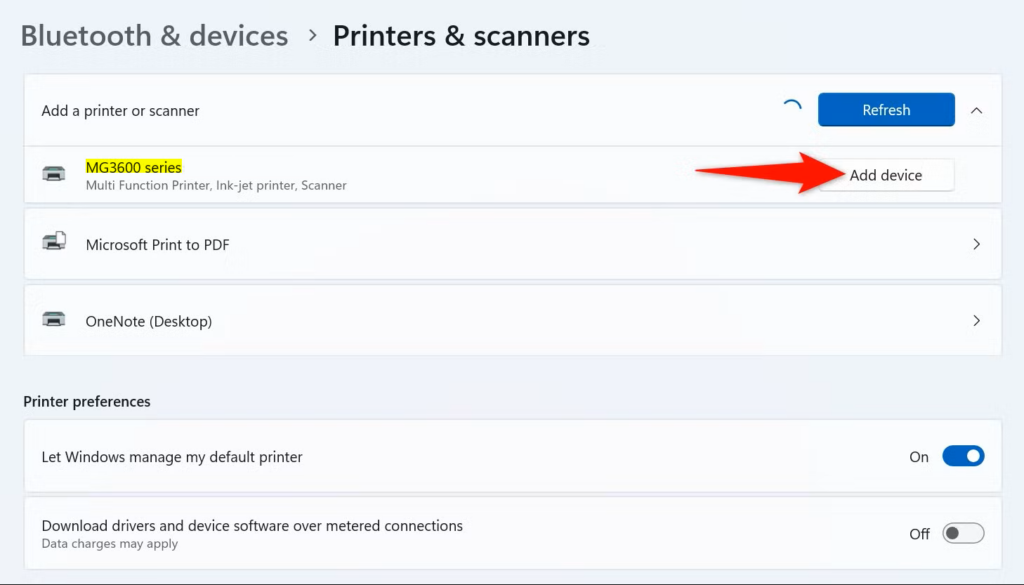
Your printers have not been uninstalled. Windows cannot read the printer list while the service that holds it is stopped. When you turn the spooler back on, your printers reappear.
Printer sharing and Remote Desktop printing
If other computers print through a printer shared from your PC, they lose access as soon as you stop the service. Your PC can also no longer connect to printers shared from other machines.
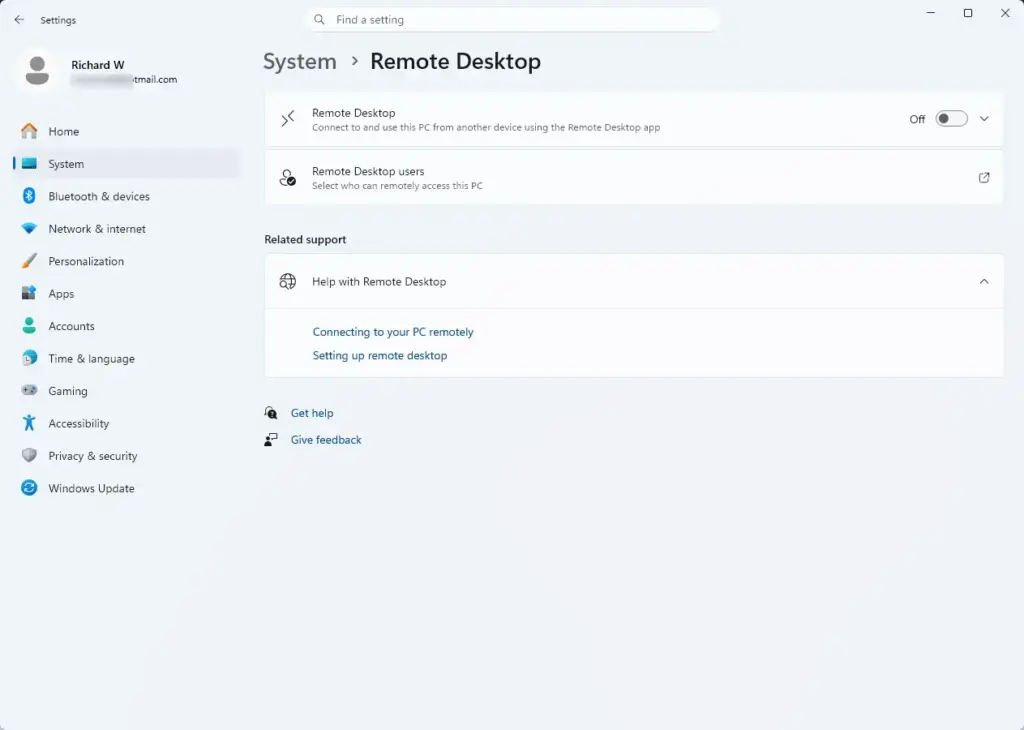
Remote Desktop printer redirection is the feature that makes your local printer available inside a Remote Desktop session. It also relies on the spooler. Printing from inside a Remote Desktop session to your local printer may stop working.
Faxing
Windows faxing works by "printing" to a fax device, and the Fax service depends on the Print Spooler. With the spooler disabled, Windows Fax and Scan cannot send faxes. Most home users never touch this, but it matters in some offices.
Jobs already in the queue
The spool files usually stay in C:\Windows\System32\spool\PRINTERS and resume when you start the service again. If a stuck job is the reason you are here, be aware that turning the spooler back on may send that job to the printer.
What Keeps Working
Disabling the spooler is narrower than it sounds. The following are generally unaffected:
- Windows itself. The PC boots, runs and updates normally. The Print Spooler is not needed for startup or for any core system function.
- Scanning in most cases. Scanners use a different Windows component, so scanning through the Windows Scan app or a scanner's own software usually still works. Some all-in-one printer utilities check for the printer through the spooler, though, and may report the device as offline.
- Viewing and saving documents. You can still open, edit and save files. Only printing is affected.
- Exporting to PDF from apps that have their own export feature. This works because it bypasses the print system.
Do not expect a noticeable speed boost either. The spooler uses very little memory and CPU while idle, so turning it off for performance reasons makes almost no difference on a modern PC.
Why You Might Disable the Print Spooler
The main legitimate reason is security. The Print Spooler runs with high system privileges and accepts connections, which has made it a repeated target for attackers.
The best-known example is PrintNightmare (CVE-2021-34527), a 2021 vulnerability in the spooler that allowed attackers to run malicious code on affected computers. Before a full fix was available, Microsoft advised customers to disable the Print Spooler on machines that did not need to print. It gave the same advice for domain controllers, which should not be print servers. Several more print-related flaws followed in the same period, which is why many administrators now turn the service off on servers by default.
Disabling the spooler makes sense when:
- The computer never prints. Examples include a server, a kiosk, a media PC, or a machine used only for remote access.
- You are hardening a domain controller or other critical server.
- You are working around a specific spooler vulnerability until a patch is installed.
- You are troubleshooting and want to rule the spooler in or out.
If you print even occasionally, leaving the service off permanently is usually more trouble than it is worth. Keeping Windows fully updated addresses the known spooler vulnerabilities.
If the PC needs to print locally, there is a middle option. Microsoft's recommended mitigation for that case is a Group Policy setting that stops the spooler accepting inbound connections from other computers. This blocks remote attacks against the spooler, and local printing keeps working. To set it:
- Open the Local Group Policy Editor on a PC, or the Group Policy Management Editor if you manage PCs through a domain.
- Go to Computer Configuration Administrative Templates Printers
- Double-click Allow Print Spooler to accept client connections.
- Select Disabled, then click Apply and OK.
- Restart the Print Spooler service, or restart the PC, so the policy takes effect.
This policy is available on Windows 11 Pro, Enterprise and Education. Windows 11 Home does not include the Group Policy Editor, so on Home your choices are to keep Windows updated or disable the service. The trade-off is that a PC with this policy set no longer shares its printers with other computers on the network. To undo it, set the policy back to Not Configured or Enabled and restart the spooler.
Before You Start: Requirements
Check these points before you change anything.
- Administrator privileges. Changing a service's startup type needs administrator privileges, which is the highest level of permission on your PC. If you are signed in as a standard user, the changes fail with an "Access is denied" error, or Windows asks for an administrator password.
- Windows 11 Home and Pro both work. The Services app, PowerShell and Command Prompt are available in every edition, so all three methods below work on Home as well as Pro, Enterprise and Education.
- No restart needed. Stopping the service takes effect immediately. Setting it to Disabled stops it from starting again after the next restart.
- Check dependent services. Other services that rely on the spooler stop along with it. You can see which ones in the Dependencies tab (shown in the Services app method below).
- Managed PCs. On a work or school PC, your IT department may control this service through policy. Any change you make can be reversed automatically the next time policy applies.
- Printing stays broken until you reverse it. Nothing turns the spooler back on for you once its startup type is Disabled. Make sure you know where the re-enable steps are (the "re-enable" sections near the end) before you continue.
How to Disable the Print Spooler in the Services App
This is the easiest method and shows you the service's current state as you go. It requires administrator privileges. The last two steps are the ones that actually stop printing. To undo them, set Startup type back to Automatic and click Start, as described in the re-enable section below.
- Press Windows key + R to open the Run dialog.

Run dialog - Type
services.mscand press Enter. If User Account Control asks for permission, click Yes. The Services window opens with a long alphabetical list.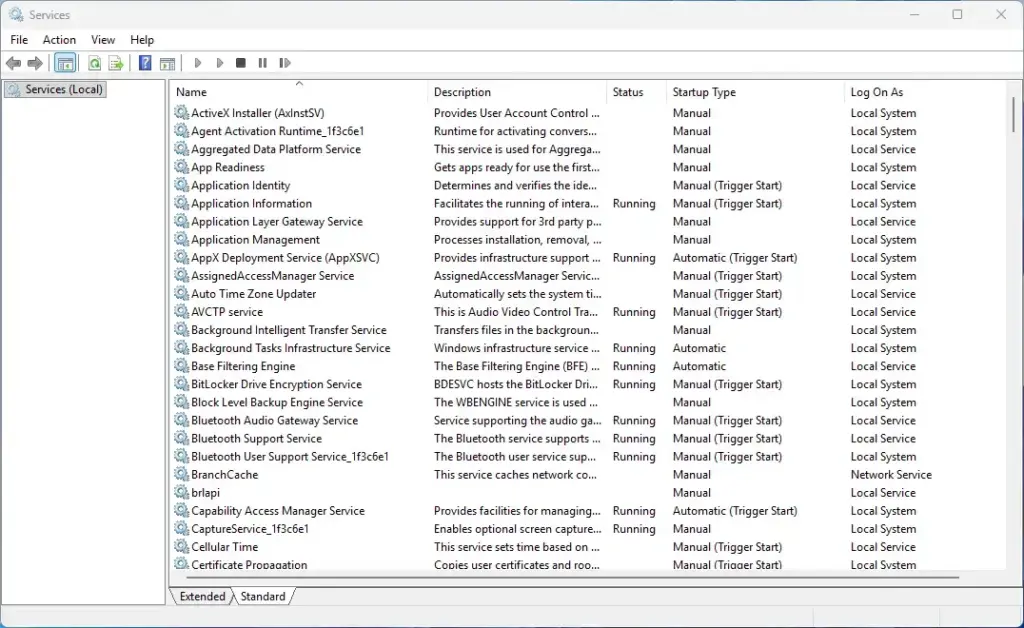
Services - Scroll down and double-click Print Spooler. The Print Spooler Properties (Local Computer) window opens on the General tab. Service status normally shows Running, and Startup type normally shows Automatic.
- Click the Dependencies tab to see which services rely on the spooler. The box titled The following system components depend on this service lists everything that stops along with it. On most PCs this is the Fax service, if installed.
- Click the General tab to return to it.
- Open the Startup type drop-down and select Disabled.
- Click Stop under Service status. If Windows warns that other services will also stop, click Yes. Service status changes to Stopped.
- Click Apply, then OK. In the main Services list, Print Spooler now shows Disabled in the Startup Type column, and the Status column is blank.
If the Stop button is greyed out, the service is already stopped, or you opened Services without administrator rights. Close the window, search for Services in the Start menu, choose Run as administrator, and try again.
If you see "Access is denied" when you click Apply, your account does not have administrator privileges. Sign in with an administrator account or ask your IT department.
If the service starts again by itself, check that Startup type is really set to Disabled and not Manual. With Manual, Windows or an app can start the service on demand, for example when you open a print dialog. Disabled prevents this.
How to Disable the Print Spooler with PowerShell
PowerShell is faster if you manage several machines or want to script the change. You need an elevated (administrator) PowerShell window.
- Right-click the Start button and select Terminal (Admin). On some Windows 11 builds this appears as Windows PowerShell (Admin). Click Yes at the User Account Control prompt. A terminal window opens with a PowerShell prompt.
- Stop the service by running this command:Code
Stop-Service -Name Spooler -Force
The
-Forceswitch also stops any services that depend on the spooler. The command normally returns to the prompt with no output. - Set the startup type to Disabled by running this command:PowerShell
Set-Service -Name Spooler -StartupType Disabled
- Confirm the change by running this command:PowerShell
Get-Service -Name Spooler | Select-Object Name, Status, StartType
You should see
Stoppedunder Status andDisabledunder StartType.
If you see an error that mentions access being denied or cannot open the service, the window is not elevated. Close it and open Terminal (Admin) instead of the normal Terminal.
How to Disable the Print Spooler with Command Prompt
Command Prompt uses the sc tool, which is useful in batch files or older scripts. It also needs administrator privileges.
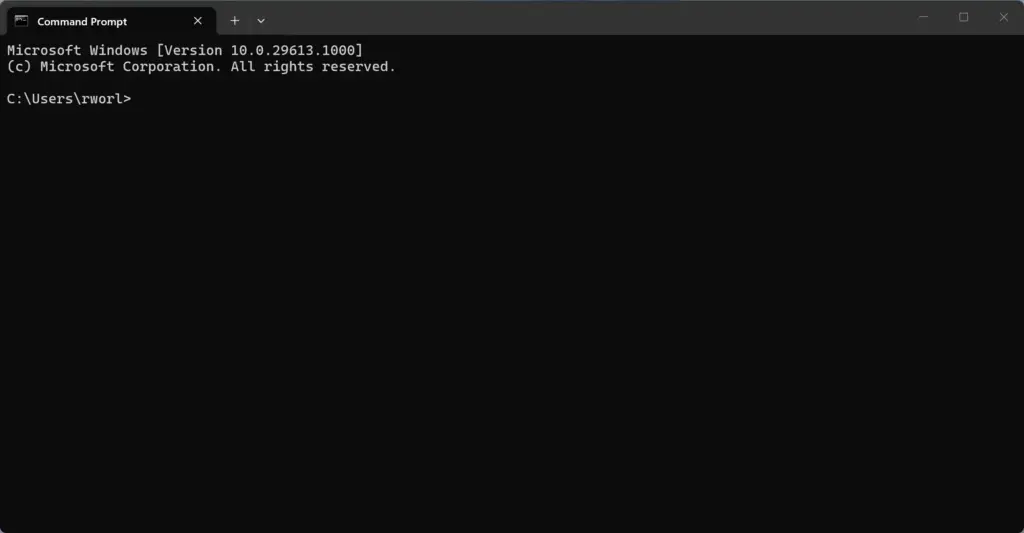
- Click Start, type
cmd, right-click Command Prompt, and select Run as administrator. Click Yes at the User Account Control prompt. A Command Prompt window opens, and its title bar says Administrator. - Stop the service by running this command:Code
sc stop spooler
The output shows
STATEasSTOP_PENDINGand thenSTOPPED. - Disable the service by running this command:Code
sc config spooler start= disabled
You should see
[SC] ChangeServiceConfig SUCCESS.
Type the command exactly as shown. There is a space after start= and no space before it. If you leave out the space, sc prints its help text instead of changing anything.
If you get [SC] OpenService FAILED 5: Access is denied, the Command Prompt is not running as administrator. Close it and reopen it with Run as administrator.
How to Check Whether the Print Spooler Is Disabled
You can confirm the service state at any time, which is useful if printing has mysteriously stopped on a PC someone else set up.
- Press Ctrl + Shift + Esc to open Task Manager.
- Click Services in the left-hand menu. A list of services appears.
- Find Spooler in the Name column. The Status column shows Running or Stopped.
Task Manager shows whether the service is running, but not its startup type. To see whether it is set to Disabled, check the Startup Type column in the Services app, or run the Get-Service command from the PowerShell section.

How to Turn the Print Spooler Back On
Re-enabling the service restores printing straight away, and your installed printers reappear. The default startup type in Windows 11 is Automatic. This requires administrator privileges. No restart is needed.
Order matters: set the startup type first, then start the service. While Startup type is Disabled, Windows will not let you start the service. Use whichever method matches how you disabled it. They all produce the same result.
Using the Services app
- Press Windows key + R, type
services.msc, and press Enter. The Services window opens. - Double-click Print Spooler. The properties window opens on the General tab.
- Set Startup type to Automatic.
- Click Apply. The Start button is now available. It stays greyed out while the startup type is Disabled, so you must apply the new type first.
- Click Start. Service status changes to Running.
- Click OK.
Using PowerShell
- Open Terminal (Admin).
- Set the startup type back to Automatic by running this command:PowerShell
Set-Service -Name Spooler -StartupType Automatic
- Start the service by running this command:Code
Start-Service -Name Spooler
Using Command Prompt
- Open Command Prompt as administrator.
- Set the startup type back to Automatic by running this command:Code
sc config spooler start= auto
- Start the service by running this command:Code
sc start spooler
If you stopped the Fax service along with the spooler and you use faxing, start Fax separately in the Services app. It does not always restart on its own.
If old jobs start printing the moment the spooler comes back, cancel them in Settings Bluetooth & devices Printers & scanners. Select the printer, click Open print queue, and cancel the jobs you no longer want.
What to Do Next
If printing still fails after you turn the spooler back on, open the Services app and confirm that Print Spooler shows Running and Automatic. If it keeps stopping, a faulty printer driver or a corrupt job in C:\Windows\System32\spool\PRINTERS is the usual cause. On work or school PCs, a policy from your IT department can switch the service back to whatever state they have set, so check with them before assuming your change failed. If you disabled the spooler for security, keep Windows Update current so you get spooler fixes when you turn printing back on.
Frequently asked questions
How do I fix the print spooler in 🪟 Windows 11?
Restart the Print Spooler service. Open Services, find Print Spooler, right-click it, and select Restart. If that doesn't work, clear the spooler folder at C:\Windows\System32\spool\PRINTERS—delete all files inside, then restart the service again.
How do I clear my print spooler cache?
Stop the Print Spooler service first. Open Services, right-click Print Spooler, select Stop. Then navigate to C:\Windows\System32\spool\PRINTERS and delete all files in that folder. Restart the service when done.
What is a print spooler and how do I fix it?
The Print Spooler is a Windows background service that queues and manages all print jobs before they go to your printer. To fix it, restart the service through Services, or clear the spooler cache folder at C:\Windows\System32\spool\PRINTERS and restart.
What can I do if the print spooler service isn't staying running?
Check if Print Spooler's startup type is set to Automatic. Open Services, right-click Print Spooler, select Properties, set Startup type to Automatic, click Apply, then Start. If it stops again, clear C:\Windows\System32\spool\PRINTERS and restart the service.
Still have a question?
Answered by AI from this guide. Good questions may be added to this page — please don't include personal details.
Did this guide fix your problem?

About the Author
Richard
Tech Writer, IT Professional
Richard is a writer at Geek Rewind who turns complex IT tasks into clear, step-by-step guides. He draws on years of hands-on experience in system administration and enterprise IT operations, focusing on Windows, Linux and WordPress: the problems people actually run into, and the fixes that work. His server and WordPress guides come from systems he runs himself. Richard builds and maintains the platform behind Geek Rewind, from its Ubuntu servers and Nginx configuration to its custom WordPress plugins. Many new tutorials start with readers' questions, and he's always glad to answer them in the comments.
No comments yet — be the first to share your thoughts!