How to Clear Printer Queue in Windows 11


Stuck print jobs can freeze your printer and block every new document behind them. To fix it in Windows 11, you stop the Print Spooler (the background service that manages print jobs sent to your printer), delete the corrupted files holding up the line, and start the service again.
A single bad document stops every other print job behind it until you clear the queue manually. Once the service is restarted and the jammed files are gone, the printer should respond normally again. The whole job takes a few minutes and works the same on Windows 11 Home and Pro.
Stop the Print Spooler service via the Services app, delete all files in the 📂%windir%System32spoolPRINTERS folder, and then restart the Print Spooler service. This process clears any stuck print jobs preventing your printer from working.
Why clear the print queue?
When you send a file to your printer, Windows saves a temporary copy of it in a “queue” and feeds it to the printer one job at a time. If one of those temporary files becomes corrupted or stuck, it blocks everything behind it. Typical signs are a job that sits on “Printing” or “Deleting” forever, or a printer that looks idle while the queue keeps growing. Clearing the queue removes these stuck files so the printer can start fresh.
What happens when you are done?
Clearing the queue deletes all active and stuck print jobs from your system. That also stops a printer from endlessly repeating a failed task. Every pending job is removed, not just the broken one, so you will need to send your documents again afterwards. Deleted jobs cannot be brought back.
Before going further, try the normal route. You can view and cancel print jobs from the notification area or in Settings Bluetooth & devices Printers & scanners, where you pick your printer and select Open print queue. To learn how to cancel a single job, check out this guide: How to cancel a print job in Windows 11.
How to force clear the printer queue
If regular cancellation doesn’t work, for example because a job stays in the list after you cancel it, follow the steps below to clear the queue by force. You need to be signed in with an administrator account.
Step 1Stop the Print Spooler
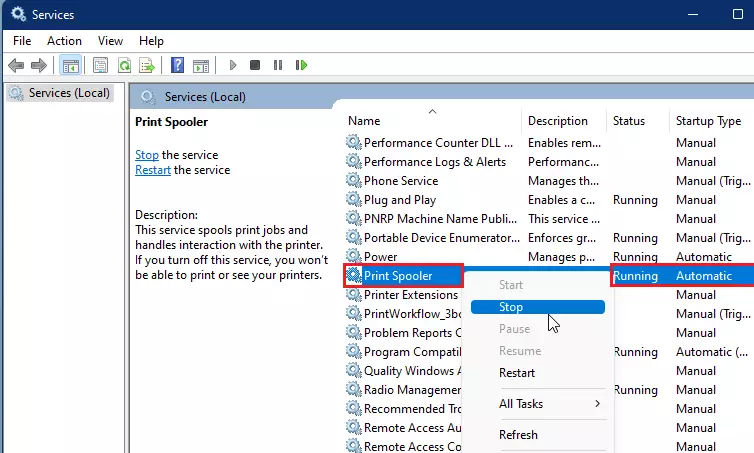
Windows locks the stuck files while the Print Spooler is running, so you can't delete them until the service is stopped. The built-in Services app does this quickly.
- Press the Windows key and type Services.
- Select the Services app in the results. A window opens with a long, alphabetical list of background services.
- Scroll down to Print Spooler. Its Status column normally reads Running.
- Right-click Print Spooler and choose Stop.
After a moment the Status column for Print Spooler goes blank, which means the service has stopped. If Stop is greyed out, the service is already stopped, or you are not signed in as an administrator. Leave the Services window open, because you will need it again in the last step.
Step 2Delete stuck print files
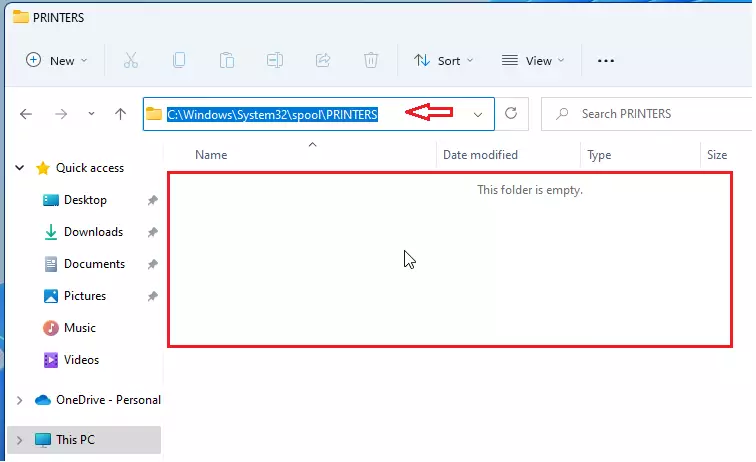
Windows keeps the files for active print documents in a hidden system folder. Emptying that folder forces the queue to clear completely. You can reach it directly through File Explorer.
- Press Windows key + E to open File Explorer.
- Click the address bar at the top, then paste the following path and press Enter:
%windir%\System32\spool\PRINTERSIf Windows asks for permission to open the folder, click Continue. You will now see the files for your stuck print jobs. If the folder is already empty, the problem is probably not a stuck job, and you can skip ahead to starting the service again.
- Press Ctrl + A to select every file in the folder.
- Press Delete. Confirm if Windows asks.
The folder should now be empty. Delete only the files inside it. Do not delete the folder itself, because the Print Spooler needs it to work. If a file refuses to delete because it is in use, go back and check that the Print Spooler status is really blank.
Step 3Restart the Print Spooler
- Go back to the Services window.
- Right-click Print Spooler and select Start.
The Status column should show Running again. You do not need to restart your computer for this, but restarting also works if the service doesn't start or the printer still seems stuck. Once the service is running, open Printers & scanners and check that your printer's queue is empty, then send a test page.
If the same job jams the queue again, the document or its file format is likely the cause. Try printing it from a different app or saving it as a PDF first.
Summary
Clearing the printer queue in Windows 11 is a reliable fix for printers that stop responding. It gets you back to printing quickly, and you can repeat the same steps whenever a job gets stuck again.
Was this guide helpful?

About the Author
Richard
Tech Writer, IT Professional
Richard is a writer at Geek Rewind who turns complex IT tasks into clear, step-by-step guides. He draws on years of hands-on experience in system administration and enterprise IT operations, focusing on Windows, Linux and WordPress: the problems people actually run into, and the fixes that work. His server and WordPress guides come from systems he runs himself. Richard builds and maintains the platform behind Geek Rewind, from its Ubuntu servers and Nginx configuration to its custom WordPress plugins. Many new tutorials start with readers' questions, and he's always glad to answer them in the comments.




No comments yet — be the first to share your thoughts!