How to Add or Edit PATH Variables in Windows 11

- 2 ways to do it
- Needs administrator rights
PATH variables in Windows 11 are a shortcut list that tells your computer where to find programs when you type a command. Without this list, you have to type the exact location of a file every time you want to open it from Command Prompt.
You can add folders to this list so that typing a short name like `python` makes Windows run the program right away. This saves you from typing long folder paths like `📁C:\
There are two PATH lists. The User variables list applies only to your account. The System variables list applies to everyone who uses the PC. This guide shows how to back up the current list, edit it in the graphical window, use the command line, and fix common problems.
Edit PATH variables in Windows 11 through the Environment Variables window by opening Settings, going to System About Advanced system settings, clicking Environment Variables, selecting Path, and then clicking Edit. Alternatively, use the `setx` command in Command Prompt as an administrator.
How to Back Up Your PATH
Back up your PATH before you edit it. A wrong edit or a deleted entry can break the links that apps and command-line tools depend on. A saved copy of your current settings lets you put things back exactly as they were.
The quickest way is to export your paths to a text file from Command Prompt. Follow the steps below and run the command shown.
C:\Windows\system32;C:\Windows;C:\Windows\System32\Wbem
This creates a file named path_backup.txt on your desktop. Open it in Notepad to check that it contains your folder list. If something goes wrong later, copy the original text from this file back into the editor.
Keep the file until you are sure everything works. Do not edit it, so you always have the original values to restore.
Method 1Using the Environment Variables Window
The Environment Variables window is the most reliable way to edit PATH variables in Windows 11 without command-line tools. This built-in graphical menu lets you add, remove, or change program folder paths. Windows can then launch your installed software from any command prompt window.
This works the same on Home and Pro. You only need administrator rights if you want to change the System variables list.
- Press the Win+I to open Settings . The Settings window should now appear.

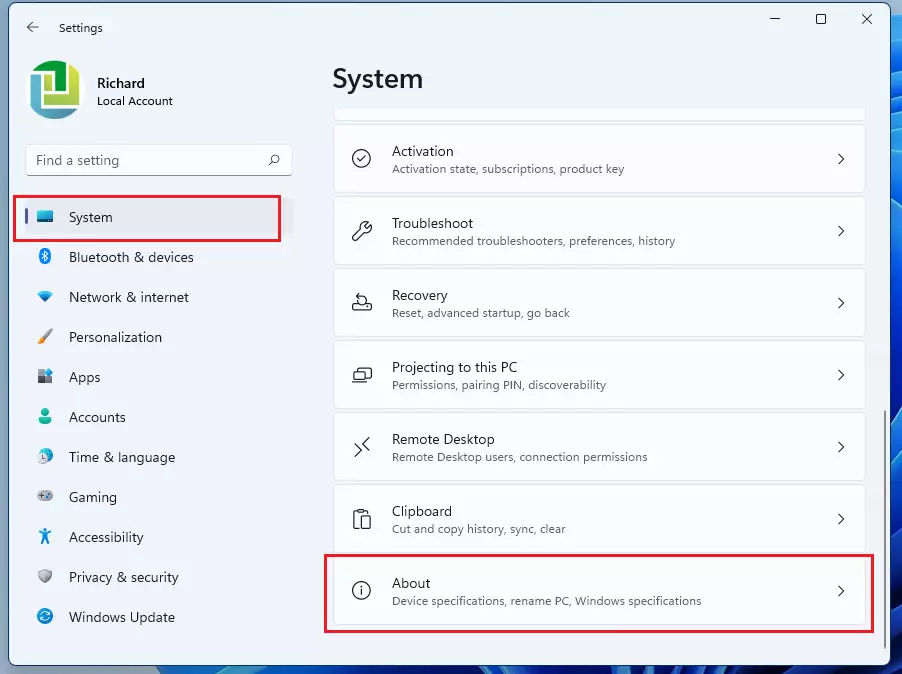
- Go to Settings System, then click About. You should see your device name and Windows specifications.
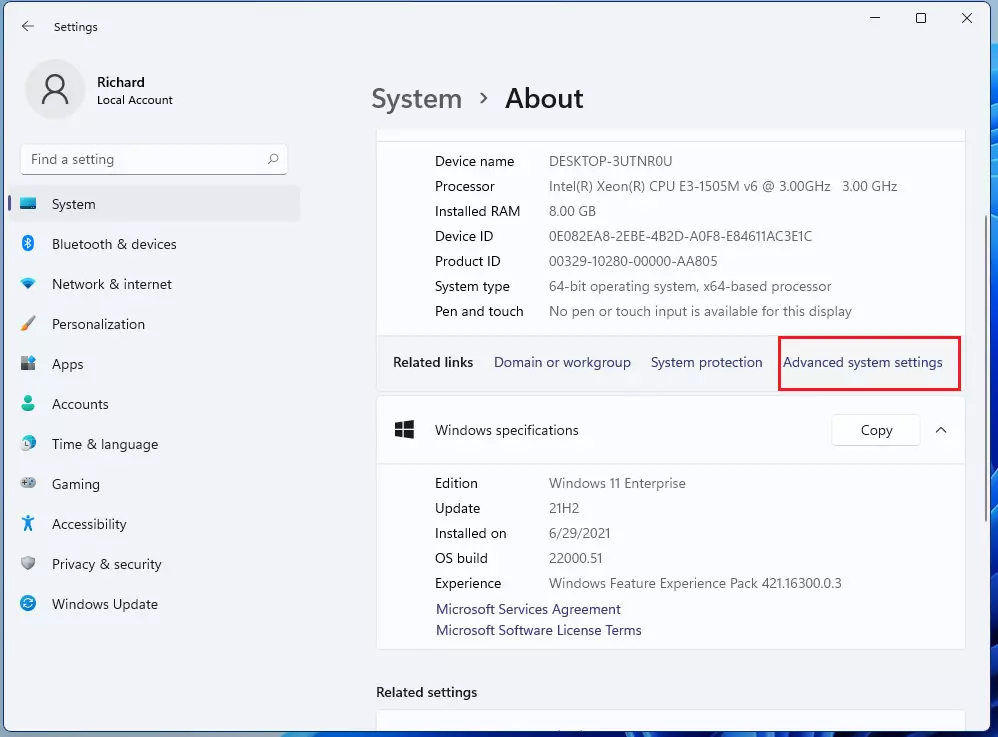
- Click Advanced system settings. It is in the Related links area on the About page. The System Properties window should now open.
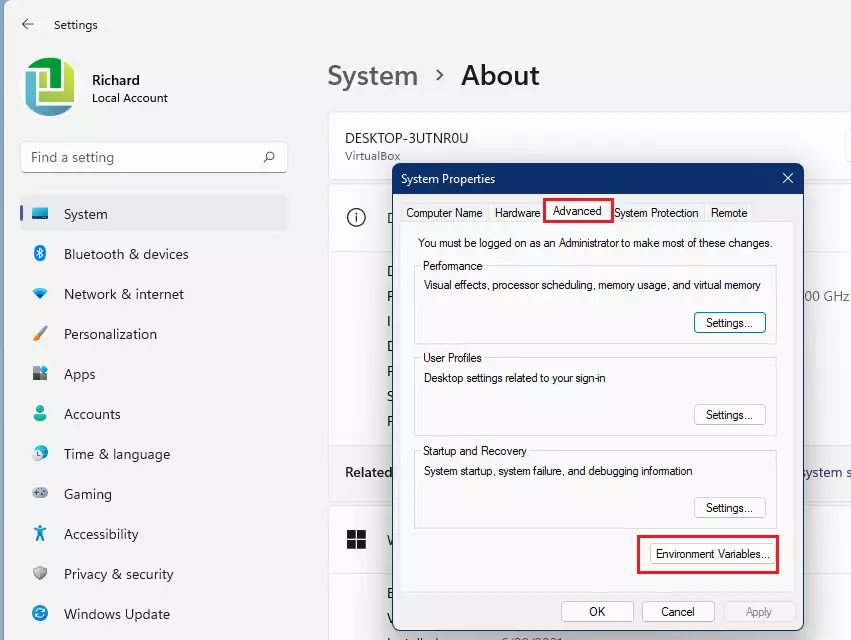
- In the System Properties window, make sure the Advanced tab is selected, then click Environment Variables. A window with two lists appears. User variables is on top and System variables is below.
- Choose which list to edit. Pick User variables to change PATH for your account only. Pick System variables to change it for everyone on the PC.
If you are unsure, use User variables. It is safer, and it needs no administrator rights. System variables changes need an administrator account. On a standard account the buttons may be greyed out or Windows may ask for admin credentials.
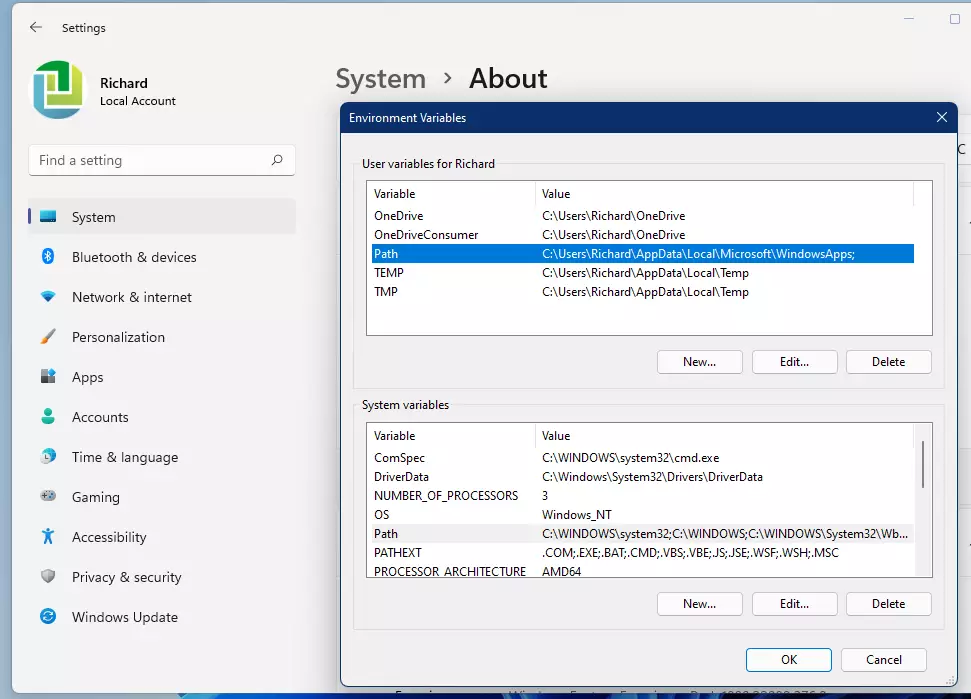
- Select Path in the list you chose and click Edit. A new window opens with one folder per line. Use it to add, change, or remove entries.
To add a folder, click New, type or paste the full folder path, then click OK. To change an entry, select it and click Edit. To remove one, select it and click Delete. If your account has no Path entry under User variables, click New under that list instead and create a variable named Path.
Click OK in every window you opened, including Environment Variables and System Properties. If you close them with Cancel or the X, your changes are lost. Command Prompt and PowerShell windows that were already open will not see the change, so close them and open new ones.
Method 2Using the Command Line (setx)
For advanced users, the setx command is faster. Open Command Prompt as an administrator. To add a folder to your user path, use the command below.
Be careful with this command. It writes the value you give it, so a typo or a wrong value can overwrite your existing PATH. That is why the backup comes first. Like the graphical method, it only affects Command Prompt windows you open afterward.
setx PATH "%PATH%;C:\Your\New\Folder"
Pro Tip: View PATH with PowerShell
To see your current PATH as a readable list, open PowerShell and run the command below. Each folder is easier to read there than in one long line. This is a good way to check your edit worked.
$env:Path -split ';'
Troubleshooting and Permissions
If you cannot save changes, you likely lack the permissions to edit that list. Make sure you are signed in as an administrator. Approve the User Account Control (UAC) prompt if one appears. If the System variables buttons are greyed out, your account is a standard one.
If a new entry does not work, check the folder path for typos. Also confirm the folder contains the program file you are trying to run. Then open a new Command Prompt window, since old windows keep the old PATH.
If you delete a critical entry, some apps will stop working. Use your backup file to restore the original string if needed.
Summary
Editing PATH variables in Windows 11 lets you run programs from any location. You can use the System Properties window or the setx command. Always back up your settings before editing. Remember that system-wide changes require administrator access, and that you need to open a new command window to see the result.
Have a question about this guide?
Answered by AI from this guide. Good questions may be added to this page — please don't include personal details.
Did this guide fix your problem?

About the Author
Richard
Tech Writer, IT Professional
Richard is a writer at Geek Rewind who turns complex IT tasks into clear, step-by-step guides. He draws on years of hands-on experience in system administration and enterprise IT operations, focusing on Windows, Linux and WordPress: the problems people actually run into, and the fixes that work. His server and WordPress guides come from systems he runs himself. Richard builds and maintains the platform behind Geek Rewind, from its Ubuntu servers and Nginx configuration to its custom WordPress plugins. Many new tutorials start with readers' questions, and he's always glad to answer them in the comments.
I cant edit the bottom part with the System Variables. Is there a way I can fix that?
Do you have administrator privileges?
I can’t do it, let me have a problem, when I press Edit PATH it shows Edit User Variable not showing Edit environment variable can you help me?
You can just type “env” in the search field (magnifying glass) to go directly to the Environment Variables in Windows 11.