How to Enable or Disable Math Reading for Narrator in Windows 11


- 15 steps
- Needs administrator rights
Math reading for Narrator in Windows 11 lets the built-in screen reader speak math equations and formulas aloud in apps like Word and PowerPoint. Narrator reads the text on your screen, so you can use your PC without a mouse.
Open Settings with Win+I, go to Accessibility Narrator, scroll to the Math section, and toggle Enable math reading on or off. The setting takes effect immediately when Narrator reads equations aloud.
Microsoft added the feature in Windows 11 build 26340.9354 to help blind and low-vision readers follow scientific notation. Instead of reading each symbol on its own, Narrator groups the parts of a fraction or equation and speaks them like a person reading aloud.
Without grouping, a fraction can come out as separate symbols, and the listener must work out where the top and bottom begin and end. With math reading on, Narrator treats the fraction as one unit and speaks the whole expression.
Before you change the setting, keep these points in mind:
- Build requirementthe feature was introduced in build 26340.9354. If your PC is on an older build, the option will not appear. Installing the latest Windows updates is the usual fix.
- Same on Home and Prothis is an accessibility feature, so it works the same way on both editions. The Settings method needs no administrator rights or Group Policy.
- Applies to Narrator onlythe setting changes how Narrator reads math. It does not change the equations in your documents or how other screen readers behave.
- Reversibleif you don’t like how equations sound, switch the setting back the way you turned it on. Your documents are not affected.
Narrator must be running for you to hear the result, so start it first. Press Win+Ctrl+Enter to turn Narrator on or off. Press Win+Ctrl+N to open Narrator’s settings directly.
To test the feature, open a Word or PowerPoint file that contains an equation. Have Narrator read it before and after you change the setting, so you can hear the difference.
Option One
Turn On or Off Math Reading for Narrator in Settings
You can turn on or off narrator math reading windows 11 using the main Settings app to control whether your computer reads math formulas and symbols out loud. Open Settings by pressing Win+I on your keyboard, go to Accessibility, click on Narrator, and scroll down to the math reading section to change this setting.- Open Settings by pressing the Win+I keys on your keyboard.
- Click on Accessibility on the left side of the window, and then click on Narrator on the right side.
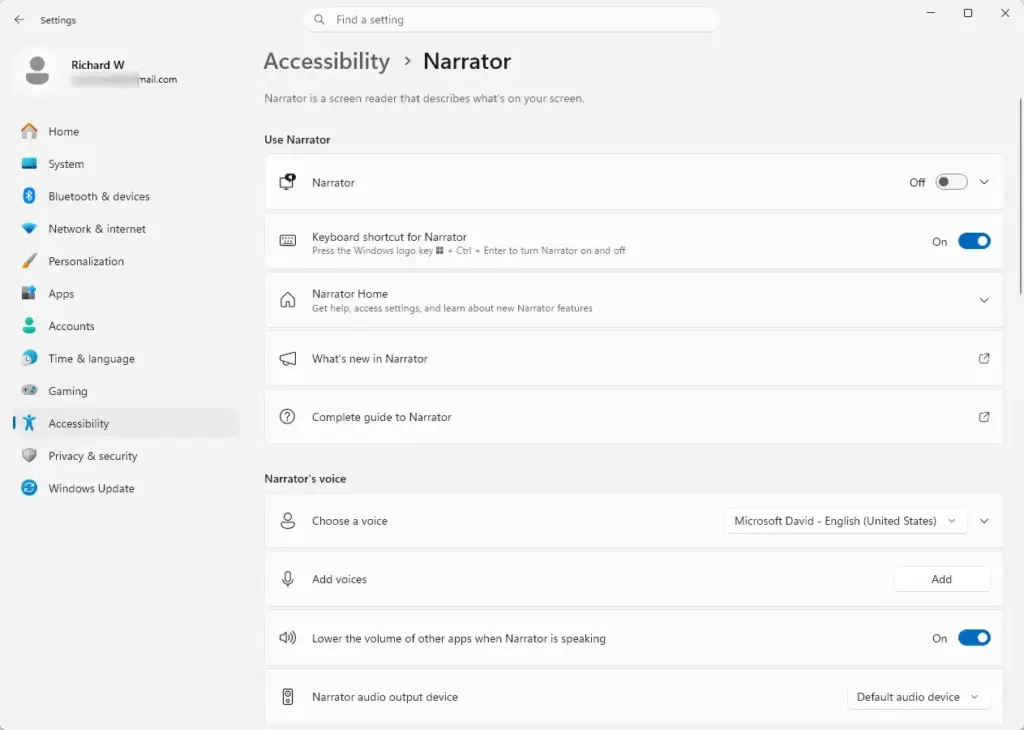
Settings › Accessibility › Narrator - Open Narrator settings (Win+Ctrl+N)
- Find the Math section, and click on Math reading.
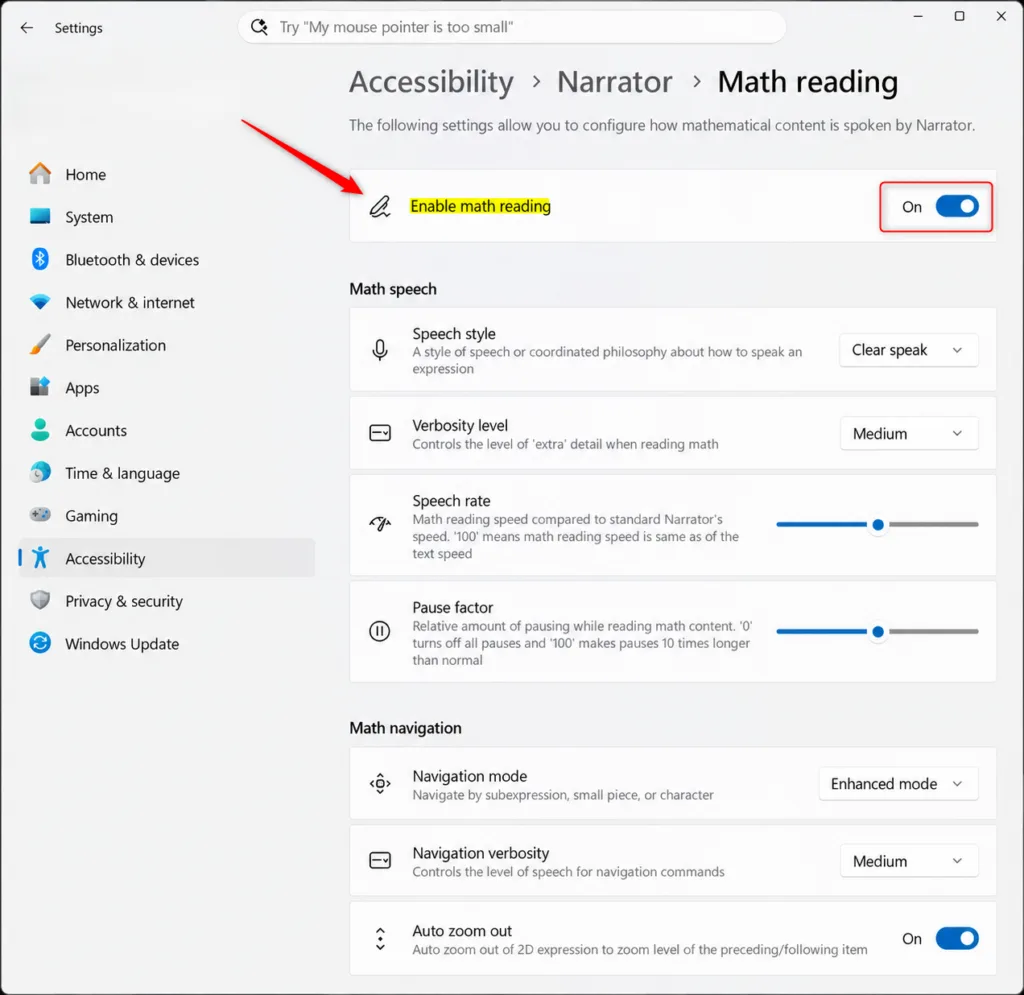
Settings › Accessibility › Narrator › Math reading - Turn the Enable math reading setting on or off based on what you want.
- You can now close the Settings window.
Option Two
- Press Win+R
- Type
regeditand press Enter. - Navigate to:Registry
HKEY_CURRENT_USER
  └─ Software
      └─ Microsoft
          └─ Narrator
              └─ NoRoam
If the Narrator key doesn’t exist:
- Right-click Microsoft
- Select New Key
- Name it
Narrator
Right-click an empty space in the right pane, select New, and choose DWORD (32-bit) Value.
Name the value:
MathReadingEnabledDouble-click MathReadingEnabled.
Set Value data to:
1Click OK.
Summary
This tutorial showed you how to control the math reading feature in Narrator using either the Windows Settings app or the registry.
Back up first. The registry method has you create keys and values in Registry Editor, and it gives no warning if you change the wrong item. Before you start, create a restore point, or export the registry from Registry Editor with File Export. If something goes wrong, you can then return to the earlier state.
Restart Narrator afterward. A registry change does not always apply to a Narrator session that is already running. After you finish, close Narrator and start it again, or sign out of Windows and sign back in.
- Create the restore point or registry export described above.
- Open Registry Editor and go to the location given in this method.
- To turn math reading on, set the MathReadingEnabled value to 1. If the key or value does not exist yet, create it first. You should now see the value listed with the data 1.
- To turn math reading off, set MathReadingEnabled to 0. Alternatively, delete the value, which returns Narrator to its default behavior.
- Close Registry Editor.
- Press Win+Ctrl+Enter to turn Narrator off, then press it again to turn Narrator back on. Signing out and back in also works.
That’s it. Narrator now follows the value you set: it reads equations as grouped expressions with 1, and it reverts to its previous behavior with 0 or when the value is deleted.
Have a question about this guide?
Answered by AI from this guide. Good questions may be added to this page — please don't include personal details.
Did this guide fix your problem?

About the Author
Richard
Tech Writer, IT Professional
Richard is a writer at Geek Rewind who turns complex IT tasks into clear, step-by-step guides. He draws on years of hands-on experience in system administration and enterprise IT operations, focusing on Windows, Linux and WordPress: the problems people actually run into, and the fixes that work. His server and WordPress guides come from systems he runs himself. Richard builds and maintains the platform behind Geek Rewind, from its Ubuntu servers and Nginx configuration to its custom WordPress plugins. Many new tutorials start with readers' questions, and he's always glad to answer them in the comments.
No comments yet — be the first to share your thoughts!