Should You Change App Notification Banner Duration in Windows 11 Settings

Notification banner duration in Windows 11 controls how long pop-up alerts stay visible in the bottom-right corner of your screen before they slide away. By default, Windows keeps each banner on screen for 5 seconds. You can raise that to anywhere from 5 seconds up to 5 minutes, depending on what works for you.
A longer duration gives you time to read incoming messages while you type or watch a video, so you are less likely to miss something important. A shorter duration, or turning banners off for some apps, helps with privacy. That matters when you work in a public place or share your screen on a video call.
The setting is the same on Windows 11 Home and Pro. It applies to every app, not to individual ones. A banner that disappears is not lost: it stays in the notification center, which you can open by clicking the date and time at the right of the taskbar .
No, you should not change app notification banner duration unless you have a specific reason. The default 5-second duration in Settings Accessibility Visual effects works for most users. Change it only if you need more time to read alerts while multitasking, or less time for privacy in shared spaces.
Where to Find Notification Settings in 🪟 Windows 11
The notification settings live in the Settings app, under System. This is where you control how alerts appear, turn sounds off, and decide which apps can send pop-ups. Here is how to get there.
- Click the Start menu, the Windows icon on the taskbar . The Start menu opens with your pinned apps.

- Click the Settings app icon, which looks like a small gear. If you do not see it, type “Settings” into the Start menu search. You can also press Win+I to open Settings directly. The Settings window opens.

- Click System in the left-hand menu. On most installs Settings already opens on this page.
- Click Notifications on the right side of the screen. The notification page opens.
On Windows 11 version 22H2 and later, Do Not Disturb is a toggle near the top of the page. Earlier builds called this feature Focus assist.
Step-by-Step Instructions: Changing How Long Banners Stay on Screen
It is an accessibility setting. Follow these steps to change it.
- Click the Start menu and open the Settings app, or press Windows Key + I.
- Click Accessibility in the left-hand menu.
- Click Visual effects from the options on the right side. The visual effects options appear.
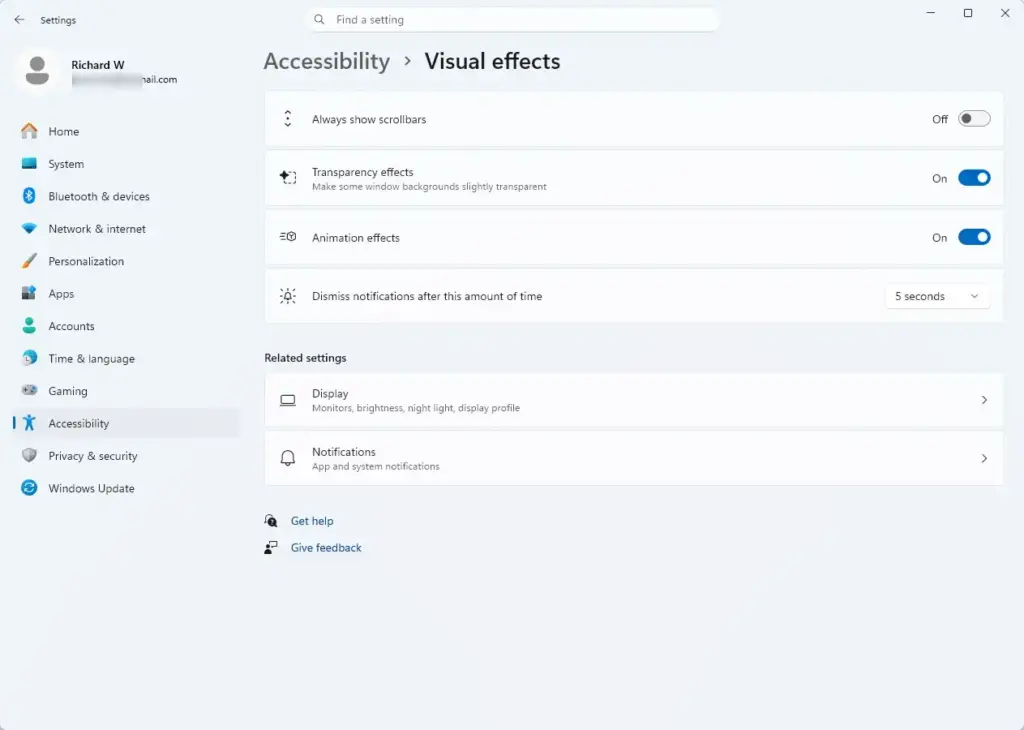
- Find the setting labeled Dismiss notifications after this amount of time.
- Click the drop-down menu and choose your preferred duration. The options typically run from 5 seconds up to 5 minutes.
Windows saves the change as soon as you pick a value. You do not need to restart your computer. To test it, trigger a notification and watch how long the banner stays. To undo the change, return to the same drop-down and select 5 seconds, the default.
Fixing Common Notification Banner Issues
Sometimes banners do not behave the way you expect. These are the two problems I see most often, and both are usually quick to fix.
Banners Staying on Screen Permanently
A banner that stays on screen far too long usually means the dismiss timer is set to its maximum in your Accessibility settings. Less often, a specific app has frozen and is holding the banner open. Try these fixes in order:
- Open Settings, go to Accessibility, then Visual effects.
- Set Dismiss notifications after this amount of time back to 5 seconds.
- If the banner is still stuck, close the app that sent it. If it will not close, end it in Task Manager (Ctrl + Shift + Esc).
- If that does not help, restart your computer. A restart clears nearly all stuck alerts.
Missing Banners Entirely
If banners never appear, Do Not Disturb is usually turned on, or alerts are disabled for the app in your system settings. Windows can also switch Do Not Disturb on by itself, for example while you play a game or use an app in full screen. Check it like this:
- Open Settings and click System.
- Click Notifications.
- Make sure the main Notifications toggle at the top is turned on.
- Make sure Do not disturb is turned off.
- Scroll down to the app list, click the app that is not alerting you, and confirm its toggle is on. Also check that banners are enabled for that app.
Missed alerts that arrived while Do Not Disturb was on are not gone. Look for them in the notification center.
Unique Angle: Managing Distractions and Focus in 🪟 Windows 11
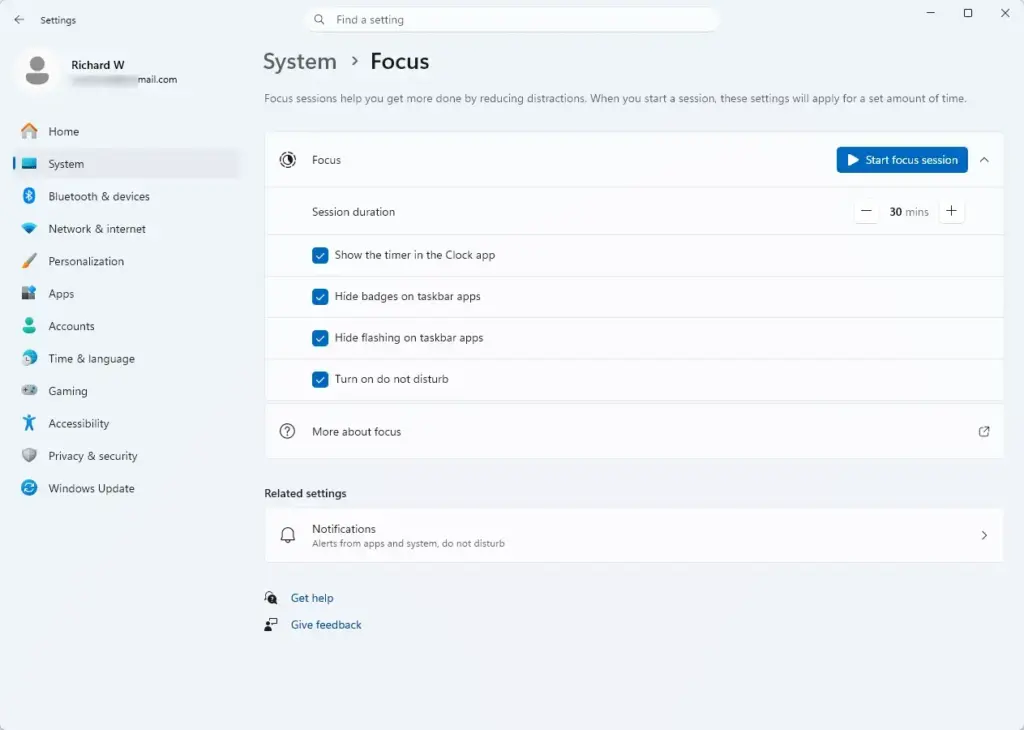
Managing distractions in Windows 11 comes down to two things: Do Not Disturb, and per-app permissions that let through only the alerts you care about. You can also set up automatic rules for focus sessions in your system settings, so non-essential pop-ups are blocked while you work. The exact options vary slightly between Windows 11 versions, so look under System in Settings if a page looks different on your PC.
The biggest improvement comes from customizing notifications app by app. Instead of letting every game, shopping app, and news site flash banners across your screen, turn banners off for low-priority apps. Keep them on only for essential tools like email and messaging software. To do this, go to Settings, then System, then Notifications, and switch off the apps you do not need. You can switch any of them back on later. With less clutter, a banner that does appear is more likely to deserve your attention.
Summary
Changing the notification banner duration in Windows 11 lets you decide how long pop-ups stay on screen before they disappear. This guide showed you how to use the Accessibility settings to change the banner timer, how to fix stuck or missing alerts, and how to cut down on daily distractions.
Have a question about this guide?
Answered by AI from this guide. Good questions may be added to this page — please don't include personal details.
Did this guide fix your problem?

About the Author
Richard
Tech Writer, IT Professional
Richard is a writer at Geek Rewind who turns complex IT tasks into clear, step-by-step guides. He draws on years of hands-on experience in system administration and enterprise IT operations, focusing on Windows, Linux and WordPress: the problems people actually run into, and the fixes that work. His server and WordPress guides come from systems he runs himself. Richard builds and maintains the platform behind Geek Rewind, from its Ubuntu servers and Nginx configuration to its custom WordPress plugins. Many new tutorials start with readers' questions, and he's always glad to answer them in the comments.
No comments yet — be the first to share your thoughts!