How to Enable or Disable Notifications in the Settings App on Windows 11

Notifications in Windows 11 are the pop-up banners and sounds that apps and the system send when something happens. Examples are a new email, a finished download, or a security warning. This tutorial uses Windows 11 version 22H2 and covers two ways to turn them on or off. The first is the Settings app, which is the right choice for almost everyone. The second is the Registry Editor, which is for advanced users. Both methods work on Home and Pro editions.
Open Settings , go to Privacy & Security, then select General and toggle Show me notifications on or off. The change takes effect immediately. Critical system messages still appear even when notifications are off.
Turn Notifications On or Off in 🪟 Windows 11 Settings
The Notifications page in Settings lets you turn alerts on or off for the whole system or for individual apps. To get there, press the Win plus I to open Settings , click System, and then select Notifications. The page opens with a master toggle at the top, followed by a list of apps and other senders. Changes take effect straight away, so you do not need to restart or sign out.
Follow the steps below in order. After each one, the Settings window should update to show the change. If a toggle does not respond, check whether your PC is managed by an employer or school. Policies on managed devices can lock these options.
- Open the Settings app: Click the Start button (the Windows icon) at the bottom-left corner, then click the gear icon labeled Settings. Or press
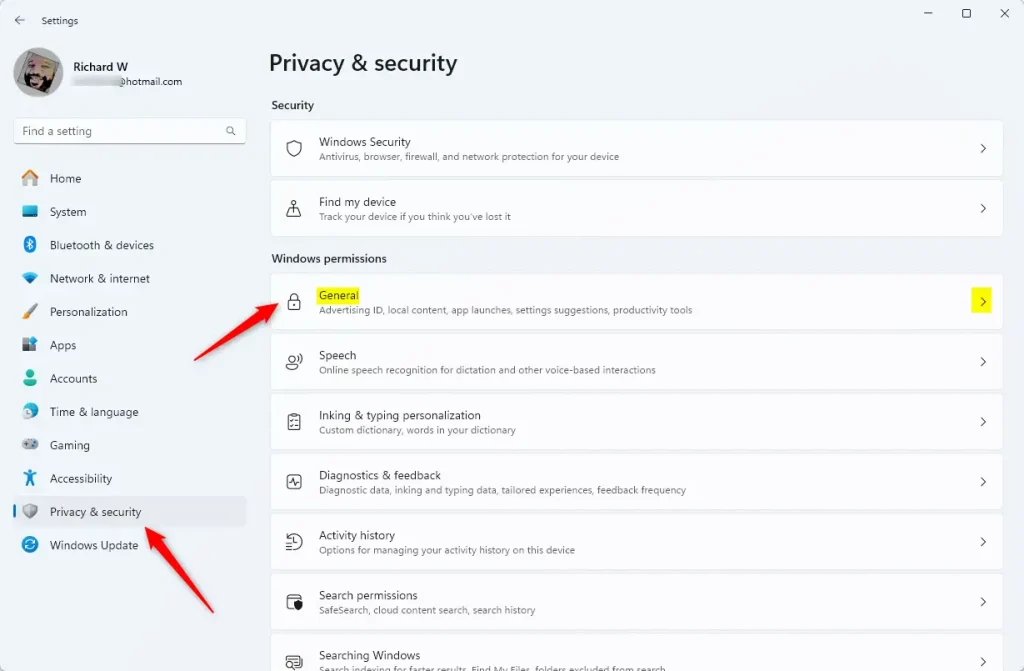
Windows key + Ion your keyboard. - On the left side, click Privacy & security.
- On the right side, find and click the General section to open it.
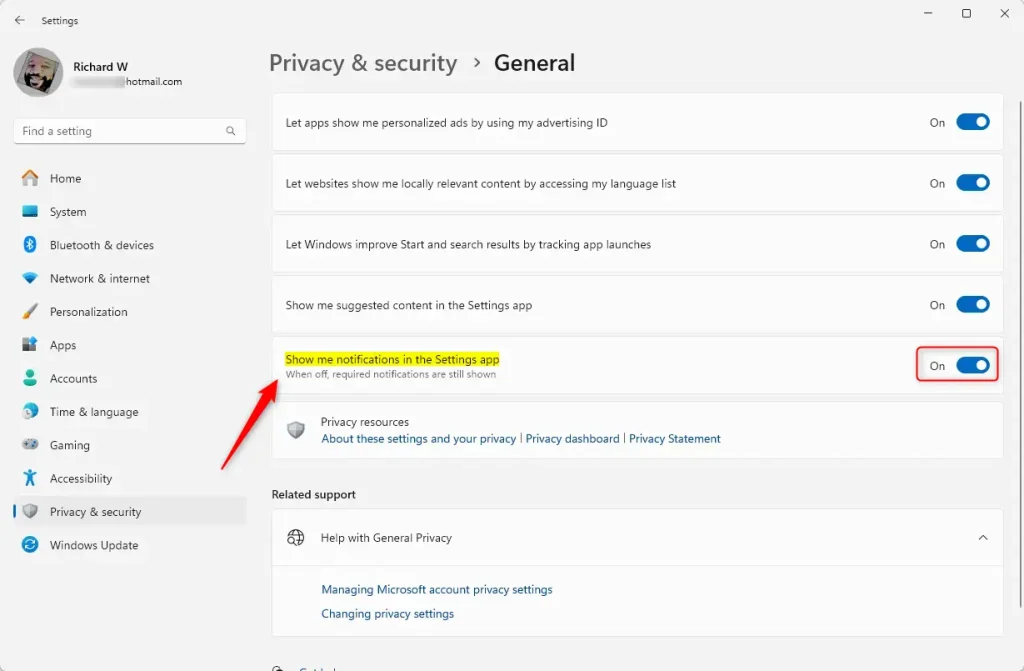
- Look for the option called Show me notifications in the Settings app.
- Use the toggle switch to turn it On (blue) or Off (gray) depending on what you want.
Turning notifications off is therefore not a complete silence. If you only want to quiet one noisy app, leave the master toggle on and switch off just that app in the list. That way you still get alerts you care about.
Close the Settings window once configuration is complete. To undo the change later, open the same page again and flip the toggle back. Nothing is deleted when you turn notifications off, so you can switch them on again at any time.
Change Notification Settings Using the Registry Editor (Advanced)
You can also change Windows 11 notification settings in the Registry Editor, a database that holds low-level system settings. This method lets you apply changes by editing specific keys directly, and it is mainly useful if you cannot reach the Settings page or need to apply the same change on several machines.
Before you start, create a restore point or export the key you are about to change, so you can put it back if something goes wrong. Some edits need an administrator account. After you finish, you may need to sign out and back in, or restart the PC, before the change shows up in Settings.
- Open Registry Editor as Administrator: %%FLAG_ADMIN%%
- Press
Windows key + S, typeregedit, then right-click Registry Editor and choose Run as administrator. - Confirm any prompts that appear.
- Press
- In Registry Editor, go to this location (you can copy-paste it in the address bar at the top):
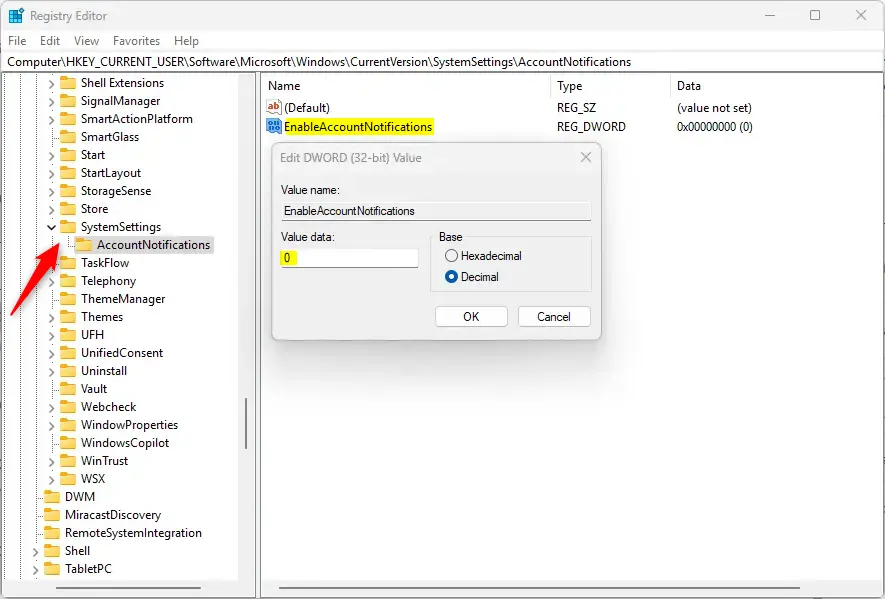
Computer\HKEY_CURRENT_USER\Software\Microsoft\Windows\CurrentVersion\SystemSettings\AccountNotifications - On the right side, look for EnableAccountNotifications.
- Double-click EnableAccountNotifications to edit it:
- Type
1to turn notifications ON. - Type
0to turn notifications OFF. - Then click OK.
- Type
- If you don't see EnableAccountNotifications, right-click on an empty space on the right side, choose New DWORD (32-bit) Value, and name it EnableAccountNotifications. Then set its value as above.
- Close Registry Editor and restart your computer to apply the changes.
Summary
- You can control how Windows 11 shows notifications by turning them on or off in the Settings app.
- Use the Privacy & Security General section to find the notification toggle.
- Advanced users can also use the Registry Editor to change notification settings.
- Adjust these settings to reduce distractions or stay informed—whichever suits you best!
Windows 11 notification settings give you full control over pop-ups and alerts on your computer. Use the Settings app for everyday changes, since it is safe, quick and easy to reverse. Keep the Registry Editor for advanced cases, and back up before you edit. Either way, you can keep your screen free from distractions.
Helpful Links:
Have a question about this guide?
Answered by AI from this guide. Good questions may be added to this page — please don't include personal details.
Did this guide fix your problem?

About the Author
Richard
Tech Writer, IT Professional
Richard is a writer at Geek Rewind who turns complex IT tasks into clear, step-by-step guides. He draws on years of hands-on experience in system administration and enterprise IT operations, focusing on Windows, Linux and WordPress: the problems people actually run into, and the fixes that work. His server and WordPress guides come from systems he runs himself. Richard builds and maintains the platform behind Geek Rewind, from its Ubuntu servers and Nginx configuration to its custom WordPress plugins. Many new tutorials start with readers' questions, and he's always glad to answer them in the comments.
No comments yet — be the first to share your thoughts!