How to Show or Hide Notification Banners for Each App in Windows 11

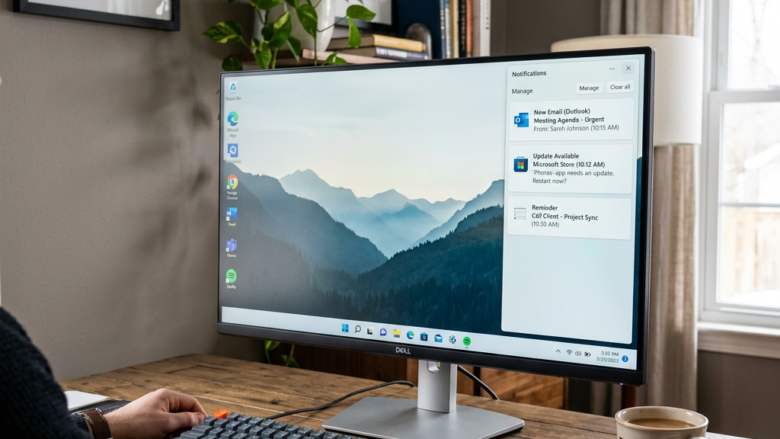
Notification banners in Windows 11 are the small pop-up boxes that appear in the bottom-right corner of your screen to show new messages, emails, and app alerts. You can turn off these banners for individual apps in Settings. That stops the everyday distractions while still letting important alerts through. The change applies per app, so you can silence a chat app and keep banners for your calendar or security software.
Go to Settings System Notifications, click the app name, then uncheck Show notification banners. The pop-ups for that app stop appearing immediately. To restore them, check the box again. Notifications still collect in the notification center unless you disable that separately.
Managing Your Windows Notifications
These pop-ups keep you updated on emails, calendar events, and system patches. They also pull your focus away from what you are doing. If one or two apps cause most of the interruptions, switch off banners for just those apps instead of turning off notifications for everything.
How to Find Notification Settings
You can get there with the Start menu , or with the keyboard shortcut in the tip below.
Windows key + I on your keyboard opens Settings faster.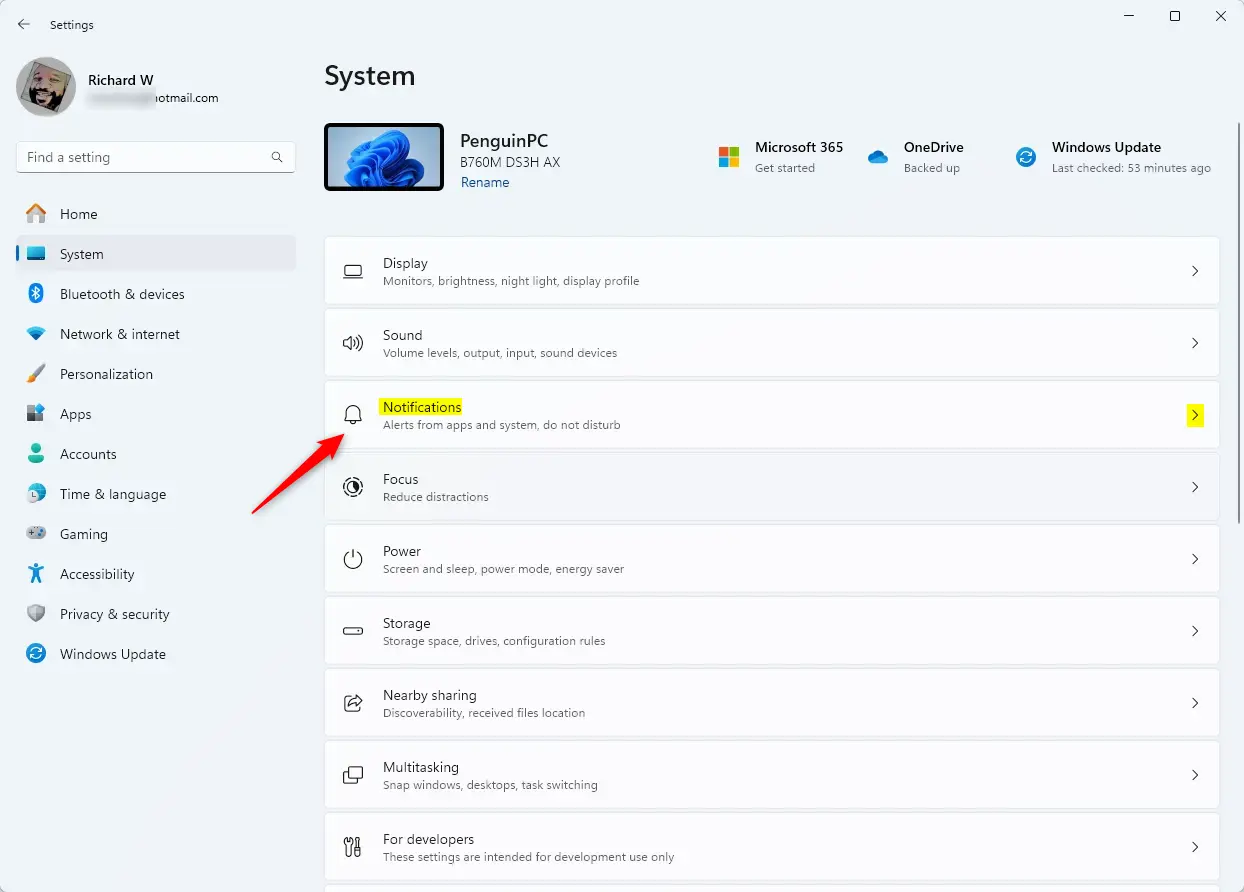
Understanding App Notification Choices
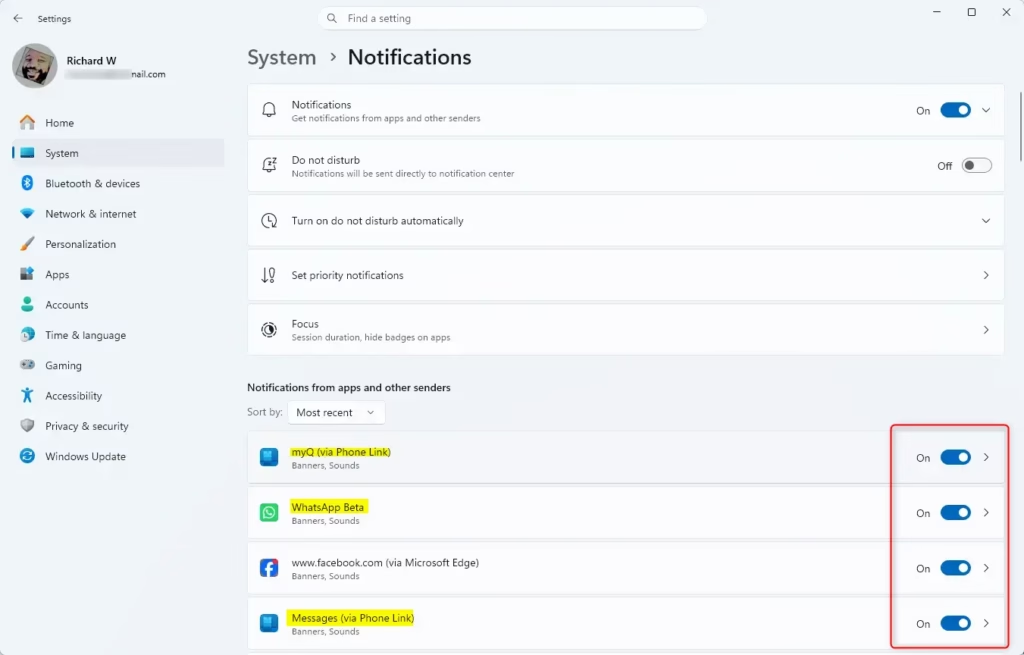
The main Notifications page shows a list of the apps that can send alerts. Open it with these steps:
- Open Settings .
- Click System in the left pane.
- Click Notifications. You should now see the master Notifications switch at the top and, further down, a list of apps under Notifications from apps and other senders.
- Scroll the list and click the app you want to change. Its own settings page opens with that app’s options.
If an app is missing from the list, it has not sent a notification yet or it does not use Windows notifications. Some apps only appear after they have shown their first alert. Also, if the master Notifications switch at the top is off, Windows blocks alerts for every app, so turn it on first.
Controlling Notification Pop-ups
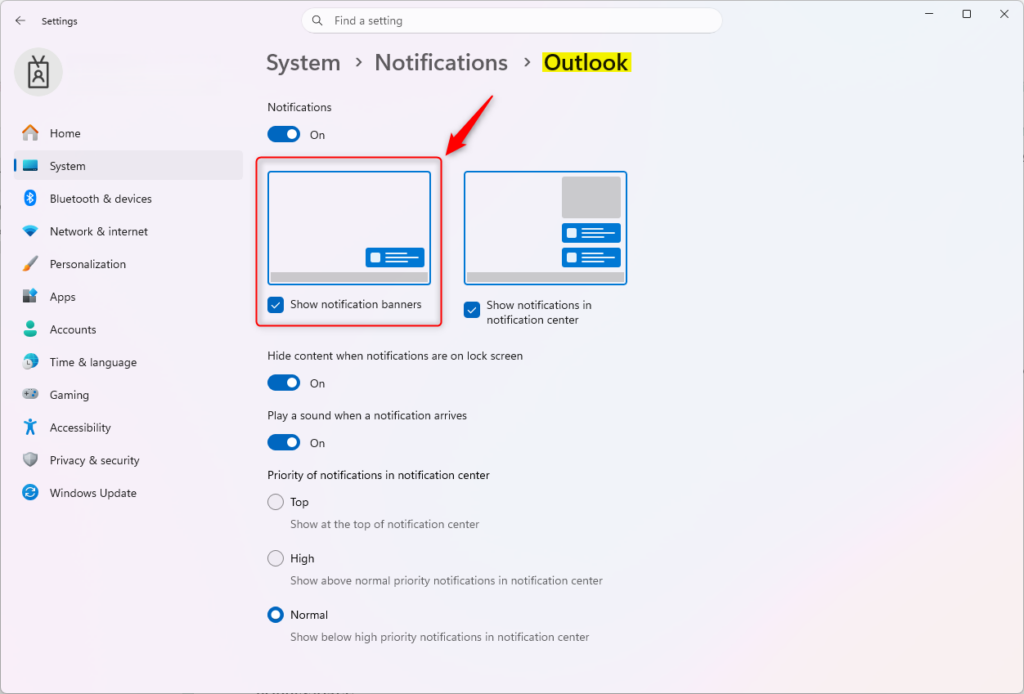
The Show notification banners setting controls whether an app's pop-ups slide onto your screen. To stop banners from a specific app:
- Go to Settings System Notifications
- Click the name of the app in the list. Make sure the Notifications switch at the top of the app's page is on. If it is off, the banner options below it are greyed out or hidden.
- Clear the check box for Show notification banners. On some older Windows 11 builds this appears as a switch instead of a check box. Turn it off in the same way.
The change takes effect right away, and you do not need to restart. That app's pop-ups stop appearing in the corner of your screen.
To see banners again, return to the same page and select the Show notification banners check box. Leaving it checked means the app's pop-ups will appear.
Turning off banners does not have to mean losing the alerts. If Show notifications in notification center stays checked, the app's messages still collect quietly in the notification center, where you can read them when you choose. If you clear both options, you will not see the alerts at all. Some apps also have their own notification settings inside the app, which can override or add to what Windows shows.
Reference:
Summary
Managing notifications in Windows 11 helps you protect your concentration. You filter out the pop-ups you do not need and still let vital alerts come through. Turning off banners for noisy apps reduces daily interruptions, so you can focus on your work without missing important messages from software you trust.
Review the app list every so often, because new apps add themselves as they send their first alert. Adjusting these settings one app at a time gives you fewer interruptions and better focus, and you can reverse any change in a few seconds.
Did this guide fix your problem?

About the Author
Richard
Tech Writer, IT Professional
Richard is a writer at Geek Rewind who turns complex IT tasks into clear, step-by-step guides. He draws on years of hands-on experience in system administration and enterprise IT operations, focusing on Windows, Linux and WordPress: the problems people actually run into, and the fixes that work. His server and WordPress guides come from systems he runs himself. Richard builds and maintains the platform behind Geek Rewind, from its Ubuntu servers and Nginx configuration to its custom WordPress plugins. Many new tutorials start with readers' questions, and he's always glad to answer them in the comments.
No comments yet — be the first to share your thoughts!