How to Turn On or off Capitalizing the First Letter of Each Sentence on the Touch Keyboard in Windows 11

- 9 steps
- Includes a restart or sign-out
Automatic capitalization on the Windows 11 touch keyboard turns the first letter of every new sentence into an uppercase letter, so you don’t have to tap Shift each time. You can turn it on or off in the Settings app under the typing options. The steps are the same on Windows 11 Home and Pro.
This setting only applies to the standard touch keyboard layouts. It stays inactive if you switch to the traditional keyboard layout, so if it seems to do nothing, check which layout you are using first.
Open Settings, go to Time & language Typing, scroll down and expand Touch keyboard, then check or uncheck the box for Capitalize the first letter of each sentence. The change applies immediately without restarting.
How to Turn This Feature On or Off Using Settings
- Open Settings by pressing Windows key + I on your keyboard. The Settings window opens with a list of categories on the left.
- Click Time & language in the menu on the left side.
- On the right side, click Typing. The typing options for your device are listed.
- Scroll down and click the arrow next to Touch keyboard to expand it. The touch keyboard options appear below the heading.
- Check the box for Capitalize the first letter of each sentence to turn it ON. Uncheck the box to turn it OFF.
The change applies to your touch screen typing right away. You don’t need to restart the PC or sign out. The whole process takes less than a minute, and you can undo it at any time by returning to the same checkbox and switching it back.
If you can’t find the Touch keyboard section, scroll further down the Typing page, because it sits below the other typing options. On some desktop PCs without a touch screen, the touch keyboard options may be limited.
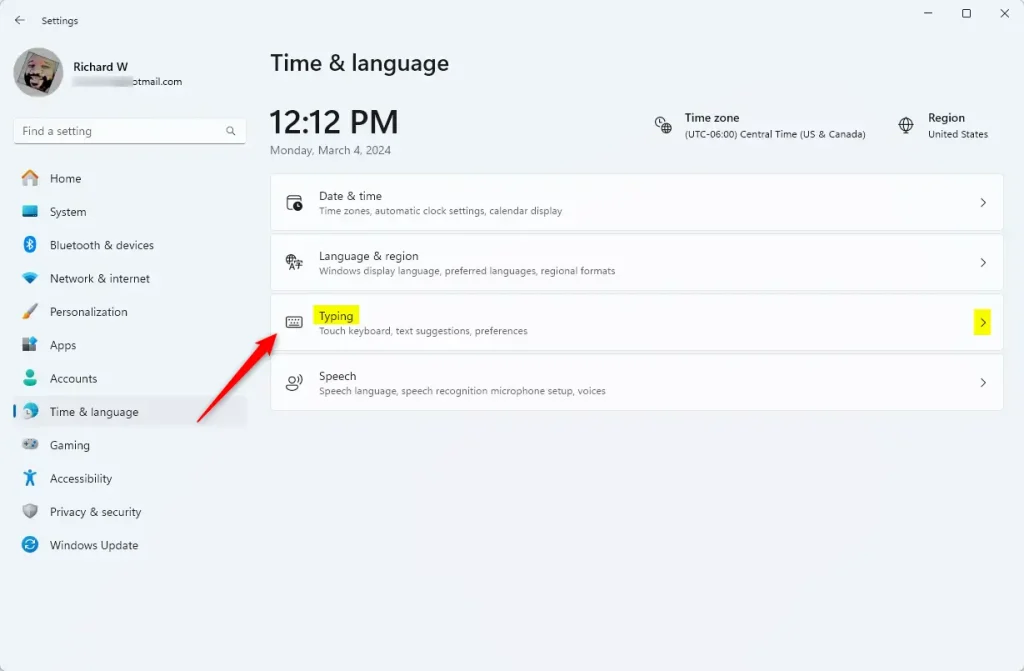
The screenshot above shows the Typing page in Settings. The touch keyboard section is where the capitalization checkbox lives.
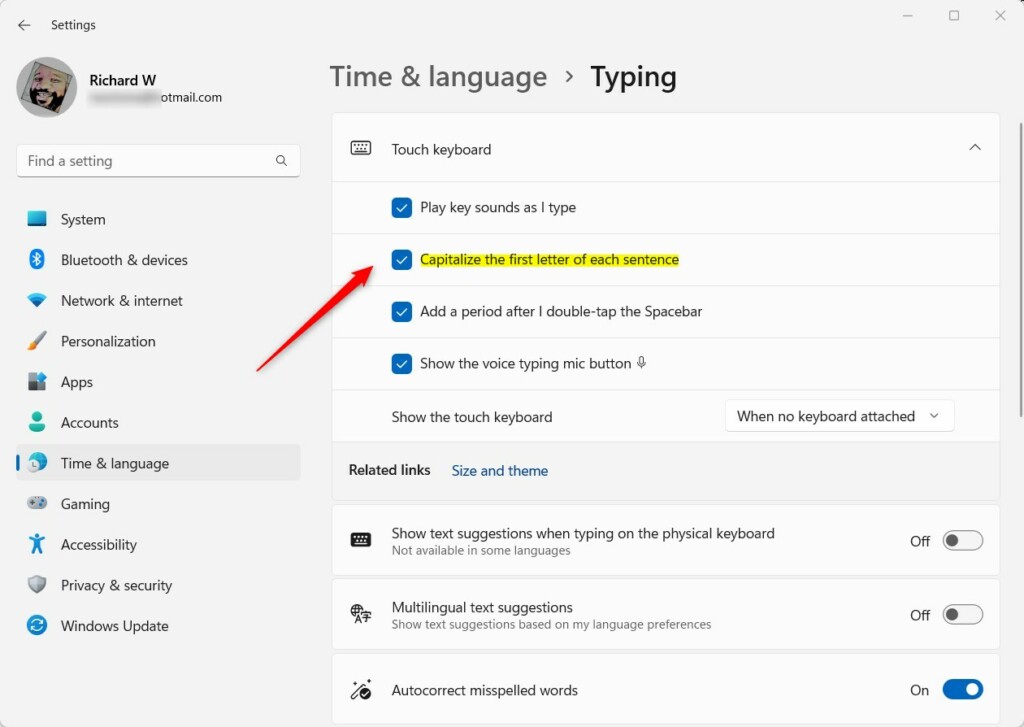
The second screenshot shows the checkbox after it has been changed. The state you see here is the one Windows will use the next time you type on the touch keyboard.
Closing the Settings window finalizes the process. To test it, open the touch keyboard in any text field and type a sentence. Then type a period and start a new one, and check whether the first letter is capitalized.
How to Turn This Feature On or Off Using the Windows Registry (Advanced)
You can also change this setting by importing a registry script. This method adds a specific registry key to your user profile, so you can apply the change without going through the Settings menus. It is handy if you need to set it on several PCs or want to repeat the change later.
To turn ON automatic capitalization for the touch keyboard, follow these steps:
- Copy the code shown below into Notepad.
- Save the file with a
.regextension. Make sure the name does not end in .txt, or Windows will treat it as a plain text file. - Double-click the saved file to run it.
- If Windows asks you to confirm, click Yes to let the file add its entry to the registry.
reg add "HKEY_CURRENT_USER\Software\Microsoft\TabletTip\1.7" /v EnableAutoShiftEngage /t REG_DWORD /d 1 /fTo turn OFF automatic capitalization, save and run this code instead:
reg add "HKEY_CURRENT_USER\Software\Microsoft\TabletTip\1.7" /v EnableAutoShiftEngage /t REG_DWORD /d 1 /fSummary
- The touch keyboard in Windows 11 helps you type without a physical keyboard on touchscreen devices.
- By default, it makes the first letter of each sentence a capital letter, so your typing looks cleaner.
- You can turn this feature on or off in Settings or by changing the registry.
- Adjust this setting to fit your own typing style and preferences.
- This feature does NOT work if you use the traditional keyboard layout on the touch keyboard.
Windows 11 touch keyboard capitalization is a built-in feature that makes the first letter of every new sentence uppercase when you type on a screen. For most people the Settings app is the quickest way to control it. The registry method is there if you prefer a script or need to repeat the change on other PCs. Either way, the option lets you match the keyboard to your own typing style on tablets and touch screen laptops.
Frequently asked questions
What is the keyboard shortcut to Capitalize?
In Microsoft Word, press Shift+F3 to cycle the selected text between sentence case, all lowercase, and all uppercase. Shift+F3 does not change case in most other apps. To make everything you type uppercase in any app, press the Caps Lock key instead.
What does Ctrl+K do in Windows?
In most Windows programs, Ctrl+K inserts a hyperlink, such as in Microsoft Word, Outlook, and OneNote. In web browsers like Microsoft Edge and Chrome, it moves the cursor to the address bar or search box so you can type a new search. Other apps list their own shortcuts under Help.
How do I turn off auto-capitalization on my Google keyboard?
On Android, open Settings, then go to System, then Languages & input, then On-screen keyboard, and select Gboard. Tap Text correction and turn off Auto-capitalization. The change applies right away. Menu names can vary slightly by phone.
How to turn off caps at the beginning of a sentence on iPhone?
Open Settings, tap General, then tap Keyboard. Turn off Auto-Capitalization. The change applies to every app that uses the iPhone keyboard. After this, new sentences stay lowercase, but you can still press Shift to capitalize a letter by hand. The same setting appears on iPads.
Still have a question?
Answered by AI from this guide. Good questions may be added to this page — please don't include personal details.
Did this guide fix your problem?

About the Author
Richard
Tech Writer, IT Professional
Richard is a writer at Geek Rewind who turns complex IT tasks into clear, step-by-step guides. He draws on years of hands-on experience in system administration and enterprise IT operations, focusing on Windows, Linux and WordPress: the problems people actually run into, and the fixes that work. His server and WordPress guides come from systems he runs himself. Richard builds and maintains the platform behind Geek Rewind, from its Ubuntu servers and Nginx configuration to its custom WordPress plugins. Many new tutorials start with readers' questions, and he's always glad to answer them in the comments.
No comments yet — be the first to share your thoughts!