Turn On or off Touch Keyboard Add Period After Double-Tap Spacebar in Windows 11

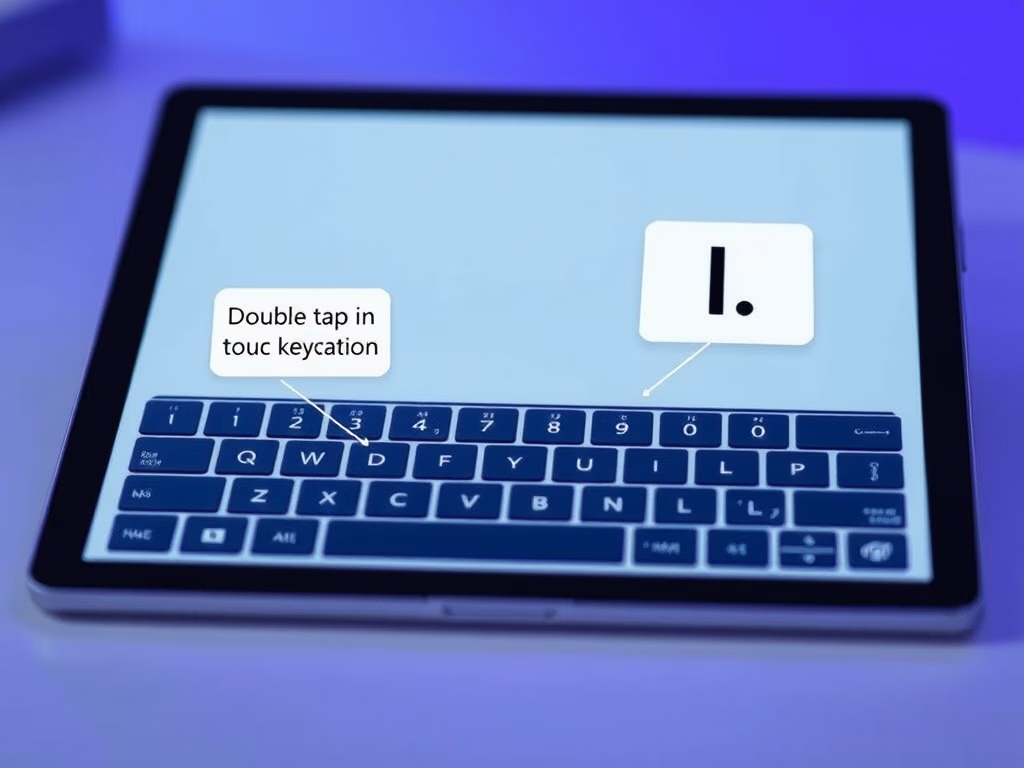
The double-tap spacebar shortcut on the Windows 11 touch keyboard inserts a period and a space when you tap the Spacebar twice in a row. Smartphone keyboards work the same way, so it speeds up typing sentences on a tablet or other touchscreen device.
The shortcut is on by default. If it keeps adding periods between your words, or you simply prefer to type punctuation yourself, you can turn it off. You can switch it back on at any time. The setting is in the main Settings app, and it only affects the on-screen touch keyboard, not a physical keyboard.
To turn on or off the double-tap spacebar period feature in Windows 11, open Settings by pressing Win+I, click Time & language, select Typing, expand Touch keyboard, then check or uncheck the box for Add a period after I double-tap the Spacebar.
Option 1Use Settings to Turn the Feature On or Off
- Open Settings by pressing
Win + Ion your keyboard. The Settings window should open with a list of categories on the left. If you are on a tablet without a keyboard, you can open Settings from the Start menu instead. - In Settings, click Time & language on the left side. Then click Typing on the right side. You should now see the typing options, including text suggestions and a Touch keyboard entry.
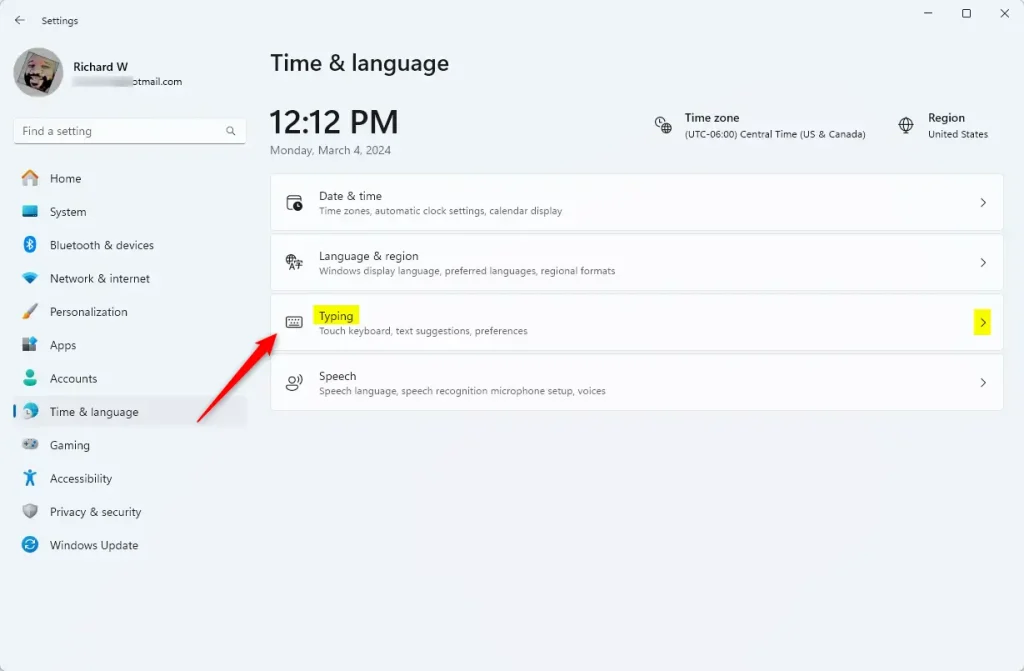
Settings is the easiest way to control the double-tap spacebar behavior, and it works the same on Windows 11 Home and Pro. You open the Settings app, go to the typing options, and change one checkbox. No restart is needed. The change applies the next time you type on the touch keyboard.
- Scroll down on the Typing page and click Touch keyboard to open more options. The section expands to show the touch keyboard settings.
- Find the option called Add a period after I double-tap the Spacebar. Check the box to turn it on (this is already on by default). Uncheck the box to turn it off. To undo the change later, come back to this same spot and set the box the other way.
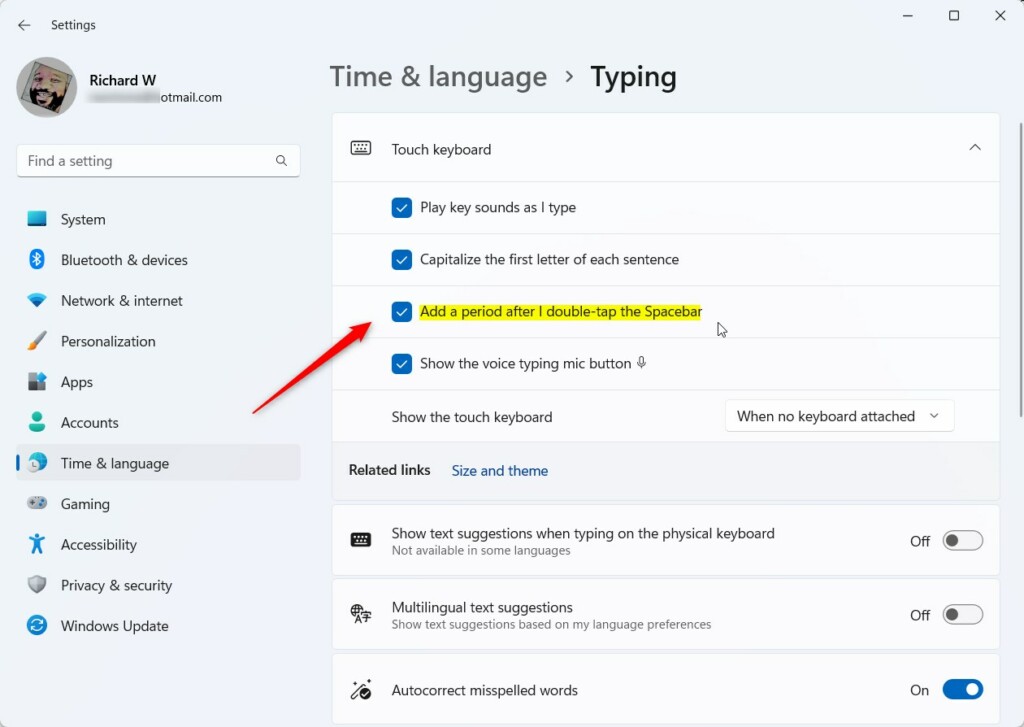
Press Win+I to open Settings , click Time & language on the left, and select Typing on the right. Then expand Touch keyboard and use the same checkbox as above.
- Close the Settings window. You’re done! To test it, open the touch keyboard in any text box and tap the Spacebar twice. With the option on, you should get a period and a space. With it off, you should get two spaces.
Option 2Use Registry Editor to Turn the Feature On or Off
If you prefer to skip the standard menus, you can change the same setting directly in the Windows Registry, a hierarchical database that stores low-level system settings. This method is useful for scripting or when you manage several PCs. ⚠️ Admin privileges required.
Follow the steps for this method exactly as given, and sign out and back in if the change does not show up right away.
Turn On the Add Period Feature
Turning on the add-period feature makes typing sentences and web addresses faster on a touchscreen. Once it is enabled in Settings, tapping the Spacebar twice inserts a period and a space. If you later find it gets in your way, turn the same checkbox off.
Make the backup, or create a restore point, before you edit, and keep it until you have confirmed the change works.
Summary
Windows 11 gives you two ways to manage this touch keyboard shortcut: the main Settings app or the Registry Editor. For most people, Settings is the better choice. It is quicker, safer, and easy to reverse. Use the Registry Editor only if you have a specific reason, such as automating the change.
Was this guide helpful?

About the Author
Richard
Tech Writer, IT Professional
Richard is a writer at Geek Rewind who turns complex IT tasks into clear, step-by-step guides. He draws on years of hands-on experience in system administration and enterprise IT operations, focusing on Windows, Linux and WordPress: the problems people actually run into, and the fixes that work. His server and WordPress guides come from systems he runs himself. Richard builds and maintains the platform behind Geek Rewind, from its Ubuntu servers and Nginx configuration to its custom WordPress plugins. Many new tutorials start with readers' questions, and he's always glad to answer them in the comments.

No comments yet — be the first to share your thoughts!