How to Enable Double Tap Period on the Windows 11 Touch Keyboard


- 18 steps
- Needs administrator rights
- Includes a restart or sign-out
Double tap period is a typing shortcut on the Windows 11 touch keyboard. When you press the spacebar twice, Windows inserts a period and a space. It ends your sentences for you and speeds up typing on a tablet or touchscreen PC.
You can turn it on in the typing settings. Open Settings, go to Time & language, select Typing, find the touch keyboard options, and check the box to add a period after a double-tap of the spacebar. If your build doesn’t show that box, the Registry Editor method later in this guide does the same thing.
Open Settings, go to Time & Language, select Typing, scroll to Touch keyboard settings, and check the box next to “Add a period after I double-tap the Spacebar”. The feature activates immediately with no restart required.
What is the Touch Keyboard?
Touchscreen devices that don’t have a physical keyboard use a virtual keyboard called the Touch Keyboard. It appears on the screen and lets you type by tapping the keys with your finger or a pen.
When you tap a text box or any other place where you can type, Windows 11 often opens the Touch Keyboard automatically. This happens most often on tablets and on 2-in-1 laptops with the keyboard detached or folded back. On a regular laptop with a keyboard attached, you may need to tap the keyboard icon in the taskbar corner to bring it up.
Why Use Double Tap Period?
You can type faster by turning on the option that adds a period when you double-tap the spacebar. You no longer have to switch to the symbols layout or hunt for the period key at the end of every sentence.
The shortcut only works on the touch keyboard. It does nothing on a physical keyboard. You can turn it off again at any time with the same steps you used to turn it on.
How to Turn On or Off the Double Tap Spacebar Period Feature
The simplest way to turn on the double-tap spacebar period is through the main Settings app. It works on both Windows 11 Home and Pro, needs no restart, and is the method I recommend for a single PC. Settings pages are sometimes reorganised between Windows 11 updates, so the exact wording may differ slightly on your build.
- Open Windows Settings:
- Click the Start menu (Windows icon) and select Settings, or
- Press
Windows key + Ion your keyboard. The Settings window should open with a list of categories on the left.
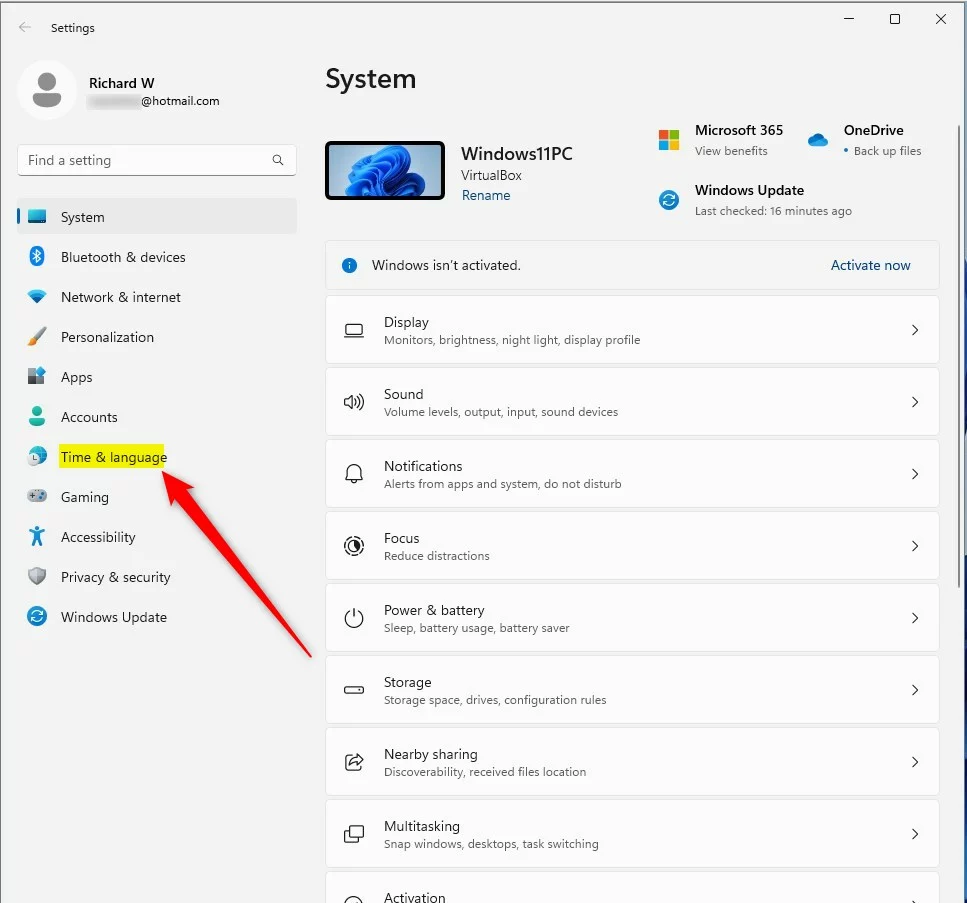
- In Settings, click Time & language in the list on the left side. The page on the right will change to show the time and language options.
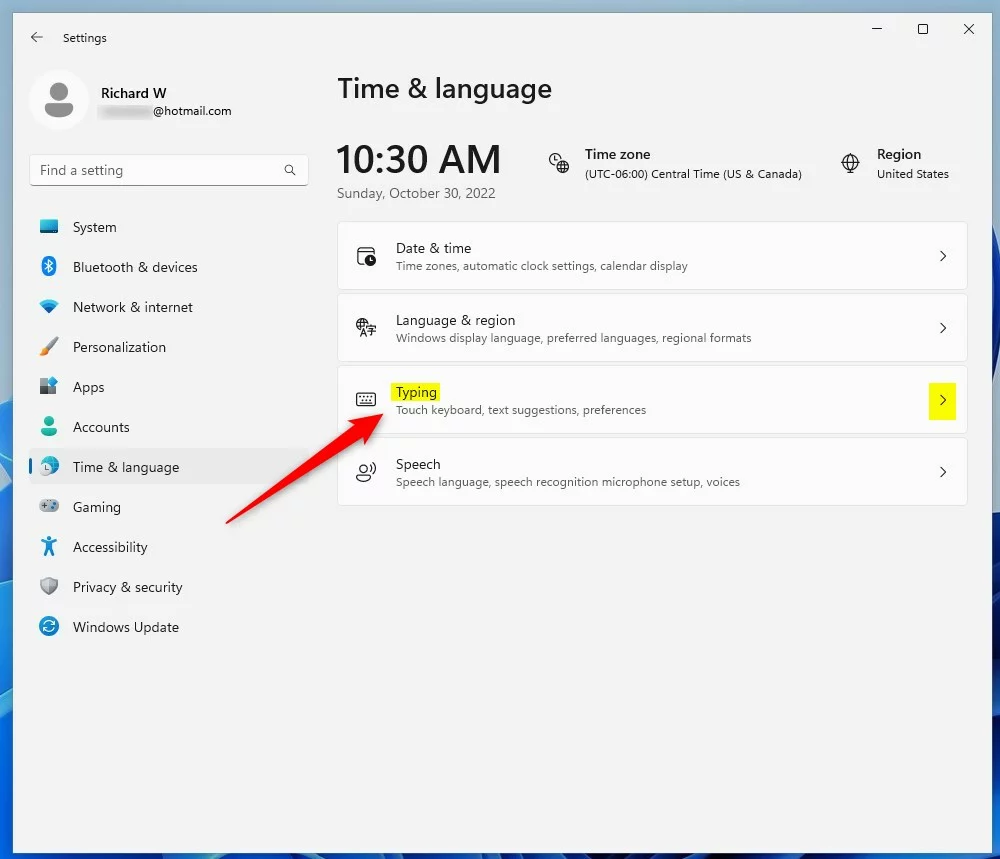
windows 11 time and language icon - On the right side, click Typing to open the typing options. You should see settings such as text suggestions and autocorrect.
windows 11 time and language typing tile - Scroll down and find the Touch keyboard settings section. Click it to expand it if it is collapsed. If you can’t find it, check that you are on the Typing page and not Language & region.
- Check the box next to “Add a period after I double-tap the Spacebar” to turn on the feature. Uncheck it if you want to turn it off. The change applies straight away, so you can test it by opening the touch keyboard, typing a word and double-tapping the spacebar. You should get a period followed by a space.
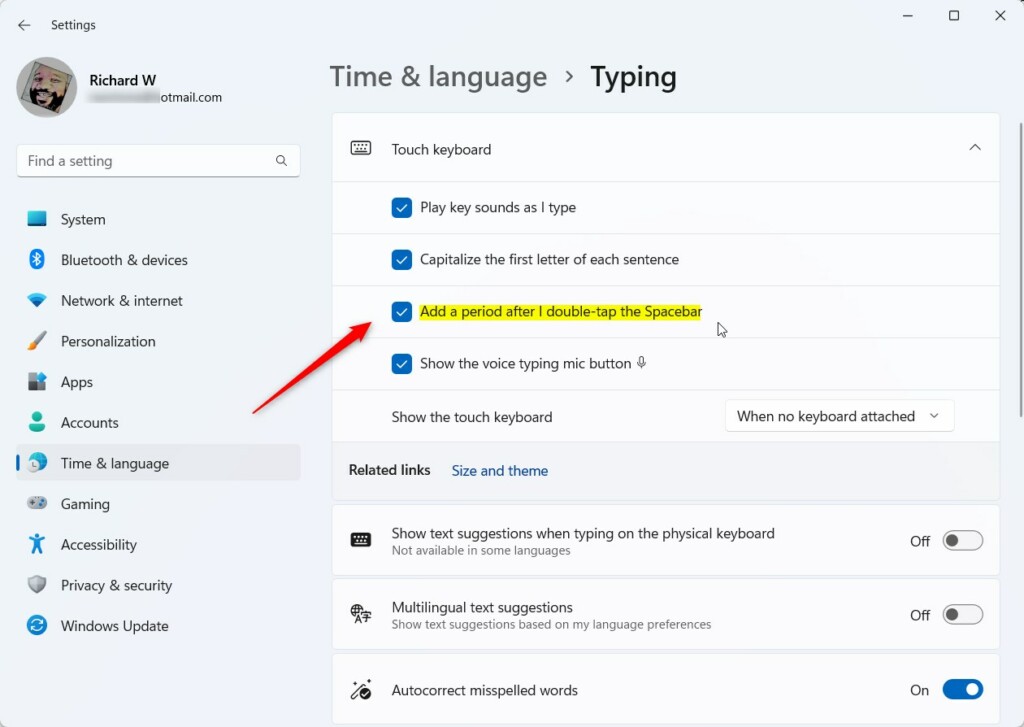
Windows 11 add a period after double tapping spacebar
How to Enable or Disable Double Tap Period Using the Registry Editor (Advanced)
This changes the setting directly in the system database instead of through the Settings app. It is useful for IT administrators and custom setups, and when the option is missing from the Settings page on your build. The Registry Editor is included in both Home and Pro editions.
- Open the Registry Editor:
- Press
Windows key + R, typeregedit, and pressEnter. - If prompted, click Yes to allow changes. ⚠️ Admin privileges required. If you are on a standard account, you will be asked for an administrator password. The Registry Editor window should then open, with a folder tree on the left.
- Press
- In Registry Editor, go to this folder (key):
HKEY_CURRENT_USER\Software\Microsoft\TabletTip\1.7. You can paste the path into the address bar at the top of the window, or expand the folders one at a time on the left.- If you don’t see the 1.7 folder, right-click TabletTip, choose New Key, and name it
1.7. The new folder should appear under TabletTip.
- If you don’t see the 1.7 folder, right-click TabletTip, choose New Key, and name it
- Click the 1.7 folder. On the right side, right-click an empty area and choose New DWORD (32-bit) Value. A new entry will appear in the list with its name highlighted for editing.
- Name the new value
EnableDoubleTapSpace. Type the name exactly as shown, then press Enter. - Double-click
EnableDoubleTapSpaceand set:- BaseDecimal
- Value data1 to enable or 0 to disable
- Click OK, close the Registry Editor, and restart your computer. After you sign back in, open the touch keyboard, type a word and double-tap the spacebar to check that you get a period and a space. To undo the change, open the same value, set Value data to 0, click OK and restart again.
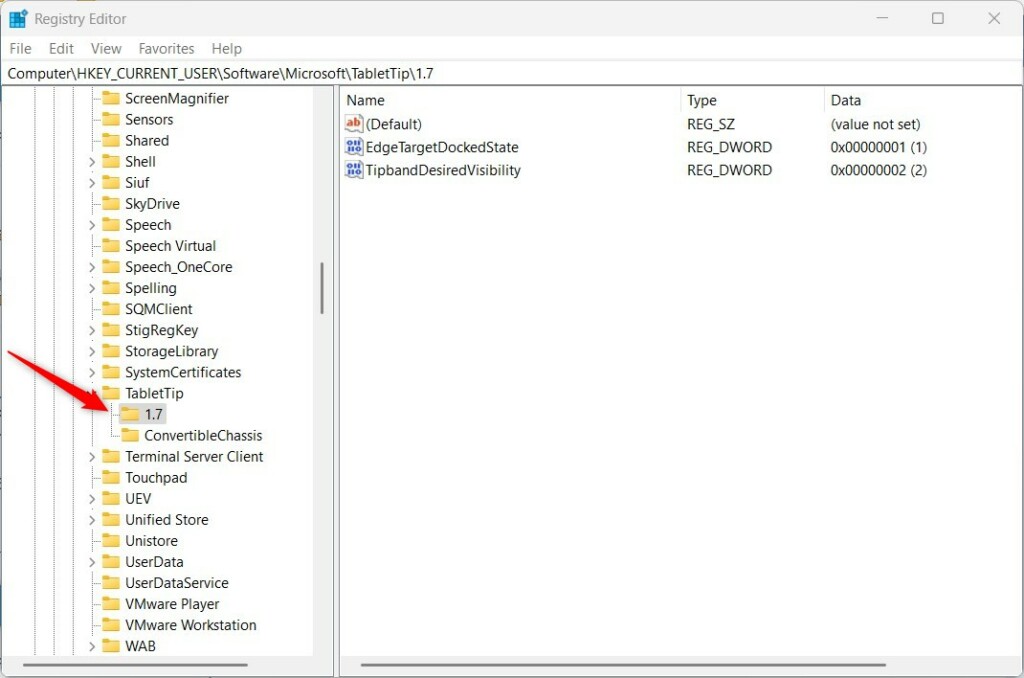
Windows 11 TabletTip registry key 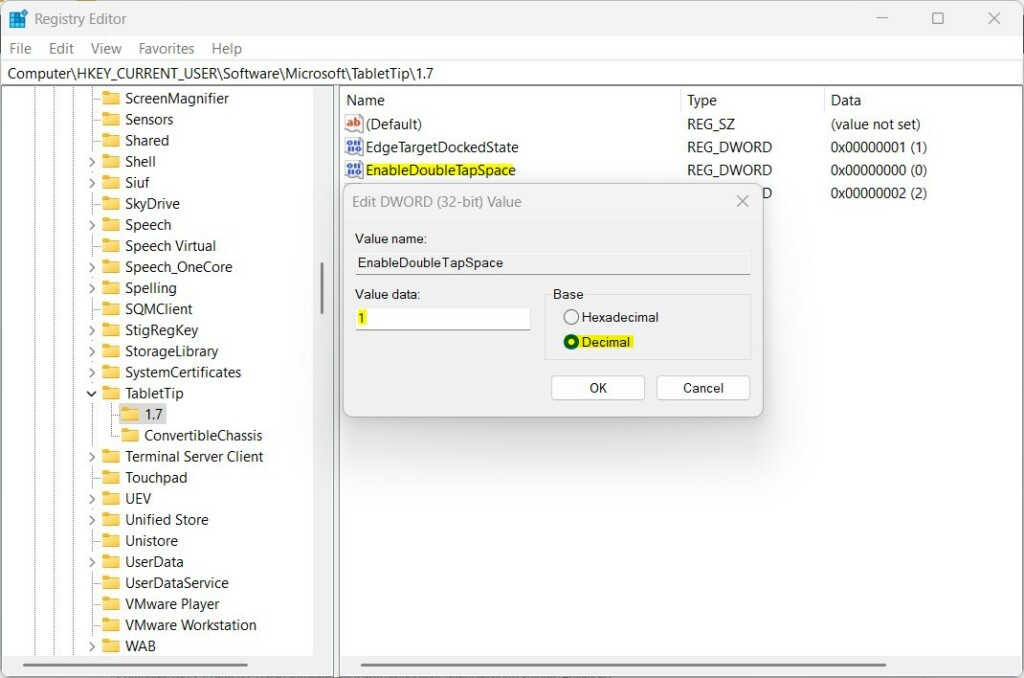
Windows 11 TabletTip key value data
Summary
You can manage the double-tap period feature on the Windows 11 Touch Keyboard with either the Settings app or the Registry Editor. Most people should use the Settings app because it is quick, safe and takes effect immediately. The Registry Editor is better when you need to apply the change across several computers or when the option is missing from Settings.
Use the Settings app for the simple method. Use the Registry Editor if you want more control, and back up the key first.
Either way, you end up with a faster way to end sentences on the touch keyboard, and you can reverse the change whenever you like.
If you have any questions or want to share tips, feel free to use the comments below!
Have a question about this guide?
Answered by AI from this guide. Good questions may be added to this page — please don't include personal details.
Did this guide fix your problem?

About the Author
Richard
Tech Writer, IT Professional
Richard is a writer at Geek Rewind who turns complex IT tasks into clear, step-by-step guides. He draws on years of hands-on experience in system administration and enterprise IT operations, focusing on Windows, Linux and WordPress: the problems people actually run into, and the fixes that work. His server and WordPress guides come from systems he runs himself. Richard builds and maintains the platform behind Geek Rewind, from its Ubuntu servers and Nginx configuration to its custom WordPress plugins. Many new tutorials start with readers' questions, and he's always glad to answer them in the comments.
No comments yet — be the first to share your thoughts!