
- 20 steps
- Needs administrator rights
- Includes a restart or sign-out
Accelerated App Launches in Windows 11 make Microsoft Edge open faster by using a launch speed-up built into Windows itself. Microsoft says most users see a 15% improvement in launch speed, and up to 33% when the PC is under heavy multitasking.
The quickest route is to check that your PC meets three requirements: Windows 11 version 25H2, 26H1, or 26H2, the October 2026 non-security update (KB5127936) or later, and Microsoft Edge 150 or later. This guide shows how to check each one and install whatever is missing.
Open Settings System About to confirm Windows 11 is version 25H2, 26H1, or 26H2, then install the October 2026 non-security update (KB5127936) or later through Settings Windows Update. Accelerated App Launches needs that update and Microsoft Edge 150 or later, which you can check under Settings and more > Help and feedback > About Microsoft Edge. There is no setting to switch on.
What Accelerated App Launches Does for Edge
Accelerated App Launches is a Windows capability, not an Edge setting. Edge is the first browser to support it. That is why the speed-up needs two pieces of software: the Windows update that adds the capability, and an Edge version that uses it.
Microsoft announced it on October 29, 2026, alongside the October 2026 non-security update. A non-security update is a monthly update that delivers features and fixes rather than security patches. Each update has a KB number (the Knowledge Base article ID Microsoft assigns to it), and the one you need here is KB5127936.
Microsoft’s announcement lists only version requirements and no setting to switch on, so there is nothing to turn on here. If your PC meets the requirements, there is nothing else to configure.
What You Need Before You Start
Check these three items first. A PC that misses any one of them does not get the launch speed improvement.
- Windows 11 version 25H2, 26H1, or 26H2. The labels show the year and the half of the year a version was released. Older versions, such as 24H2, do not qualify.
- The October 2026 non-security update (KB5127936) or a later update. This update adds the capability to Windows.
- Microsoft Edge 150 or later. Earlier versions of Edge do not use the capability.
Microsoft lists these requirements for each Windows version, not for each edition. It does not separate Home and Pro, so this guide applies them to both.
How to Get Faster Microsoft Edge Launch Times in 🪟 Windows 11
These steps check your Windows version, install the required update, and bring Edge up to version 150 or later so you get faster Microsoft Edge launch times in Windows 11.
- Press Win+I to open Settings. The Settings window opens on the System page.

Start Menu - Click System in the left pane, then scroll down and click About. The path is Settings System About.
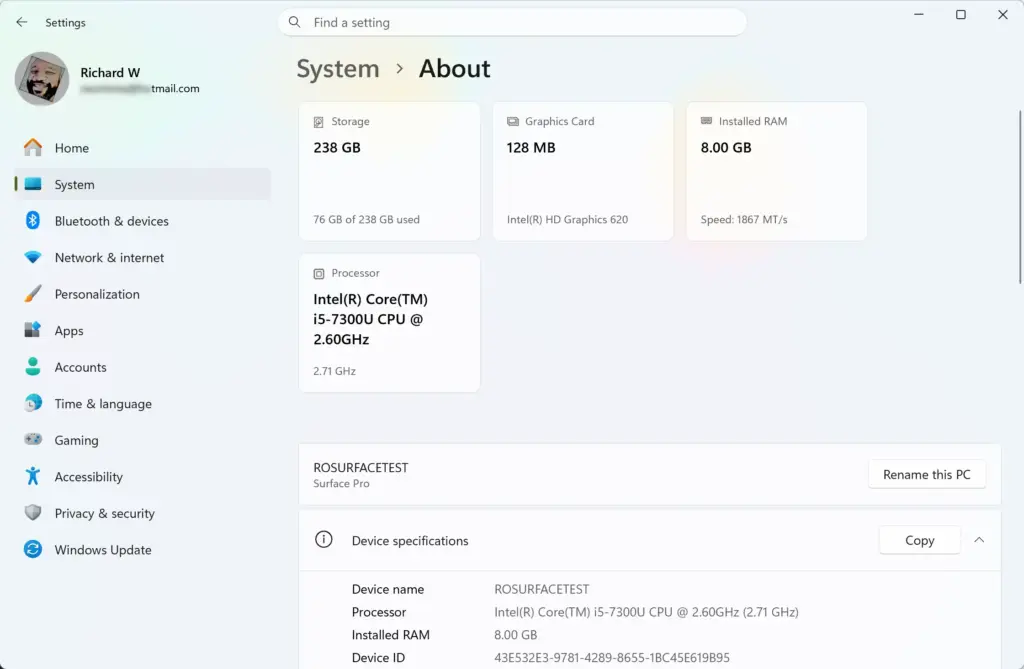
Settings › System › About - Read the Version line under Windows specifications. It must read 25H2, 26H1, or 26H2. If it shows an older version such as 24H2, keep going: the update steps below offer the newer version if Windows Update has it ready for your PC.
- Click Windows Update in the left pane. This page lists pending updates and shows when Windows last checked.
- Click Check for updates. This step needs administrator rights on some PCs. Windows contacts Microsoft and lists anything available, such as the October 2026 non-security update (KB5127936) or a later one.
- Click Download & install next to each update that appears. The button label varies slightly (it can read Download & install all or Install now). A progress percentage appears while Windows downloads and installs.
- Click Restart now when it appears. Windows finishes the install during the restart, which can take several minutes. Save your work first.
- Sign in and open Settings Windows Update Update history. The page lists installed updates by date.
- Look for KB5127936 or a later update in the list. A later update is acceptable, because the requirement is “or later”. If you do not see either one, return to Windows Update and select Check for updates again.
- Open Microsoft Edge. Use the Start menu or the taskbar icon.
- Click Settings and more (the three dots at the top right). A menu opens.

micrsoft edge browser more option and settings - Select Help and feedback About Microsoft Edge. You can also type edge://settings/help in the address bar and press Enter.
- Wait while Edge checks for updates. A line that reads Microsoft Edge is up to date means no download is waiting. If Edge finds an update, it downloads automatically and shows a progress message.
- Click Restart if the button appears. Edge closes and reopens with your tabs restored. If the button does not appear, close every Edge window and open Edge again.
- Read the version number under the Microsoft Edge name on the same page. It must be 150 or later.
- Close Edge completely, then open it again. The first launch after the updates is the one to use as your baseline.
When all three requirements are met, Edge benefits from Accelerated App Launches. Microsoft’s figures are an improvement of 15% for most users, and up to 33% under heavy multitasking. 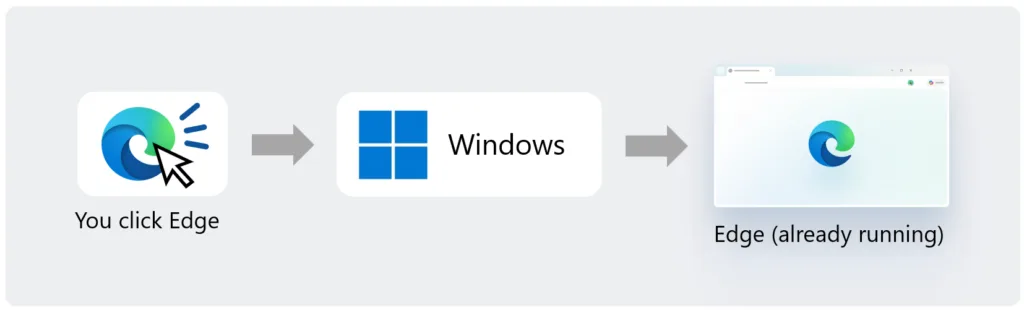
If a Step Fails or an Update Does Not Appear
Most failures come down to one of the three requirements. Match what you see to the cases below.
Your Windows version is older than 25H2
The October 2026 update needs Windows 11 25H2, 26H1, or 26H2, so an older version cannot use it. Go back to Settings Windows Update and select Check for updates. If Windows offers a newer version of Windows 11, install it and restart, then continue from step 8 to confirm KB5127936 or later is present.
If Windows offers no newer version, check again in a few days. Microsoft’s announcement does not describe another route.
KB5127936 is missing from Update history
Run Check for updates again and restart if Windows asks. A later update that replaces KB5127936 also meets the requirement, so look for newer entries as well as the exact KB number. If Windows Update reports an error, note the error code on screen before you retry.
Settings closes as soon as you open it
Every step above starts in Settings. If the app crashes at launch, work through what to do when the Windows 11 Settings app crashes immediately on launch, then return to step 1.
Edge stays below version 150
On the About Microsoft Edge page, Edge checks for updates each time you open it. If it reports a problem or stays on an older version, restart your PC and open the page again. A PC with no internet connection cannot download the update, so confirm you are online.
The Windows update and the Edge update are separate. Meeting one without the other leaves you without the speed-up.
Why You May Not Notice the Difference
A 15% gain on a launch that already takes a second or two is hard to notice. The larger gain, up to 33%, applies when the PC is under heavy multitasking, such as when many apps and browser windows are open.
If Edge launches quickly but feels slow afterward, that is a separate problem. Accelerated App Launches covers the launch only. It does not change how Edge behaves once it is running. Other Edge guides on this site cover the problems that appear once the browser is open:
- How to fix Microsoft Edge high CPU usage on Windows 11 covers a browser that keeps the processor busy.
- How to enable or disable Tab Performance Detector in Microsoft Edge covers the tool that flags tabs slowing the browser down.
- How to turn Automatically put tabs to sleep on or off in Microsoft Edge covers freeing resources from tabs you are not using.
Sleeping tabs, which are tabs Edge pauses to free memory and processing power, are worth a look if you keep many tabs open. You can also change how long before a tab goes to sleep in Microsoft Edge if the default timing does not suit you.
Energy Saver (an Edge mode that reduces background activity to save battery) is aimed at power use rather than launch speed. It is covered in How to turn on or off Energy Saver in Microsoft Edge. The related setting that applies it while plugged in is covered in How to turn Use Energy Saver even when connected to power on or off in Microsoft Edge. Neither is part of Accelerated App Launches.
How to Undo the Windows Update
- Open Settings Windows Update Update history. The page lists installed updates.
- Scroll to the bottom and click Uninstall updates. A list of installed updates opens.
- Select KB5127936 and click Uninstall. This step needs administrator rights. If KB5127936 does not appear, the update was replaced by a later one, and you need to remove that one instead.
- Click Yes to confirm, then restart the PC if Windows asks.
If the update is not in the list, Windows does not offer a way to remove it. This guide has no other method to offer. This guide does not cover rolling back Edge to an earlier version.
What to Do Next
Open Edge a few times over the next days and compare it with how it behaved before the update. If the browser still feels slow once it is running, start with the guide to fixing Microsoft Edge high CPU usage on Windows 11. Check Settings Windows Update again after each monthly update, since later updates keep the requirement met.
Have a question about this guide?
Answered by AI from this guide. Good questions may be added to this page — please don't include personal details.
Did this guide fix your problem?

About the Author
Richard
Tech Writer, IT Professional
Richard is a writer at Geek Rewind who turns complex IT tasks into clear, step-by-step guides. He draws on years of hands-on experience in system administration and enterprise IT operations, focusing on Windows, Linux and WordPress: the problems people actually run into, and the fixes that work. His server and WordPress guides come from systems he runs himself. Richard builds and maintains the platform behind Geek Rewind, from its Ubuntu servers and Nginx configuration to its custom WordPress plugins. Many new tutorials start with readers' questions, and he's always glad to answer them in the comments.
No comments yet — be the first to share your thoughts!