Get the Windows 11 25h2 Update

You get the Windows 11 25H2 update from Settings Windows Update If your PC already runs version 24H2, 25H2 installs as a small update that needs one restart. If you are on an older version, Microsoft’s Installation Assistant or an ISO file (a single disk image file that holds a full copy of the Windows installer) does the same job.
The steps below cover checking your current version, installing through Windows Update , what to do when the update is not offered, and the two manual methods. They are written for Windows 11 Home and Pro. A PC managed by an employer or school may behave differently. The notes below say where.
You get the Windows 11 25H2 update from Settings Windows Update If your PC runs version 24H2, 25H2 installs as a small enablement package that needs one restart. If you run 23H2 or 22H2, expect a larger download. Check your version first with winver in the Run box, then select Check for updates .
What the Windows 25H2 Update Is and Who Gets It Quickly
25H2 is the 2025 feature update for Windows 11. A feature update is the yearly release that changes the Windows version number. Microsoft delivers 25H2 to PCs on version 24H2 as an enablement package (a small update that switches on features already stored in your installed files). The download is small and the install is quick. Both versions share the same core files.
The path depends on what you run now:
- Windows 11 version 24H2: you get the enablement package through Windows Update . This is the fastest route.
- Windows 11 version 23H2 or 22H2: you get a full feature update. It is a larger download and takes longer to install.
- Windows 10: you must upgrade to Windows 11 first, and the PC must meet the Windows 11 hardware requirements. Windows 10 reached end of support on October 14, 2025, so it no longer gets regular security updates.
Microsoft rolls out feature updates in phases. Your PC may not see 25H2 on the first day, even when it is fully eligible. The methods below include ways to ask for it sooner.
Check Which Windows Version You Run
Check your version first. It tells you which method to use and whether you already have 25H2.
- Press Windows key + R to open the Run box.

Run dialog - Type
winverand press Enter. A window titled About Windows opens.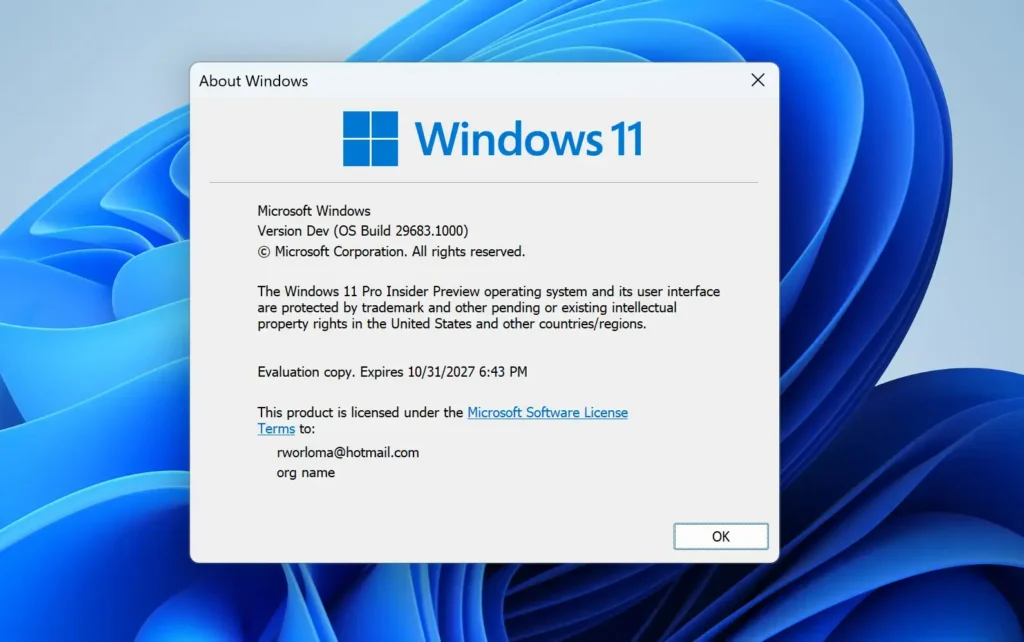
- Read the line that starts with Version. You see a value such as 24H2 or 25H2.
You can also open Settings System About and read Version under Windows specifications.
If it says 25H2, you already have the update and can stop here. If it says 24H2, use the Windows Update method. If it says 23H2 or 22H2, use Windows Update too, but expect a larger download.
Before You Install the Windows 25H2 Update
A feature update changes core system files. It rarely goes wrong, but a failed install on a PC with no backup costs you time. Check these items before you start.
- Back up your files. Copy your documents, photos and other personal files to an external drive or to OneDrive. Do this before any feature update, even a small one.
- Plug in a laptop. A restart during the install must not run the battery flat.
- Check free disk space. Open Settings System Storage. Leave generous free space on the system drive. A full upgrade from 23H2 or 22H2 needs much more room than the 24H2 enablement package.
- Install any pending updates. If Windows Update already shows updates waiting, install them first. The 25H2 offer on 24H2 depends on your PC having the latest 24H2 updates.
- Disconnect devices you do not need. Remove extra USB drives, docks and printers. Old drivers for peripherals are a common cause of failed upgrades.
Get the Update Through Windows Update
Start here if you can. Microsoft intends this method for most people. It checks your hardware and drivers before it offers the update. This method requires administrator privileges to install, so sign in with an administrator account. On a standard account, Windows asks for an administrator's password.
- Open Settings by pressing Windows key + I.

- Select Windows Update at the bottom of the left sidebar. The Windows Update page opens.

Settings › Windows Update - Select Check for updates. Windows contacts Microsoft's servers and lists what is available. Wait for the check to finish.
- Look for an entry named Feature update to Windows 11, version 25H2. If it appears, select Download & install. The button label can differ slightly between builds.
- Wait while the update downloads and installs. A progress percentage shows on the page. You can keep working during the download.
- Select Restart now when the button appears. Save your work first, because the PC restarts straight away. The 24H2 enablement package normally needs a single restart. A full upgrade from an older version can restart several times and take longer.
- Sign in when the PC starts again. Windows may show a short "Working on updates" screen before the desktop loads. Do not switch the PC off during this screen.
If the install succeeds, Windows Update shows You're up to date. Confirm the version with winver as described above.
If the Update Is Not Offered
If Check for updates finds nothing for 25H2, work through these causes in order, starting with the most likely.
- Turn on early access. On the Windows Update page, switch on Get the latest updates as soon as they're available. This tells Windows to offer you optional feature updates earlier in the phased rollout. Select Check for updates again afterwards. If the toggle is missing, your build or your organization's settings may not include it.
- Check that updates are not paused. If the page shows a banner saying updates are paused, select Resume updates. Paused updates also block the feature update offer.
- Install all pending cumulative updates. Restart, then check again. 25H2 is not offered to a 24H2 PC that is missing recent updates.
- Look for a compatibility block. Microsoft sometimes holds back an update on PCs with a known driver or software problem. This is called a safeguard hold. Windows Update may show a message that the update is not ready for your device yet. Waiting is the safe option. Updating your drivers from the PC maker's support site can also clear a hold. If you force the update with an ISO, you ignore the warning that the hold exists to give you.
- Check whether your PC is managed. A work or school PC often takes feature updates on a schedule set by IT. If Some settings are managed by your organization appears on the Windows Update page, ask your IT staff. You cannot override this with a Home or Pro licence.
- Run the Windows Update troubleshooter. Open Settings System Troubleshoot Other troubleshooters. Select Run next to Windows Update and follow the prompts. Then check for updates again.
If the Download Stalls or the Install Fails
If the progress bar sticks at one percentage for more than an hour, restart the PC and select Check for updates again. Windows resumes the download from where it stopped.
If the update fails and rolls back, Windows Update shows Install error with an error code. Select Retry once. If it fails again, search Microsoft's support site for that exact code. Codes point to different causes, so a generic fix is not reliable.
Get the 25H2 Update With the 🪟 Windows 11 Installation Assistant
Use the Installation Assistant when Windows Update does not offer 25H2 and your PC meets the Windows 11 requirements. The Installation Assistant is a Microsoft tool. It upgrades your current Windows installation without erasing it. It keeps your files and apps. This method requires administrator privileges.
- Open Microsoft's Download Windows 11 page in your browser.
- Find the section named Windows 11 Installation Assistant and select Download Now. A small file downloads.
- Run the downloaded file. Select Yes when User Account Control asks for permission.
- Select Accept and install after reading the licence terms. The tool downloads the update and prepares it. If your PC does not meet the requirements, the tool tells you which one fails.
- Wait for the install to reach 100 percent. Select Restart now when prompted, or let the tool restart the PC automatically after a countdown.
After the restart, the PC finishes the install and loads the sign-in screen. Check the version using the About Windows steps above, with winver.
Get the 25H2 Update From an ISO File or Installation Media
An ISO file is a single file that holds a complete copy of the Windows installer. Use one when you upgrade several PCs, when the Installation Assistant fails, or when you want a clean copy of the installer to keep. You start an in-place upgrade from inside Windows. Starting your PC from the media to upgrade does not keep your apps. This method requires administrator privileges.
Upgrade From a Downloaded ISO
- Open Microsoft's Download Windows 11 page.
- Find the section named Download Windows 11 Disk Image (ISO) for x64 devices. Select the Windows 11 multi-edition ISO from the drop-down list, then select Download Now.
- Choose your product language and select Confirm.
- Select 64-bit Download. The file is several gigabytes, so allow time.
- Open File Explorer, right-click the downloaded ISO file and select Mount. Windows opens the ISO as a virtual drive.
- Open the new drive and double-click setup.exe. Select Yes if User Account Control asks.
- Follow the setup screens. When you see the option to choose what to keep, select Keep personal files and apps. If you select Nothing, setup removes your files and apps.
- Select Install. The PC restarts several times. Leave it on until the sign-in screen appears.
Check the Microsoft page for the version it offers. The page should name 25H2. If it names an older version, use Windows Update instead.
Create a USB Installer With the Media Creation Tool
You need a blank USB flash drive of at least 8 GB. The tool erases everything on the drive, so copy off any files first.
- Download the Media Creation Tool from the Download Windows 11 page and run it.
- Accept the licence terms, then check the language and edition. Clear Use the recommended options for this PC if you need to change them.
- Select USB flash drive, then Next, and pick your drive from the list.
- Wait while the tool downloads Windows and writes it to the drive. Select Finish when it is done.
- Open the USB drive in File Explorer while you are signed in to Windows. Double-click setup.exe and follow the same screens as in the ISO method.
Upgrading From 🪟 Windows 10 or an Older 🪟 Windows 11 Version
The ISO and Installation Assistant methods also upgrade a Windows 10 PC, provided it meets the Windows 11 requirements. The main ones are a 64-bit processor, 4 GB of RAM, 64 GB of storage, UEFI firmware (the modern startup system built into your PC) with Secure Boot turned on, and TPM 2.0 (a security chip or firmware feature). To check TPM, press Windows key + R, type tpm.msc and press Enter. The window shows the TPM version, or tells you that no compatible TPM is found.
Do not bypass the requirement checks with registry edits (changes to Windows' settings database) or modified media. Microsoft does not support those PCs, and updates on them can stop without warning.
Confirm the Update Installed
Open About Windows again with winver and check that the Version line reads 25H2. Then open Settings Windows Update and select Check for updates. After a feature update, Windows often has a cumulative update (a bundle of fixes that includes all earlier ones) waiting. Install it and restart again so the PC is fully patched.
For the installed history, open Settings Windows Update Update history You see the feature update listed under Feature Updates or Quality Updates, depending on how it was delivered.
How to Go Back After Installing 25H2
The 24H2-to-25H2 enablement package is different. Rollback after it is not confirmed. Do not rely on it. A backup you made earlier is the dependable way back.
To look for the option:
- Open Settings System Recovery
- Look under Recovery options for Go back. Select it if it is there and follow the prompts.
If Go back is missing or greyed out, the rollback window has passed, the previous files were deleted, or the update type does not support it. After a full upgrade from an older version, the window is usually 10 days. Running Disk Cleanup or Storage Sense can delete the old files early, which removes the option.
If the problem is one update rather than the whole version, open Settings Windows Update Update history, scroll down and select Uninstall updates. Select the update from the list and choose Uninstall. If the list does not include the update, Windows does not allow it to be removed this way.
What to Do Next
Run Windows Update once more in a few days. Cumulative updates for 25H2 arrive on Patch Tuesday, the second Tuesday of each month, and they carry fixes for early problems. If a driver or app misbehaves after the update, check the maker's support site for a version that supports 25H2. Keep your backup for a week or two before you delete it.
Have a question about this guide?
Answered by AI from this guide. Good questions may be added to this page — please don't include personal details.
Did this guide fix your problem?

About the Author
Richard
Tech Writer, IT Professional
Richard is a writer at Geek Rewind who turns complex IT tasks into clear, step-by-step guides. He draws on years of hands-on experience in system administration and enterprise IT operations, focusing on Windows, Linux and WordPress: the problems people actually run into, and the fixes that work. His server and WordPress guides come from systems he runs himself. Richard builds and maintains the platform behind Geek Rewind, from its Ubuntu servers and Nginx configuration to its custom WordPress plugins. Many new tutorials start with readers' questions, and he's always glad to answer them in the comments.
No comments yet — be the first to share your thoughts!