What to Do When Windows 11 Settings App Crashes Immediately on Launch

- 5 ways to do it
- Needs administrator rights
- Includes a restart or sign-out
The Windows 11 Settings app can crash the moment you open it when core system files, the app’s own package, or your user profile are damaged. The window flashes and closes, so you can’t change your wallpaper, install updates, or adjust network connections from it.
Damaged system files or a broken background update are the usual causes. The fixes below go from quickest to most involved. Work through them in order and test Settings after each one. Most of them take a few minutes with tools that are already built into Windows, such as System File Checker, which finds broken files and replaces them.
When the Windows 11 Settings app crashes immediately on launch, restart your computer first using the Start menu. If that doesn’t work, open Command Prompt as administrator and run DISM.exe /Online /Cleanup-image /Restorehealth, then run sfc /scannow to repair damaged system files.
Method 1Restart Your Computer
A restart clears out temporary glitches and stuck background processes that can stop apps from opening. It is the quickest fix, so try it first. Use the Start menu rather than the power button, so Windows closes everything cleanly.
- Click the Start button on your taskbar.
- Click the Power icon in the corner of the Start menu.
- Select Restart and wait for the computer to boot back up completely. If you see “Update and restart” instead, choose that. It also installs pending updates, which can help.
Once you are back at the desktop, try opening Settings again. If it still closes right away, move on to the next method.

Method 2Use the System File Checker to Repair Damaged Files
System File Checker is a built-in tool that scans protected Windows files and replaces broken or missing ones with healthy copies. Damaged system files are one of the most common reasons Settings crashes on launch, so this scan is worth running early.
- Click the Start button and type
cmdinto the search box. - Right-click Command Prompt in the search results and select Run as administrator.
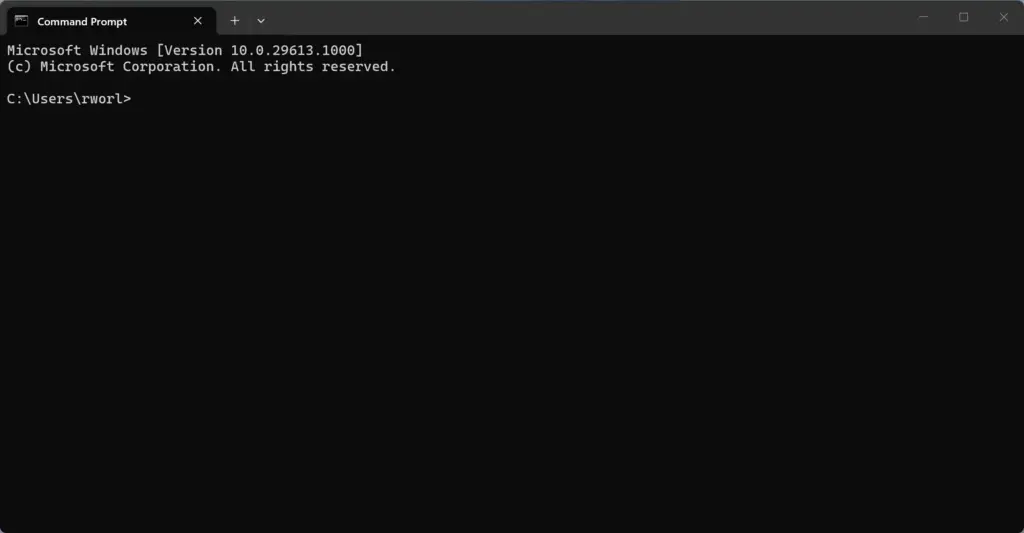
Command Prompt - If a window asks whether you want to allow this app to make changes to your device, click Yes. You should now see a black window with a blinking cursor and a path ending in System32.
- Type the following command carefully into the window:
DISM.exe /Online /Cleanup-image /Restorehealth - Press Enter and wait for the process to finish completely. Don’t close the window while it runs, even if the percentage seems stuck for a while.
- Next, type this command into the same window:
sfc /scannow - Press Enter and let it finish too.
The scans can take several minutes each, and the second one sometimes pauses for a long time at a fixed percentage. That is normal. When both have finished, the tools will have repaired any broken operating system files they could. Restart your computer and test Settings. If a scan reports problems it could not fix, run the commands once more after a restart before you move on.
Method 3Re-register the Settings App Using PowerShell
Windows PowerShell is a command-line tool for managing system settings. Here you use it to re-register the Settings app, which forces Windows to reinstall the app’s package. This replaces corrupted app code without touching your files or personal settings.
- Click the Start button and type
powershellinto the search box.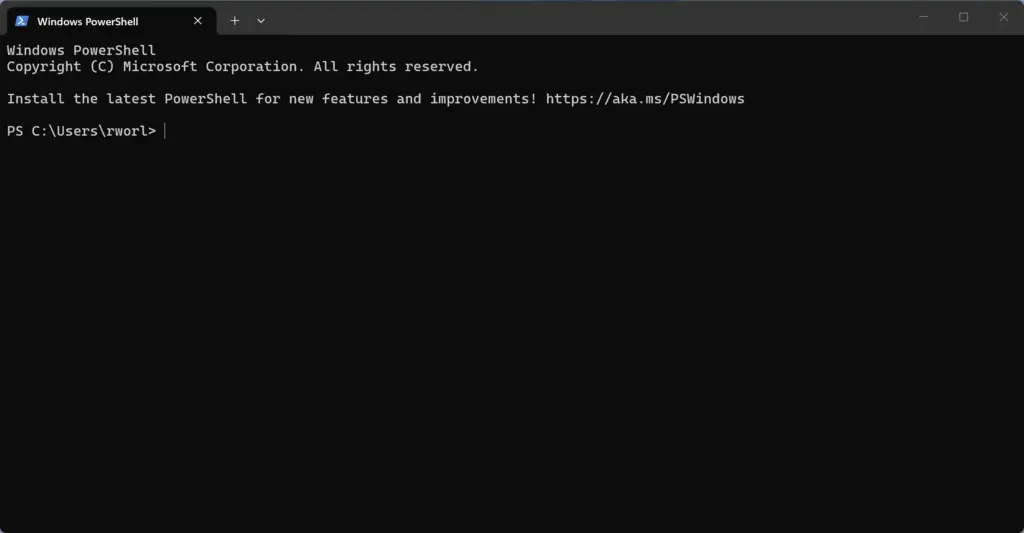
PowerShell - Right-click Windows PowerShell and select Run as administrator.
- Click Yes if a security warning box appears. A PowerShell window opens, usually with a blue background.
- Copy and paste the following long command into the PowerShell window. Pasting avoids typos in a command this long:PowerShell
Get-AppXPackage *Windows.Settings* -AllUsers | Foreach {Add-AppxPackage -DisableDevelopmentMode -Register "$($_.InstallLocation)\AppXManifest.xml"} - Press Enter on your keyboard and wait for the prompt to return.
Red text may appear while the command runs. Ignore it, since some of the packages it touches are in use and can’t be re-registered. When the prompt returns, close the window, restart your computer, and check whether Settings opens normally.
Method 4Create a New User Account to Fix a Corrupted Profile
A new user account tells you whether the problem is limited to your own profile. If your profile’s settings are corrupted, Settings can crash for you while working fine for a different login. Creating a fresh account is a quick way to find out.
Note: This method requires administrator privileges.
- Open the Windows search bar, type
cmd, right-click Command Prompt, and select Run as administrator. - Type the following command to create a new local user account, replacing USERNAME and PASSWORD with your own chosen text (for example,
net user JohnDoe123 /add):
Log out of your current user account and log into your newly created user account to test the system settings application. Try opening the settings app on your Windows 11 device. If the settings app works without crashing, your old user profile is damaged, and you may want to move your personal files over to the new account.
- Press Enter. Windows should report that the command completed successfully.
- Click the Start button, click your account name or picture, and select Sign out.
- Sign in to the new account from the sign-in screen. The first login takes a little longer while Windows builds the profile.
- Open Settings from the Start menu.
If Settings opens in the new account, your old profile is the problem. You can keep using the new account and copy your files across from the old user folder. If Settings still crashes, the fault is in the system itself, so go back to the repair and update methods in this guide. Keep in mind that an account created this way may be a standard user rather than an administrator.
Method 5Check for Windows Updates and Pending Installations
Software bugs that crash Settings are often fixed in later updates, but you can’t use Settings to install them. Checking for updates from the command line gets around that. Pending background updates can also be the reason core apps misbehave, so it is worth checking even if the other fixes helped.
Note: This method requires administrator privileges.
- Open the Windows search bar, type
cmd, right-click Command Prompt, and select Run as administrator. - Type the following command to see if updates are waiting:
UsoClient startscan - Press Enter and read the output to see whether anything is pending.
If updates are waiting, let them install and restart when Windows asks. If automated updates keep failing, you can download the latest update package straight from the Microsoft Update Catalog in a web browser and install it by hand. Pick the package that matches your Windows 11 version and system type (usually 64-bit).
Unique Expert Tip: Resetting App Data via Windows Settings Alternatives
While Settings is broken, other tools can cover the basics. Press Win+X to open a hidden quick-access menu. It lists tools such as Device Manager and Network Connections, so you can reach many of them without opening the main Settings window. Device Manager is a classic tool that doesn’t depend on the Settings app. The Control Panel, which you can find by searching the Start menu, is another way to reach many older configuration options.
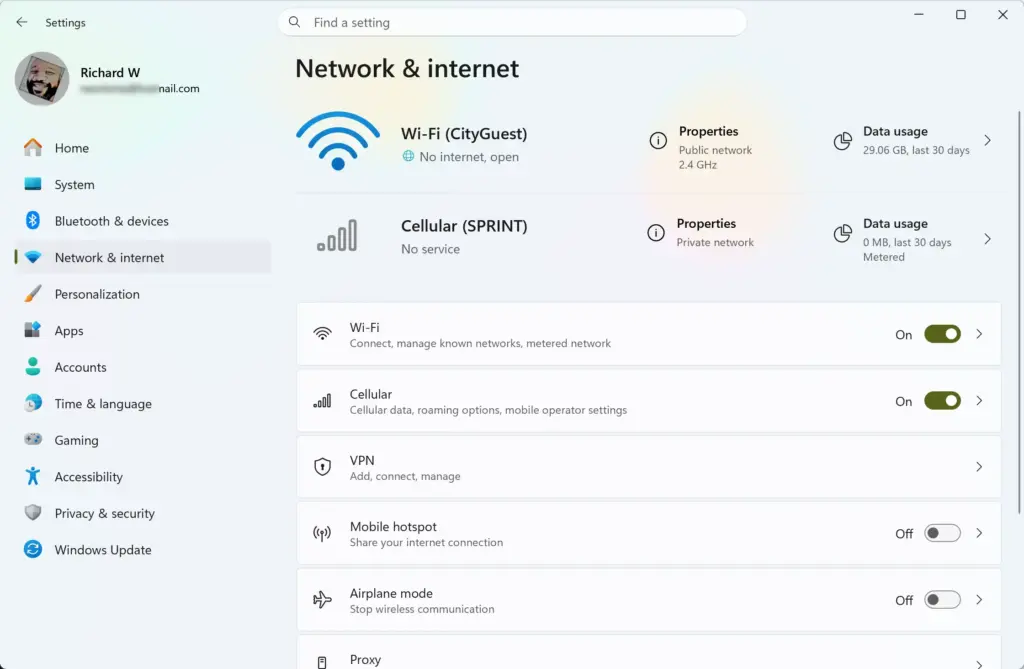
If you need to fix a network problem, right-click the internet icon in the bottom-right corner of your taskbar and select Network & internet settings or Troubleshoot problems. This skips the main Settings homepage and takes you straight to the tool you need. Some of these shortcuts still open a page inside Settings, so if one closes immediately, use Device Manager or Control Panel instead.
Unique Expert Tip: Checking Event Viewer for Faulting Modules
Event Viewer is a tool that records system events and error logs. When Settings crashes, Windows usually writes an entry describing what failed. Reading it can point you to the faulting module behind the crash, so you can fix the real cause instead of guessing.
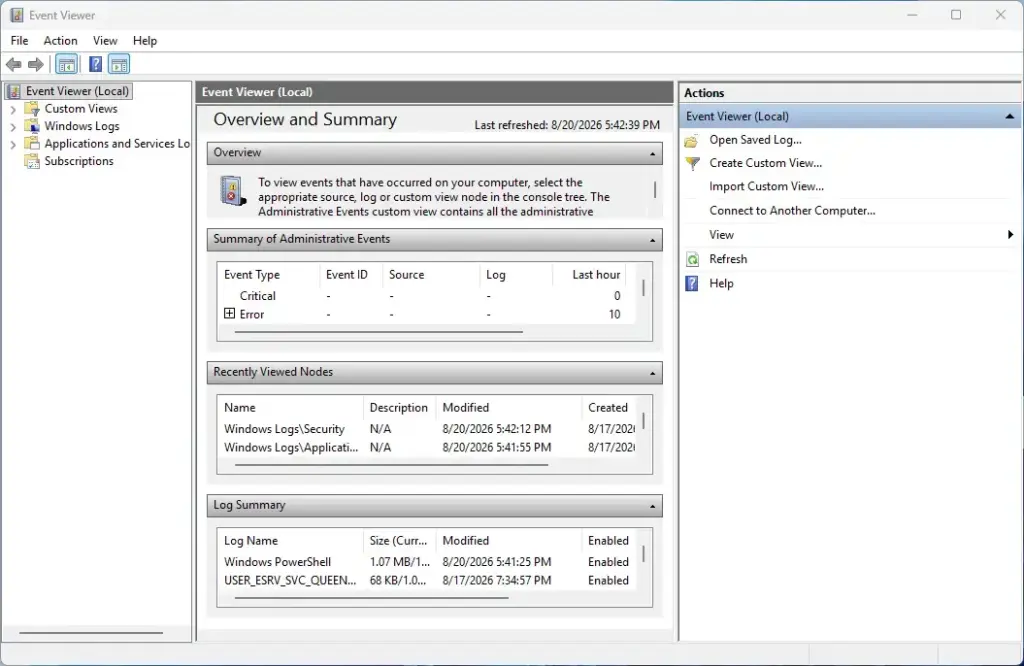
- Open Settings and let it crash once, so the error is fresh in the log.
- Click the Start button, type
event viewer, and press Enter. Event Viewer opens with a tree of folders on the left. - In the left-hand menu, click the arrow next to Windows Logs to expand the list.
- Click Application. A list of events appears in the middle of the window, newest first by default.
- Look through the list for an error event marked with a red circle that mentions
SystemSettings.exeor related components. Check the time stamp to match it to your last crash. - Click the error to read the description at the bottom of the window. This tells you which specific file or module caused the crash, which helps you decide whether to reinstall a particular driver or update an application.
Summary
A Settings app that crashes right after you open it is usually fixed by repairing damaged system files, re-registering the app package, or moving to a fresh user profile. Start with a restart, then work through System File Checker, PowerShell, a new account, and updates, and use Event Viewer to find the cause if the problem keeps coming back.
Questions readers asked
I can't highlight the DISM command in the guide. How do I enter it?
You can type it yourself. Open Command Prompt as administrator, then type exactly DISM.exe /Online /Cleanup-image /Restorehealth. Use one space between each part, a capital O in /Online, and keep the hyphens in Cleanup-image and Restorehealth. Press Enter once, then wait. The scan can take several minutes and may pause at one percentage for a while. Don't close the window until it finishes.
Still have a question?
Answered by AI from this guide. Good questions may be added to this page — please don't include personal details.
Did this guide fix your problem?

About the Author
Richard
Tech Writer, IT Professional
Richard is a writer at Geek Rewind who turns complex IT tasks into clear, step-by-step guides. He draws on years of hands-on experience in system administration and enterprise IT operations, focusing on Windows, Linux and WordPress: the problems people actually run into, and the fixes that work. His server and WordPress guides come from systems he runs himself. Richard builds and maintains the platform behind Geek Rewind, from its Ubuntu servers and Nginx configuration to its custom WordPress plugins. Many new tutorials start with readers' questions, and he's always glad to answer them in the comments.
No comments yet — be the first to share your thoughts!