How to Enable or Disable Blinking Cursor on Braille Display in Windows 11

How to Turn the Blinking Cursor On or Off for a Braille Display
The blinking cursor on a Braille display marks your exact position on the screen while you read or type. Narrator, the built-in screen reader in Windows 11, controls this cursor. You can have it blink or stay solid, depending on which is easier for you to read.
The setting lives in the Accessibility section of Settings. It only appears once Narrator’s braille support is set up, so the steps below cover that as well.
Changing the cursor blink takes a few clicks. The path is Settings Accessibility Narrator You can come back and change it whenever you like, and turning it off and on again is the only undo you need. You don’t need an administrator account to change it.
If you can’t see the braille options at all, Narrator’s braille support probably isn’t installed yet. Step 5 covers that.
- Open Windows Settings : Click the Start menu (the Windows icon at the bottom left), then click Settings. The quicker way is to press Win+I. The Settings window should open with a list of categories down the left side. Learn more about opening Settings
- Go to Accessibility: In the Settings window, click Accessibility in the left pane. The right side now lists accessibility options such as Narrator, Magnifier and Captions.
- Select Narrator: On the right side, find the Vision group and click Narrator to open its settings. You’ll see the Narrator on/off switch at the top, with more options below it. You don’t have to turn Narrator on to browse these settings.

Narrator tile in Windows 11 Settings app for accessibility features. - Find Braille Settings: Scroll down to the Braille section, then click Use a braille display with Narrator to expand the braille options. The braille settings and buttons now appear below it.
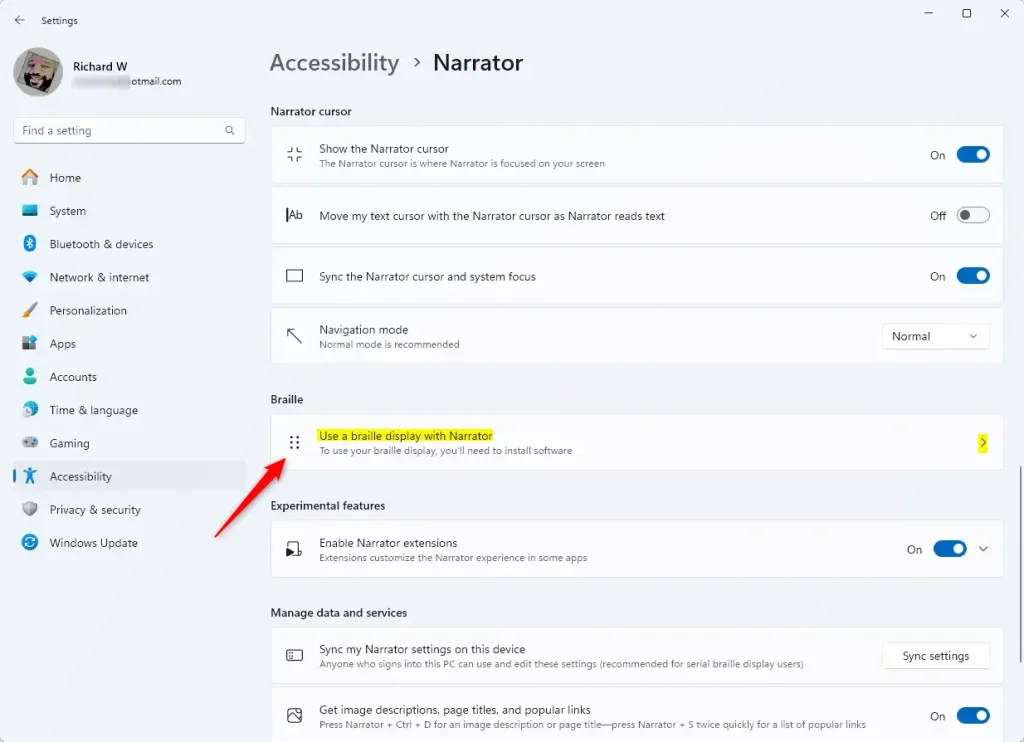
Braille display settings in Narrator - Install Braille support if needed: If you haven’t installed braille support yet, click Download and install braille. Windows downloads the braille files, so you need an internet connection for this step. Wait for the download to finish before you go on. If the button is no longer there, braille support is already installed and you can skip ahead. More on installing Braille support
- Add your Braille display: Click Add a braille display. Choose your display’s brand and how it connects to your PC, such as USB or Bluetooth . Connect or pair the device first so Windows can find it. Once it’s added, the remaining braille settings are available.
- Turn the blinking cursor on or off: Under the Braille cursor section, find Blink cursor on braille display. Move the switch to On to make the cursor blink, or to Off to keep it steady. The change should apply right away, so you shouldn’t need to restart Windows or Narrator. To undo it, flip the switch back.
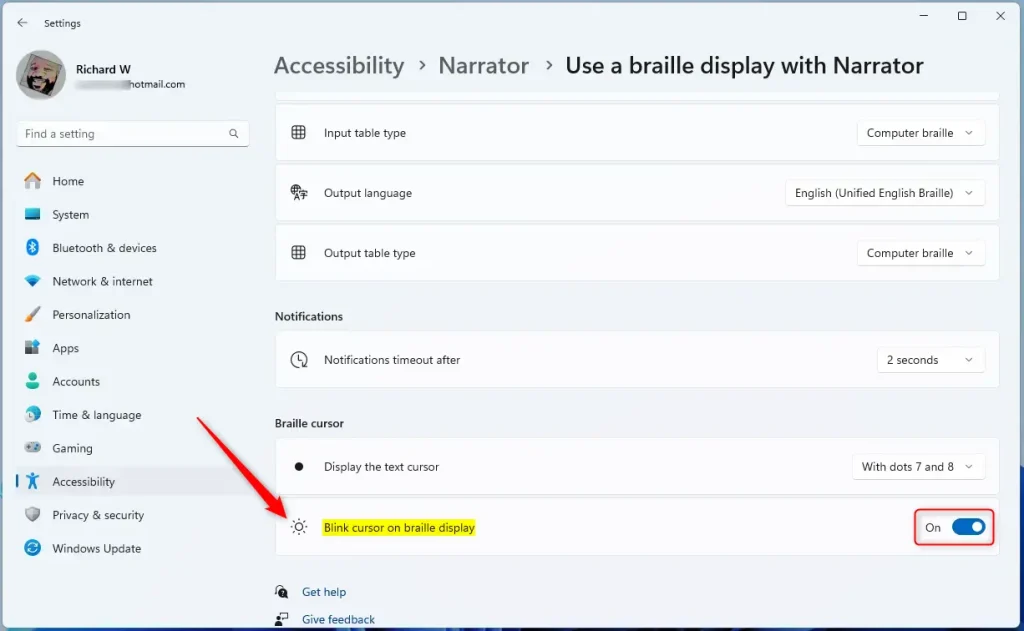
Toggle blinking cursor on Braille display in Windows 11
That’s all. Your Braille display cursor now blinks or stays still, whichever you prefer. If you can’t tell which way it’s set, return to Settings Accessibility Narrator and check the switch.
If the option is missing or greyed out, check that braille support is installed and that your display is added. The setting only shows once a display is set up.
Summary
- You can choose whether the cursor blinks or stays steady on your Braille display in Windows 11.
- The setting is in Settings Accessibility Narrator, and it needs Narrator’s braille support installed and a display added.
- It makes Windows more comfortable and easier to use for people who rely on Braille displays.
Was this guide helpful?
99% of readers found this helpful (103 votes)

About the Author
Richard
Tech Writer, IT Professional
Richard is a writer at Geek Rewind who turns complex IT tasks into clear, step-by-step guides. He draws on years of hands-on experience in system administration and enterprise IT operations, focusing on Windows, Linux and WordPress: the problems people actually run into, and the fixes that work. His server and WordPress guides come from systems he runs himself. Richard builds and maintains the platform behind Geek Rewind, from its Ubuntu servers and Nginx configuration to its custom WordPress plugins. Many new tutorials start with readers' questions, and he's always glad to answer them in the comments.




No comments yet — be the first to share your thoughts!