How to Add Natural Voices in Windows 11 Narrator


Narrator is the built-in screen reader in Windows 11. It reads text, buttons and menus on your screen aloud so you can work with your PC without watching the display closely. Natural voices replace the flat, robotic default speech with voices that sound like a real person talking.
A voice pack such as Microsoft Jenny downloads straight from Settings, usually in a few seconds. A more lifelike voice makes long documents, emails and web pages much easier to listen to for extended periods. This guide covers how to add a natural voice, how to select it, and how to remove it again. Natural voices need Windows 11 version 22H2 or later. If you don’t see the options below, run Windows Update first.
Open Settings , go to Accessibility, then Narrator. Click “Add natural voices,” choose a voice from the list, and click Install. You can then select your new voice in Narrator settings.
What is Narrator?
Narrator reads text, buttons and menus out loud so you can move around Windows without relying on what you see. It is designed for people who are blind or have low vision. It also helps anyone who wants to read emails, browse websites or write documents without staring at the monitor.
You can turn Narrator on and off with Win+Ctrl+Enter. Use that shortcut any time you want to test a voice or stop the speech.
Windows 11 brought several improvements to Narrator, and natural voices are the most noticeable one. This version handles everyday tasks such as sending emails, browsing websites and writing documents. It remains an important aid for people who are blind or have low vision.
You don’t need a separate download or a paid add-on. The voices come from Microsoft and are installed through the same Settings app you already use.
What Are Natural Voices?
Natural voices are modern text-to-speech voices. They sound like real people talking, not like computer-generated speech. They use neural speech technology to produce smooth, clear audio. Once a voice is downloaded, it works entirely offline.
You need an internet connection only for the download itself. After that, the voice works on a plane, on a locked-down network or anywhere else without a connection.
- Legacy voices: Older and less clear voices. They are installed with Windows and are fine for basic use, but they sound robotic and can be tiring over long stretches.
- Natural voices: Newer, clearer voices that sound more like real people. They are optional downloads and take up more disk space than the legacy voices.
Natural voices use advanced text-to-speech technology to sound much closer to actual human speech. Because they run offline, you can use them without an internet connection. That gives you more flexibility and makes them dependable on any machine.
If you read a lot of text with Narrator, the difference shows quickly. Pauses, stress and sentence flow are far more natural than with the legacy voices.
How to Add Natural Voices to Narrator
Adding a natural voice to Narrator takes a few steps. Make sure your PC is online before you start, because Windows has to download the voice. The steps below follow this order:
- Open Settings.
- Go to the Accessibility section, then Narrator.
- Choose Add natural voices and install a voice.💡If you can't find "Add natural voices"
The option has been renamed. On the Narrator page (Settings > Accessibility > Narrator), look in the voice section for a tile labelled
Add voices. Click it to see the list of natural voices, choose one such as Microsoft Jenny, then clickInstall. If you still can't find it, run Windows Update to make sure Windows 11 is current, then typeAdd voicesinto the Settings search box to jump straight to it. - Select the new voice in the Narrator settings.
Step 1Open Windows Settings
Click the Start menu and select Settings. You can also press Windows key + I to open Settings directly.
The Settings window opens with a list of categories down the left side.
Step 2Go to Accessibility
In the Settings window, click Accessibility in the left sidebar. The accessibility options appear on the right, grouped by Vision, Hearing and Interaction.
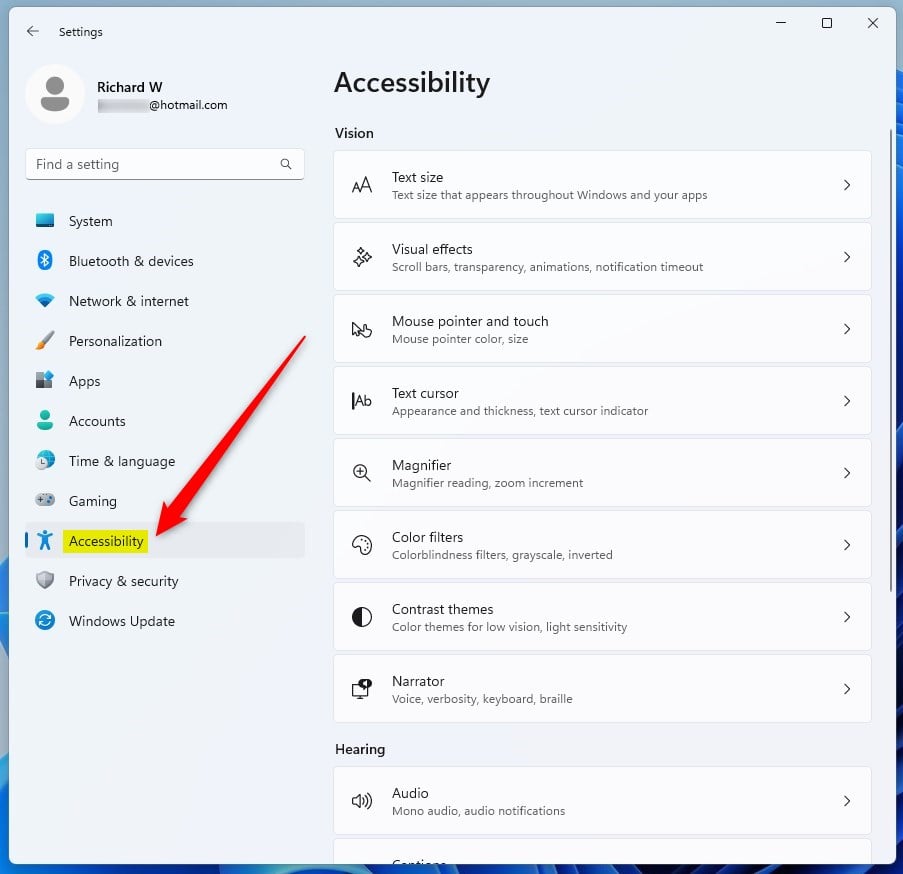
You should now see the Accessibility page with the list of options, including Narrator under the Vision group.
Step 3Select Narrator
Find and click Narrator on the right side. The Narrator page opens, with the on/off switch at the top and the voice settings further down.
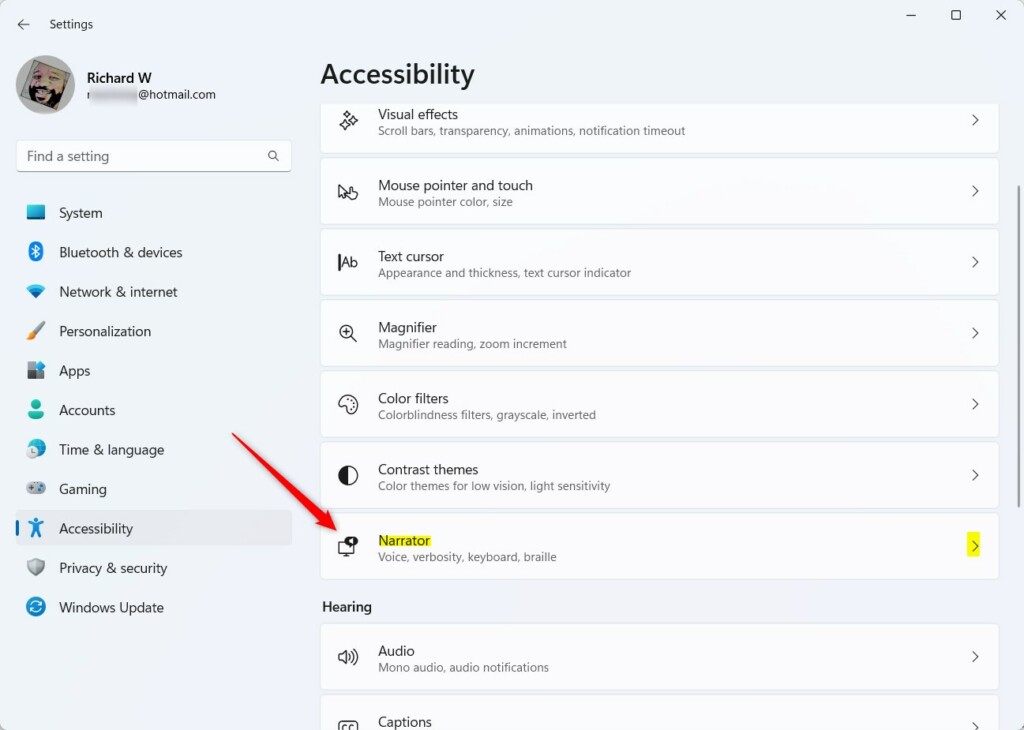
The path you have followed is Settings Accessibility Narrator You do not need to turn Narrator on to add a voice.
Step 4Add Natural Voices
Look in the Narrator's voice section for the tile that says Add natural voices, and click it. A window opens with a list of the available natural voices.
If you don't see this option, your Windows 11 build is probably older than 22H2. Check Windows Update and install the latest updates. Labels can differ slightly between builds.
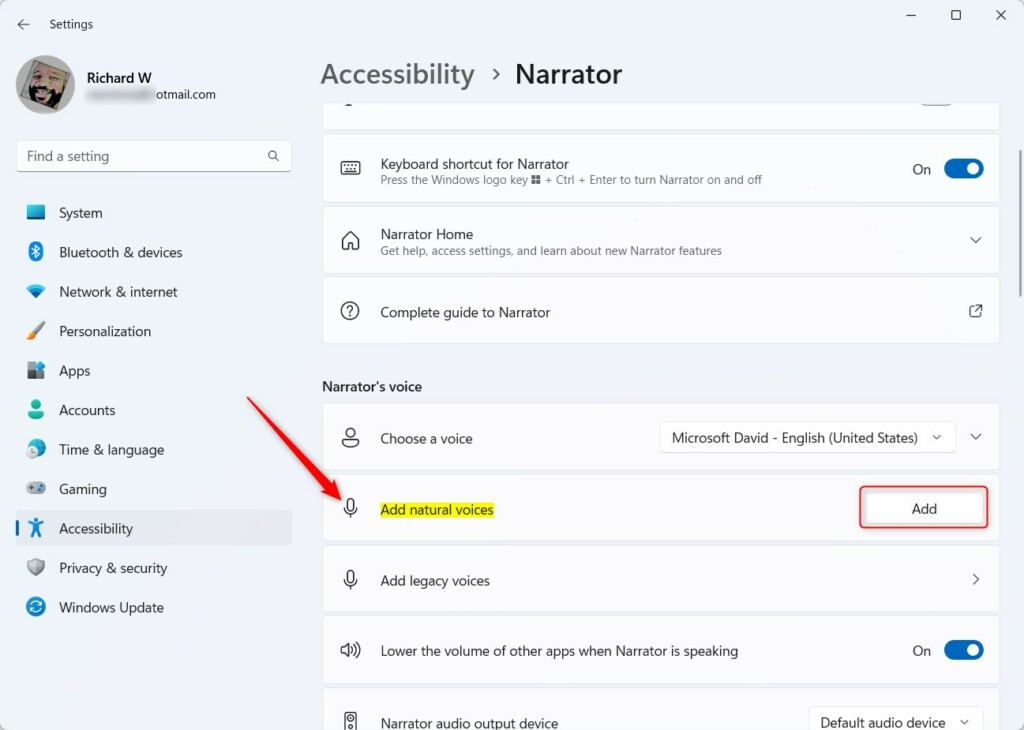
The list shows each voice with its language and region. You can pick a voice here and preview it before you commit to the download.
Step 5Choose Your Voice
Choose the natural voice you want from the list, such as Microsoft Jenny, then click the Install button. You can install more than one voice if you want to compare them.
If the install fails or never starts, check your internet connection and try again.
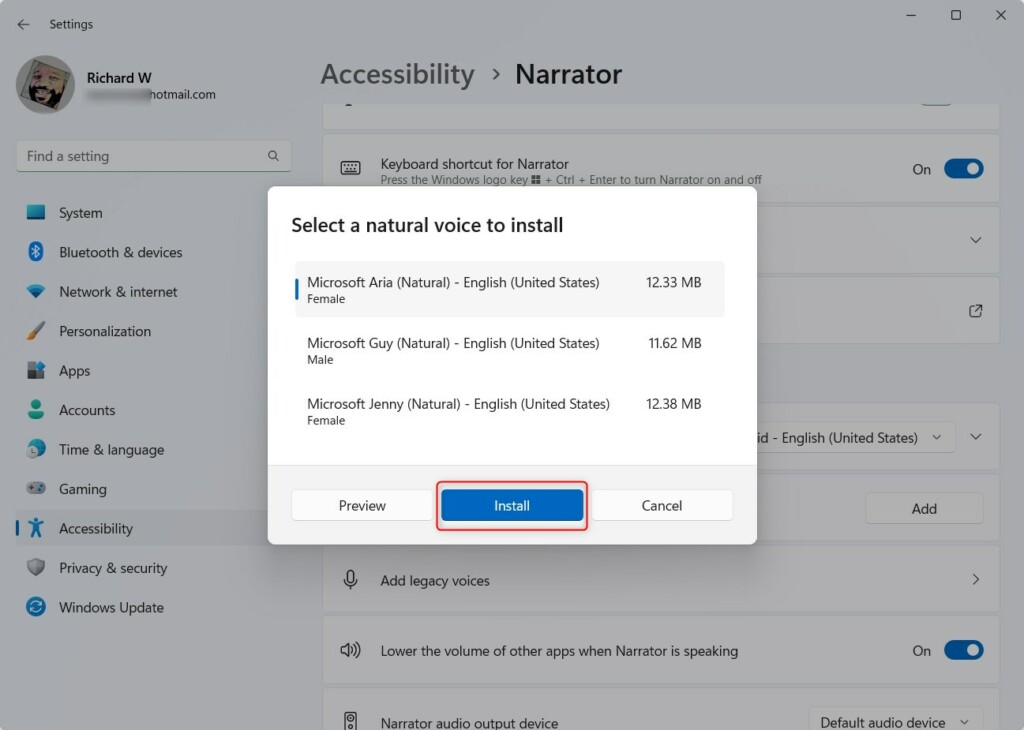
After you click Install, Windows starts downloading the voice and shows its progress in the window.
Step 6Wait for Installation
Voice downloads usually finish within a few seconds, depending on your connection. Windows notifies you the moment everything is ready. You don't need to restart the PC.
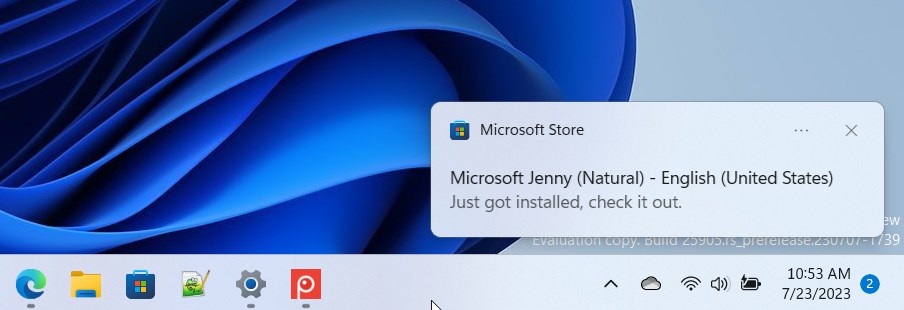
When the download is done, the voice shows as installed and you can close the window.
Step 7Use Your New Voice
Return to the Narrator settings panel at Settings Accessibility Narrator Under Narrator's voice, open the voice drop-down and select your new natural voice. Narrator will use it from then on. Press Windows key + Ctrl + Enter to start Narrator and hear it.
To go back to an older voice, open the same drop-down and pick a legacy voice instead.
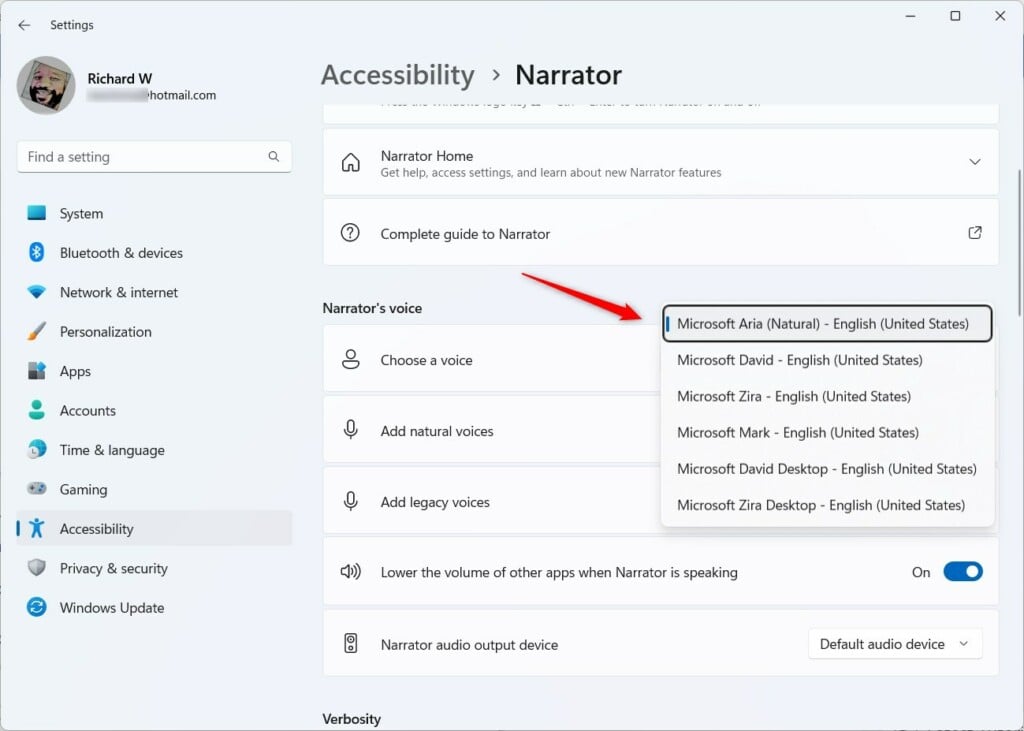
The drop-down now shows your natural voice as the selected one. If you installed several, each appears in the list.
How to Remove Natural Voices
Removing an installed natural voice requires Windows PowerShell. If the voice you want to remove is currently selected, switch Narrator to another voice first, as described above. The steps below show how to find the voice and uninstall it.
Step 1Open Windows PowerShell
⚠ Administrator permissions are required
The removal commands only work in a PowerShell window opened as administrator. If you see an access denied message, close the window and reopen it as described below.
Open the Start menu and type PowerShell. Right-click Windows PowerShell and choose Run as administrator. Click Yes if User Account Control asks for permission.
A blue PowerShell window opens. The title bar shows Administrator.
Step 2List All Natural Voices
Type the command below and press Enter to view all installed natural voices:
Get-AppxPackage -Name "*Voice*" | Select Name, PackageFullName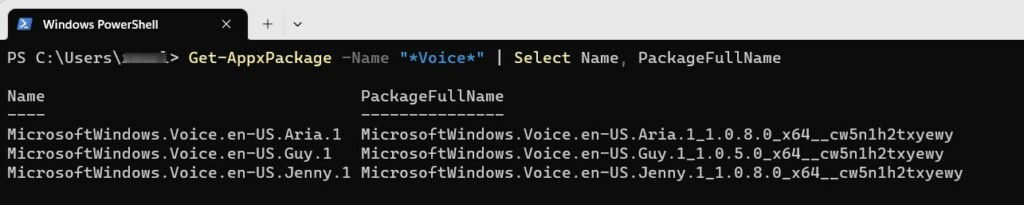
PowerShell prints a list of the installed voice packages, each with its full package name.
Step 3Find the Voice You Want to Remove
Locate the voice you want to remove and copy its full package name. To copy it, select the name with the mouse and press Enter, or right-click the selection. Copy the whole name, not just part of it.
Step 4Uninstall the Voice
Run the command below to uninstall the voice. Replace PackageFullName with the package name you copied, then press Enter:
Remove-AppxPackage -Package PackageFullNameThe selected voice disappears from the computer immediately after the command runs. To use it again, repeat the install steps from the beginning of this guide.
More Information
Learn about new accessibility features in Windows 11 from the Windows Experience Blog.
Summary
Adding natural voices to Windows 11 Narrator makes everyday use noticeably better by replacing robotic screen reader speech with smooth, realistic speech. The voices run locally on your system without an internet connection. You can add, switch or remove them whenever you need to, through Settings and PowerShell.
- Adding natural voices in Narrator is simple and makes the voice sound much better. Removing one takes a short PowerShell command run as administrator.
- Narrator helps you use your PC by reading things aloud, even helping with emails and browsing.
- Natural voices sound clearer and work even offline once they are downloaded.
- Legacy voices are not as clear or natural sounding.
- You can customize Narrator voices anytime to fit your needs.
Questions readers asked
I can't find "Add natural voices" in Narrator settings. Where did it go?
Microsoft renamed the option. It is now labelled "Add voices" and is still in the Narrator voice section. Go to Settings, then Accessibility, then Narrator, and look for a tile called Add voices. Click it, choose a natural voice such as Microsoft Jenny, and click Install. If the tile is missing, update Windows 11 through Windows Update, then search Settings for "Add voices" to find it.
Still have a question?
Answered by AI from this guide. Good questions may be added to this page — please don't include personal details.
Did this guide fix your problem?

About the Author
Richard
Tech Writer, IT Professional
Richard is a writer at Geek Rewind who turns complex IT tasks into clear, step-by-step guides. He draws on years of hands-on experience in system administration and enterprise IT operations, focusing on Windows, Linux and WordPress: the problems people actually run into, and the fixes that work. His server and WordPress guides come from systems he runs himself. Richard builds and maintains the platform behind Geek Rewind, from its Ubuntu servers and Nginx configuration to its custom WordPress plugins. Many new tutorials start with readers' questions, and he's always glad to answer them in the comments.
No comments yet — be the first to share your thoughts!