How to Use a Braille Display with Narrator on Windows 11

A braille display is a tactile hardware device that connects to Windows 11 and turns on-screen text into raised dots you read with your fingers. Windows 11 supports more than 35 braille display models through Narrator, the built-in screen reader that reads aloud what is on your screen. You do not need to install a separate driver package from the manufacturer for supported models. Windows does download a small set of braille support files the first time you set this up, and the steps below cover that.
Connect your braille display to Windows 11 via USB, Bluetooth , or serial port, then open Settings Accessibility Narrator. Scroll to the Braille section, click Download and install braille, restart your PC, turn on the braille switch, and select your display model and connection type from the supported list.
Pairing a braille display with Narrator lets you move around files, read email, and write documents by touch instead of by sight or sound. Depending on the model, you connect it with a USB cable or wirelessly over Bluetooth . Some older models use a serial port.
These related guides may also help:
- Turn keyboard shortcuts on or off
- Change the voice, speed, and volume
- Choose where the voice comes from (like speakers or headphones)
Narrator also lets you change voice speed, volume, and audio output, and you can customize its keyboard shortcuts to fit how you work. The hardware itself connects to your computer by USB cable, Bluetooth , or serial port, depending on the display.
How to Set Up a Braille Display on 🪟 Windows 11
The process is the same on Windows 11 Home and Pro. Before you start, plug in your display or make sure it is charged and ready to pair, and keep your keyboard handy for the shortcuts.
Step 1Open Windows Settings
- Click the Start menu (the Windows logo in the bottom-left corner) and select Settings. You can also press Win+I to open Settings directly.
The Settings window should now be open, with a list of categories on the left.
Step 2Go to Accessibility and Find Narrator
- In the Settings window, click Accessibility in the left menu.
- On the right side, find and click Narrator. You may need to scroll down to the Vision group to see it.
The Narrator page should now be open. It holds the on/off switch for Narrator, the voice options, and the braille settings.

Step 3Open Braille Settings
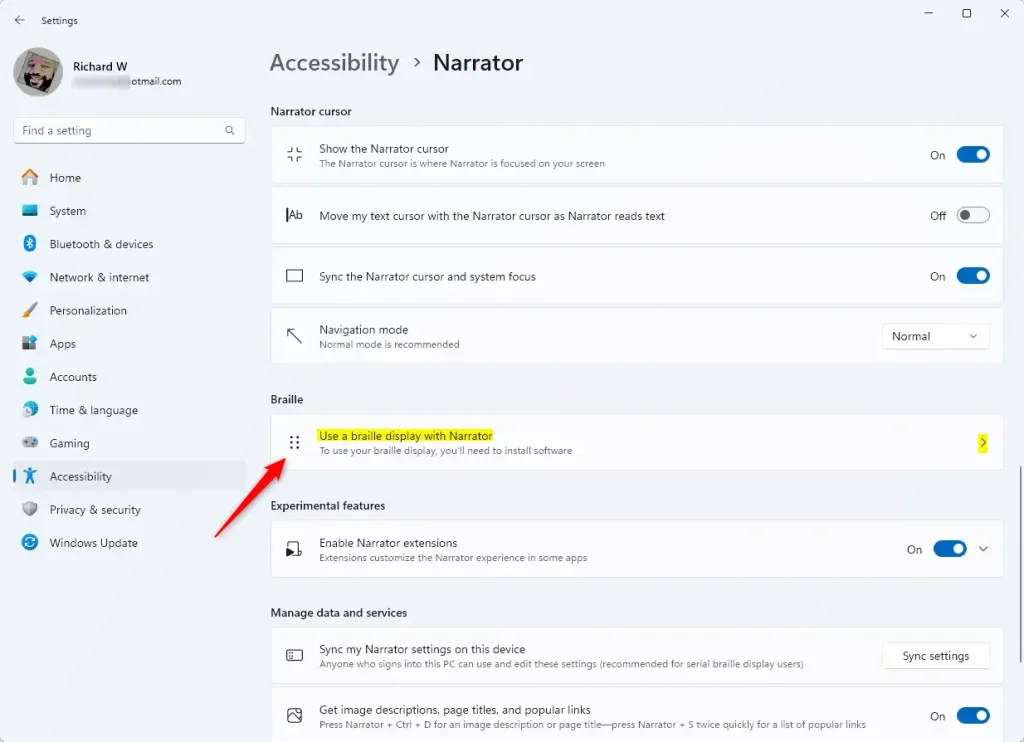
- On the Narrator page, scroll down to the Braille section.
- Click Use a braille display with Narrator to show the braille options.
The braille options should now be visible. If you cannot find this section, check that Windows is fully up to date, because older builds label and arrange these settings differently.
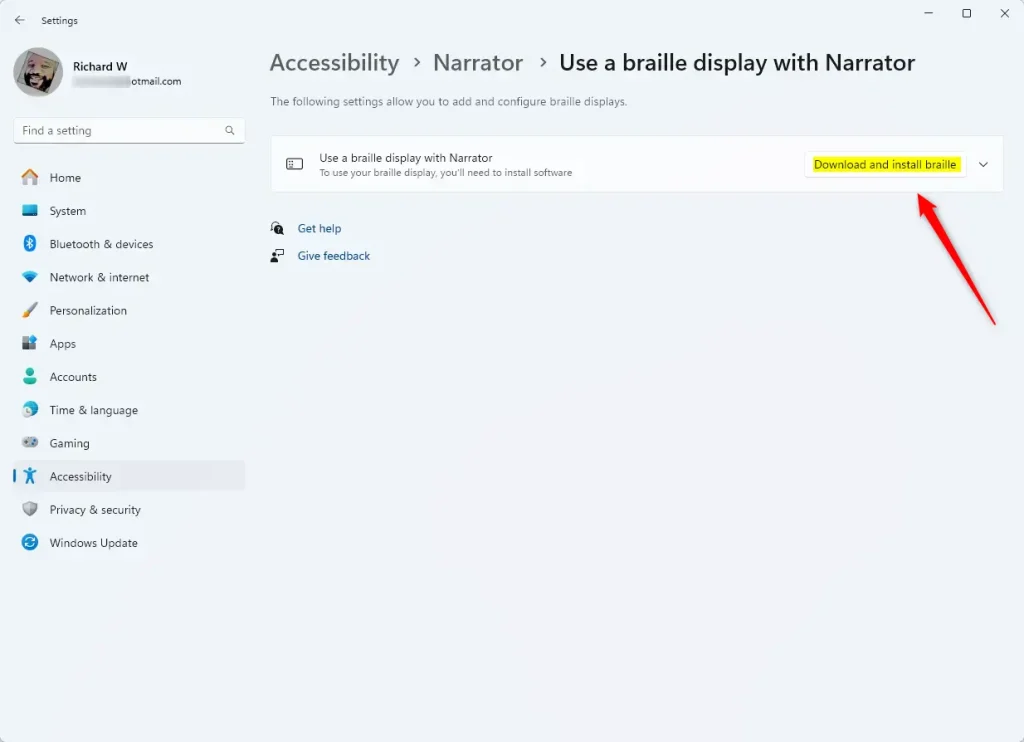
Step 4Download and Install Braille Support
- Click the Download and install braille button.
Windows needs an internet connection for this download, so check that you are online first. The button is only needed once. If braille support is already on the PC, you will not see it.
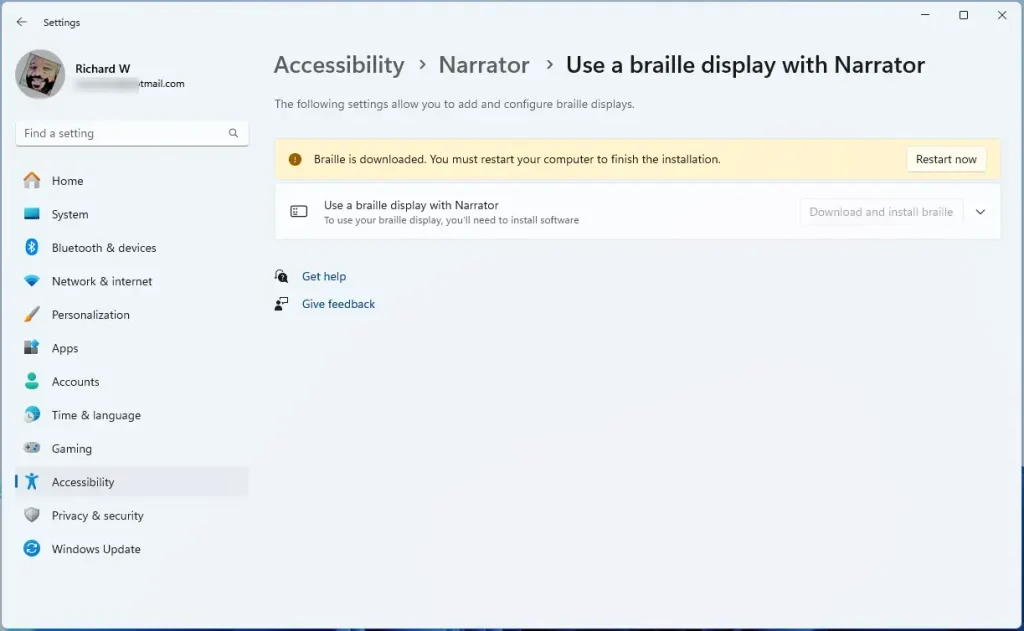
- Wait for the download and installation to finish. Windows will ask you to restart your PC. Save your work and restart when prompted.
Do not skip it, or the braille options may not work.
Step 5Turn On Braille Support
- After the restart, go back to Narrator settings. Open Settings Accessibility Narrator again.
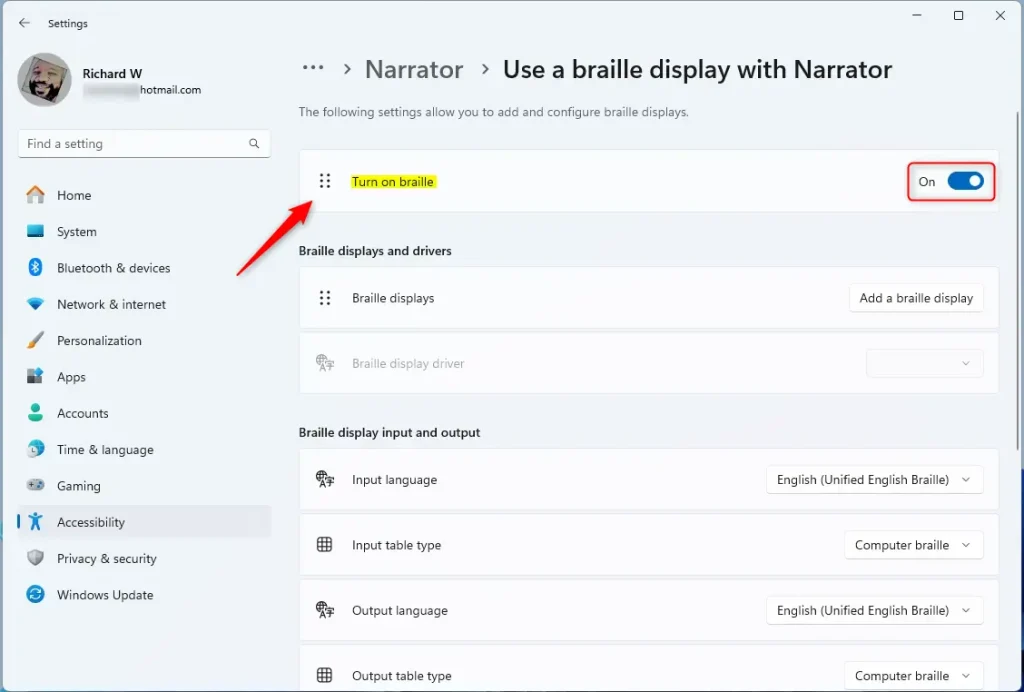
- Turn on the switch next to Turn on braille.
The switch should now read On. To undo this later, turn the same switch off and Narrator will stop sending text to the display.
Step 6Add Your Braille Display
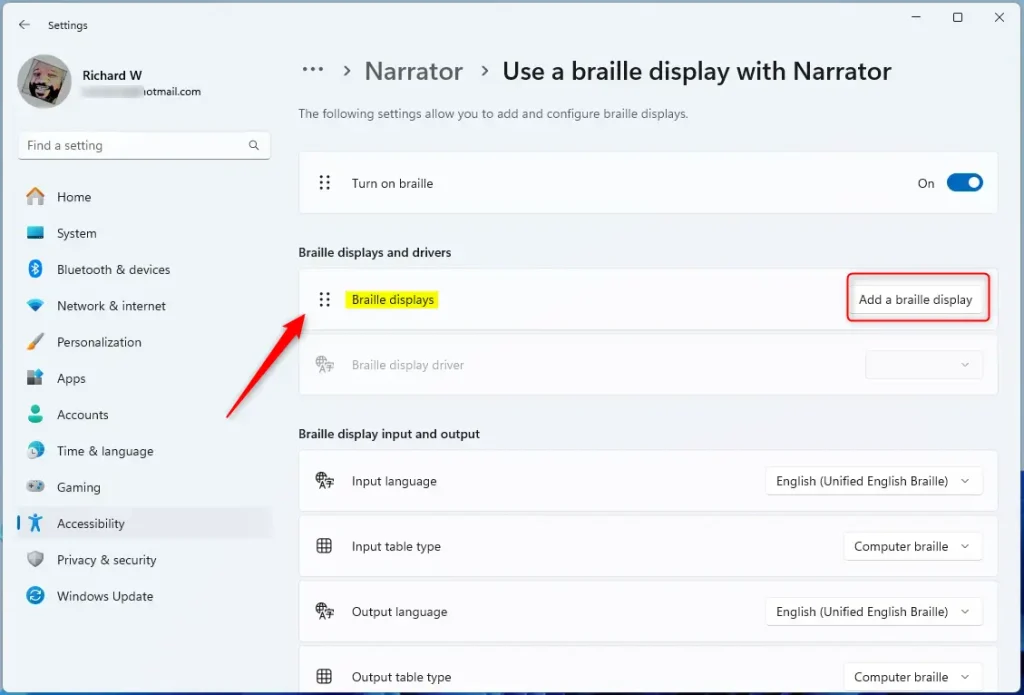
Next, tell Narrator which display you own. This is how you add your braille display on Windows 11, so Narrator can send text to it and read your key presses.
- Press the Windows logo key + Ctrl + N to open Narrator settings. If you are already in Settings, you can skip this.
- Select the option to add a braille display.
A list of supported braille display brands and connection types should appear.
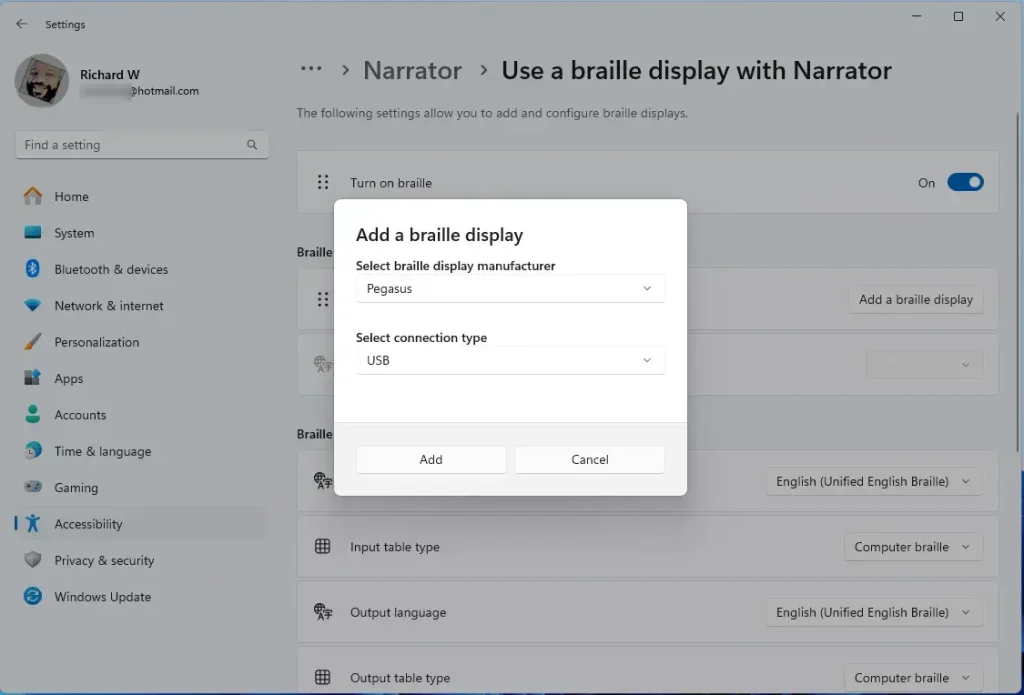
- Select the brand of your display from the list, such as Focus Blue or Chameleon.
- Choose how the display connects: USB cable, Bluetooth, or serial port. Pick the one you are actually using. If you use Bluetooth, pair the display in Windows Bluetooth settings first.
- Click Add to finish the setup.
Your display should now appear in the list of connected braille displays. If it does not respond, check the cable, make sure the display is switched on, and confirm that the brand and connection type match the hardware.
Narrator is not the only screen reader that works with braille displays. If you use a different one, such as JAWS or NVDA, or specialized software, follow the setup instructions from that program. Each one has its own steps for connecting and configuring your display. Use only one screen reader to drive the display at a time, or they may compete for it.
Your braille display should now work with Narrator on Windows 11.
Summary
A braille display with Narrator makes Windows 11 usable by touch. Setup takes only a few minutes, because Windows downloads the needed braille software through Settings. After that you can start reading text on your screen right away.
To recap: download braille support in Narrator settings, restart, turn on braille, then add your display by brand and connection type.
Once it is configured, you get braille output across the system without installing anything else for supported models.
To learn more about Narrator and its features, visit the Microsoft Accessibility website. Its guide covers what Narrator can do for users with vision impairments, including screen reading and braille display integration.
Was this guide helpful?

About the Author
Richard
Tech Writer, IT Professional
Richard is a writer at Geek Rewind who turns complex IT tasks into clear, step-by-step guides. He draws on years of hands-on experience in system administration and enterprise IT operations, focusing on Windows, Linux and WordPress: the problems people actually run into, and the fixes that work. His server and WordPress guides come from systems he runs himself. Richard builds and maintains the platform behind Geek Rewind, from its Ubuntu servers and Nginx configuration to its custom WordPress plugins. Many new tutorials start with readers' questions, and he's always glad to answer them in the comments.




No comments yet — be the first to share your thoughts!