
Energy saver in Microsoft Edge cuts power use and saves battery life on laptops. It limits background activity and visual effects, and in the default mode it starts when your battery drops to 20 percent. You can turn it on or off in browser settings whenever you want to balance performance against battery runtime. This tutorial covers the toolbar, the Settings page, and the policy method for administrators.
Open Microsoft Edge, click the Performance (heart pulse) icon on the toolbar, then turn the Save battery with energy saver switch on or off. The change takes effect immediately with no restart needed.
What is Microsoft Edge?
Microsoft Edge is a web browser that works on Windows and macOS. It is fast, secure, and includes built-in privacy features. The steps below were written for Edge on Windows 11. Edge updates itself, so on an older build a label may be slightly different.
Why Use Energy Saver?
Energy saver mode helps your battery last longer by reducing power consumption and limiting browser resource usage. It is most useful on laptops and tablets. On a desktop PC with no battery it still exists, but you get fewer options, as described later.
How Energy Saver Works
That leaves more of your battery and CPU time for the other apps you are running. The trade-off is that videos may play less smoothly and animations may slow down while it is active.
- Puts background tabs to sleep after 5 minutes of inactivity
- Reduces CPU usage so your system can focus on other apps
- May cause videos to play less smoothly or animations to slow down
When does energy saver turn on? It activates when your laptop is unplugged from power. It stays on until you plug the laptop back in or the battery runs out. How aggressive it is depends on the mode you pick, which the next section covers.
Will I notice a difference? You may see minor slowdowns when browsing, but battery life improves significantly. If a page feels sluggish, a sleeping tab may just be waking up. Switch back to it and give it a moment.
Two Power-Saving Options
Edge gives you two power-saving modes. Balanced Savings keeps the browser running smoothly while saving some battery. Maximum Savings cuts resource use as much as possible, so your laptop battery lasts longer when you are away from an outlet.
Balanced Savings
This mode balances battery life and browser speed. When you are unplugged, moderate power-saving steps start automatically, with little to no noticeable slowdown. If your battery gets low, stronger power-saving steps activate, which may cause less smooth video playback. A heart pulse icon appears in your toolbar while energy saver is active. This is the default mode.
Maximum Savings
Use this when you will be away from a power source for a long time. Strong power-saving steps stay active whenever the device is unplugged. You may notice visible slowdowns. The heart pulse icon appears in your toolbar the entire time you remain unplugged.
Learn More
Edge has several other built-in performance features besides energy saver, including sleeping tabs and efficiency mode. Together they reduce resource use and stretch your battery. Microsoft's support guide explains how these tools work together.
Energy saver | Extend battery life with Microsoft Edge Get on average 25 more minutes of battery life with Microsoft Edge Energy saver. Reduce resource usage, customize settings, and keep tabs efficient.
Option 1Use the Performance Icon
This is the fastest way to switch energy saver on or off. It does not need a restart, and you can reverse it the same way.
- Open Microsoft Edge.
- Open the Performance menu in one of two ways:
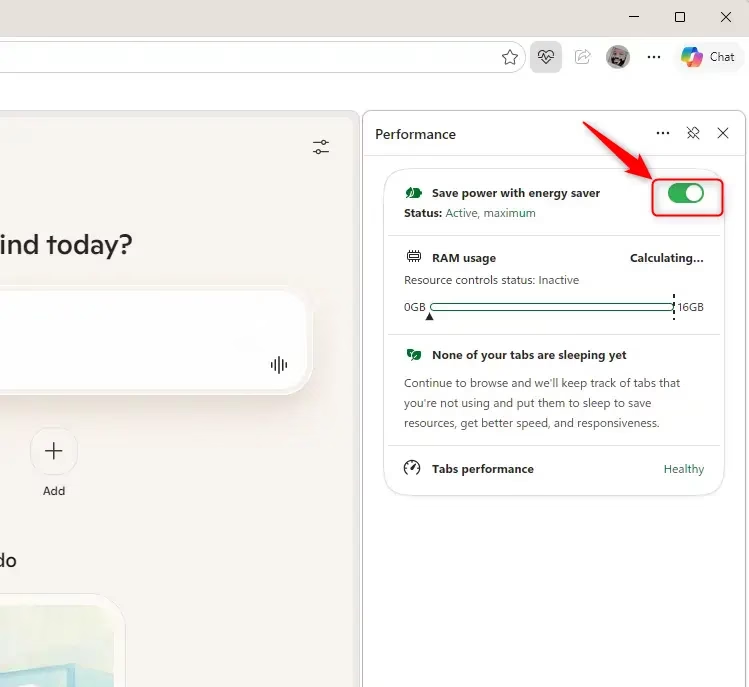
- Click the Performance (heart pulse) icon on the toolbar, OR
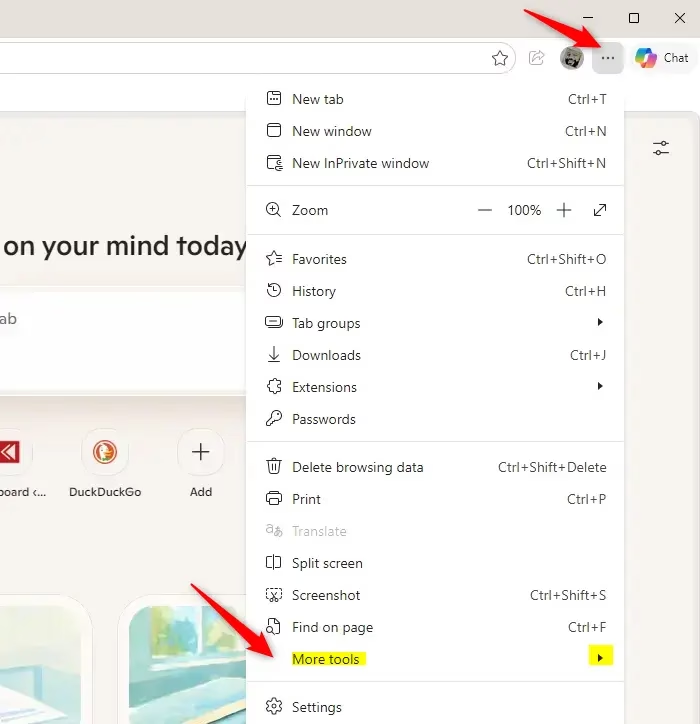
- Click the Settings and more (3 dots) button, then go to More tools Performance
- Turn the Save battery with energy saver switch on or off in the Performance menu. The switch should change position straight away.
If the heart pulse icon is not on your toolbar, use the Settings and more route instead. If the switch is greyed out, an administrator policy is controlling energy saver (see the last options below).
Option 2Use Settings
Use the Settings page when you want to choose a mode or change what happens while plugged in.
- Open Microsoft Edge.
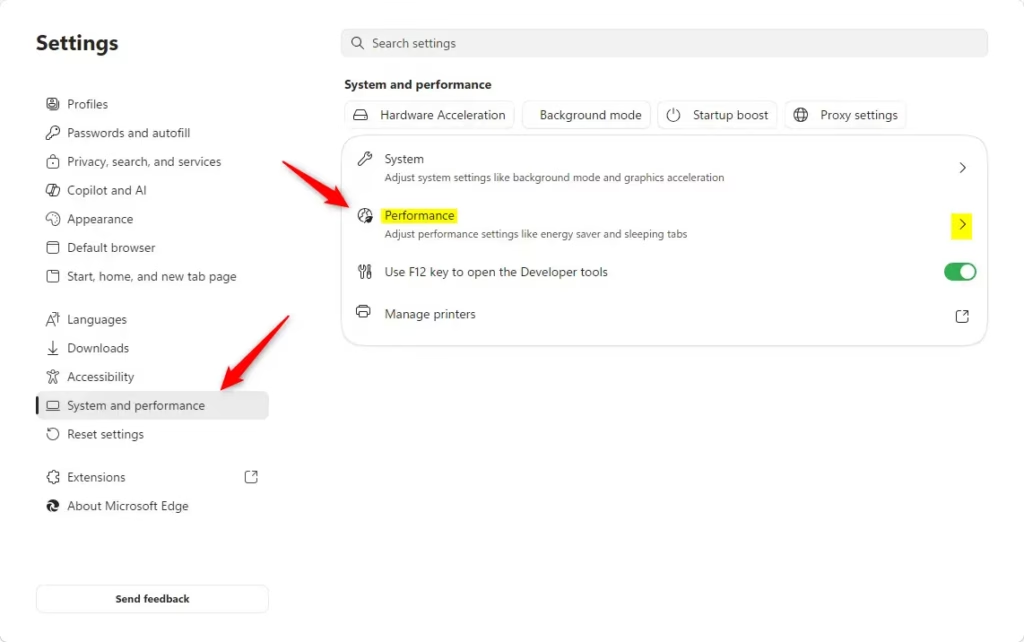
- Click the Settings and more (3 dots) button, then click Settings. The Settings page opens in a new tab.
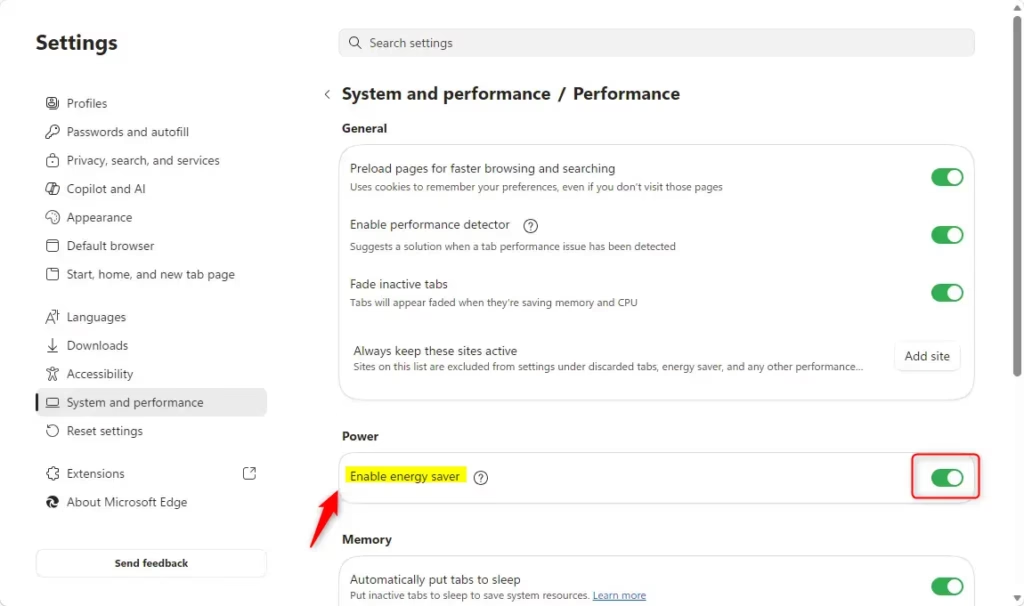
- Click System and performance in the left pane.
- Click Performance. The power settings are shown here.
Turn On Energy Saver
This is the default setting.
- Under Power, turn on Enable energy saver.
- If your device has a battery, select Balanced (default) or Maximum savings.
- If your device has a battery, turn Use energy saver even when connected to power on or off. Leave it off if you only want energy saver while unplugged.
Edge applies these changes right away. On a desktop without a battery, you will not see the mode choice or the plugged-in option.
Turn Off Energy Saver
- Under Power, turn off Enable energy saver.
Edge stops limiting background activity. To undo this, turn the same setting back on.

Option 3Enable for All Users
⚠️ Admin privileges required: You must sign in as an administrator to use this option.
This option uses the EfficiencyModeEnabled policy for Microsoft Edge. It applies to every user on the PC, so use it only when you want to enforce a setting.
Open Windows Terminal as an administrator and run the command below, or open Registry Editor and browse to the key to change the value. Restart Edge afterwards so it picks up the change.
Enable Energy Saver for All Users
This overrides and grays out Options One and Two. Users can no longer change the setting in Edge.
reg add "HKEY_LOCAL_MACHINE\SOFTWARE\Policies\Microsoft\Edge" /v EfficiencyModeEnabled /t REG_DWORD /d 1 /f
Disable Energy Saver for All Users
This overrides and grays out Options One and Two. Users can no longer change the setting in Edge.
reg add "HKEY_LOCAL_MACHINE\SOFTWARE\Policies\Microsoft\Edge" /v EfficiencyModeEnabled /t REG_DWORD /d 0 /f
Allow User Choice (Default)
This is the default setting. It permits the use of Options One and Two. Use it to hand control back to the user after you have forced the setting on or off.
reg delete "HKEY_LOCAL_MACHINE\SOFTWARE\Policies\Microsoft\Edge" /v EfficiencyModeEnabled /f
Summary
Energy saver helps extend battery life on laptops and reduces resource usage on desktop computers by managing inactive tabs and background processes. You can turn it on or off from the toolbar icon or in Edge settings, depending on whether you want balanced performance or maximum battery savings. If the option is greyed out, check whether an administrator policy is controlling it.
Was this guide helpful?

About the Author
Richard
Tech Writer, IT Professional
Richard is a writer at Geek Rewind who turns complex IT tasks into clear, step-by-step guides. He draws on years of hands-on experience in system administration and enterprise IT operations, focusing on Windows, Linux and WordPress: the problems people actually run into, and the fixes that work. His server and WordPress guides come from systems he runs himself. Richard builds and maintains the platform behind Geek Rewind, from its Ubuntu servers and Nginx configuration to its custom WordPress plugins. Many new tutorials start with readers' questions, and he's always glad to answer them in the comments.




No comments yet — be the first to share your thoughts!