How to Turn On or off Keyboard Backlight Dimming with Energy Saver in Windows 11

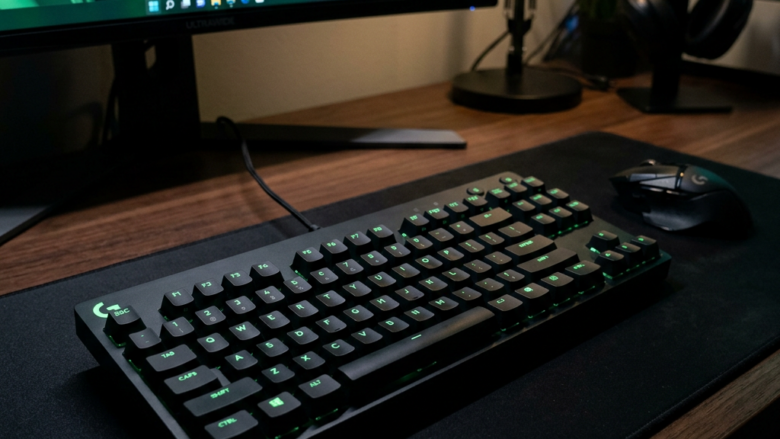
Keyboard backlight dimming in Windows 11 lowers your keyboard lights to 70% brightness whenever Energy Saver is running, which helps your laptop battery last longer. You can turn this feature off completely, or change the brightness level anywhere from 0% to 100%, using the Settings app or the Windows Terminal command line. This tutorial covers the Settings app and the Registry Editor. The setting only applies to laptops with a backlit keyboard that Windows can control.
Open Settings , go to System, then Power & battery, and toggle “Lower keyboard brightness when using energy saver” on or off. For advanced users, edit the BacklightEnergySaverEnabled value in Registry Editor at 🗝️HKEY_LOCAL_MACHINE\
Option 1Using Windows Settings
The Settings app is the easiest way to control keyboard dimming when Energy Saver turns on. You choose whether the backlight dims automatically to save battery or stays bright while you work. The steps are the same on Windows 11 Home and Pro. Energy Saver replaced the older Battery Saver name in recent versions of Windows 11, so if your PC is not fully updated, the page may look a little different.
- Press Win+I to open Settings. The Settings window opens with the System page showing.
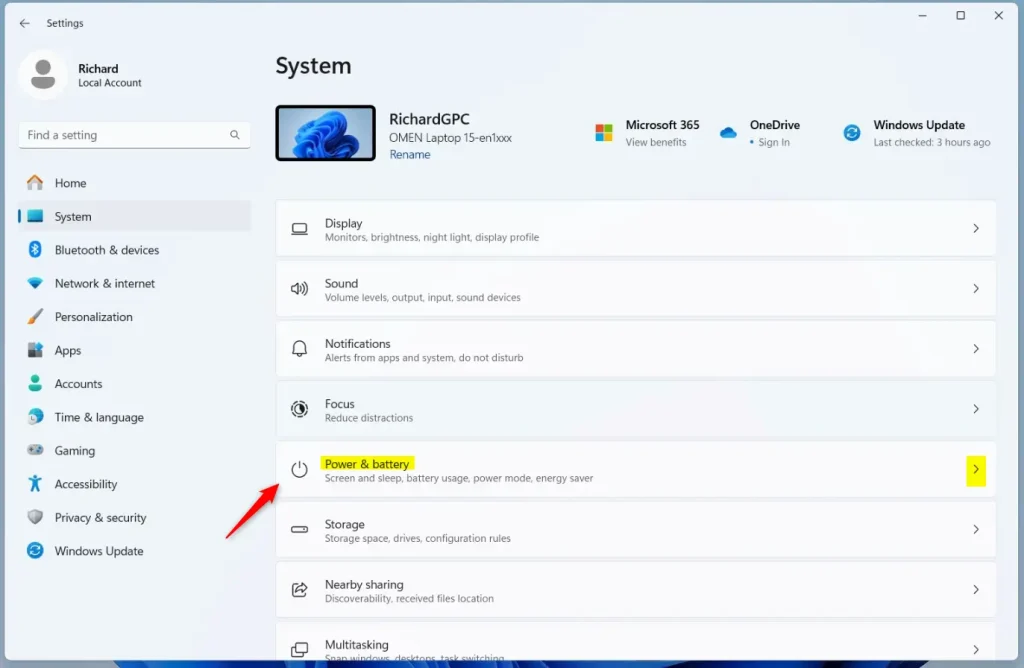
- Go to System Power & battery The power options for your PC appear on the right side.
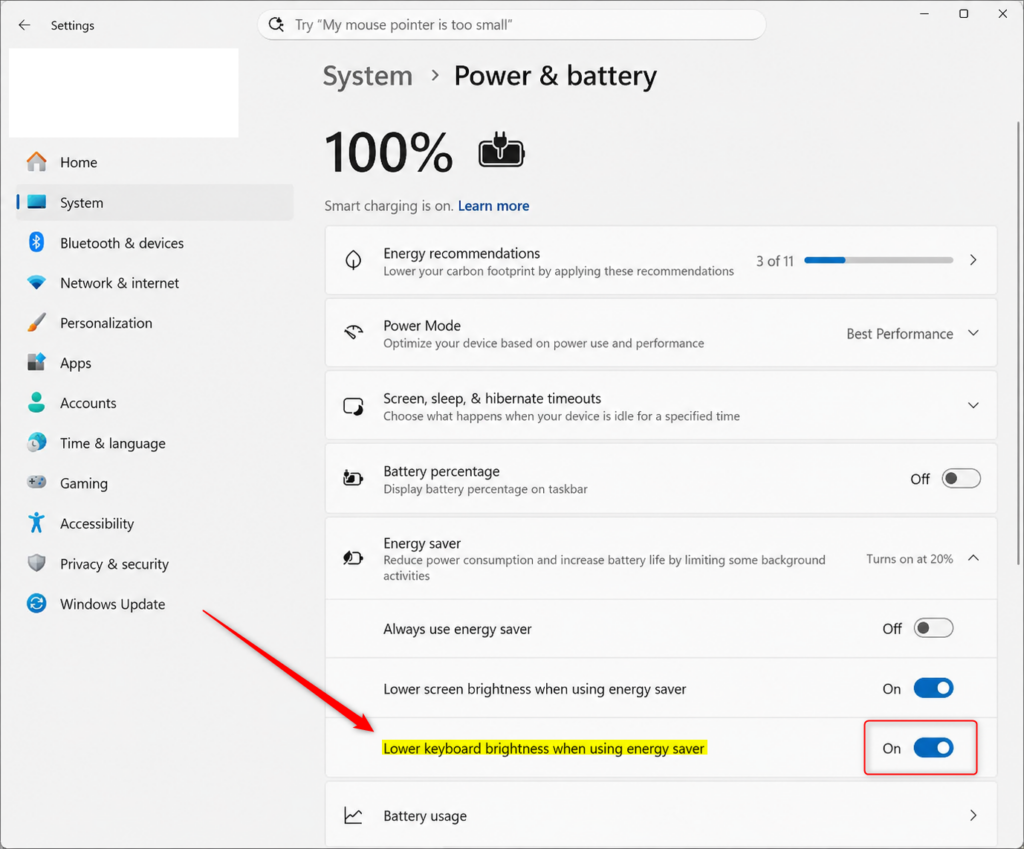
- Click Energy saver to expand its options. You should see a list of settings that apply while Energy Saver is on.
- Find Lower keyboard brightness when using energy saver. Switch it On if you want the backlight to dim, or Off if you want it to stay at its normal brightness. By default, it is usually on. The change applies right away, and there is no Save button.
- Close the Settings window.
If you cannot find the keyboard brightness option, your laptop probably has no backlight, or its keyboard driver does not let Windows control the lighting. Some manufacturers also manage the backlight with their own software, which can override this setting. To undo the change, go back to the same page and flip the switch to its previous position.
Option 2Using the Registry Editor (Advanced)
Use the Registry Editor if the Settings app does not show the option or does not seem to apply your choice. The registry is a built-in database of low-level system settings, including some that change how your hardware behaves when Energy Saver turns on. Changing this one value tells Windows whether to dim the keyboard light when Energy Saver is on. The keyboard backlight will either dim or stay at its normal brightness, depending on the value you set.
Be careful here, because mistakes in the registry can cause system problems. Before you change anything, back up the registry. In Registry Editor, choose File Export, select All as the export range, and save the file somewhere safe. You also need to be signed in with an administrator account.
- Press Windows key + R, type
regedit, and press Enter. You can also open the Start menu, type regedit, and press Enter. If a User Account Control window appears, click Yes. Registry Editor opens. - Navigate to the following location in the left pane:
HKEY_LOCAL_MACHINE\SOFTWARE\Microsoft\Windows\CurrentVersion\Personalization\Settings - In the right-hand pane, look for a value named
BacklightEnergySaverEnabled. If you do not see it, check that you are in the correct key. - To turn on dimming: Double-click
BacklightEnergySaverEnabled. Set the Value data to1and click OK. - To turn off dimming: Double-click
BacklightEnergySaverEnabled. Set the Value data to0and click OK. The new number appears in the Data column next to the value. - Close the Registry Editor. The change should take effect immediately. If the backlight does not behave as expected, sign out and back in, or restart the PC.
To undo the change, open the same value and enter the original number again. If something goes wrong, double-click the .reg file you exported earlier to restore your backup.
Reference:
Summary
This guide showed you how to manage your keyboard backlight's dimming behavior in Windows 11 when Energy Saver is on. You can adjust this setting in the Windows Settings app, or for more advanced control, by modifying a value in the Registry Editor, a tool for editing system settings. Use Settings first, and only turn to the registry if the option is missing or does not work.
Frequently asked questions
How do I turn on the energy saver in 🪟 Windows 11?
Open Settings with Windows key + I, then go to System Power & battery. Click the Energy saver toggle to turn it on. You can set it to turn on automatically when your battery drops below a certain percentage, or switch it on manually whenever you want.
How to adjust brightness in 🪟 Windows 11 using keyboard?
Press Windows key + A to open Quick Settings, then use the brightness slider to adjust screen brightness. On some laptops, you can also use keyboard shortcuts like Fn + brightness keys (usually marked with sun icons). These methods control display brightness, not keyboard backlight.
Still have a question?
Answered by AI from this guide. Good questions may be added to this page — please don't include personal details.
Did this guide fix your problem?

About the Author
Richard
Tech Writer, IT Professional
Richard is a writer at Geek Rewind who turns complex IT tasks into clear, step-by-step guides. He draws on years of hands-on experience in system administration and enterprise IT operations, focusing on Windows, Linux and WordPress: the problems people actually run into, and the fixes that work. His server and WordPress guides come from systems he runs himself. Richard builds and maintains the platform behind Geek Rewind, from its Ubuntu servers and Nginx configuration to its custom WordPress plugins. Many new tutorials start with readers' questions, and he's always glad to answer them in the comments.
No comments yet — be the first to share your thoughts!