How to Turn Keyboard Backlight Autobrightness on or off in Windows 11


Keyboard backlight autobrightness in Windows 11 lets your laptop adjust the keyboard lighting on its own. It uses the built-in ambient light sensor to read the room. In a bright room the backlight dims or turns off, which saves a little battery. In a dark room it comes on so the keys stay easy to see. It works much like automatic screen brightness on a phone.
Most newer laptops with an ambient light sensor and a backlit keyboard support this option. If your laptop has no backlight or no sensor, Windows will not show the setting at all. You can turn the feature on or off at any time in the Settings app. The Registry Editor is a fallback for when the setting is missing or does not stick. This guide covers both methods.
Open Settings , navigate to Bluetooth & devices, then Keyboard, and toggle “Change keyboard brightness automatically when lighting changes” on or off. For advanced users, modify the EnableBucketedBacklightAutobrightness value in Registry Editor.
Why turn Keyboard Backlight Autobrightness on or off?
Turn autobrightness on if you move between bright and dark rooms often, for example from a sunny office to a dim living room. The backlight then follows the room without you touching the keyboard shortcut or the function key. Turn it off if you want the backlight to stay at a fixed level, or if the sensor reacts at the wrong moments, such as dimming when your hand shades it.
What happens when done?
Once you change this setting, one of two things happens. With it On, the backlight adjusts its brightness to the light in the room. With it Off, the backlight stays at the level you last set by hand. You can usually still change that level with your laptop’s keyboard backlight key, which is often a function key with a small keyboard icon.
The change normally takes effect straight away in Settings. The registry method may need a restart, as covered at the end.
Option 1Use Windows Settings
The Settings app is the easiest and safest way to change this. It works the same on Windows 11 Home and Pro, and it needs no administrator rights. You will find the control under Bluetooth & devices, in the keyboard options. Follow the steps below.
- Open Settings by pressing Win+I. The Settings window opens with a list of categories on the left.
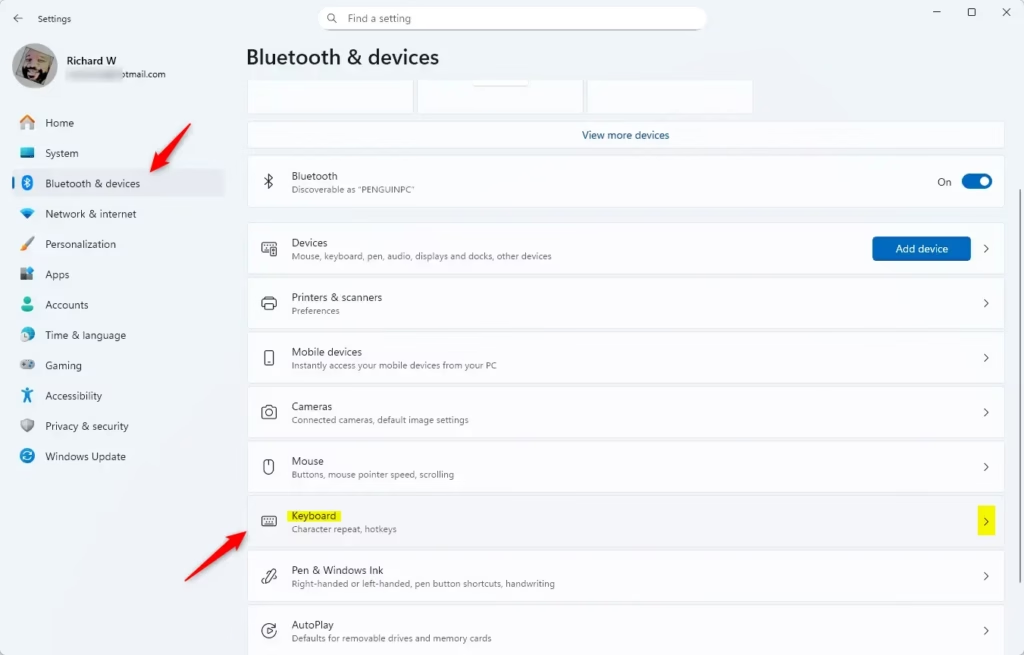
- On the left side, click Bluetooth & devices. Then, on the right side, click Keyboard. The keyboard page opens.
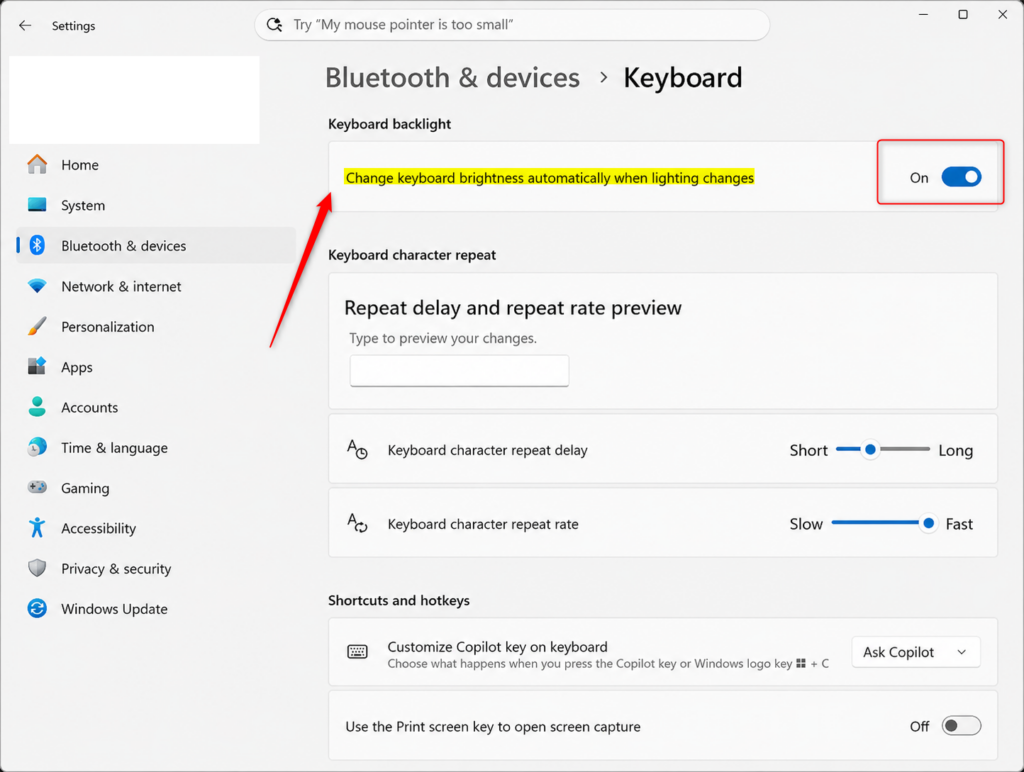
- Find the Keyboard backlight section. Look for the option “Change keyboard brightness automatically when lighting changes”. Switch it On or Off, depending on what you want. The switch changes right away and its label updates to show the new state. If you do not see this section, your laptop may not have a supported light sensor, or the backlight may be controlled by the manufacturer’s own software (such as a Dell, HP or Lenovo utility). Check that software, and make sure your keyboard and chipset drivers are up to date in Settings Windows Update Advanced options Optional updates
- Close the Settings window. To undo the change later, come back to the same page and flip the switch the other way.
Option 2Use Registry Editor (Advanced Users)
The Registry Editor is a tool for changing low-level Windows settings . Use it only when the Settings option is missing or does not stay put. It works on both Home and Pro, but you need an administrator account. On some laptops the value described below may not exist or may do nothing, because the backlight is handled by the manufacturer’s driver instead. Try Settings first.
Mistakes in the registry can cause system problems, so work carefully and change only the values named here.
Before you edit anything, make a backup. In Registry Editor, click File Export, choose Selected branch at the bottom of the dialog, and save the file somewhere you can find it. If something goes wrong, double-click that file and confirm to restore the old values. Creating a System Restore point first is also a good idea.
- Click the search box on the taskbar , or press the Win, and type regedit.
- Press Enter. If a User Account Control prompt appears, click Yes. The Registry Editor opens, with a folder tree on the left and values on the right.
To Turn On Keyboard Backlight Autobrightness
To turn autobrightness on through the registry, you go to the right key and make sure one value is set to 1. If the value is missing, you create it. The steps below take you through it.
- In the Registry Editor, go to the key shown below. You can paste the path into the address bar at the top of the window and press Enter, or expand the folders in the left pane one by one.
HKEY_LOCAL_MACHINE\SOFTWARE\Microsoft\Windows\CurrentVersion\Sensors\LightSensors\KeyboardBacklight
- Look in the right pane for a value named
EnableBucketedBacklightAutobrightness. If it is not there, right-click an empty area of the right pane, choose New DWORD (32-bit) Value, and type that exact name.
- Double-click
EnableBucketedBacklightAutobrightness. In the box that opens, make sure Value data is set to 1, then click OK. The value now shows 1 in the right pane.
To Turn Off Keyboard Backlight Autobrightness
To turn autobrightness off through the registry, you set the same kind of value to 0. The steps are almost the same as for turning it on. Open the Registry Editor as described above, then go to the key shown below.
HKEY_LOCAL_MACHINE\SOFTWARE\Microsoft\Windows\CurrentVersion\Sensors\LightSensors\KeyboardBacklight
- Double-click
EnableBucketedBacklightAutobrightnessin the right pane. Make sure Value data is set to 0, then click OK. The value now shows 0.
To undo this later, set the value data back to 1, or delete the value you created. Deleting it returns the setting to its default behavior.
After a registry change, close the Registry Editor and restart the computer. Windows reads these values when the sensor and keyboard services start, so the change may not show until you sign in again. After the restart, check Settings Bluetooth & devices Keyboard to confirm the setting matches what you chose. Then test it by covering the light sensor or moving to a brighter or darker spot. If nothing changes, your laptop probably does not use this registry value, so reverse your edit and use the manufacturer's software instead.
Reference:
Summary
You now know how to manage your keyboard's automatic brightness in Windows 11. For most people, the Settings app is all you need, and the switch can be flipped back at any time. The Registry Editor is there for cases where the option is missing, as long as you back up first and restart afterward. If neither method works, check your laptop maker's utility and driver updates, since some models do not expose this control to Windows.
Frequently asked questions
How do I turn on the keyboard backlight on my 🪟 Windows 11 PC?
Open Settings and go to System Display. Scroll down to find Keyboard backlight and toggle it on. If the option doesn't appear, your keyboard may not have a backlight, or it's not supported on your device.
How do I turn my keyboard backlight back on?
Press your keyboard's backlight function key—usually marked with a light icon and located on the F-keys. You can also turn it on in Settings System Display under Keyboard backlight. Some laptops use Fn + that key.
Why can't I change keyboard brightness?
If Settings doesn't show keyboard brightness controls, your laptop either lacks a backlit keyboard or an ambient light sensor. Check your device manual to confirm. If the setting disappears after changes, try adjusting it again in Settings System Display
How do I control the brightness of my keyboard backlight?
Use the backlight function key on your keyboard, usually marked with a brightness icon on the F-keys. Press it repeatedly to cycle through brightness levels. In Settings System Display, you can toggle autobrightness on or off to let the sensor adjust automatically.
Still have a question?
Answered by AI from this guide. Good questions may be added to this page — please don't include personal details.
Did this guide fix your problem?

About the Author
Richard
Tech Writer, IT Professional
Richard is a writer at Geek Rewind who turns complex IT tasks into clear, step-by-step guides. He draws on years of hands-on experience in system administration and enterprise IT operations, focusing on Windows, Linux and WordPress: the problems people actually run into, and the fixes that work. His server and WordPress guides come from systems he runs himself. Richard builds and maintains the platform behind Geek Rewind, from its Ubuntu servers and Nginx configuration to its custom WordPress plugins. Many new tutorials start with readers' questions, and he's always glad to answer them in the comments.
No comments yet — be the first to share your thoughts!