How to Turn Use Energy Saver Even When Connected to Power On or off in Microsoft Edge


Energy saver in Microsoft Edge is a built-in setting that puts background tabs to sleep and trims other background activity. It lowers your computer’s power use, and it can keep doing that when your laptop is plugged into a wall outlet.
Edge version 100 and newer include this control. You can turn it on or off at any time in the browser settings, so you decide how much power Edge uses. Changes apply right away, and you don’t need to restart Edge or Windows.
Open Microsoft Edge, click the three dots menu, then Settings System and performance. Find Use energy saver even when connected to power and toggle the switch On. Edge now conserves power even while plugged in.
Use Energy Saver Even When Plugged In
By default, Energy saver only works when your laptop is running on battery. The Use energy saver even when connected to power option keeps it running while the charger is connected. This helps if your computer tends to run warm, the fan is noisy, or you simply want to use less electricity. Edge keeps managing background tabs and other tasks to cut power use, even when battery life isn’t a concern.
Here is how to turn it on:
- Open Microsoft Edge.
- Click the three dots
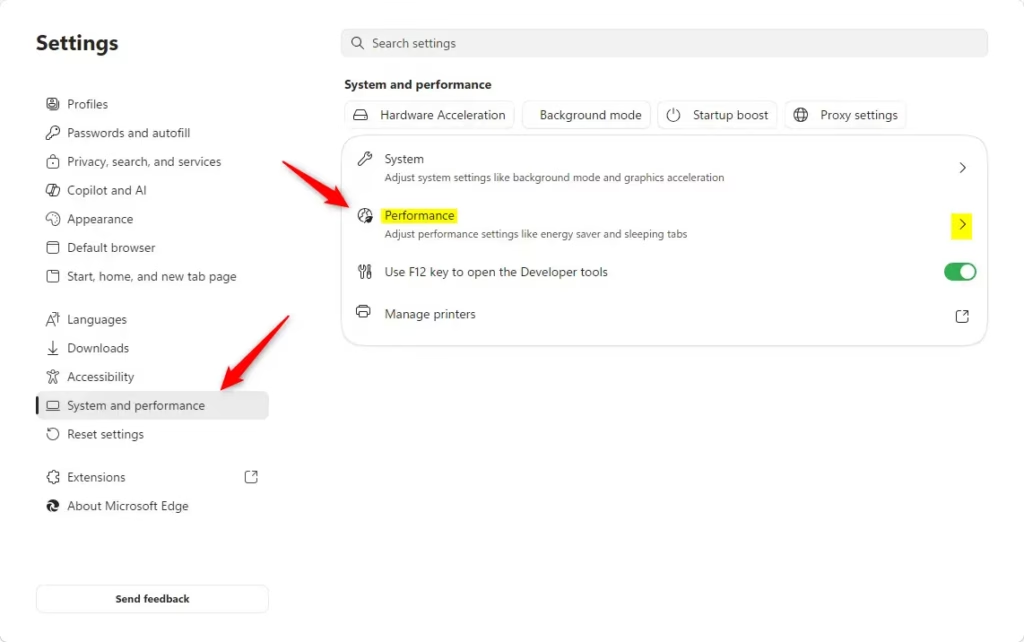
...in the top right corner of the browser, then click Settings. A new tab opens with all the Edge settings. - Click System and performance in the left sidebar. The right side now shows the settings for how Edge uses your computer’s resources. If you don’t see the sidebar, widen the window or click the menu icon at the top left of the Settings page.
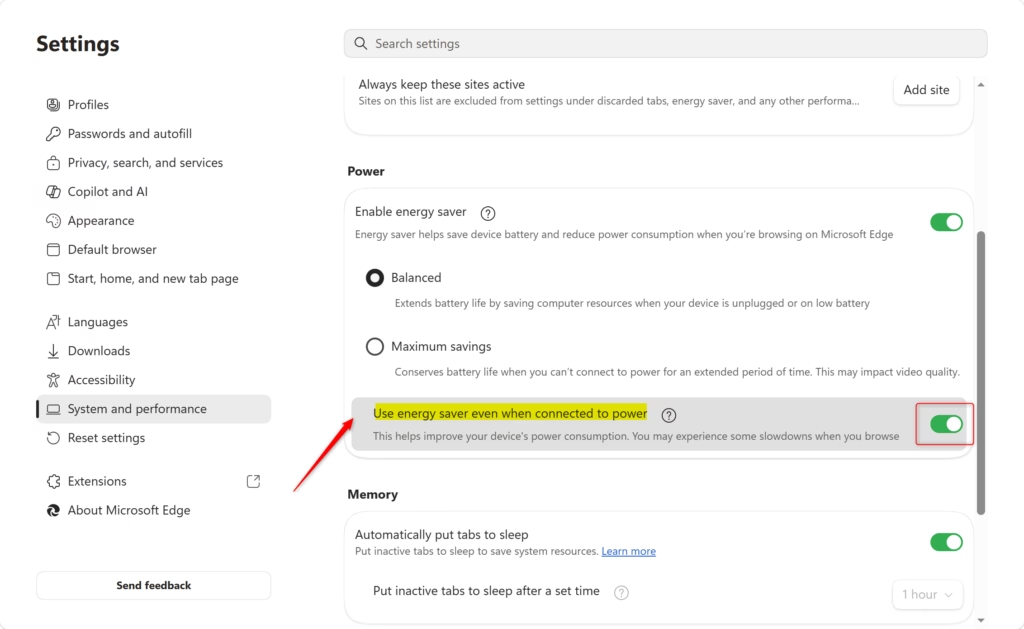
- Find the Energy saver settings in the performance options on this page. Scroll down if you don’t see them at first.
- Find the option Use energy saver even when connected to power and click the switch next to it to turn it On. The switch turns blue. Edge will now use its power-saving features even when the laptop is plugged in.
Also be aware that the wording and layout can differ slightly between Edge versions, and some newer builds offer the same choice as a dropdown instead of a switch. On a desktop PC with no battery, Edge may hide or change the option.
That is the trade-off for lower power use.
To undo the change, go back to the same page and click the switch again so it turns Off. Edge then returns to using Energy saver only on battery.

Reference:
https://support.microsoft.com/en-us/edge/learn-about-performance-features-in-microsoft-edge
Summary
Microsoft Edge's Energy saver normally conserves battery only when your device is unplugged. With this setting, you can choose to keep it active while plugged in as well, and switch it off again whenever you like.
Have a question about this guide?
Answered by AI from this guide. Good questions may be added to this page — please don't include personal details.
Did this guide fix your problem?

About the Author
Richard
Tech Writer, IT Professional
Richard is a writer at Geek Rewind who turns complex IT tasks into clear, step-by-step guides. He draws on years of hands-on experience in system administration and enterprise IT operations, focusing on Windows, Linux and WordPress: the problems people actually run into, and the fixes that work. His server and WordPress guides come from systems he runs himself. Richard builds and maintains the platform behind Geek Rewind, from its Ubuntu servers and Nginx configuration to its custom WordPress plugins. Many new tutorials start with readers' questions, and he's always glad to answer them in the comments.
No comments yet — be the first to share your thoughts!