How to Always Keep Sites Active While Using Energy Saver in Microsoft Edge

Energy Saver in Microsoft Edge is a built-in power feature. When your laptop battery drops to 15 percent, Edge starts putting idle tabs to sleep. Sleeping stops background activity on a page, so a live video stream, a music tab, a web chat or a work app can pause or disconnect while you are looking at something else.
You can stop this for specific pages by adding their addresses to an exemption list in Edge settings. Edge then keeps those sites awake and active, however low the battery gets. Everything else still sleeps as normal, so you keep most of the battery savings.
Open Microsoft Edge, click the three dots menu, select Settings System and performance > Performance, scroll to Always keep these sites active, click Add site, enter the full URL (for example https://www.youtube.com), then click Add. The site stays awake even when Energy Saver is on.
How to Add a Site to Your “Always Active” List
The steps below open Microsoft Edge settings, go to the system and performance options, and add the site address to the list of sites that never pause.
Before you start, note a few things:
- Have the exact address of the site ready. Using just the domain name, such as the part after https:// and before the first slash, is usually enough.
- The exact wording of the settings page can change between Edge versions. If a label looks slightly different from the one in the screenshots, look for the closest match in the system and performance section.
- Edge works the same on Windows 11 Home and Pro. If the setting is greyed out or says your browser is managed by your organization, a work or school policy is controlling it. Ask your IT administrator.
- Edge is the same in every Windows 11 edition, but power options can differ by device. On a desktop PC with no battery, the Energy Saver options may not appear at all.
- Open Microsoft Edge.
- Click the three dots (
...) in the top-right corner. This opens the menu. - In the menu, click Settings.
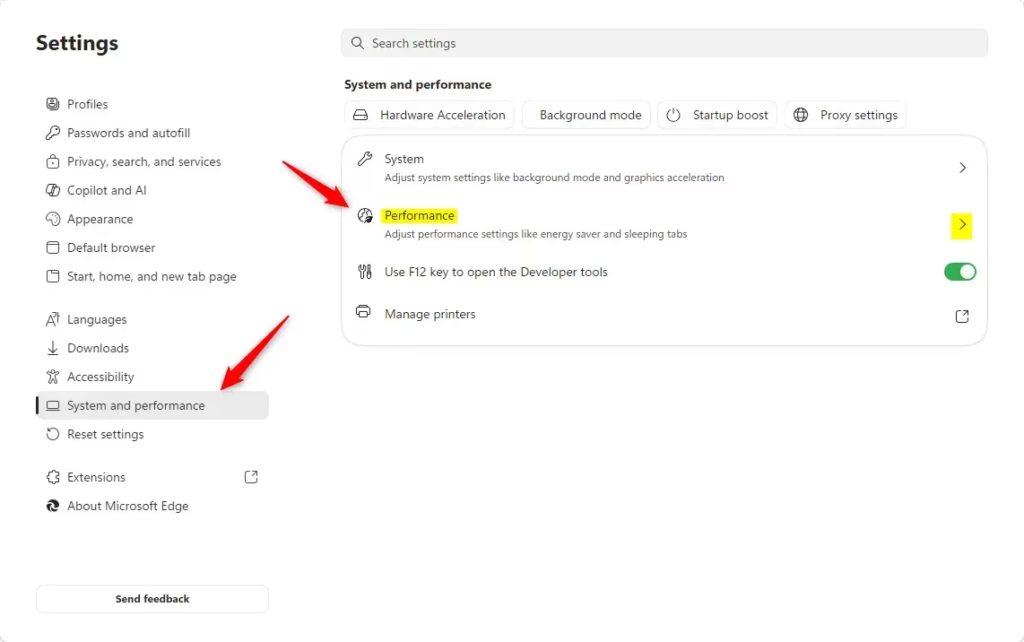
- In the Settings tab, click System and performance on the left side.
- Under the “System and performance” section, click Performance. This is where the power-saving and tab settings are.
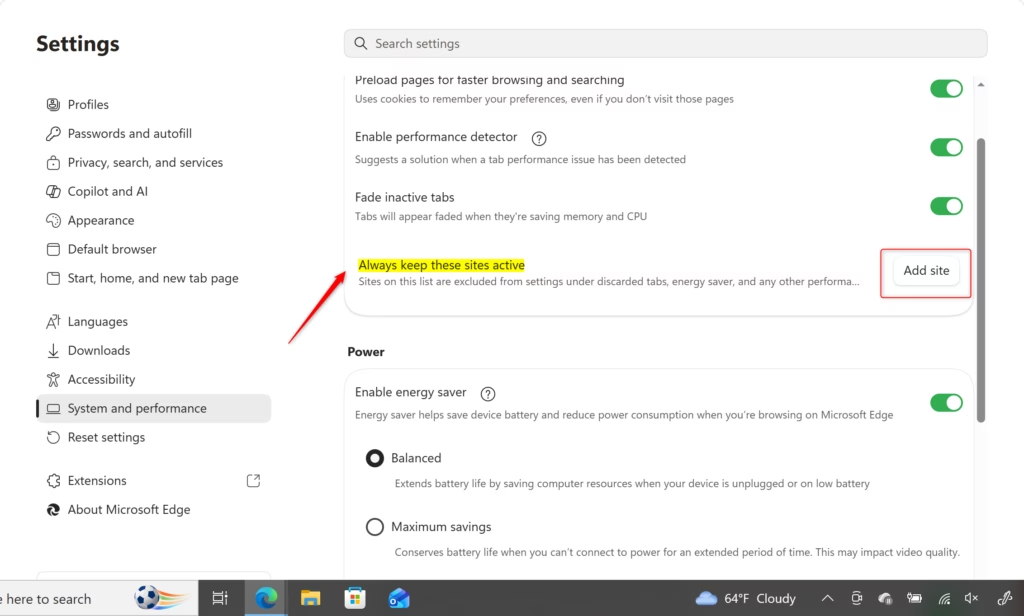
- Scroll down until you see a section called Always keep these sites active.
- Click the Add site button.
- A small box will appear. Type the full web address (URL) of the site you want to keep active. For example, to keep YouTube active, you would type
https://www.youtube.com. Make sure to includehttp://orhttps://. - After typing the address, click the Add button next to the box.

The site is now on your active list, so Edge will not suspend it automatically. The tab stays awake even if you leave it alone for a long time, and Energy Saver will not slow it down. You do not need to restart Edge or Windows for the change to apply.
To check that it works, leave the site open in a background tab while on battery and come back to it after a while. It should still be live, with no reload. If it does not behave as expected, reopen the settings and make sure the address was typed correctly and saved in the list.
Reference:
https://support.microsoft.com/en-us/edge/learn-about-performance-features-in-microsoft-edge
Summary
This guide covered how to keep critical websites running in Microsoft Edge while using power-saving features. Exempt only the pages you really need awake, and let Energy Saver handle the rest.
Have a question about this guide?
Answered by AI from this guide. Good questions may be added to this page — please don't include personal details.
Did this guide fix your problem?

About the Author
Richard
Tech Writer, IT Professional
Richard is a writer at Geek Rewind who turns complex IT tasks into clear, step-by-step guides. He draws on years of hands-on experience in system administration and enterprise IT operations, focusing on Windows, Linux and WordPress: the problems people actually run into, and the fixes that work. His server and WordPress guides come from systems he runs himself. Richard builds and maintains the platform behind Geek Rewind, from its Ubuntu servers and Nginx configuration to its custom WordPress plugins. Many new tutorials start with readers' questions, and he's always glad to answer them in the comments.
No comments yet — be the first to share your thoughts!