How to Turn On or off the Local Network Access Feature in Microsoft Edge

Local network access in Microsoft Edge is a security setting that controls how websites connect to smart devices on your home network, such as printers and streaming boxes. Added in version 98, the feature stops unfamiliar sites from finding or controlling your gear without permission.
Managing this setting helps you block risky web apps from reaching your local devices. You can turn the feature on or off in a few clicks. This tutorial also shows how to allow or block individual sites.
The steps are the same on Windows 11 Home and Pro. If your PC is managed by an employer or school, an administrator may have locked the setting. In that case it will look greyed out or show a message that your organization manages it.
Open Microsoft Edge Settings Privacy, search, and services > Site permissions Local network access, then toggle the Ask before accessing switch on or off. Turning it off stops Edge from prompting before websites access your home network devices; turning it on restores the permission prompt.
Step 2Managing Permissions for Specific Websites
You can manage Microsoft Edge local network permissions for individual websites in the browser settings. This lets you allow or block specific sites from talking to devices on your home network. You do not have to change the main setting for every website you visit.
- Open Microsoft Edge. Use the taskbar icon or the Start menu . You should see a normal browser window.
- Open Settings . Click the three horizontal dots (
...) in the top-right corner of the browser window. From the menu that appears, select Settings. The Settings page opens in a new tab.

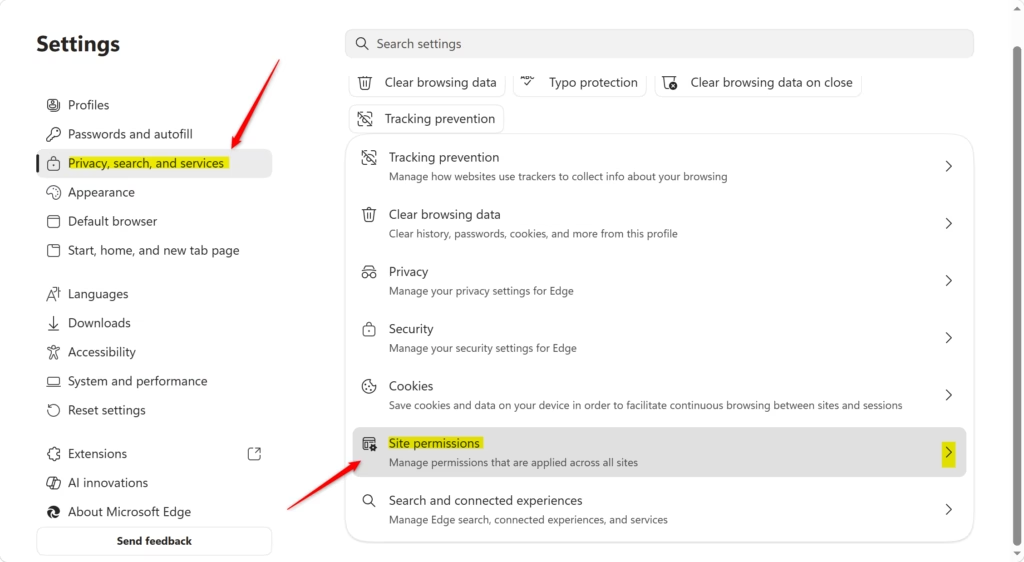
- Open Privacy, search, and services. On the left side of the Settings page, click Privacy, search, and services. The page on the right changes to show privacy options.
- Open Site permissions. Scroll down the Privacy, search, and services page until the Permissions section appears, then click Site permissions. You should now see a list of permission types, such as location and camera.
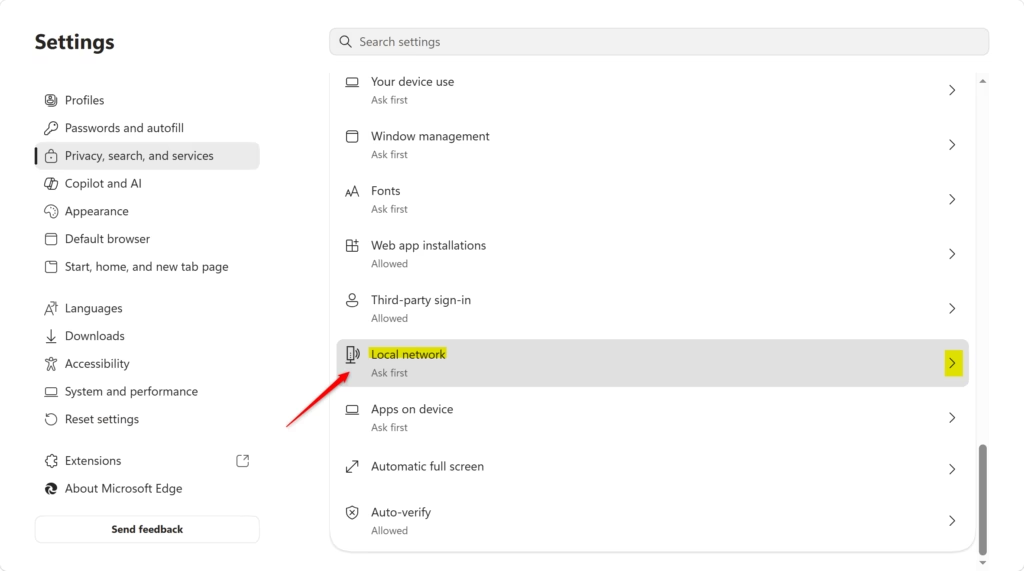
- Open Local network access. Scroll down the list of site permissions until Local network access appears, and click it. If you can’t find it, your copy of Edge may be out of date. Update Edge from the About Microsoft Edge page in Settings, restart the browser and try again.
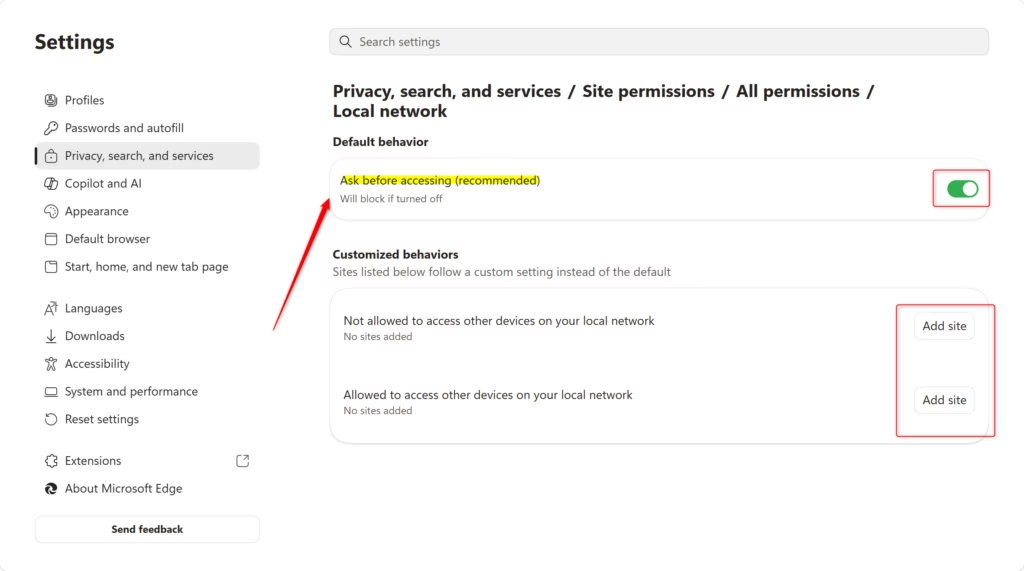
- Check the main switch. The Local network access page has a main switch labeled Ask before accessing (recommended). Keep this switch On so that Microsoft Edge asks for permission before any website can access the local network. If you switch it off, the prompt goes away and Edge stops asking you first. To undo the change, come back to this page and switch it on again. No restart is needed.
- Set permissions for single sites. Individual websites appear in a list below the main switch, showing whether each one is currently allowed or blocked. You can add specific sites to an Allow list or a Block list directly in this section.
- To allow a specific site: Click the Add button next to Allowed. Then type the website’s address (like
https://my-smart-home-app.com) and confirm. The site now appears in the Allowed list. - To block a specific site: Click the Add button next to Blocked. Then type the website’s address and confirm. The site now appears in the Blocked list.
To remove a site from either list later, use the menu beside its entry. Edge will then go back to asking you about that site.
Reference:
Summary
Leave the main switch on, and add only the sites you trust to the Allowed list.
How do I disable LNA Edge?
Chrome users can find similar controls by navigating to experimental flags or enterprise policies if managed environments require it.
Have a question about this guide?
Answered by AI from this guide. Good questions may be added to this page — please don't include personal details.
Did this guide fix your problem?

About the Author
Richard
Tech Writer, IT Professional
Richard is a writer at Geek Rewind who turns complex IT tasks into clear, step-by-step guides. He draws on years of hands-on experience in system administration and enterprise IT operations, focusing on Windows, Linux and WordPress: the problems people actually run into, and the fixes that work. His server and WordPress guides come from systems he runs himself. Richard builds and maintains the platform behind Geek Rewind, from its Ubuntu servers and Nginx configuration to its custom WordPress plugins. Many new tutorials start with readers' questions, and he's always glad to answer them in the comments.
No comments yet — be the first to share your thoughts!