How to Enable Windows 11 Narrator Advanced Reading


Narrator advanced reading in Windows 11 lets you hear extra detail about what is on screen, so you can scan long web pages and complex menus faster. Narrator is the built-in screen reader. It reads text, buttons and other controls aloud, which helps if you have low vision.
To start Narrator at any time, press Win+Ctrl+Enter. Press the same keys again to stop it. Then open Windows Settings and turn on the advanced reading option. The steps are below.
The shortcut and the Narrator settings work the same on Windows 11 Home and Pro. No restart is needed.
Open Settings with Win+I, go to Accessibility and select Narrator, then scroll to Verbosity and toggle Read advanced details on or off. The change applies immediately without restarting.
Why Use Advanced Details Reading?
Advanced reading makes Narrator speak extra information about what is on your screen. That includes help text and tips on buttons and other controls. Turn it on when you need more detail about page layouts, controls or web links.
With advanced details On, Narrator tells you more about each control. This helps when you want a fuller description of what is on the screen and what each control does.
With advanced details Off, Narrator sticks to the main content. This is better if the extra descriptions get in the way. Turn it off if you only want the main text read out, so the session stays short and clear.
Nothing is lost either way. You can flip the setting back at any time.
How to Enable or Disable Advanced Details Reading in Narrator
Step 1Open the Settings App
The setting lives in the Windows Settings app. You can change it whether Narrator is running or not. Here is the full process:
- Open Settings in one of two ways. Click the Start menu and select Settings, or press Windows key + I.

The Settings window should now be open, with a list of categories down the left side.
Step 2Go to Narrator Settings
- On the left side of the Settings window, click Accessibility. The accessibility options appear on the right.
- On the right side, find the Narrator tile and click it. The Narrator settings page opens.
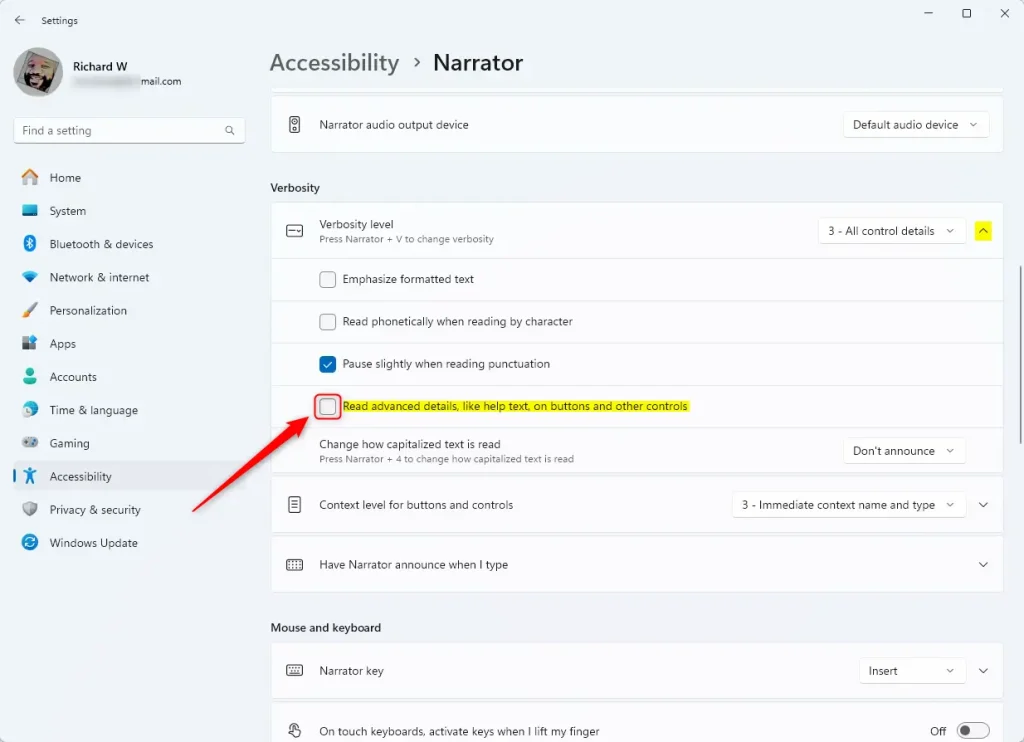
It has the main Narrator on/off toggle at the top, followed by groups of settings further down. If the shortcut did not start Narrator earlier, check the Narrator keyboard shortcut option on this page. It may have been switched off.
Step 3Toggle Advanced Details
- Scroll down the Narrator page until you find the Verbosity section. Look for Verbosity level.
- Find the toggle next to Read advanced details, like help text, on buttons and other controls.
- Click the toggle to set it to On or Off. Choose whichever suits how you work.
The toggle switches position straight away. If Narrator is running, the change applies to what it reads next. Layout and wording can vary slightly between Windows 11 builds. If you do not see the exact label, look through the Verbosity section for the closest match, and run Windows Update if the section is missing.
Step 4Close Settings
- Close the Settings app.
Windows saves the preference immediately, so you do not need to press a save button or restart. To undo the change, repeat the steps above and flip the toggle back.
Summary
Narrator advanced reading is easy to change from the main system menu. Open Settings, go to Accessibility, select Narrator, and find the Verbosity section. From there you can turn the read advanced details option on or off, depending on how much extra information you want to hear.
The short version:
- Open Settings from the Start menu or with Windows key + I.
- Go to Accessibility and select Narrator.
- Find Verbosity level under the Verbosity section.
- Toggle the Read advanced details option on or off.
- Close Settings when you are done.
This adjustment lets you control how much Narrator tells you about your screen.
Was this guide helpful?

About the Author
Richard
Tech Writer, IT Professional
Richard is a writer at Geek Rewind who turns complex IT tasks into clear, step-by-step guides. He draws on years of hands-on experience in system administration and enterprise IT operations, focusing on Windows, Linux and WordPress: the problems people actually run into, and the fixes that work. His server and WordPress guides come from systems he runs himself. Richard builds and maintains the platform behind Geek Rewind, from its Ubuntu servers and Nginx configuration to its custom WordPress plugins. Many new tutorials start with readers' questions, and he's always glad to answer them in the comments.




[…] formatted text, enable or disable Narrators phonetic reading, pause for punctuation, adjust how the Narrator read advanced details, and […]
[…] formatted text, enable or disable Narrators phonetic reading, pause for punctuation, adjust how the Narrator read advanced details, adjust the way capitalized text is read, add a braille display with Narrator, change the […]
[…] formatted text, enable or disable Narrators phonetic reading, pause for punctuation, adjust how the Narrator read advanced details, adjust the way capitalized text is read, add a braille display with Narrator, change the […]
[…] formatted text, enable or disable Narrators phonetic reading, pause for punctuation, adjust how the Narrator read advanced details, adjust the way capitalized text is read, add a braille display with Narrator, change the […]
[…] the Narrator app, you can enable or disable Narrator phonetic reading, pause for punctuation, adjust how the Narrator read advanced details, adjust the way capitalized text is read, add a braille display with Narrator, change input and […]
[…] Narrator, you can enable or disable Narrator phonetic reading, pause for punctuation, adjust how the Narrator read advanced details, adjust the way capitalized text is read, add a braille display with Narrator, change input and […]