How to Turn On or off Finding and Downloading New Extensions When Narrator Starts in Windows 11

This setting controls whether Narrator, the built-in screen reader in Windows 11, automatically looks for and downloads add-on software for apps like Outlook and Excel each time it starts. Narrator reads text on your screen out loud and describes what is happening on your PC.
You can turn the automatic download on or off in the Settings app. The change takes a few clicks, needs no restart, and you can reverse it at any time. It is the same on Windows 11 Home and Pro.
Open Settings , go to Accessibility Narrator, scroll to Experimental features, and check or uncheck Find and download new extensions on Narrator startup. The change takes effect the next time Narrator starts.
What is Narrator?
Narrator is the screen reader built into Windows 11. It reads text aloud and describes what is happening on your screen. This helps people who are blind or have low vision, and anyone who needs spoken feedback while they work. It ships with Windows, so you don’t need to install anything to use it.
What are Narrator Extensions?
Narrator extensions are add-ons that help Narrator work better with specific Windows 11 applications, such as Outlook and Excel. Without an extension, Narrator reads what it can find on the screen. With one, it can move around the app’s own controls, such as mail lists or spreadsheet cells, more efficiently and describe them more accurately.
What Does “Find and Download New Extensions on Narrator Startup” Mean?
This setting decides whether Narrator checks for new extensions and installs them every time it starts. Here is how the two choices compare:
- On: Narrator has the latest add-ons as soon as it starts. This is the default.
- Off: Narrator does not fetch new extensions on startup. Nothing changes behind your back, so how Narrator behaves in your apps stays the same from one session to the next.
It also helps on a PC with a limited or metered internet connection. Keep in mind that extensions are downloaded from the Microsoft Store, so the PC needs an internet connection for the download to work when the setting is on.
How to Turn On or Off This Feature
- Press
Windows key + Ion your keyboard to open the Settings app. The Settings window appears with a list of categories on the left. - In the left menu, click Accessibility. The accessibility options appear on the right.
- On the right side, click Narrator. You can also press
Windows key + Ctrl + Nto open the Narrator settings directly. The Narrator page opens. - Scroll down to the Experimental features section. Click Enable Narrator extensions to expand it. The extension options appear below it.
- Select the Find and download new extensions on Narrator startup check box to turn the feature on. Clear the check box to turn it off.
- Close the Settings window. The change is saved as soon as you click the check box, so there is no Apply or Save button. It takes effect the next time Narrator starts.
To undo the change later, follow the same path (Settings Accessibility Narrator) and set the check box back the way it was.
Microsoft labels these options as experimental, so their wording or position can shift in later Windows 11 updates. If the section is missing entirely, check Settings Windows Update to make sure your PC is up to date.
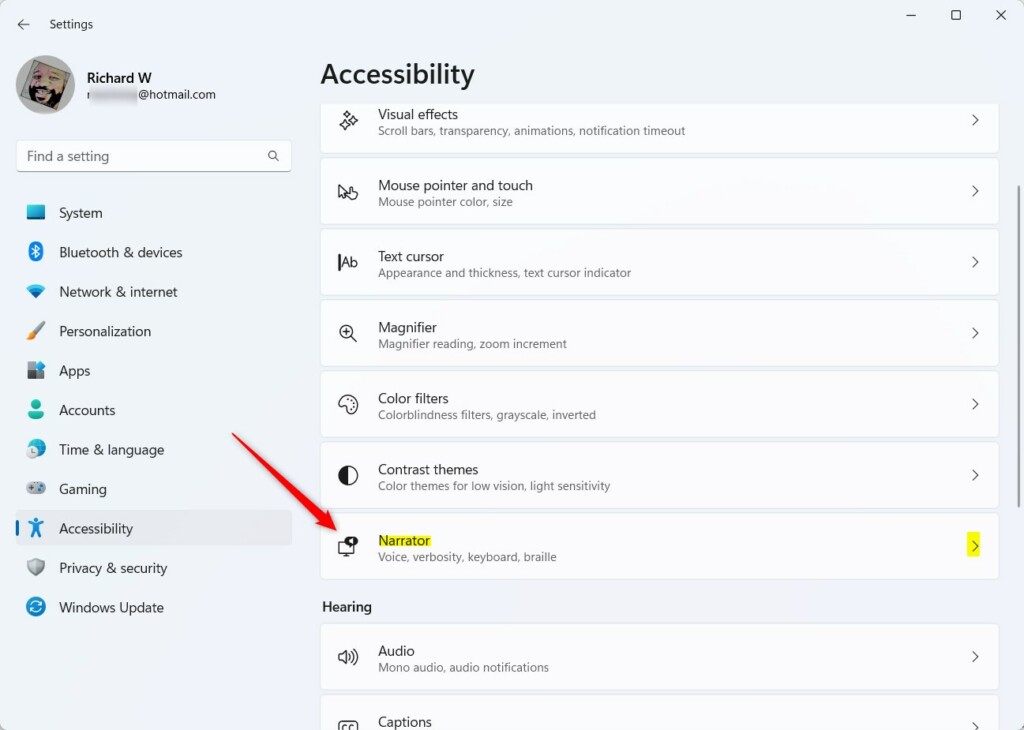
Narrator settings showing Experimental features
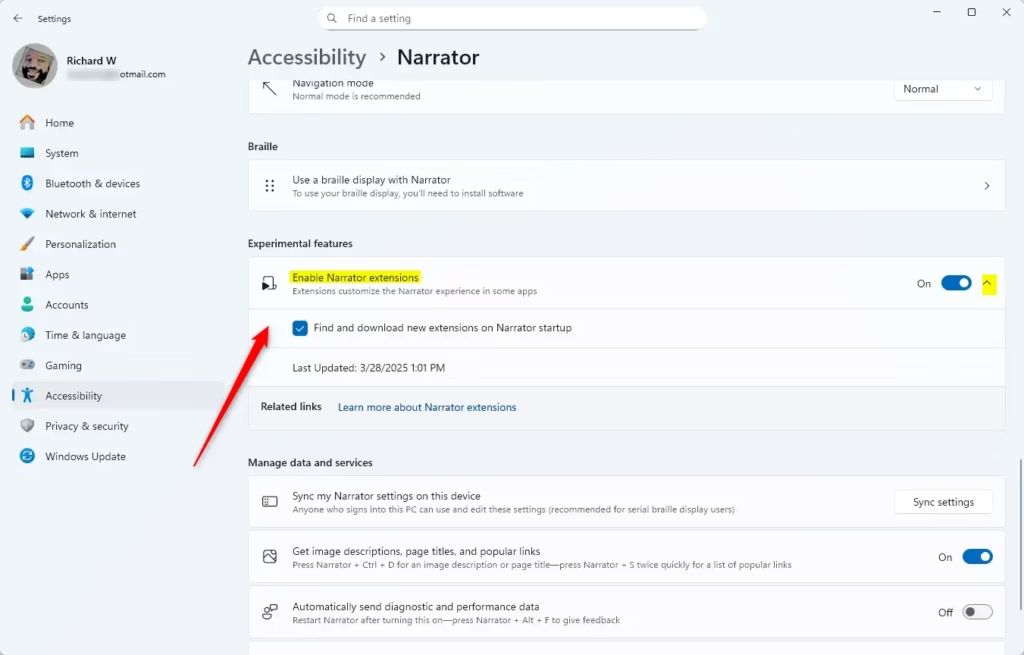
Check or uncheck the option to find and download new extensions
Why Should You Care?
Here is why you might choose one setting over the other:
- Better Performance: Extensions help Narrator work better with your favorite apps.
- Stay Updated: Automatically downloading new extensions makes sure you have the newest features.
- Control: You can turn off this feature anytime if you prefer to update extensions manually.
Extra Tip
In the Narrator settings you can also see a Last Updated label. It shows when Narrator last successfully downloaded new extensions from the Microsoft Store. If you have turned the option off, or the PC was offline, this date can be old. That is normal and not a sign that something is broken.
Learn More
Windows 11 lets you decide whether Narrator downloads new extensions when it starts. Leave it on if you want the newest app support without any effort. Turn it off if you prefer a predictable setup. For more on personalizing Narrator, see Microsoft's support page titled "Customizing Narrator".

Summary
Narrator is Windows' built-in screen reader. It can use extensions to work better with apps, and by default it downloads new ones automatically when it starts. You can turn that off at any time in Settings Accessibility Narrator
Was this guide helpful?

About the Author
Richard
Tech Writer, IT Professional
Richard is a writer at Geek Rewind who turns complex IT tasks into clear, step-by-step guides. He draws on years of hands-on experience in system administration and enterprise IT operations, focusing on Windows, Linux and WordPress: the problems people actually run into, and the fixes that work. His server and WordPress guides come from systems he runs himself. Richard builds and maintains the platform behind Geek Rewind, from its Ubuntu servers and Nginx configuration to its custom WordPress plugins. Many new tutorials start with readers' questions, and he's always glad to answer them in the comments.




No comments yet — be the first to share your thoughts!