How to Turn On or off Experimental Agentic Features in Windows 11

Experimental agentic features in Windows 11 are built-in AI tools that take actions on your behalf, such as managing files or predicting what you need next. You can turn them on or off at any time in the Settings app . This guide covers the Settings method and a registry method, and explains what each switch changes so you stay in control of your data.
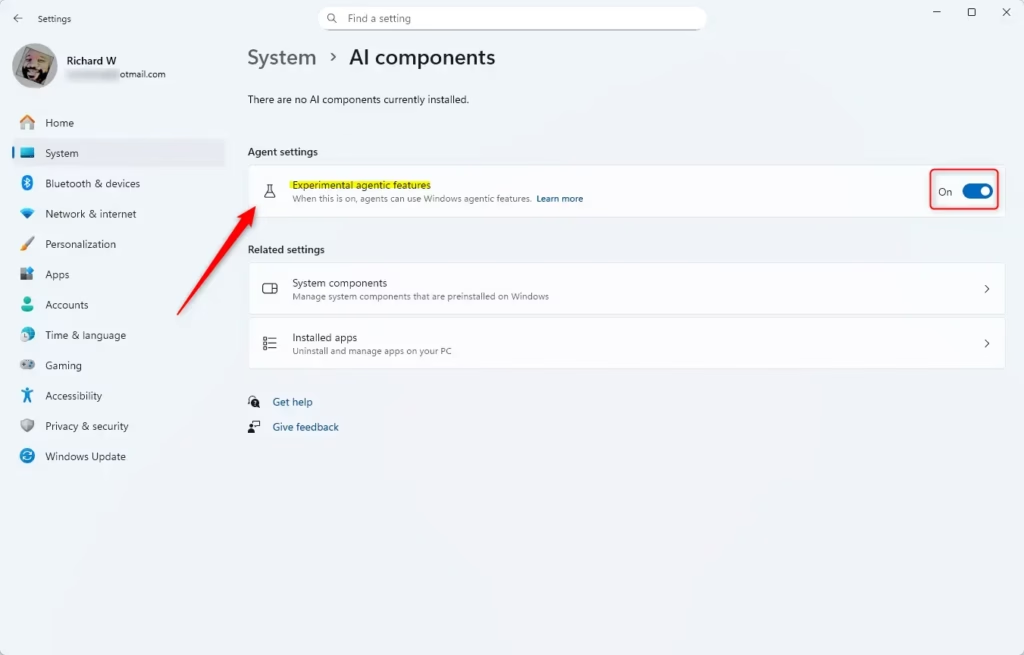
Open Settings , go to System AI components Agent settings, and toggle Experimental agentic features On or Off. Administrator permission is required. The toggle is Off by default, and the change applies to all users on the PC immediately.
What Are Experimental Agentic Features?
Agentic features are AI helpers that automate everyday tasks on your computer. Instead of only answering questions, an agent can carry out the task itself. It can sort through your files, schedule meetings, send emails, and use your installed apps much as a person would. The aim is a hands-free way to manage your workflow.
These features are still experimental. They may not appear on every Windows 11 build, and how they look and behave can change between updates.
- Organizing your files, such as sorting and grouping them in the folders you have allowed
- Scheduling meetings
- Sending emails
- Interacting with your apps just like a person would, by clicking, typing and moving through them for you
One notable example is Copilot Actions, an AI assistant that can handle multi-step jobs to save you time. Because an agent acts on your behalf, think about which tasks you are comfortable handing over before you switch the feature on.
How Do Agent Workspaces Work?
An agent workspace is a separate, isolated environment where the AI helpers run. It is the main safety measure behind these features. Agents get their own user accounts and can reach only the folders and files you approve. They do not run inside your own account.
- Agents get their own accounts, separate from yours. Your own files and apps stay protected from them.
- They only see and use the files and folders you allow. These include Documents, Downloads, Desktop, Music, Pictures, and Videos.
- They run in the background, so you can keep working without interruptions.
- You stay in control. You can manage what agents access and turn the feature off at any time.
Important Things to Know
Before you turn these features on, keep three things in mind:
- They are disabled by default.
- You need administrator permission to change the setting. On a standard account, Windows asks for administrator credentials or leaves the switch unavailable.
- The setting applies system-wide, so it affects every user on the PC. Agents can also use extra resources, so watch your PC's speed and security after enabling them.
How to Turn On or Off Experimental Agentic Features in 🪟 Windows 11
Option 1Using the Settings App
- Press
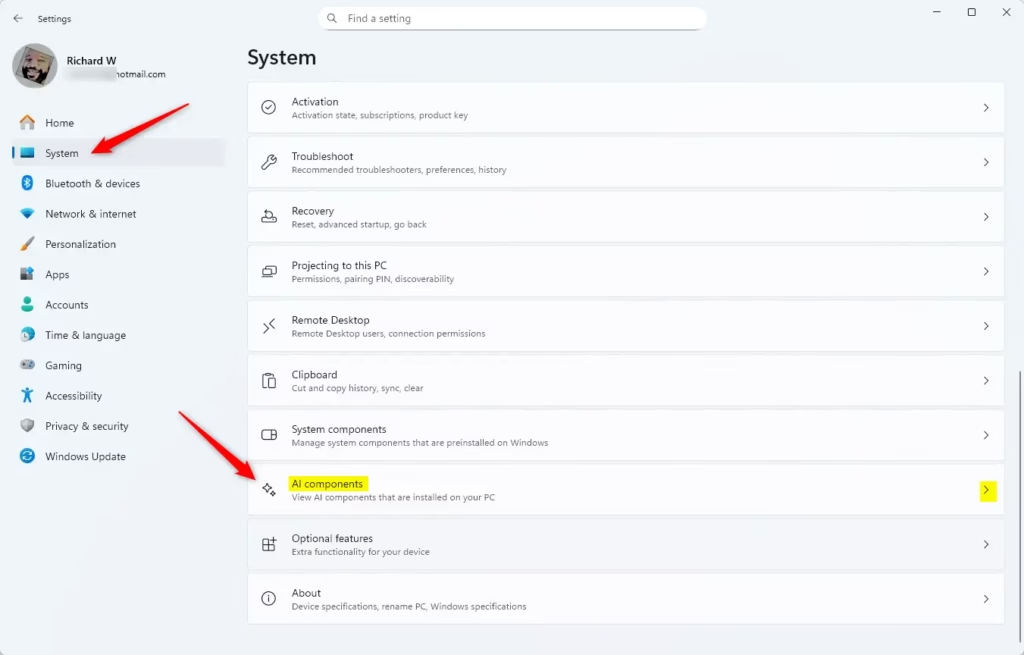
Win + Ion your keyboard. The Settings app opens. - Click System in the left menu.
- Select AI components on the right. If you do not see it, your Windows build probably does not include the feature yet. Check Windows Update and install any pending updates.
- Find Experimental agentic features under Agent settings.
- Click the toggle to switch it On or Off. Off is the default. If the toggle is greyed out, you are not signed in as an administrator. Sign in with an administrator account and try again.
- If you are turning it on, click Turn on to confirm. The toggle now shows On. Approve the User Account Control prompt if one appears.
- Close Settings when you are done. To undo the change later, come back to the same page and switch the toggle to Off.
The Settings app is the simplest and safest way to change this. It takes a few clicks to reach the agent settings and flip the toggle, and it works the same on Windows 11 Home and Pro. Use this method unless you have a specific reason to edit the registry.
Option 2Using Windows Registry (For Advanced Users)
This skips the Settings menu. It suits cases where you need to apply the change by script or on several PCs. It also needs care, because a wrong registry edit can cause serious system errors.
Back up the PC before proceeding. At a minimum, create a restore point so you can roll back if something goes wrong.
To turn on Experimental Agentic Features, run the command below. You need an administrator account for this.
reg add "HKEY_LOCAL_MACHINE\SYSTEM\CurrentControlSet\Services\IsoEnvBroker" /v Enabled /t REG_DWORD /d 1 /fTo turn off Experimental Agentic Features, run the command below. This is also how you undo the change if you turned the feature on by mistake.
reg add "HKEY_LOCAL_MACHINE\SYSTEM\CurrentControlSet\Services\IsoEnvBroker" /v Enabled /t REG_DWORD /d 0 /fIf you use the ready-made file for this process, double-click the .reg file. Allow it to make changes to the device when Windows asks. Then open Settings System AI components and check that the toggle matches what you set. If it does not, sign out and back in, or restart the PC, and check again.
Summary
Agentic features can help with daily computer tasks while you keep control of your data. They are still being tested, so only administrators can turn them on or off. Keep an eye on your PC's performance while they are enabled.
- You control what these AI agents can do and see, including which folders they can reach.
- Only administrators can turn this feature on or off, and the setting applies to the whole PC.
- It's still in testing. Use it carefully and watch your PC's performance. If you see problems, turn it off.
Knowing how to switch these features on and off lets you try the AI tools without losing control. Your files and privacy stay protected, because you decide when the feature is active and what the agents can access.
Learn More
- Microsoft official support page: Experimental Agentic Features - Microsoft Support
- Windows blog on security of AI agents: Securing AI agents on Windows
Was this guide helpful?

About the Author
Richard
Tech Writer, IT Professional
Richard is a writer at Geek Rewind who turns complex IT tasks into clear, step-by-step guides. He draws on years of hands-on experience in system administration and enterprise IT operations, focusing on Windows, Linux and WordPress: the problems people actually run into, and the fixes that work. His server and WordPress guides come from systems he runs himself. Richard builds and maintains the platform behind Geek Rewind, from its Ubuntu servers and Nginx configuration to its custom WordPress plugins. Many new tutorials start with readers' questions, and he's always glad to answer them in the comments.




No comments yet — be the first to share your thoughts!