How to Enable or Disable Copilot Cowork to Automatically Take Actions in Copilot app on Windows 11

Copilot Cowork can automatically create tabs, take screenshots, and interact with web pages for you in the Copilot app. The setting Allow Cowork to take actions on your behalf controls this. You can change it for your own account in Settings, or for all users with Registry Editor.
To turn Cowork’s actions on or off for your own account, open the Copilot app, select Copilot Chat settings, click Web browsing, and switch Allow Cowork to take actions on your behalf on or off. The setting is off by default. Administrators can apply the change to all users through Registry Editor, but that registry key path is not yet confirmed.
About Copilot Cowork
The Microsoft Copilot app is an AI app for work. It connects to the Microsoft 365 apps and content you use every day. It creates documents, spreadsheets, and presentations, and lets you choose between leading AI models. It uses Work IQ to understand your job and company, and it keeps your data protected. [Verification Required: Work IQ needs a plain-English explanation from the product source]
The Copilot experience depends on the account you sign in with. A work or school account gets a licensed version with enterprise data protection, which keeps company data within the company’s own controls. A personal account gets an experience for individuals, with or without a Microsoft 365 Personal, Family, or Premium subscription.
Copilot Cowork carries out tasks for you. Describe what you need in natural language, and Cowork creates documents, drafts and sends email, schedules meetings, and manages files. You review and approve sensitive actions before they happen. By default, Cowork also asks for your permission before certain actions, including writing files.
For some actions, Copilot asks for your approval or hands control back to you. This helps prevent actions you did not intend. Copilot might also ask you to take over if a site restricts automated interaction, needs extra sign-in steps, or needs manual interaction (such as for purchases, bookings, or protected content). These actions include:
- Monetary transactions, such as completing a purchase or submitting payment.
- Submitting personal information to external websites, such as names, addresses, or phone numbers.
- Actions involving other people, such as sending emails or messages.
- Actions that change your account, such as deleting files, changing cloud storage, cancelling subscriptions, or changing account settings.
- Sensitive actions, such as health-related submissions, government documents, or security-related changes.
Option 1Turn On or Off “Allow Cowork to take actions on your behalf” for Current User in Settings
This option changes the setting for your account only. The setting is off by default.
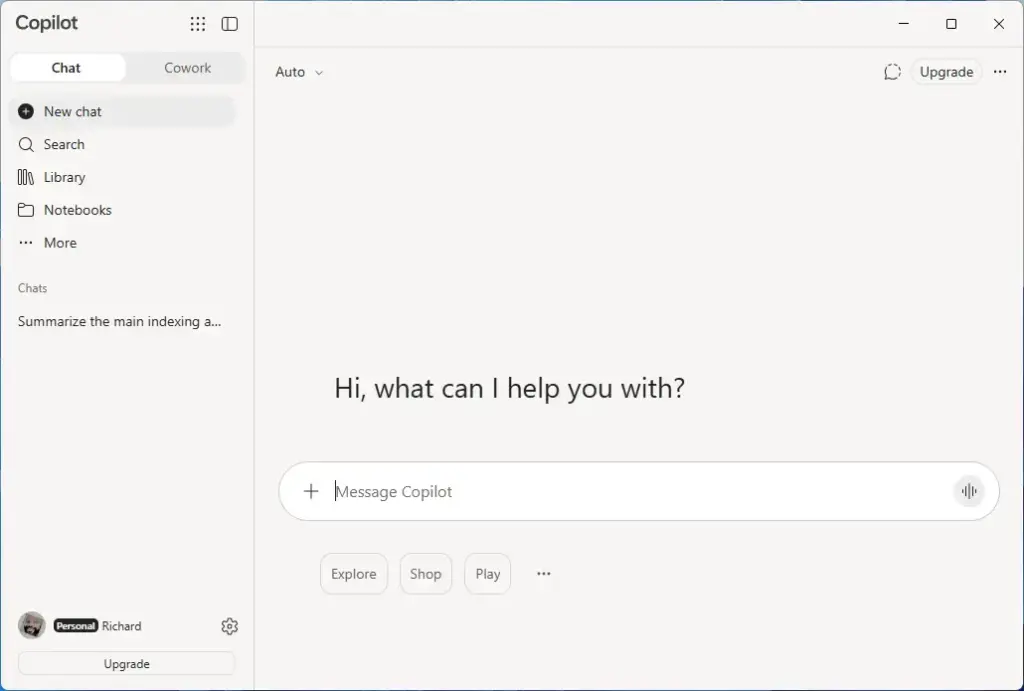
- Open the Copilot app.
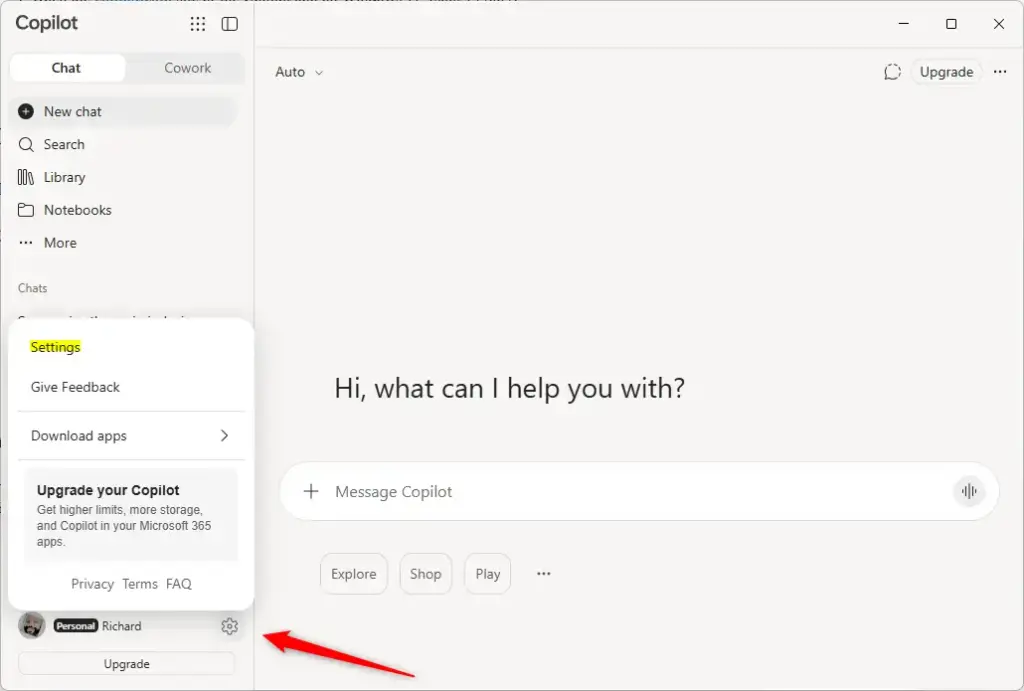
- Open Copilot Chat settings.
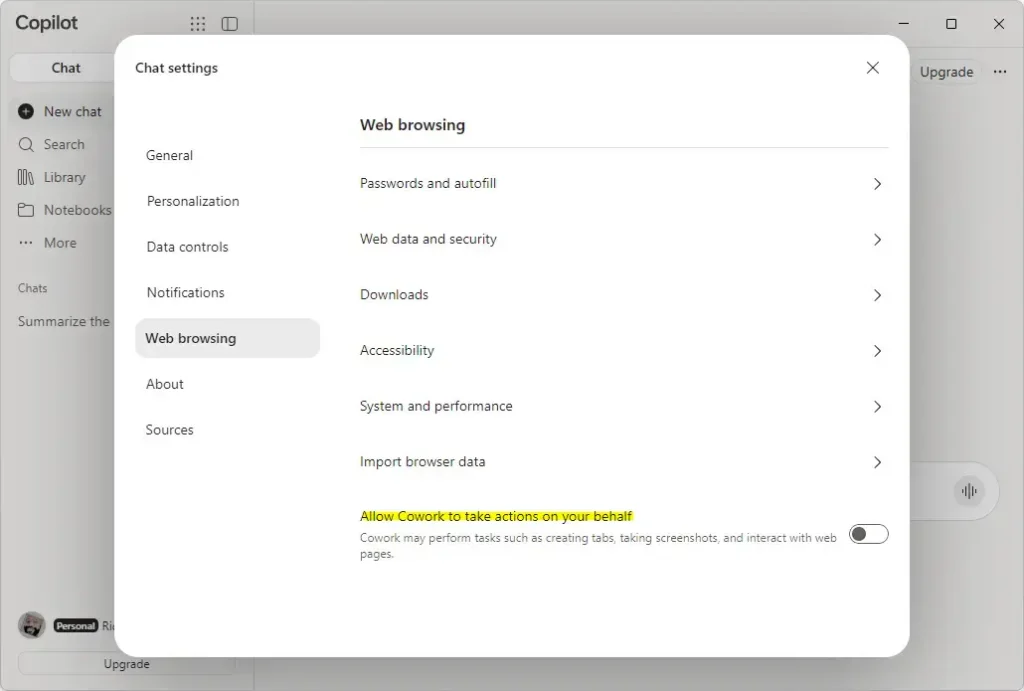
- Click Web browsing on the left side.
- Turn Allow Cowork to take actions on your behalf on or off, depending on what you want.
Option 2Enable or Disable "Allow Cowork to take actions on your behalf" for All Users Using Registry
You must be signed in as an administrator to use this option. The value you set here overrides Option One and grays out the setting in the Copilot app.
The registry key that holds CopilotCoworkToolActionsEnabled is not confirmed yet. [Verification Required: Registry path should be confirmed] [HKEY_LOCAL_MACHINE\SOFTWARE\Policies\Microsoft\Copilot] Do not edit the registry until the key path is confirmed. [Verification Required: Registry path should be confirmed]
Always Enable Copilot Cowork to Take Actions for All Users
- Open Registry Editor: press Windows + R, type regedit, and press Enter.
- Go to the key [
HKEY_LOCAL_MACHINE\SOFTWARE\Policies\Microsoft\Copilot] that holdsCopilotCoworkToolActionsEnabled. [Verification Required: Registry path should be confirmed] - If the key does not exist, right-click its parent key, choose New Key, and name it.
- Right-click the key, choose New DWORD (32-bit) Value, and name it CopilotCoworkToolActionsEnabled.
- Double-click CopilotCoworkToolActionsEnabled and set Value data to 1.
Disable Copilot Cowork to Take Actions for All Users
This turns the setting off for everyone and locks it.
- Open Registry Editor: press Windows + R, type regedit, and press Enter.
- Go to the key [
HKEY_LOCAL_MACHINE\SOFTWARE\Policies\Microsoft\Copilot] that holds CopilotCoworkToolActionsEnabled. [Verification Required: Registry path should be confirmed] - If the key does not exist, right-click its parent key, choose New Key, and name it.
- Right-click the key, choose New DWORD (32-bit) Value, and name it CopilotCoworkToolActionsEnabled.
- Double-click CopilotCoworkToolActionsEnabled and set Value data to 0.
Default User-choice Copilot Cowork to Take Actions
This restores the default, where each user decides with Option One. Deleting the value removes the lock.
- Open Registry Editor: press Windows + R, type regedit, and press Enter.
- Go to the key [
HKEY_LOCAL_MACHINE\SOFTWARE\Policies\Microsoft\Copilot] that holds CopilotCoworkToolActionsEnabled. [Verification Required: Registry path should be confirmed] - Right-click the CopilotCoworkToolActionsEnabled value and choose Delete.
What to do next
To undo an Option Two change, delete the CopilotCoworkToolActionsEnabled value. The setting in the Copilot app then becomes available again. If the setting is still grayed out in the Copilot app, check whether that value still exists in Registry Editor.
Have a question about this guide?
Answered by AI from this guide. Good questions may be added to this page — please don't include personal details.
Did this guide fix your problem?

About the Author
Richard
Tech Writer, IT Professional
Richard is a writer at Geek Rewind who turns complex IT tasks into clear, step-by-step guides. He draws on years of hands-on experience in system administration and enterprise IT operations, focusing on Windows, Linux and WordPress: the problems people actually run into, and the fixes that work. His server and WordPress guides come from systems he runs himself. Richard builds and maintains the platform behind Geek Rewind, from its Ubuntu servers and Nginx configuration to its custom WordPress plugins. Many new tutorials start with readers' questions, and he's always glad to answer them in the comments.
No comments yet — be the first to share your thoughts!