How to Enable or Disable Copilot to Read and Edit Text in Shared Apps in Windows 11


Open the Copilot app from the Start menu , sign in with your Microsoft account, click Account then Settings, select Preferences on the left, then toggle “Allow Copilot to read and edit text in apps” on or off. The change takes effect immediately.
What is Copilot?
Microsoft builds Copilot directly into Windows 11 to help with everyday computer tasks such as writing, summarizing and answering questions. One of its settings decides whether it can work with the text in the programs you have open. This tutorial shows where that setting is and how to turn it on or off.
Why Would You Use This Feature?
Shared app integration lets Copilot suggest edits live while you work in another program. The feedback appears alongside the task you are doing, so you don’t have to stop and start over somewhere else.
The setting is part of the Copilot app, not a general Windows toggle. It follows your Microsoft account, so it does not depend on whether you run Windows 11 Home or Pro.
What Happens When You Turn This On?
When you turn this on, Copilot can read the text inside your active programs. Suggestions show up as you work, and you don’t need to switch windows to get them.
If you often work with confidential documents, you may prefer to leave this off, or turn it on only when you need it. You can change it at any time.
How to Enable or Disable This Feature
- Open the Copilot app on your Windows 11 computer. You can find it in the Start menu. If it isn’t there, install or update it from the Microsoft Store.
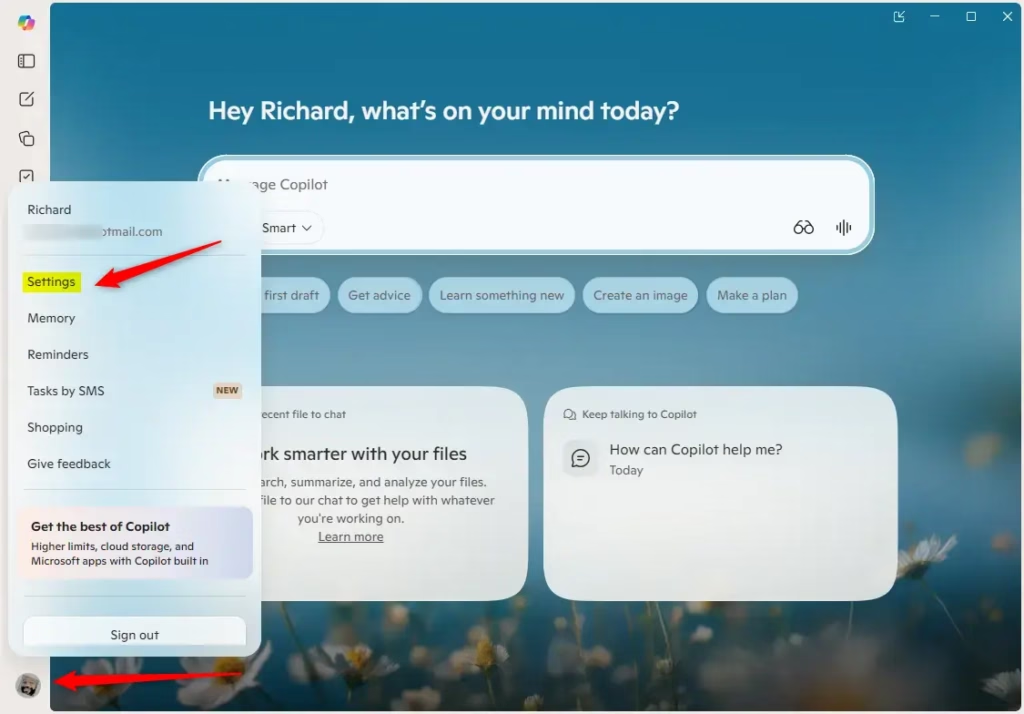
- Sign in with your Microsoft account. This keeps your settings synced. You should see your name or profile picture appear in the app once you are signed in.
- Click or tap the Account button on the left side. Then click or tap Settings. The Settings page opens inside the Copilot app.
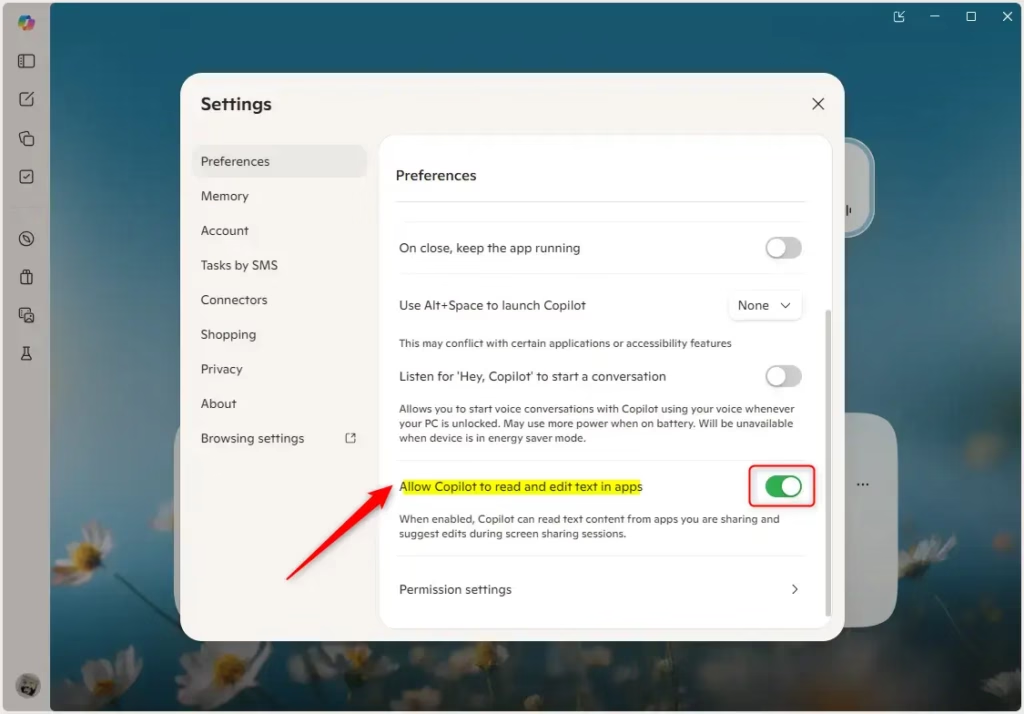
- Click or tap Preferences on the left side of Settings. The list of Copilot preferences appears on the right.
- Find the toggle that says “Allow Copilot to read and edit text in apps.” Turn it on or off based on what you want. The toggle should change position right away, and you don’t need to restart Windows.
If you can’t find the toggle, check these things:
- Make sure you are signed in. Some options don't appear without an account.
- Update the Copilot app through the Microsoft Store. Microsoft rolls features out in stages, so older versions of the app may not show this option yet.
- Close the Copilot app and reopen it if the toggle doesn't respond or the change doesn't seem to apply.
To undo the change, follow the same steps and flip the toggle back.
To change them, open the Copilot app, sign in to your profile, and go to Settings and then Preferences. Everything is controlled from that one place.
Summary
Copilot can help you draft and refine text inside your active apps, but you stay in control through the settings menu. Turn the option on when you want live suggestions, and turn it off when you would rather Copilot stay out of your open programs.
Have a question about this guide?
Answered by AI from this guide. Good questions may be added to this page — please don't include personal details.
Did this guide fix your problem?

About the Author
Richard
Tech Writer, IT Professional
Richard is a writer at Geek Rewind who turns complex IT tasks into clear, step-by-step guides. He draws on years of hands-on experience in system administration and enterprise IT operations, focusing on Windows, Linux and WordPress: the problems people actually run into, and the fixes that work. His server and WordPress guides come from systems he runs himself. Richard builds and maintains the platform behind Geek Rewind, from its Ubuntu servers and Nginx configuration to its custom WordPress plugins. Many new tutorials start with readers' questions, and he's always glad to answer them in the comments.
No comments yet — be the first to share your thoughts!