How to Enable or Disable Copilot Actions in Windows 11

Copilot Actions in Windows 11 control what the Microsoft Copilot assistant is allowed to do on your PC and which desktop apps it can work with. Recent Copilot app updates, including version 1.25112.74, add direct switches for behavior such as automatic startup and how the sidebar acts.
You can also change how the AI panel opens, resize its window, or add a desktop shortcut so the app launches faster. This guide covers the Copilot Actions permission, how to turn it on or off, and how to undo the change.
Open the Copilot app, sign in with your Microsoft account, click Account then Settings, go to Permission settings, and toggle Copilot Actions on or off. The change takes effect immediately without restarting Windows.
What Are Copilot Actions?
Copilot Actions let Copilot carry out a request for you across apps and websites, instead of only answering in a chat window. You ask for something, and Copilot does the steps on your behalf.
Why use this feature? It handles repetitive routines, so you spend less time clicking through the same tasks. Because it can act for you, it is also worth knowing where the off switch is. This guide shows both.
If you cannot find the settings described here, check the Store for an update to the app. Which options you see can depend on the app version installed on your PC.
How to Enable Copilot Actions
The Copilot Actions settings let you control automated tasks directly from your desktop. In short, the path is:
- Open the Copilot app.
- Sign in with your Microsoft account.
- Open the Account menu, then choose Settings.
- Open the Permission settings and switch on Copilot Actions.💡If you can't find Copilot Actions
Microsoft has removed Copilot Actions from Copilot on Windows, so the Permission settings no longer show a Copilot Actions switch. You can't turn it on or off, and there is no direct replacement. The steps in this section no longer work. Updating the Copilot app from the Microsoft Store won't bring the option back. Standard Copilot chat is not affected by this removal.
The screens below show each step in order. You must be signed in with a Microsoft account to change these settings. If the Account menu does not show what you expect, you are probably not signed in yet.
- Open the Copilot app.
- If you haven’t signed into Copilot yet, please do so with your Microsoft account to sync your settings.
- Click the Account button and select Settings in full view mode.
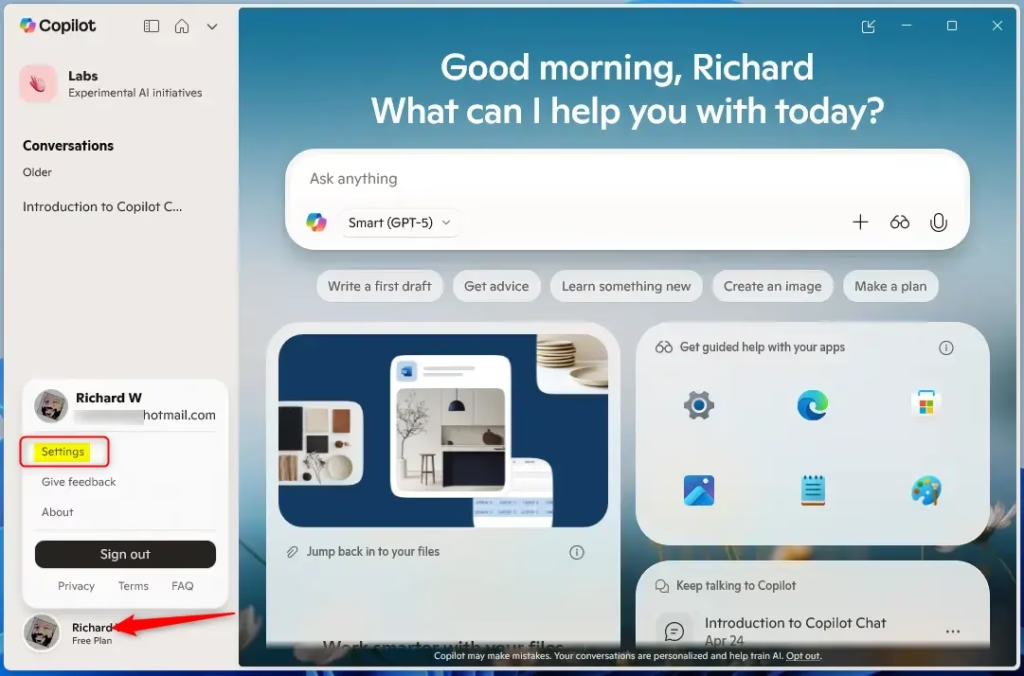
Once you reach the Settings page, carry on with the next group of steps. Take them one at a time and check that each screen matches before you move on.
- On the Settings page, go to the Permission settings.
- Select Copilot Actions.
- Toggle the button to turn the feature on or off.
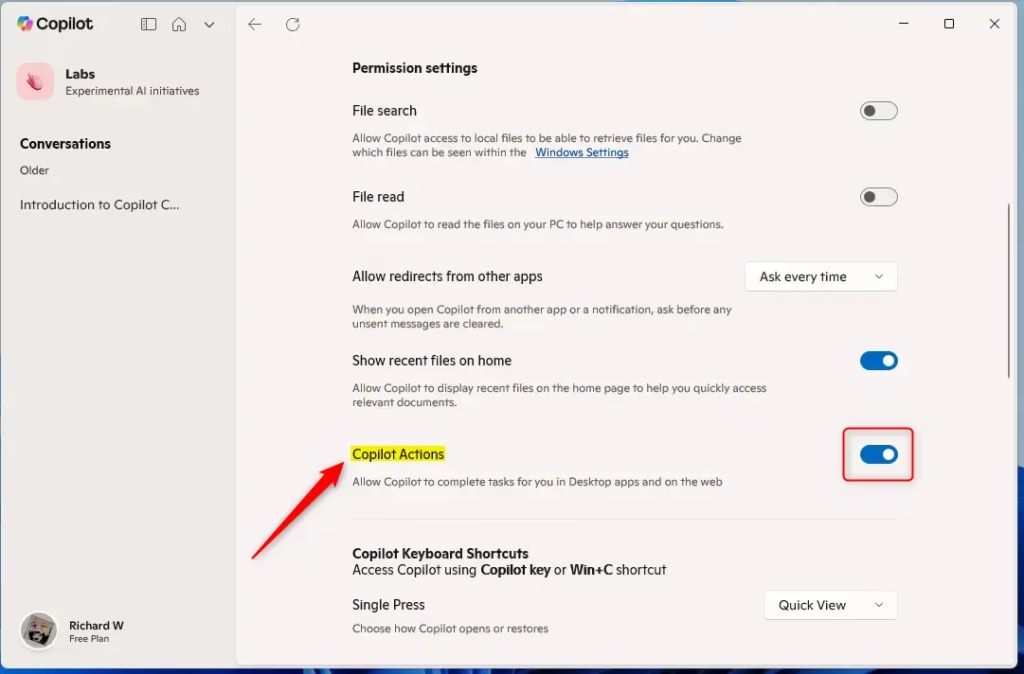
The last step is the one that actually applies the change. Check that the toggle now shows the state you want.
- Close the settings page when you’re done.
Turning it off revokes that permission, so Copilot can no longer run automated actions for you. Standard chat keeps working, but the app integration stops.
The change should take effect without restarting Windows. If it does not seem to apply, close the Copilot app and open it again. To undo the change, go back to the same Permission settings and flip the toggle the other way.
Summary
You manage Copilot Actions from the main Copilot app by switching the toggle on or off. Sign in with your Microsoft account each time you want to change these settings. Keep these points in mind:
- Easy to AccessThe Copilot app makes it simple to manage your settings.
- Account RequiredYou need to sign in with a Microsoft account to use this feature.
- One ToggleJust one button click turns Copilot Actions on or off.
- Saves TimeCopilot Actions can do repetitive tasks for you automatically.
- You Control ItYou can change this setting anytime you want.
Configuring Copilot Actions follows a short, direct path. Switching features on or off lets you set the assistant's behavior to match how you work and what you need right now.
Reference: Microsoft Blog
Have a question about this guide?
Answered by AI from this guide. Good questions may be added to this page — please don't include personal details.
Did this guide fix your problem?

About the Author
Richard
Tech Writer, IT Professional
Richard is a writer at Geek Rewind who turns complex IT tasks into clear, step-by-step guides. He draws on years of hands-on experience in system administration and enterprise IT operations, focusing on Windows, Linux and WordPress: the problems people actually run into, and the fixes that work. His server and WordPress guides come from systems he runs himself. Richard builds and maintains the platform behind Geek Rewind, from its Ubuntu servers and Nginx configuration to its custom WordPress plugins. Many new tutorials start with readers' questions, and he's always glad to answer them in the comments.
… liked this!