How to Switch Between Copilot Views in Windows 11

Copilot in Windows 11 has two layouts. Quick View is a compact panel for fast answers. Full View is a larger window for reading longer replies and working through bigger tasks. You can move between them whenever you like, and neither one closes the apps you already have open.
A button in the top corner of the Copilot pane toggles the layout. This guide shows how to open Quick View, how to get back to Full View, and what to check if a view does not behave the way you expect.
Press Alt+Space to open Copilot Quick View, a compact panel for fast answers. To return to Full View, click “Go back to full view” in the Quick View window. From Full View, click Settings and more (the 3 dots) and select “Open quick view” to switch the other way. Neither view closes your open apps.
What is Copilot?
Windows 11 Copilot is a built-in digital assistant. It helps you write text, find files and change settings from the desktop. You can get a quick answer without opening a web browser or leaving the app you are working in.
Once Copilot is turned on, it gives you several controls. You can:
- Enable or disable Copilot.
- Set it to launch when Windows starts.
- Pin or unpin the Copilot side panel.
- Resize the Copilot side panel.
- Clear your chat history.
- Create a desktop shortcut for Copilot.
The latest Copilot app (version 1.24112.123.0 and newer) runs as a standalone program on your PC instead of inside a web browser. It starts faster and responds better than the older version. When it is running, you find it in the system tray at the bottom of your screen.
If a step does not match what you see, update Copilot first. Open the Microsoft Store, go to Library, and install any pending updates.
What Are Quick View and Full View?
Copilot offers two ways to interact with it:
- Quick ViewA small window for fast questions and answers. It takes little screen space, so it suits a short question while you work in another app.
- Full ViewA larger window with more features and options. Use it for long answers, longer conversations, or anything you want to read carefully.
You can switch between the two at any time. The next sections show how.
How to Open Copilot Quick View
Quick View is the right choice when you want a fast answer without a large window in the way. There are two ways to open it. The first is a keyboard shortcut, and the second is a menu inside Copilot.
Method 1Use Your Keyboard
- Press
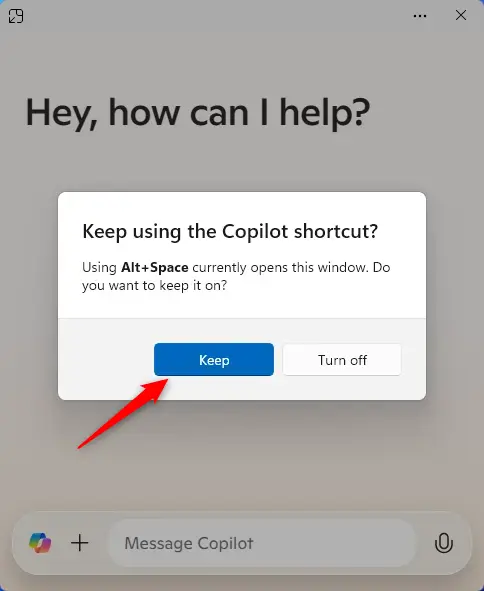
Alt + Spaceon your keyboard. Quick View should open as a small Copilot window. - If Windows asks you to confirm the shortcut, click the “Keep” button to save it. You normally only see this prompt once.
In short: press Alt+Space, click Keep when prompted to save the shortcut, and Quick View opens. If nothing happens, make sure the Copilot app is installed and up to date.
Method 2Use the Settings Menu
Use this method if you are already in Full View and want to shrink Copilot without the shortcut.
- Open the full view of Copilot.
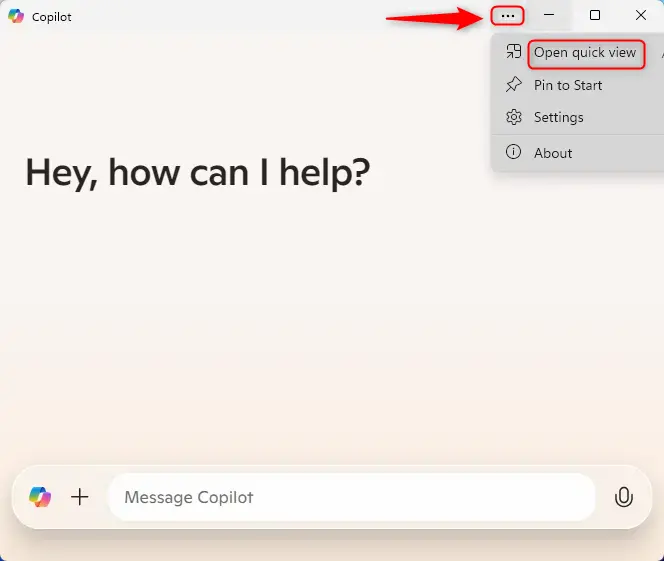
- Click the Settings and more button (the 3 dots). A menu opens.
- Select “Open quick view.” Copilot switches to the compact window.
How to Open Copilot Full View
Copilot usually opens in Full View by default. This gives you more space and more options, so it is the view you see unless you choose Quick View.
To go back from Quick View to Full View:
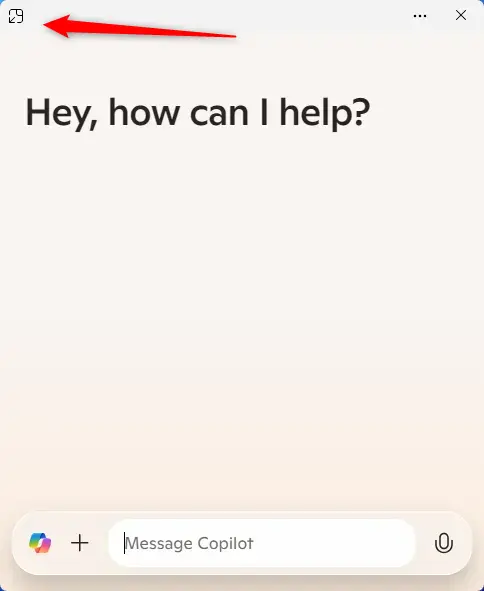
- In the Quick View window, find the "Go back to full view" button.
- Click it. The larger Copilot window opens again.
Summary
Copilot views let you switch between a compact window and a larger one depending on the task. Use Quick View, opened with Alt + Space, for fast answers. Switch to Full View when you need more detail while working on your PC.
- Quick ViewPress
Alt + Spacefor fast access. - Full ViewThis is the default view when you open Copilot.
- Switch Between ViewsUse the buttons in the app to switch back and forth. Use "Go back to full view" from Quick View, or Settings and more "Open quick view" from Full View.
- Settings MenuClick the 3 dots to find more options.
- Better PerformanceThe new native Copilot app works faster than older versions.
You can now switch between Copilot views in Windows 11. Pick the view that fits your current task. Quick View is usually enough for a short question, and Full View is better for longer work.
Have a question about this guide?
Answered by AI from this guide. Good questions may be added to this page — please don't include personal details.
Did this guide fix your problem?

About the Author
Richard
Tech Writer, IT Professional
Richard is a writer at Geek Rewind who turns complex IT tasks into clear, step-by-step guides. He draws on years of hands-on experience in system administration and enterprise IT operations, focusing on Windows, Linux and WordPress: the problems people actually run into, and the fixes that work. His server and WordPress guides come from systems he runs himself. Richard builds and maintains the platform behind Geek Rewind, from its Ubuntu servers and Nginx configuration to its custom WordPress plugins. Many new tutorials start with readers' questions, and he's always glad to answer them in the comments.
[…] article explains how to enable or disable the Copilot “Quick View” keyboard shortcut on Windows […]
[…] in full view, toggle the sidebar button to open or close […]
[…] First, open the Copilot app. […]
[…] open the Copilot app on Windows […]
[…] First, open the Copilot app. […]
[…] First, open the Copilot app. […]
[…] For more details on opening Copilot, see this guide. […]