How to Disable or Enable Copilot Quick View Shortcut on Windows 11

- 4 steps
- Needs administrator rights
The Copilot Quick View shortcut in Windows 11 opens Microsoft’s built-in AI assistant when you press the Alt + Spacebar keys together. Microsoft added it in recent versions of Windows 11 so you can reach chat tools and text generation without touching the mouse.
The shortcut is easy to hit by accident. Alt + Spacebar is also the combination that opens the window menu (Restore, Move, Size, Close) in many apps, so people who already use it out of habit can end up with the Copilot panel on screen in the middle of typing. You can turn the shortcut off, or back on, whenever you like. Nothing is uninstalled, and the Copilot app keeps working either way.
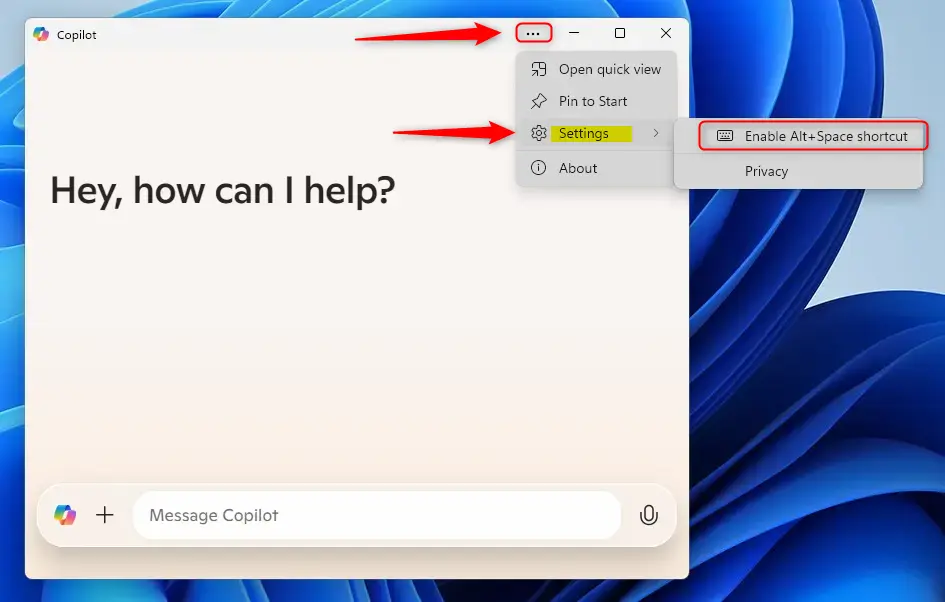
Open the Copilot app, click the Settings and more button (the three dots), then select Settings. Uncheck Enable Alt+Space shortcut to stop Alt + Spacebar from opening Copilot, or check it to turn the shortcut back on. The change takes effect immediately, with no restart needed.
Enable or Disable Quick View Shortcut for Copilot
The setting decides whether pressing Alt + Spacebar launches the assistant straight away. Turn it off to stop accidental pop-ups while you work. Turn it on if you want the assistant one keystroke away. The steps below cover both, because the same checkbox does each job.
- Open the Copilot app. You can find it by clicking Start and typing its name, or from the taskbar if it is pinned there. The Copilot window should open on your screen. If it is not installed, get it from the Microsoft Store first.
- Click the Settings and more button (the three dots). A small menu should drop down.
- Select Settings. The app’s settings page should open with a list of options.
- Click the Enable Alt+Space shortcut option. Check the box to turn the shortcut on, or uncheck the box to turn it off. If you can’t find this option, update the Copilot app from the Microsoft Store. The app changes often, so the layout and wording can differ slightly between versions.
You do not need to confirm anything or press a Save button. To test the result, click on your desktop or in any other app and press Alt + Spacebar. With the box checked, the Copilot Quick View panel should appear. With it unchecked, you should get the normal window menu again, or nothing at all, depending on the app. To undo the change, repeat the same four steps and flip the checkbox back.
Your changes take effect immediately. You don't need to restart Windows, sign out or close the Copilot app. The same applies to Windows 11 Home and Pro, because the setting lives in the app and not in a Windows policy.
Summary
Controlling the Copilot Quick View shortcut lets you decide how fast you want to open your assistant from the keyboard. You can turn the shortcut on or off in the app settings at any time, depending on how often you use the tool. If you keep hitting it by mistake, turn it off. If you use Copilot several times a day, leave it on.
- Windows 11 includes Copilot, which you can open with a specific keyboard shortcut (Alt + Space).
- You can manage the Alt + Space shortcut inside the Copilot app settings menu, using the Enable Alt+Space shortcut checkbox.
- Keeping the shortcut active saves time if you use the tool frequently.
- The Copilot app updates often to bring you new features, so the settings screen may look a little different from one version to the next.
- Enable or disable the Copilot Quick View shortcut (Alt + Space) in the Copilot app settings.
- Standard user accounts can modify this preference without needing administrator privileges.
- Once configured, the shortcut will either launch Copilot or remain inactive.
Questions readers asked
I can't find the Alt+Space checkbox in Copilot settings. Where is it?
The checkbox may be in a different place or labelled differently, depending on your version of the Copilot app. Open Copilot, click the three dots, choose Settings, then scroll the full page and search for words like shortcut or keyboard. Next, update Copilot from the Microsoft Store and look again. If the option is missing or greyed out with a note that your organization manages it, a policy is controlling the setting. On a work or school PC, ask your IT team for help.
I can't find the three dots menu in the Copilot app. Where are the settings?
The Copilot app changes often, so the menu may be in a different place from the guide. Look along the top of the Copilot window, or in its side panel, for a gear icon or any button whose tooltip says Settings. If you still can't find it, update the app: open the Microsoft Store, select Library, then select Get updates. After the update, look for Settings again and carry on from there. The exact layout depends on your version of the app.
Still have a question?
Answered by AI from this guide. Good questions may be added to this page — please don't include personal details.
Did this guide fix your problem?

About the Author
Richard
Tech Writer, IT Professional
Richard is a writer at Geek Rewind who turns complex IT tasks into clear, step-by-step guides. He draws on years of hands-on experience in system administration and enterprise IT operations, focusing on Windows, Linux and WordPress: the problems people actually run into, and the fixes that work. His server and WordPress guides come from systems he runs himself. Richard builds and maintains the platform behind Geek Rewind, from its Ubuntu servers and Nginx configuration to its custom WordPress plugins. Many new tutorials start with readers' questions, and he's always glad to answer them in the comments.
[…] Click the Account button and select Settings in full view mode. […]