How to Uninstalling and Reinstalling Copilot on Windows 11

- 30 steps
- Needs administrator rights
- Includes a restart or sign-out
Copilot is the built-in AI assistant in Windows 11. It answers questions and helps you manage apps. If it has stuck settings or keeps throwing errors, you can uninstall it and then reinstall it fresh.
Recent updates in Windows 11 version 23H2 treat Copilot like a regular app. You can remove it with a few clicks instead of working through complicated system tools. You can take it off just your own account or delete it for everyone who shares the computer. The steps below cover both, and the last section shows how to put Copilot back.
Uninstall Copilot by right-clicking it in the Start menu and selecting Uninstall, or go to Settings Apps Installed apps, find Copilot, click the three dots, and choose Uninstall. To reinstall, download the Microsoft Copilot installer from the Microsoft Store and run the .exe file.
How to Remove or Reinstall Copilot
Remove Copilot from the Start Menu
Why use this method? It is usually the quickest option. You don’t open Settings or a command window, and it works the same on Windows 11 Home and Pro. Start here, and move to another method only if it doesn’t work.
What happens: This method deletes the app from your computer. Your documents and other files are not touched. You don’t normally need to restart afterwards.
- Click the Start button on the taskbar , or press the Win. The Start menu opens.
- Click All apps in the top-right corner of the Start menu . You now see an alphabetical list of every installed app.
- Scroll down to the letter C and find the Copilot app in the list.
- Right-click Copilot. A small menu appears next to it.
- Click Uninstall. If Windows asks you to confirm, click Uninstall again. Copilot disappears from the list.
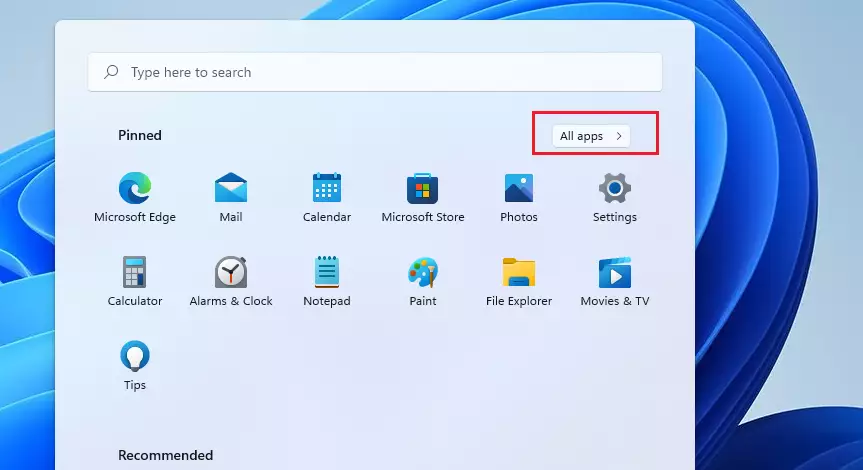
To check that it worked, open Start All apps again. Copilot should no longer be in the list. To undo the removal, follow the reinstall section at the end of this guide.
Remove Copilot from Settings
You can uninstall Copilot in Windows 11 from the main Settings app when you want a standard app removal. This built-in approach takes a few clicks and needs no special tools or commands. It is also a good choice if you want to see everything installed on the PC before you remove anything.
What happens: Copilot is removed from your system. It works on both Home and Pro editions.
- Open the Start menu and click Settings. Or press Win+I. The Settings window opens.
- Click Apps on the left side.
- Click Installed apps on the right side. You now see a list of the apps on your PC.
- Scroll down and find Copilot in the list. You can also type “Copilot” in the search box above the list to jump straight to it.
- Click the three dots (…) next to Copilot. A small menu opens.
- Click Uninstall. If Windows asks you to confirm, click Uninstall once more. Copilot then drops out of the list.
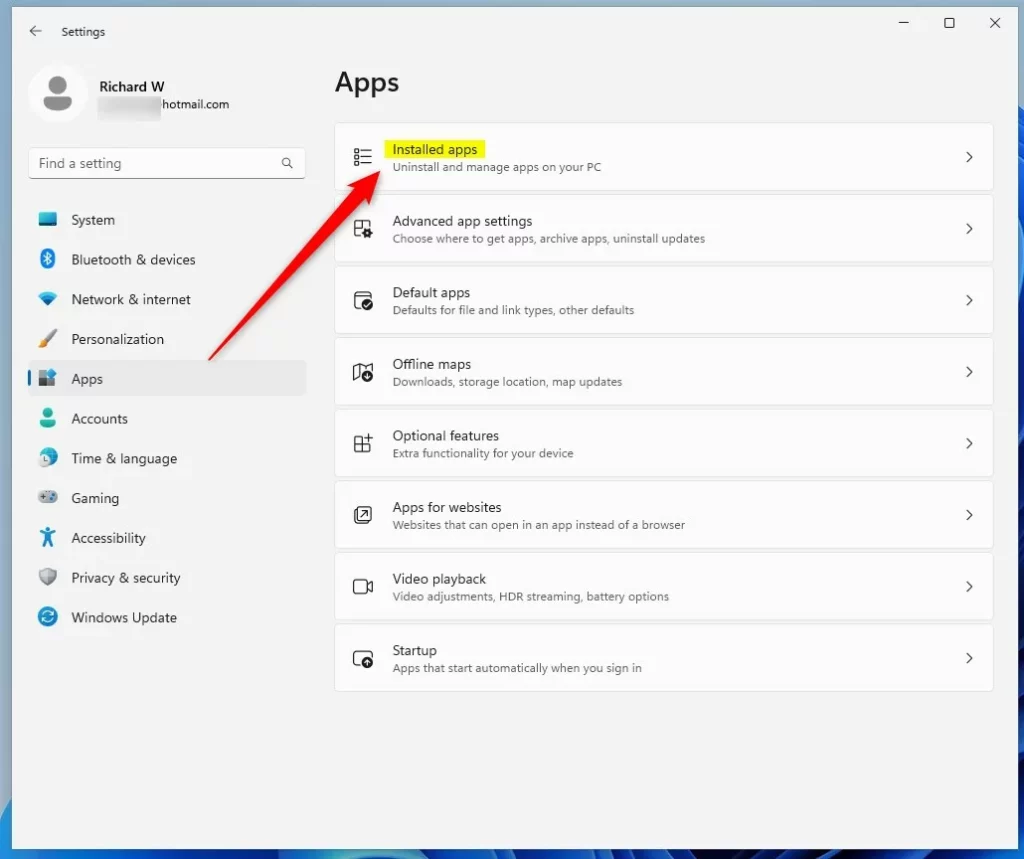
To confirm the removal, search for “Copilot” in the Installed apps list again. It should show no results. A restart is normally not needed.
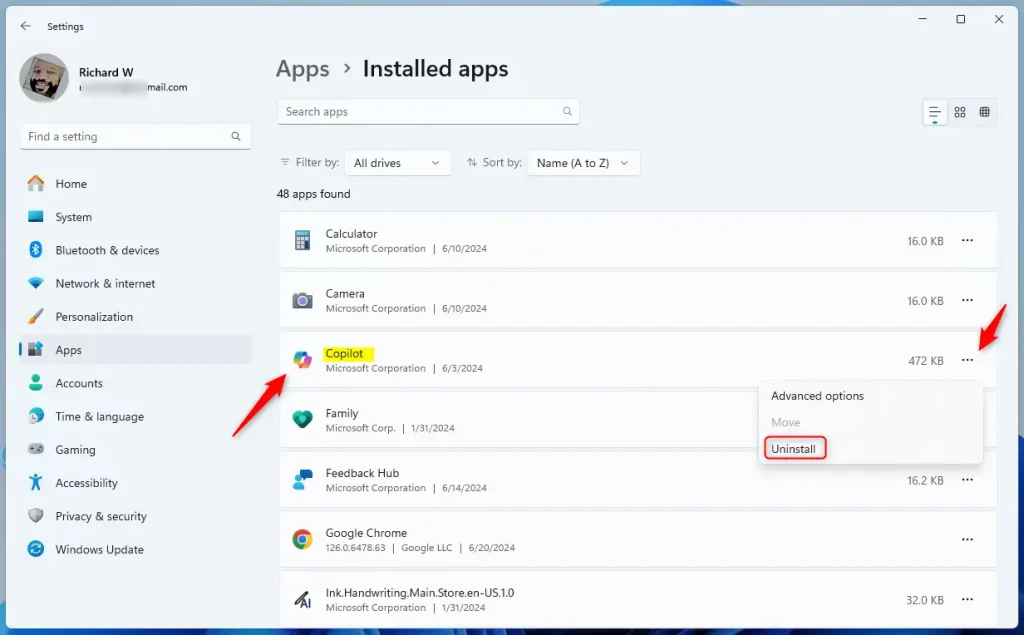
If Copilot is missing from the list, or the Uninstall option is greyed out, the app may be managed by your system or by your organization. On a work PC, an administrator may have blocked removal. On a personal PC, try the PowerShell method later in this guide instead.
Remove Copilot Using Microsoft Edge
You can remove Copilot from Microsoft Edge by managing your browser apps on Edge’s internal apps page. This clears the tool from your web browsing without changing your main Windows system settings. It is a good fit if you only come across Copilot inside Edge.
What happens: Copilot no longer appears in your Edge browser apps. This only affects Edge. If you also want the Windows app gone, use one of the other methods.
- Open Microsoft Edge from the Start menu or the taskbar .
- Click the address bar at the top of the window and type:
edge://apps/ - Press Enter. The Apps page opens and lists the apps installed in Edge.
- Find Copilot on the Apps page.
- Click the three dots (…) next to Copilot. A menu opens.
- Click Uninstall. Confirm if Edge asks you to. Copilot then disappears from the Apps page.
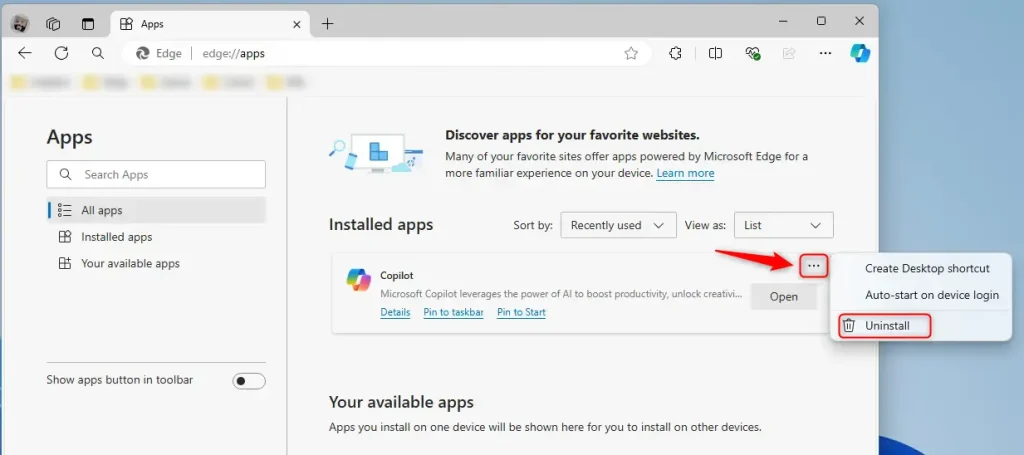
If Copilot is not on the Apps page, it is not installed as an Edge app on your PC. Use the Start menu or Settings method instead. You can bring Copilot back at any time with the reinstall steps at the end of this guide.
Remove Copilot Using PowerShell open PowerShell
You can uninstall Copilot with PowerShell in Windows 11 when you need more control, either for your own user account or for the whole machine. This command-line method works well if the Settings menu fails to remove the app, or if the Uninstall option is missing. Copy the commands exactly as shown, because PowerShell is strict about spelling.
To remove Copilot for just your account:
- Open the Windows Terminal app. Click Start, type “Terminal” and press Enter.
- Open PowerShell. In Windows 11, Terminal usually opens with a PowerShell tab already. If you see a different shell, click the down arrow next to the plus tab and choose Windows PowerShell.
- Copy and paste this command:PowerShell
Get-AppxPackage | Where-Object {$_.Name -Like '*Microsoft.Copilot*'} | Remove-AppxPackage -ErrorAction Continue - Press Enter. Wait for the command to finish and for the prompt to come back. If PowerShell shows a red error message, check that you pasted the whole command.
To remove Copilot for all users on the computer:
⚠️ Admin privileges required — You need admin rights to do this. If you sign in with a standard account, ask an administrator to run these steps.
- Open the Windows Terminal app. Click Start and type “Terminal”.
- Open PowerShell as administrator. Right-click the Terminal result and choose Run as administrator, then click Yes on the User Account Control prompt. The terminal title bar should now show that it is running as administrator. open Windows Terminal ad administrator
- Copy and paste this command:PowerShell
Get-AppxPackage -AllUsers | Where-Object {$_.Name -Like '*Microsoft.Copilot*'} | Remove-AppxPackage -AllUsers -ErrorAction Continue - Press Enter. Wait until the command finishes and the prompt returns. If you do not see Copilot removed afterwards, restart the PC and check Start All apps
How to Reinstall Copilot on Windows
You can reinstall Copilot on Windows 11 by downloading it again from the Microsoft Store whenever you want it back. The official store page gives you the latest version and sets it up for you. This is also how you undo any of the removal methods above.
What happens: Copilot downloads and installs again on your computer. Make sure you are online before you start.
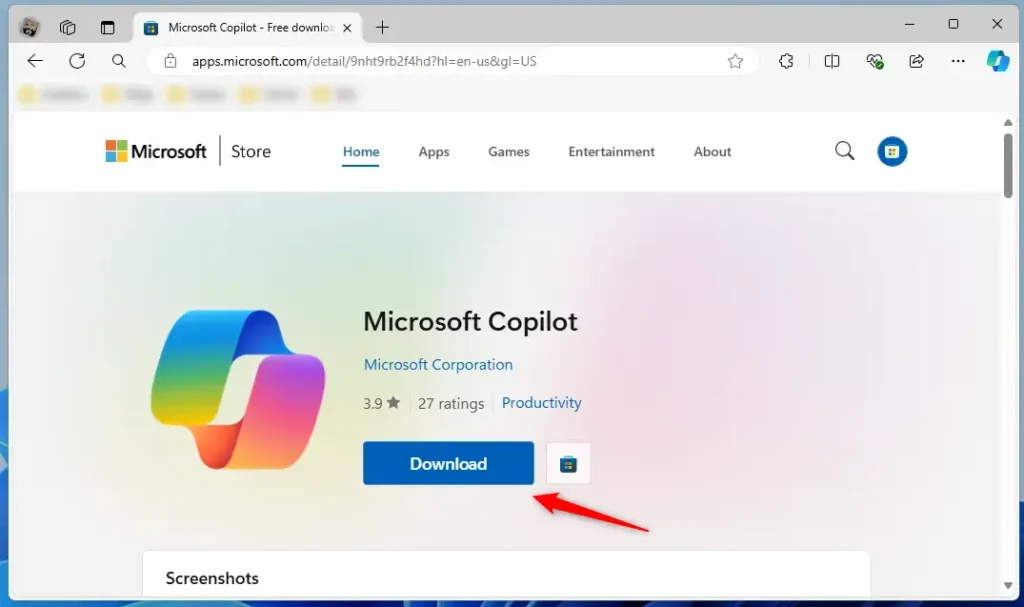
- Download Microsoft Copilot app page Microsoft Copilot from the Microsoft Store.
- Find the file called Microsoft Copilot Installer.exe on your computer. It is usually in your Downloads folder.
- Double-click the file to start the installation. If a security or User Account Control prompt appears, click Yes to continue.
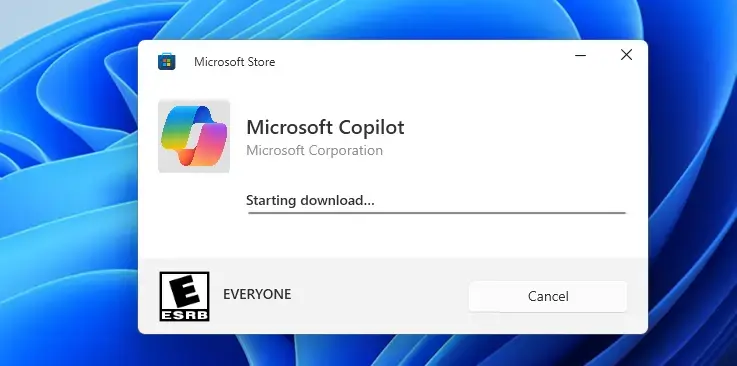
- Wait for Copilot to download and install. This takes a few minutes, depending on your connection.
- When finished, Copilot is ready to use. Open the Start menu and type “Copilot” to find it.
If Copilot does not appear in Start after the install, restart the PC and search again.
If the installer fails, check your internet connection and run the file again. If the original problem returns after a fresh install, restart Windows once and install any pending updates in Settings Windows Update
Summary
You have several ways to uninstall Copilot in Windows 11, depending on how deep you want to go and which tools you prefer. You can use the Start menu, the Settings app, the Microsoft Edge apps page, or a PowerShell command. Here is how they compare:
- Start menuRight-click and uninstall. The easiest way.
- Settings appFind installed apps and remove it. Good for managing all apps.
- Microsoft EdgeRemove it from your Edge apps. Quick if you use Edge, but it only affects the browser.
- PowerShellUse commands to remove it. Works for one person or everyone on the computer. Use it when the other methods fail, and run it as administrator for all users.
To get Copilot back, download the installer from the Microsoft Store and run it. This takes only a few minutes. Choose the method that works best for you, and start with the simplest one.
Have a question about this guide?
Answered by AI from this guide. Good questions may be added to this page — please don't include personal details.
Did this guide fix your problem?

About the Author
Richard
Tech Writer, IT Professional
Richard is a writer at Geek Rewind who turns complex IT tasks into clear, step-by-step guides. He draws on years of hands-on experience in system administration and enterprise IT operations, focusing on Windows, Linux and WordPress: the problems people actually run into, and the fixes that work. His server and WordPress guides come from systems he runs himself. Richard builds and maintains the platform behind Geek Rewind, from its Ubuntu servers and Nginx configuration to its custom WordPress plugins. Many new tutorials start with readers' questions, and he's always glad to answer them in the comments.
[…] Open the Copilot app. […]
[…] Open the Copilot app. […]