Using Your Android Phone with Windows 11 Copilot

Linking your Android phone to Windows 11 Copilot lets the built-in AI assistant read your text messages and find contacts from your PC. The connection relies on the Phone Link app (a tool that links your phone to your computer) and your Microsoft account.
Once it is on, you can ask Copilot to check recent texts or look up phone information without picking up your device. The feature runs on Windows 11 Copilot+ PCs that have a dedicated Copilot keyboard key. Before you start, make sure Phone Link is already set up with your phone and that you are signed in to the same Microsoft account on the PC and in Copilot. If the Phone connection option is missing later, a mismatched account is the first thing to check.
Open the Copilot app, click your profile, go to Settings , find ‘Phone Connection’, select your Android device, and toggle the button to On or Off. You can also manage this setting via the copilot.microsoft.com website.
Turn On or Off Phone Connection in Copilot
You can manage the Android phone connection from inside the Copilot app once your Microsoft account is linked. The setting controls whether Copilot can access your mobile data, so it is also your privacy switch. In short: open the Copilot app, click your Account profile button, select Settings, and find ‘Phone Connection’ to turn the feature on or off. The numbered steps below walk through each part.
- Open the Copilot app. You can use the Copilot key on your keyboard or find the app in the Start menu . The Copilot window should appear and show you as signed in.
- Click your Account profile button and select Settings. A menu opens when you click your profile, and the Settings pane opens after you select Settings.
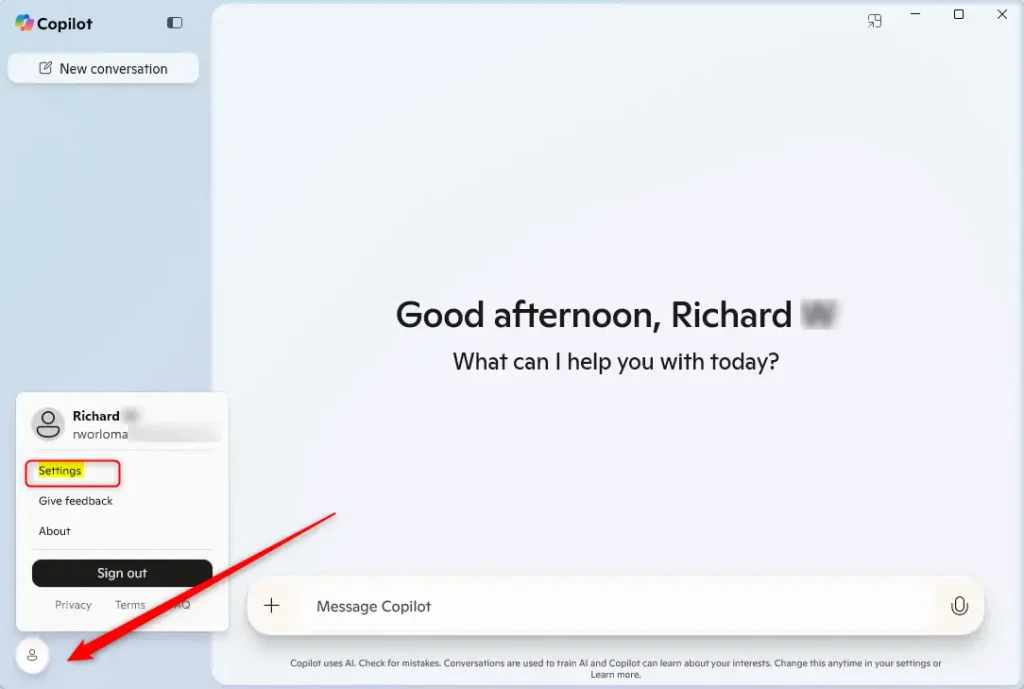
- In the Settings pane, look for Phone Connection. If you do not see it, confirm that you are signed in with the Microsoft account used in Phone Link, and that the Copilot app is up to date in the Microsoft Store.
- Select the Android phone you want to use with Copilot. If you have more than one phone linked, pick the one you actually carry.
- Toggle the button to turn it On or Off. Turn it On to let Copilot work with your phone data. Turn it Off at any time to stop that access.
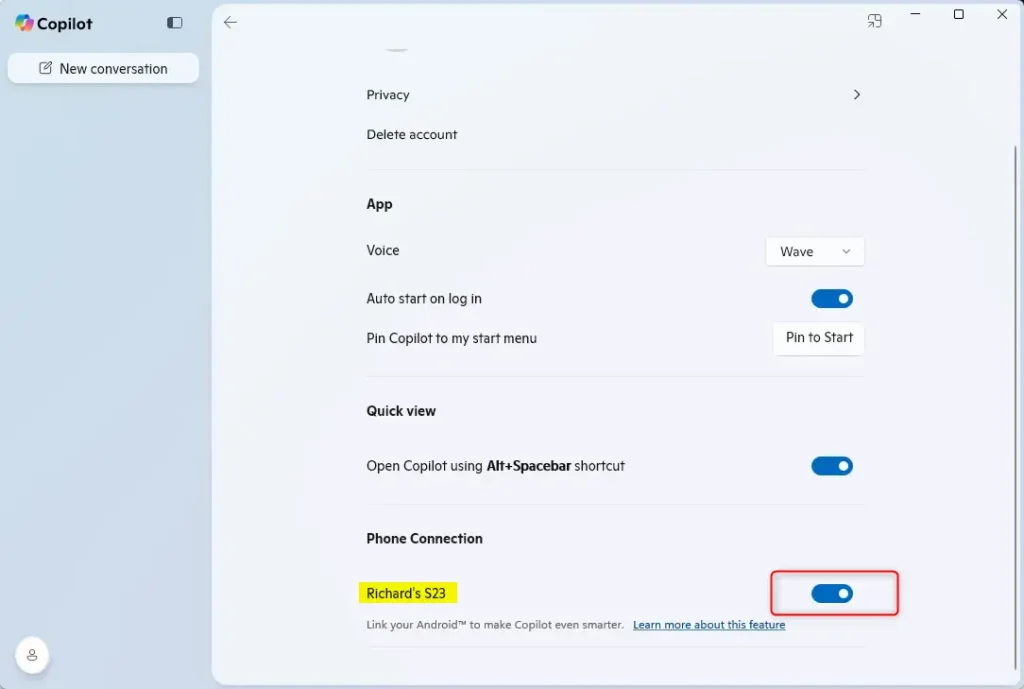
Close the Settings pane when you finish the configuration. Your choice is saved to your account. To check it, reopen Settings later and look at the Phone Connection toggle. To undo the change, come back to the same place and flip the toggle the other way.
Turn On or Off Phone Connection From the Web
You can also control the same connection from the Copilot website by signing in to your Microsoft account. The site shows a ‘Phone connection’ option, so you can manage mobile integration without the desktop app. This is handy on a PC where you cannot open the app, or when you are working in a browser anyway. In short: open copilot.microsoft.com, sign in, click your profile button in the top right corner, and select your account name.
- Open the copilot.microsoft.com site in your web browser. The Copilot page should load.
- Sign in with your Microsoft account. Use the same account you use for Phone Link, or the setting may not match your phone.
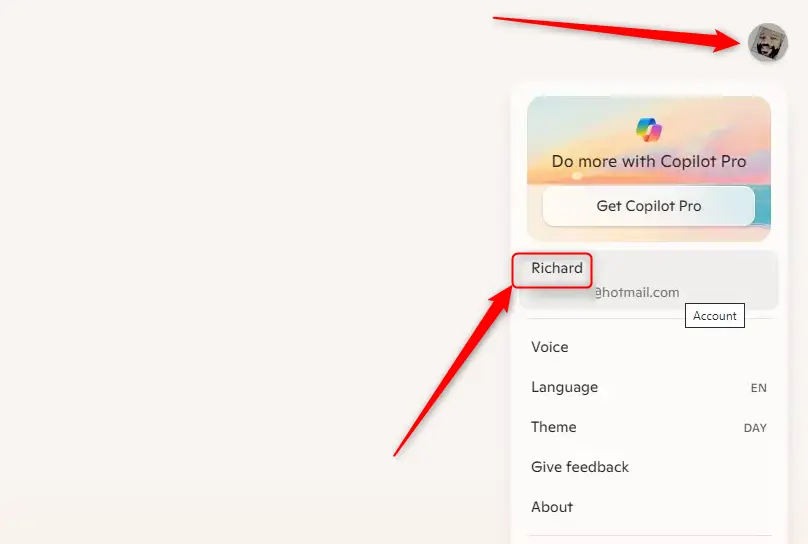
- Click your profile button in the top right corner. A small menu opens with your account details.
- Select your account name. Your account settings page should open.
- Find the Phone connection tile on your account settings page. If the tile is missing, check that you signed in with the right account and refresh the page.
- Switch the button to On or Off based on what you want. The change applies to your account, so it should match what you see in the Copilot app.
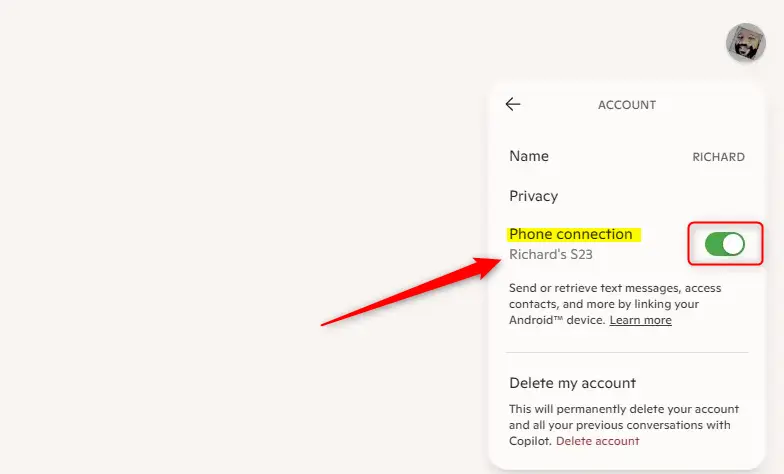
The setup process is complete. Whether you used the app or the website, the Phone connection setting is now in the state you chose. To reverse it, repeat the steps and switch the toggle back.
Summary
Pairing your Android phone with Windows 11 Copilot speeds up daily work. You get quick access to messages and contacts without switching apps. When the connection is on, Copilot reviews your mobile data to help with everyday actions, which cuts down on interruptions and keeps you focused on the PC.
What happens when you enable it? Copilot reviews mobile data to assist with daily tasks, so you finish them faster and with fewer app switches. Because it reads personal data such as messages, only turn it on if you are comfortable with that.
Key points to remember:
- Integration: Your Android phone connects to Copilot. You get personal access to messages and contacts.
- Easy to use: You can turn Phone connection on or off in the Copilot app or on the web. Both places control the same setting.
- Control: Choose when to use this feature based on what you need. Switch it off when you do not want Copilot near your phone data.
- Simple steps: Connecting your phone takes just a few clicks.
- Better productivity: Get the information you need from your phone without opening separate apps.
Connecting your phone to Windows 11 Copilot makes everyday tasks quicker. Your essential phone data is available whenever you ask for it, and you can turn the connection off whenever you want.
Have a question about this guide?
Answered by AI from this guide. Good questions may be added to this page — please don't include personal details.
Did this guide fix your problem?

About the Author
Richard
Tech Writer, IT Professional
Richard is a writer at Geek Rewind who turns complex IT tasks into clear, step-by-step guides. He draws on years of hands-on experience in system administration and enterprise IT operations, focusing on Windows, Linux and WordPress: the problems people actually run into, and the fixes that work. His server and WordPress guides come from systems he runs himself. Richard builds and maintains the platform behind Geek Rewind, from its Ubuntu servers and Nginx configuration to its custom WordPress plugins. Many new tutorials start with readers' questions, and he's always glad to answer them in the comments.
[…] chat history in Copilot, create a desktop shortcut, hide the sidebar, use your phone with Copilot, and […]