How to Update Microsoft Store Apps on Windows 11

Updating Microsoft Store apps on Windows 11 ensures you get the newest features, bug fixes, and security patches. The Microsoft Store is the built-in app shop on your PC for downloading and managing software.
Most apps update automatically in the background on Windows 11, but you can also force manual updates at any time.
Open the Microsoft Store, click Library, then click Get updates. For automatic updates, go to App settings and turn on App updates.
How to manually update Microsoft Store apps
You can manually update Microsoft Store apps on Windows 11 by opening the Microsoft Store, going to your Library, and clicking the Get updates button. This forces Windows to check for and install the newest versions of all your installed programs right away, rather than waiting for automatic background updates to run.
- Open the Microsoft Store from your Taskbar or Start menu .

microsoft store on windows 11 - Click the Library icon in the bottom-left corner of the window.
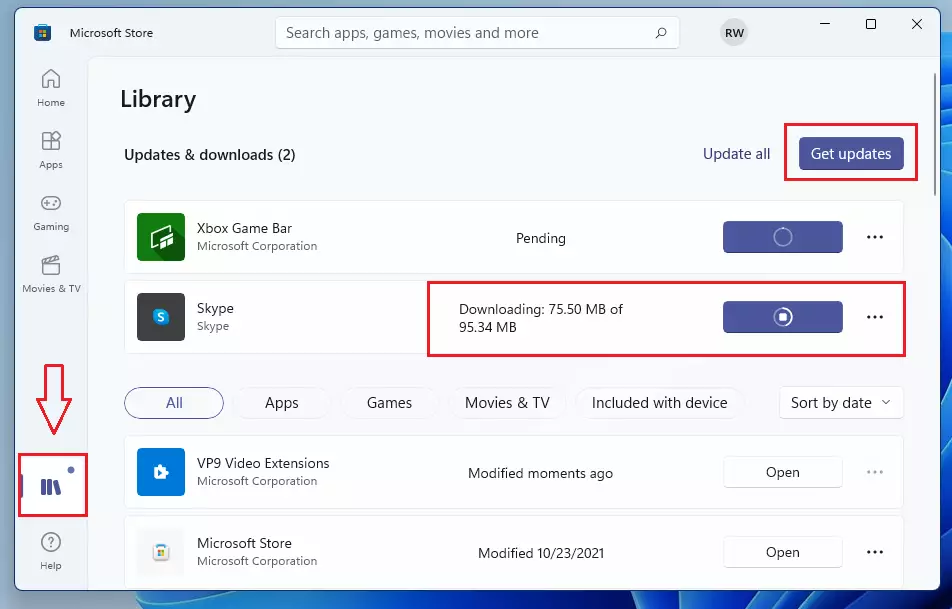
windows 11 store apps update - Click the Get updates button. This triggers the store to check for and download any pending updates.
How to set up automatic updates
You can set up automatic updates for your Microsoft Store apps so Windows downloads and installs the newest versions in the background without your help. Open the Microsoft Store, click your profile picture, choose App settings, and turn on the App updates switch to make sure your apps stay current automatically.
- Open the Microsoft Store.
- Click your profile picture at the top right.
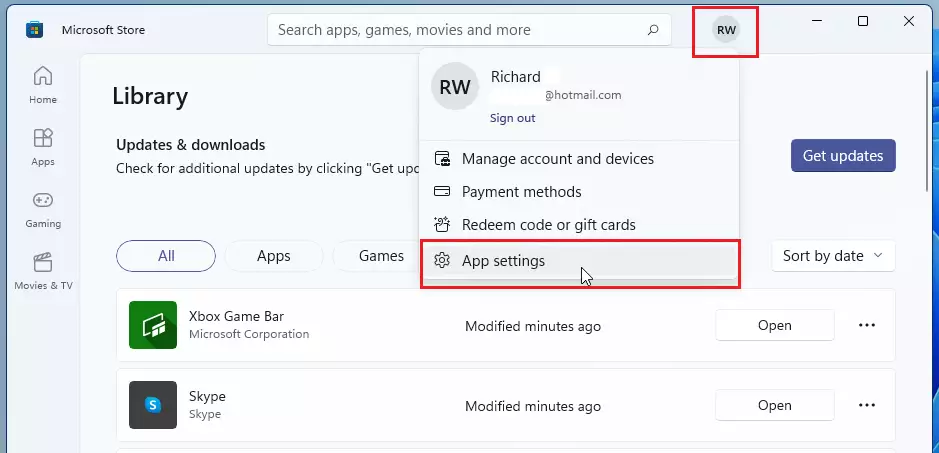
windows store apps updates - Select App settings.
- Ensure the App updates toggle is set to On.

Troubleshooting common update errors
Sometimes, the Microsoft Store fails to update apps. You might see error codes like 0x80070005 or notice that the update button is greyed out. Here is how to fix it:
1Use the WSReset command
You can use the WSReset command to clear out broken cache files when the Microsoft Store stops working or refuses to open. Press the Windows Key + R on your keyboard, type wsreset.exe, and press Enter to reset the store app without losing any of your currently installed programs or personal data.
- Press Windows Key + R on your keyboard.
- Type
wsreset.exeand press Enter. - A blank command prompt window will appear. Wait for it to close automatically. The Microsoft Store will then open on its own.
2Run the Windows Update Troubleshooter
If you still have issues, use the built-in tool to repair the store.
- Go to Settings System Troubleshoot Other troubleshooters.
- Find Windows Store Apps and click Run.
3PowerShell alternative
Requires admin privileges.
Get-AppxPackage -AllUsers | Foreach {Add-AppxPackage -DisableDevelopmentMode -Register "$($_.InstallLocation)\AppXManifest.xml"}Summary
- Updating apps fixes security risks and bugs.
- Use the Library tab to manually update your software.
- Use
wsreset.exeto fix common update errors. - Enable automatic updates in App settings to stay current without effort.
Was this guide helpful?

About the Author
Richard
Tech Writer, IT Professional
Richard is a writer at Geek Rewind who turns complex IT tasks into clear, step-by-step guides. He draws on years of hands-on experience in system administration and enterprise IT operations, focusing on Windows, Linux and WordPress: the problems people actually run into, and the fixes that work. His server and WordPress guides come from systems he runs himself. Richard builds and maintains the platform behind Geek Rewind, from its Ubuntu servers and Nginx configuration to its custom WordPress plugins. Many new tutorials start with readers' questions, and he's always glad to answer them in the comments.




No comments yet — be the first to share your thoughts!