How to Change How Copilot Opens with Alt+Spacebar Shortcut in Windows 11

On Windows 11, Alt+Spacebar can open the Copilot AI assistant. You can change what the shortcut does so it matches how you work and saves you a trip through search or the taskbar. The setting lives inside the Copilot app, so no Windows settings or restart are needed.
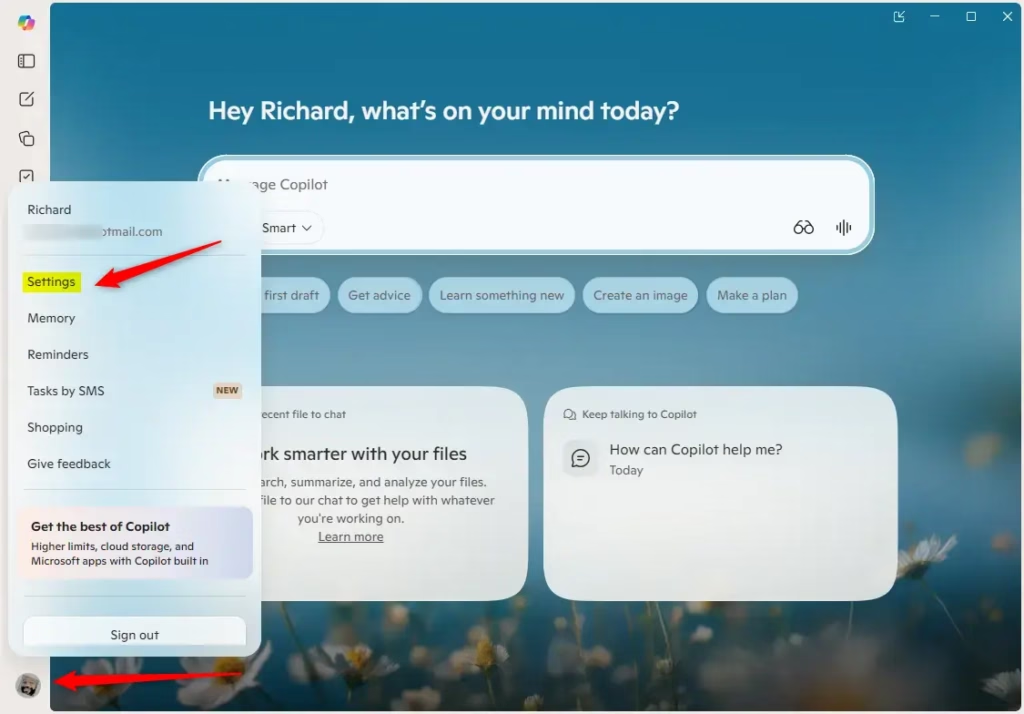
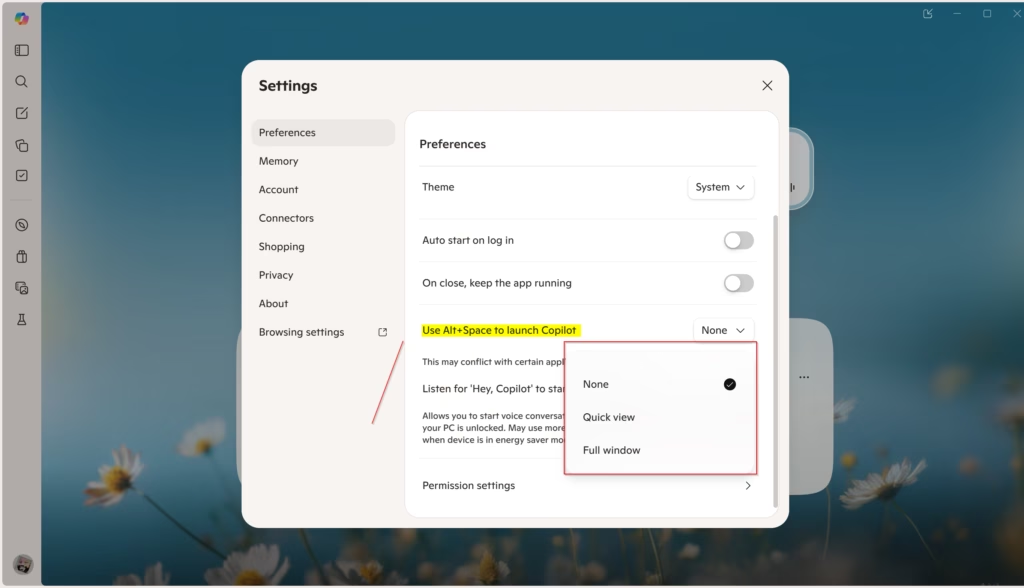
Open the Copilot app, click Account on the sidebar, then choose Settings Preferences. Open the dropdown labeled Use Alt+Space to launch Copilot and pick None, Quick View, or Full Window. The change saves automatically, and Alt+Spacebar uses the new behaviour right away with no restart.
What is Copilot?
Microsoft Copilot is an artificial intelligence assistant built to speed up routine tasks. You can talk to it through a microphone and make spoken requests, and Copilot Voice handles those verbal exchanges. The Alt+Spacebar shortcut is the quick way to bring it up without reaching for the mouse.
Why Change How Copilot Opens?
Changing this shortcut gives you three choices. Copilot can launch in Full Window mode, open in Quick View, or stay out of the way entirely. Quick View suits short questions you want answered in a small window. Full Window suits longer sessions. “None” suits anyone who keeps hitting the shortcut by accident. Pick the one that fits your workflow. You can change it again at any time.
Important Note
Conflicts happen when another program claims the same shortcut. If Alt+Spacebar launches a different program, or does something else instead of opening Copilot, the other program is probably grabbing the keys first. Check that program’s hotkey settings and change or disable its shortcut. Then try Copilot again. Alt+Space is also the key combination Windows uses for a window’s title-bar menu, so it can behave differently depending on which app is in focus.
Learn more: Getting started with Copilot on Windows – Microsoft Support
How to Change Copilot's Alt+Spacebar Behavior
The steps below are the same on Windows 11 Home and Pro. The labels may differ slightly if your Copilot app is an older version.
- Open the Copilot app on your PC. You should see the Copilot window with its sidebar.
- In full view, click the Account button on the sidebar. A menu opens.
- Click Settings. The Copilot settings page appears.
- Click Preferences on the left side. The preference options appear on the right.
- Find the dropdown menu labeled Use Alt+Space to launch Copilot and click it to open the list.
- Choose one of these options:
- None (default) — Do nothing when you press Alt+Spacebar
- Quick View — Open Copilot in a small window
- Full Window — Open Copilot in full screen
- Close the settings page. Your choice saves automatically, so there is no Save button to click and no restart is needed.
- Press Alt+Spacebar to test it. Copilot should now open the way you selected, or do nothing if you chose None.
To undo the change, repeat the steps and pick a different option in the same dropdown. If you do not see the dropdown, update the Copilot app through the Microsoft Store and open the settings again.
You can change Copilot's Alt+Spacebar behavior in Windows 11 by adjusting your preferences inside the Copilot app settings. This lets you switch the Windows 11 Copilot Press to Talk shortcut between opening a quick view window, launching full screen, or turning the shortcut off completely so it does not pop up by accident. If the shortcut still misbehaves after you change it, look for another program that uses the same key combination.
Summary
To control how Copilot opens with the Alt + Spacebar shortcut in Windows 11, open the Copilot app and go to Settings, then Preferences. Find the Use Alt+Space to launch Copilot dropdown menu and select None, Quick View, or Full Window. The preference saves the moment you make a selection, and you can come back and change it whenever you like.
Have a question about this guide?
Answered by AI from this guide. Good questions may be added to this page — please don't include personal details.
Did this guide fix your problem?

About the Author
Richard
Tech Writer, IT Professional
Richard is a writer at Geek Rewind who turns complex IT tasks into clear, step-by-step guides. He draws on years of hands-on experience in system administration and enterprise IT operations, focusing on Windows, Linux and WordPress: the problems people actually run into, and the fixes that work. His server and WordPress guides come from systems he runs himself. Richard builds and maintains the platform behind Geek Rewind, from its Ubuntu servers and Nginx configuration to its custom WordPress plugins. Many new tutorials start with readers' questions, and he's always glad to answer them in the comments.
No comments yet — be the first to share your thoughts!