How to Enable Hey, Copilot: Hands-Free Voice Commands on Windows 11

Hey, Copilot is a voice activation feature in the Copilot app on Windows 11. You say a wake phrase out loud instead of typing or clicking, and the assistant starts listening. It works on a Windows 11 PC as long as the PC is on and the screen stays unlocked. That makes it handy for searching for files or asking a quick question while your hands are busy with something else.
Enable “Hey, Copilot” on Windows 11 by opening the Copilot app, signing in, going to Settings, and toggling on “Listen for ‘Hey, Copilot’ to start a conversation.” This allows for hands-free voice commands to interact with the AI assistant.
Enable “Hey, Copilot” on 🪟 Windows 11
Microsoft has added voice control to Copilot. Turning it on takes a minute, and the option lives inside the Copilot app itself, not in the main Windows Settings. You need a working microphone, either built in or plugged in, and a Microsoft account.
Step 1Open the Copilot App
- Open the Start menu , type Copilot, and launch the Copilot app.
The Copilot window should open with a chat box. If you can’t find the app, check that it is installed and up to date in the Microsoft Store.
Step 2Sign In with Your Microsoft Account
- Sign in with your Microsoft account if the app doesn’t show you as signed in already.
Stay signed in. Your settings sync across devices through this account, and the voice option may not appear in a signed-out session.
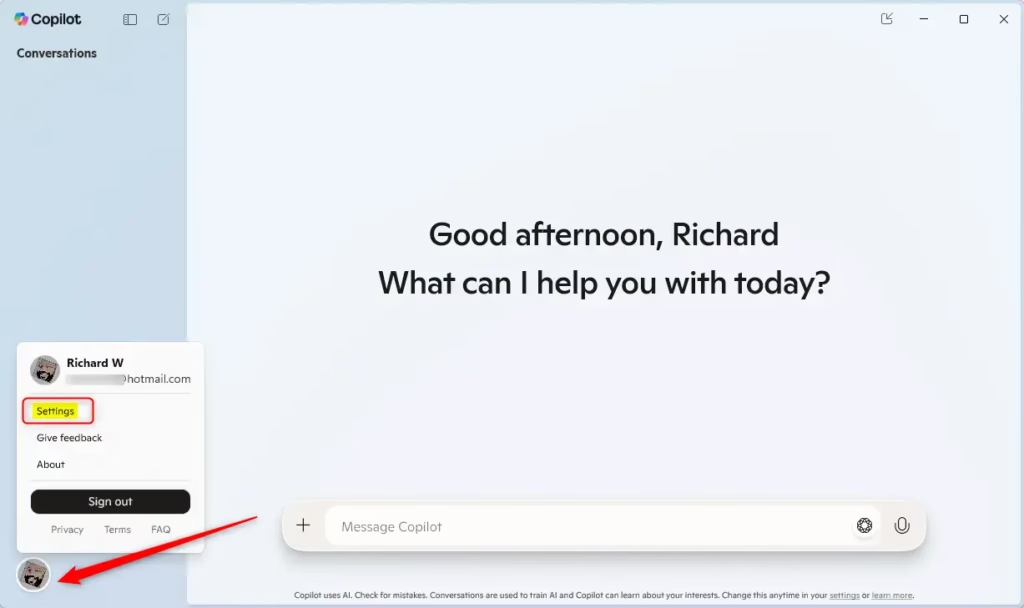
Step 3Go to Settings
- Click the Account button (your profile name or picture).
- Choose Settings from the menu in full view mode.
The Settings page for the Copilot app should now be on screen.
Step 4Enable Voice Commands
- Find Voice Mode Settings on the Settings page. You may need to scroll down.
- Look for the option Listen for “Hey, Copilot” to start a conversation.
- Switch the toggle to on to activate the wake phrase, or to off to turn it off again.
With the toggle on, say "Hey, Copilot" near your microphone. Copilot should respond and start listening for your question. If nothing happens, check that the right microphone is selected, that it isn't muted, and that Windows lets the Copilot app use it. Also remember the PC must be unlocked, because the phrase is not picked up from the lock screen.
To undo the change at any time, come back to the same page and switch the toggle off. No restart is needed either way.
Step 5Save Your Changes
Close Settings when you finish. Your choice is saved automatically, so there is no Save button to look for.
Summary
"Hey, Copilot" gives you hands-free voice control on Windows 11. You can talk to the assistant without touching the mouse or keyboard. The toggle that turns the feature on or off sits in the Copilot app settings, so you can change your mind whenever you like.
Have a question about this guide?
Answered by AI from this guide. Good questions may be added to this page — please don't include personal details.
Did this guide fix your problem?

About the Author
Richard
Tech Writer, IT Professional
Richard is a writer at Geek Rewind who turns complex IT tasks into clear, step-by-step guides. He draws on years of hands-on experience in system administration and enterprise IT operations, focusing on Windows, Linux and WordPress: the problems people actually run into, and the fixes that work. His server and WordPress guides come from systems he runs himself. Richard builds and maintains the platform behind Geek Rewind, from its Ubuntu servers and Nginx configuration to its custom WordPress plugins. Many new tutorials start with readers' questions, and he's always glad to answer them in the comments.
No comments yet — be the first to share your thoughts!