Copilot Vision in Windows 11 lets the Microsoft Copilot AI assistant see content on your screen. You can then ask questions about pictures, apps, and web pages without describing them first.
Advertisement
The feature first appeared for Windows 11 version 23H2 and later. It is delivered through updates to the Copilot app, so the Copilot app version matters more than your Windows build. If you can’t find it, update Copilot from the Microsoft Store first.
You start Vision from the Copilot app whenever you need help with a visual task on your PC. It is not an always-on feature, so Copilot only sees what you choose to share, and only while a Vision session is running.
⚡ Quick Answer
Open the Copilot app and sign in. Click the glasses icon on the composer bar, then click “Share” to let Copilot see your screen. Use the microphone to ask questions about what you see.
Advertisement
What is Copilot Vision?
Copilot Vision is a built-in assistant feature that looks at your screen so you can ask about what you are viewing right now. Once you turn it on, Copilot understands the content of the window you are sharing. You don’t have to explain what is on your display, so you can skip the copy, paste, and describe routine.
Starting with Copilot version 1.25034.133.0, Microsoft added a new voice feature. It answers questions about the page you are looking at, and it also suggests what to do next. To check your version, open the Copilot app’s settings or About section. Wording varies a little between app releases.
A few requirements to keep in mind:
You must sign in to Copilot to use Vision.
Copilot Vision is available to all Microsoft Edge users.
If you subscribe to Copilot Pro, you get more Vision uses.
If Vision is missing, the usual cause is an outdated Copilot app or not being signed in. Update the app, sign in, and restart Copilot.
How to Use Copilot Vision
To use Vision, open the Copilot app and start a screen-based chat about the window or document you are viewing. The steps below match the current Copilot app. Labels and icon placement can shift slightly between updates.
Open the page, app, or document you want help with, and leave it open.
Open the Copilot app and sign in if it asks you to. You should see the Copilot chat window with its message box.
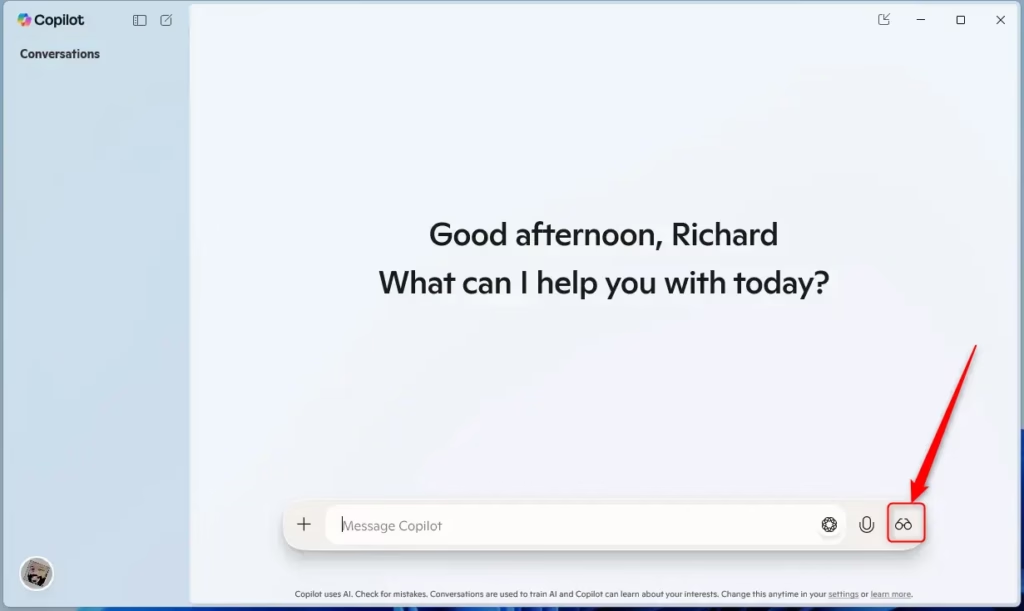
Select the Vision icon (it looks like a pair of glasses) in the Copilot message box. A window picker should appear.
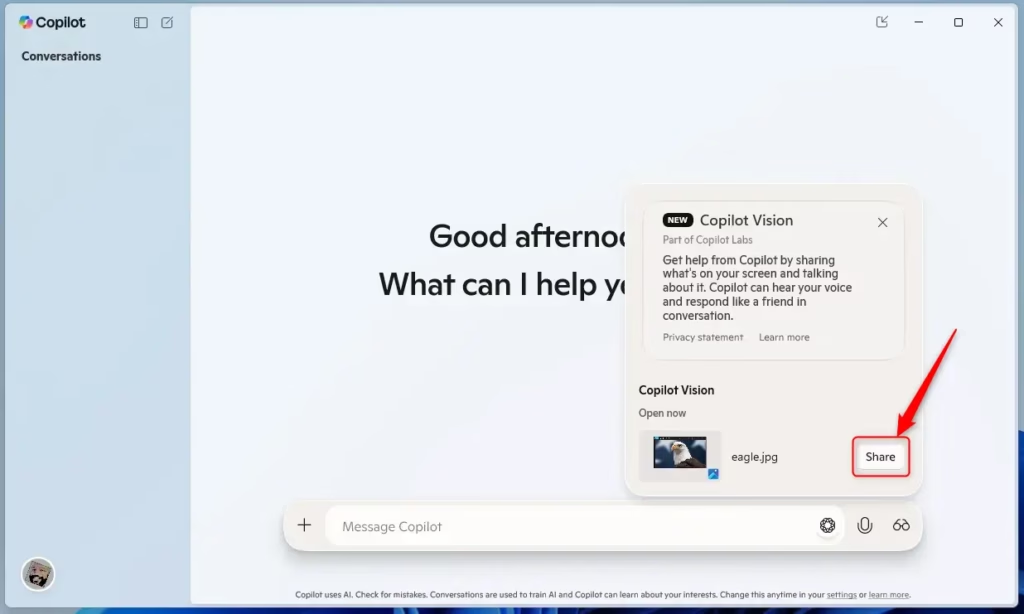
Choose the window or app you want Copilot to see, then confirm the share. Copilot sees only what you pick, and a Vision session indicator should show that sharing is active.
Ask your question by speaking or typing. For example, ask what a setting does or what a chart shows. Copilot reads the visual elements on your display and answers about them right away.
Keep the conversation going. Ask follow-up questions, or ask what to do next on the page.
When you are done, end the Vision session so Copilot stops looking at your screen. Closing the Vision control or the shared window should end the sharing.
Advertisement
Copilot Vision analyzes your screen content and holds a dialogue about the visual information it detects. That lets it give help based on what is actually displayed, not on a guess. If an answer seems off, check that you shared the right window, then rephrase your question or point to the part of the screen you mean.
Steps to Use with Edge
Using Copilot Vision with Microsoft Edge requires signing into your browser with your personal Microsoft account and navigating to the web page or PDF you want to view. After opening the document, you can turn on Copilot Vision Windows 11 to ask questions directly about the text and images on that specific page.
Go to a website, video, or PDF document you want to ask questions about.
Note: Copilot Vision works with most sites. It does not work with sites that have harmful or adult content. When you visit a site that does not work, the Copilot Composer at the bottom shows a grayed-out crossed eyeglasses icon. Copilot will refuse to talk about the page content.
Click the Copilot icon Screenshot shows image of Copilot icon. in the upper right corner of Edge. This opens Copilot in the side panel.
Press the Voice button Teams microphone icon to ask your question.
Copilot Vision looks at the page. Then you can have a natural conversation with Copilot about the content.
To end a Vision session, close the Copilot Composer or close the Edge window.
Copilot Vision is a helpful new feature for Windows 11 that lets you ask questions about what you see on your screen using your voice. You can use it right in the Copilot app or within Microsoft Edge to quickly get information about websites, videos, and more.
Advertisement
Steps to Get Started
Getting started with Copilot Vision on Windows 11 involves launching the main application, signing in with your Microsoft account, and clicking the glasses icon at the bottom of the window. Once you complete these steps, Copilot Vision Windows 11 will be ready to analyze your screen and answer your questions.
When Copilot opens, look for the glasses button (Copilot Vision button) on the composer bar at the bottom.
Click the glasses button to let Copilot see your screen.
Copilot vision button
Click the “Share” button to share your screen with Copilot.
Copilot share button
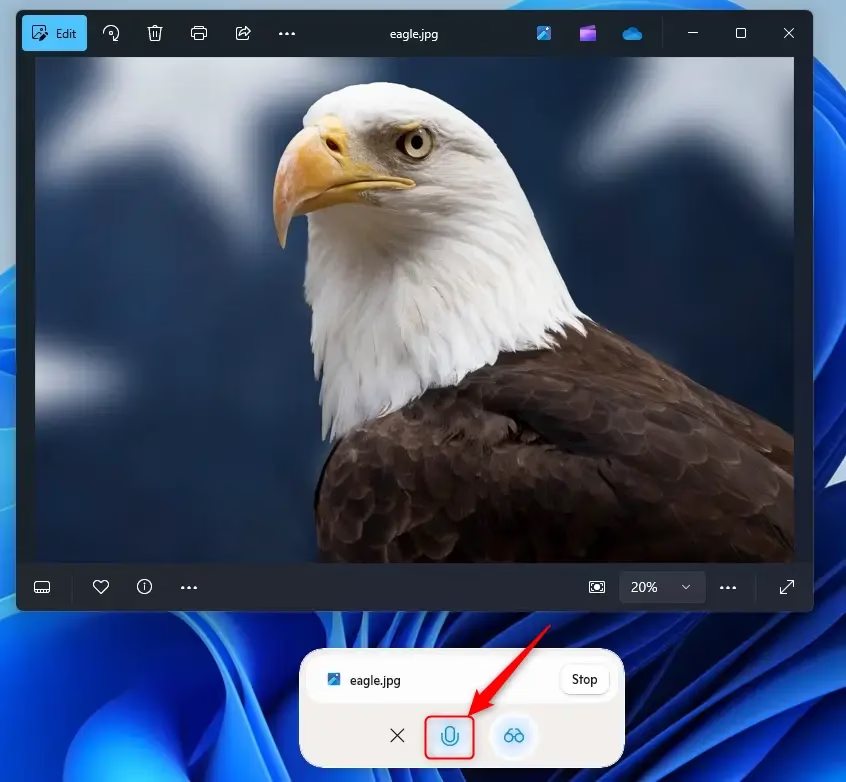
Use the microphone button to ask questions about what is on your screen.
Understanding the Control Buttons
The bar shows several buttons you can use:
Voice (microphone) button: Turns the microphone on or off.
Share screen with Copilot (glasses) button: Shares a different window with Copilot.
Stop button or X: Stops sharing the window and ends the Vision session.
Copilot share ask question
Using Copilot Vision with Microsoft Edge
Why use Edge with Vision? Edge is a web browser. Using Vision with Edge helps you ask questions about websites, videos, and documents while you browse.
What happens? Copilot looks at the web page and answers your questions about it.
Advertisement
Steps to Use with Edge
Using Copilot Vision with Microsoft Edge requires signing into your browser with your personal Microsoft account and navigating to the web page or PDF you want to view. After opening the document, you can turn on Copilot Vision Windows 11 to ask questions directly about the text and images on that specific page.
Go to a website, video, or PDF document you want to ask questions about.
Note: Copilot Vision works with most sites. It does not work with sites that have harmful or adult content. When you visit a site that does not work, the Copilot Composer at the bottom shows a grayed-out crossed eyeglasses icon. Copilot will refuse to talk about the page content.
Click the Copilot icon Screenshot shows image of Copilot icon. in the upper right corner of Edge. This opens Copilot in the side panel.
Press the Voice button Teams microphone icon to ask your question.
Copilot Vision looks at the page. Then you can have a natural conversation with Copilot about the content.
To end a Vision session, close the Copilot Composer or close the Edge window.
Copilot Vision is a helpful new feature for Windows 11 that lets you ask questions about what you see on your screen using your voice. You can use it right in the Copilot app or within Microsoft Edge to quickly get information about websites, videos, and more.
📬 Get new Windows tips in your inbox
One email when we publish something worth your time. No spam, unsubscribe anytime.
Have a question about this guide?
Answered by AI from this guide. Good questions may be added to this page — please don't include personal details.
Richard is a writer at Geek Rewind who turns complex IT tasks into clear, step-by-step guides. He draws on years of hands-on experience in system administration and enterprise IT operations, focusing on Windows, Linux and WordPress: the problems people actually run into, and the fixes that work.
His server and WordPress guides come from systems he runs himself. Richard builds and maintains the platform behind Geek Rewind, from its Ubuntu servers and Nginx configuration to its custom WordPress plugins.
Many new tutorials start with readers' questions, and he's always glad to answer them in the comments.
[…] Microsoft is introducing Ask Copilot in the taskbar. This feature provides one-click access to Copilot Vision and Voice, allowing for more natural […]
One email when we publish a guide worth your time — new Windows features, the fixes that actually
work, and a heads-up when Microsoft breaks something. Unsubscribe in one click.
📬 Get new Windows tips in your inbox
One email when we publish something worth your time. No spam, unsubscribe anytime.





[…] Microsoft is introducing Ask Copilot in the taskbar. This feature provides one-click access to Copilot Vision and Voice, allowing for more natural […]