
Microsoft Edge clipboard suggestions show text and links you recently copied right inside the address bar when you type. This speeds up web searches on Windows 10 and Windows 11 computers. The feature saves you time because you can search for copied content instantly without pasting it first.
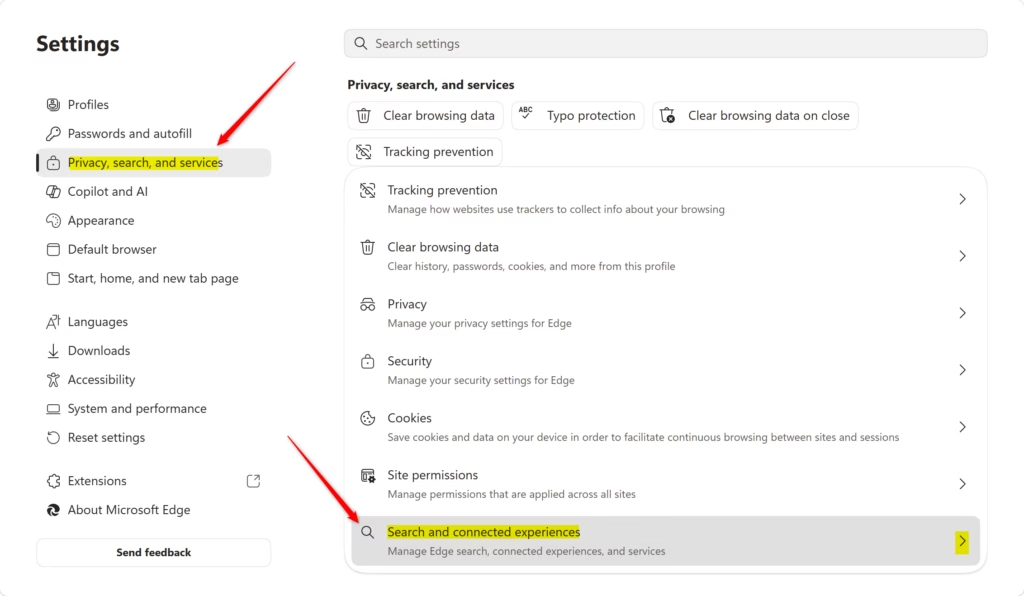
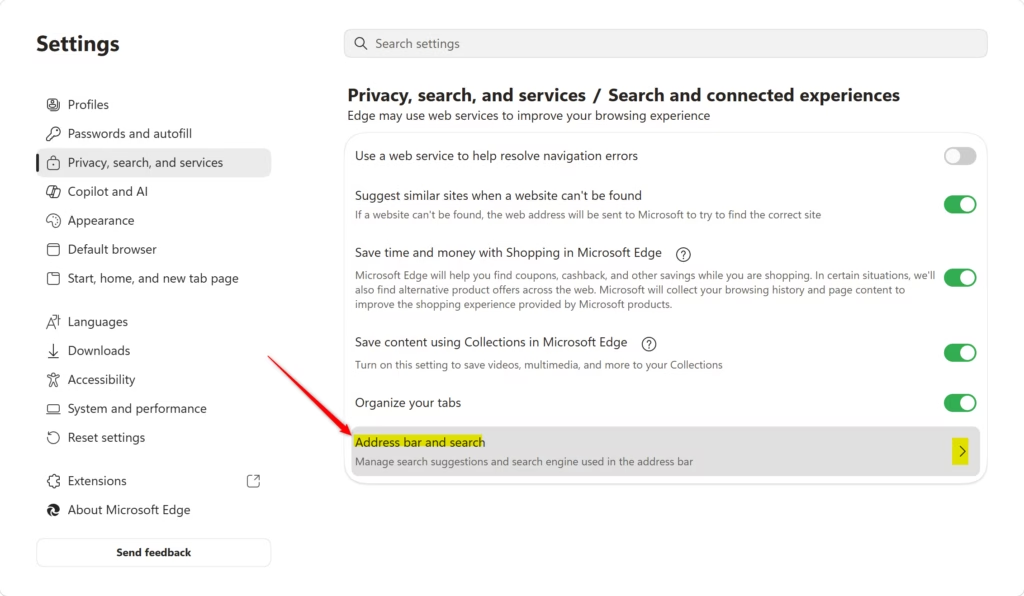
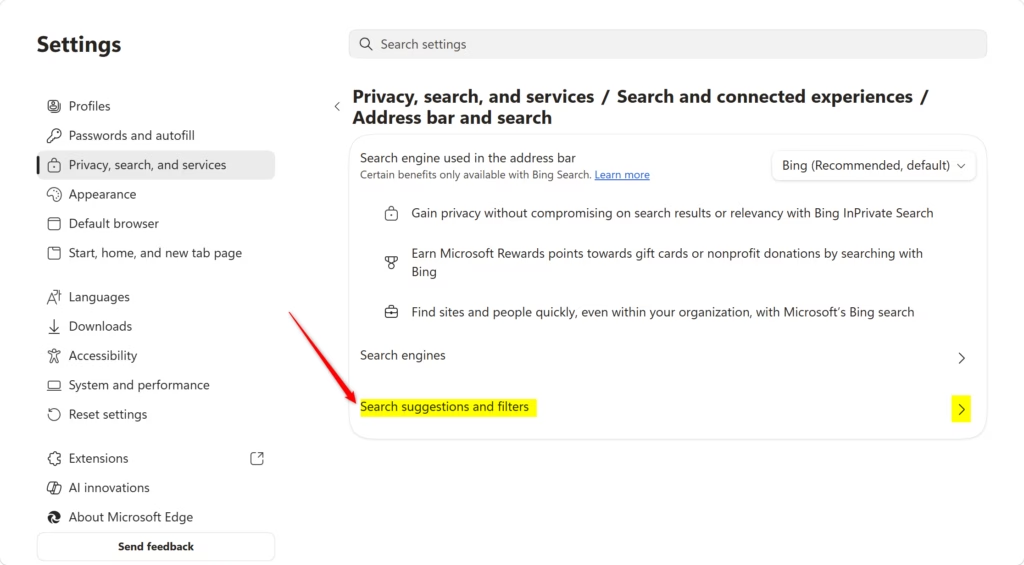
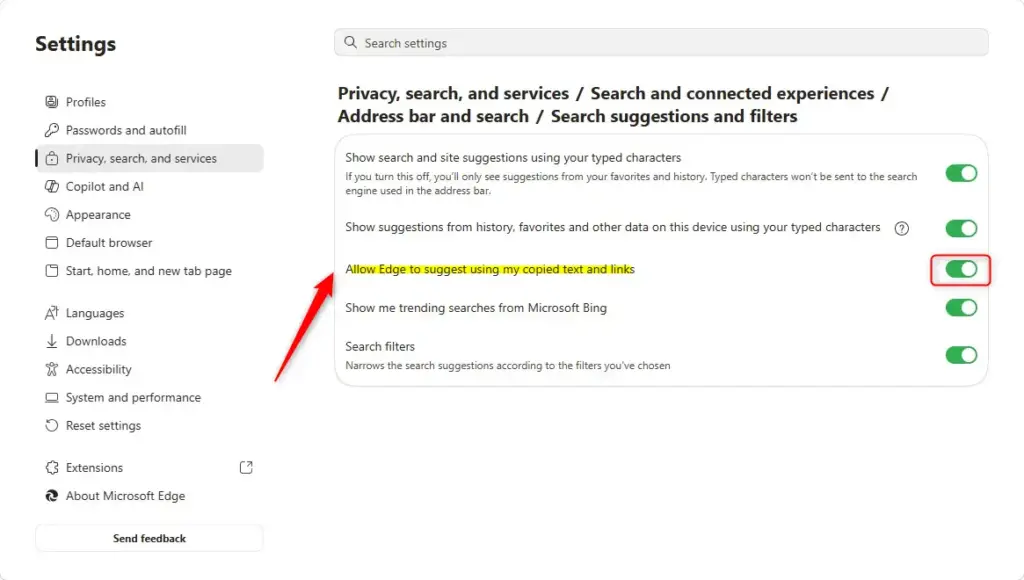
Open Microsoft Edge, click the three dots button in the top right, then Settings. Go to Privacy, search, and services > Search and connected experiences > Address bar and search > Search suggestions and filters. Toggle on “Allow Edge to suggest using my copied text and links”. The feature is now enabled and clipboard content appears in address bar suggestions.
Here is how it works in practice. You copy a link, a product name or a phrase from an email, a document or another web page. Then you go to Edge and start using the address bar. If the feature is on, the copied item is offered in the suggestion list under the address bar. You pick it with a click instead of pressing Ctrl+V and then Enter.
This helps most if you do a lot of research, copy error messages to search for them, or move links between apps all day. It is a small change, but it removes a few clicks every time.
Think about privacy before you leave it on. The clipboard holds whatever you copied last, and that can include passwords, account numbers or private messages. If other people can see your screen, such as in a meeting or during screen sharing, copied text could show up in the suggestion list. On a shared or public PC, you may prefer to keep the feature off.
The setting lives in Edge, not in Windows, so it works the same on Windows 10 and Windows 11. Edge updates often, so the wording of a setting can differ slightly between builds. If the option is missing on your PC, check that Edge is up to date. Work or school PCs can also have Edge settings controlled by an administrator, which may hide or lock an option. You can turn the feature off again at any time in the same place you turned it on, and it does not need a Windows restart.
Option 1Turn Clipboard Suggestions On or Off in Edge Settings (For Your Account)
Turning clipboard suggestions on or off in Edge settings lets you control whether Microsoft Edge shows copied text directly in the address bar. You can change this setting through the browser menu to apply the choice only to your current user account on the computer.- First, open Microsoft Edge.
- Click the three dots button (Settings and more) in the top right corner, then click Settings.
- In the left-hand menu, click Privacy, search, and services. On the right side, click Search and connected experiences.
If you don’t see a left-hand menu, click the three lines button in the top left or make the Edge window wider until it appears. - Click on Address bar and search.
- Click on Search suggestions and filters.
- Find the option that says “Allow Edge to suggest using my copied text and links”. Turn the switch On (this is the default) or Off.
- You can now close the Settings tab.

Option 2Turn Clipboard Suggestions On or Off for All Users (Requires Administrator Access)
This method uses a special file that changes settings for Microsoft Edge version 151 and newer. AddressBarClipboardSuggestEnabled
To Always Turn ON Clipboard Suggestions for Everyone:
You would typically do this by changing a setting in the Windows Registry. The specific setting is called "AddressBarClipboardSuggestEnabled" and it would be set to 1.
To Always Turn OFF Clipboard Suggestions for Everyone:
You would typically do this by changing a setting in the Windows Registry. The specific setting is called "AddressBarClipboardSuggestEnabled" and it would be set to 0.
To Let Each User Choose (Default):
This is the default setting. The setting "AddressBarClipboardSuggestEnabled" would be removed or not present.
References:
https://learn.microsoft.com/en-us/legal/microsoft-edge/privacy#address-bar-and-suggestions
Summary
The easiest way is through the browser's settings for your personal account. For a computer-wide change, you can edit the Windows Registry, which requires administrator permission.
Have a question about this guide?
Answered by AI from this guide. Good questions may be added to this page — please don't include personal details.
Did this guide fix your problem?

About the Author
Richard
Tech Writer, IT Professional
Richard is a writer at Geek Rewind who turns complex IT tasks into clear, step-by-step guides. He draws on years of hands-on experience in system administration and enterprise IT operations, focusing on Windows, Linux and WordPress: the problems people actually run into, and the fixes that work. His server and WordPress guides come from systems he runs himself. Richard builds and maintains the platform behind Geek Rewind, from its Ubuntu servers and Nginx configuration to its custom WordPress plugins. Many new tutorials start with readers' questions, and he's always glad to answer them in the comments.
No comments yet — be the first to share your thoughts!