How to Turn Bing Search Suggestions on or Off


Bing search suggestions predict what you are typing and show past searches and trending topics in a drop-down list. This guide covers the setting on the Bing website, which you open in a browser such as Microsoft Edge. Turning it off reduces clutter and stops Bing from offering predictions as you type. It also means less of your typing is sent to Bing while you search.
The Start menu search box in Windows 11 is a separate feature with its own settings. Changing the Bing website setting will not change it.
Open Bing.com in your browser and click the gear icon in the top-right corner. Find the option labeled See search suggestions as you type, uncheck the box, and click Save. Suggestions will no longer appear as you type in the Bing search bar .
How to Turn Off Bing Search Suggestions
The steps below use Microsoft Edge. Chrome, Firefox and other browsers show the same Bing settings page, because it is part of the website. Bing menus change from time to time, so a label may differ slightly from what I describe.
Step 1Open Microsoft Edge
- Find the Microsoft Edge icon on your taskbar or in the Start menu .
- Click it to open the browser. You should see a browser window with a new tab or your home page.
Step 2Go to Bing.com
- Click the address bar at the top of the window.
- Type
bing.comand press Enter. You should see the Bing homepage.
Step 3Find Bing Settings
The Bing suggestion settings are on the Bing homepage.
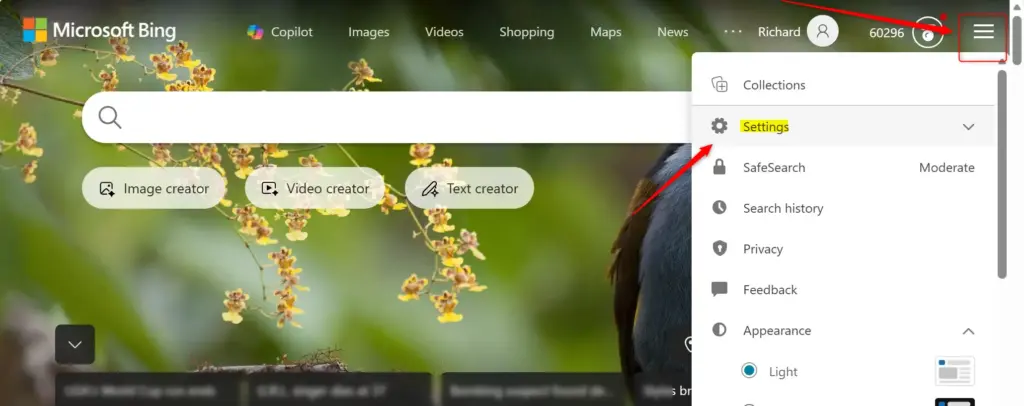
- Look in the top-right corner of the Bing homepage for a small gear icon or a link labeled Settings. On some layouts the settings sit behind a menu icon made of three horizontal lines instead.
- Click it. A settings panel or page should open with your Bing preferences.
Step 4Find the Search Suggestions Option
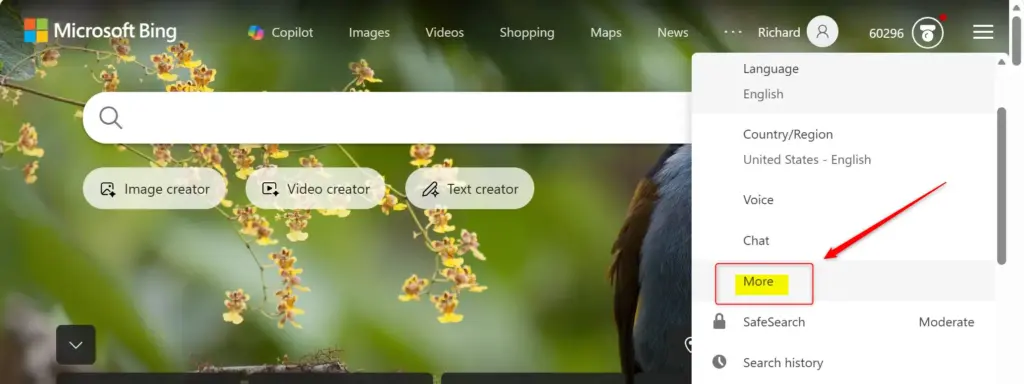
- Look through the settings for the search suggestions option. It is usually worded like See search suggestions as you type. It is normally a checkbox, though some versions show a toggle or a drop-down list instead.
If you cannot find it, scroll down the page. Some Bing layouts put this option further down, under a search or suggestions section.
Step 5Uncheck the Box
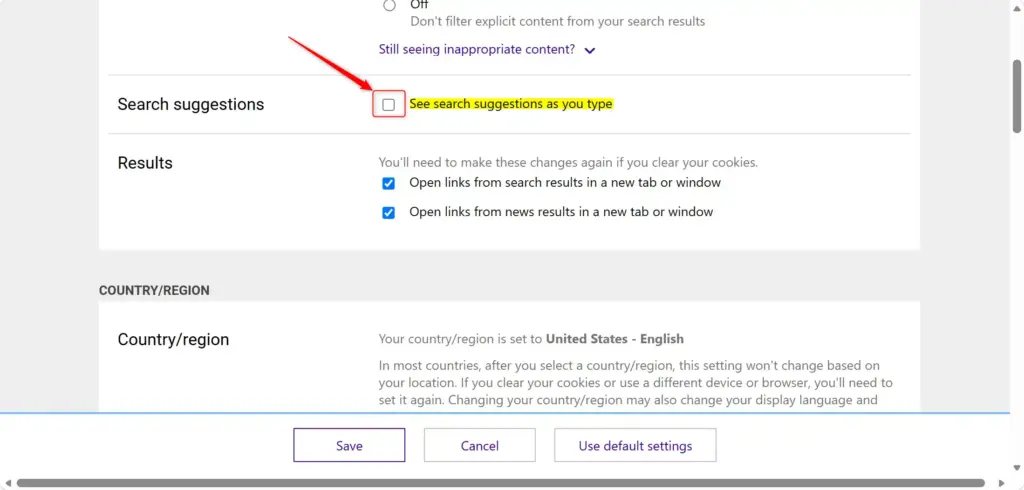
- Uncheck the box next to See search suggestions as you type. The checkmark should disappear, which means suggestions are off.
Step 6Save Your Changes
- Click Save or Apply at the bottom of the page. Bing should take you back to the search page.
- Click the Bing search box and start typing. The drop-down list of predictions should no longer appear.
If you clear your cookies or use a private window, Bing may go back to its default and show suggestions again. You then need to repeat the steps.
How to Turn Bing Search Suggestions Back On
Suggestions give you quick ideas as you type in the Bing search bar , so you find what you want faster. If you miss them, you can turn them back on by repeating the same steps and checking the box instead.
Step 1Go to Bing.com
- Open your browser, such as Microsoft Edge.
- Go to
bing.com. The Bing homepage should load.
Step 2Find Bing Settings
- Click the gear icon (⚙️) or the Settings link in the top-right corner of the Bing homepage. If you do not see a gear, try the menu icon of three horizontal lines. The settings panel should open.
Step 3Find the Search Suggestions Option
- Find the option labeled See search suggestions as you type. This is the same setting you turned off earlier, and its box should be empty.
Step 4Check the Box
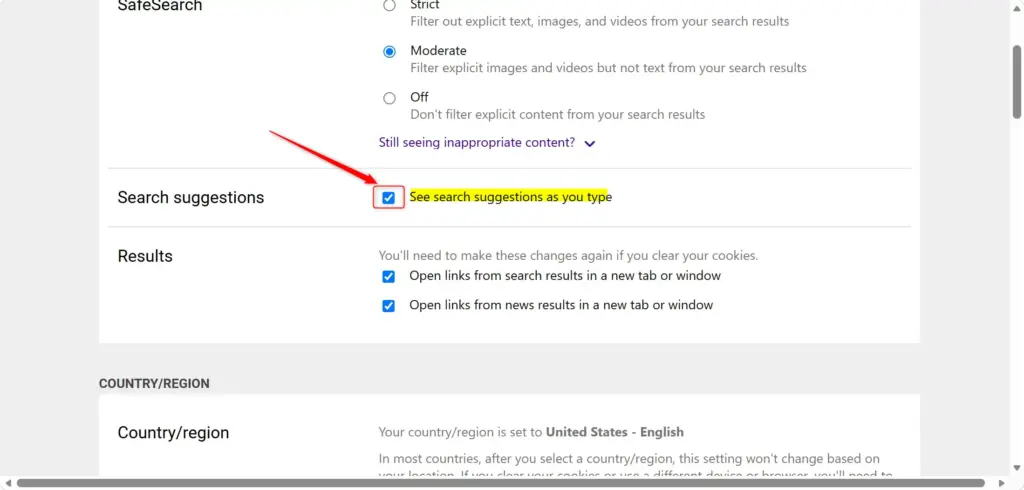
- Click the box next to See search suggestions as you type. A checkmark should appear, which turns suggestions on again.
Step 5Save Your Preferences
- Click Save or Apply at the bottom of the page to confirm the change.
- Type a few letters into the Bing search box . The list of suggestions should show up under it.
References:
https://support.microsoft.com/en-us/bing/turn-search-suggestions-off-or-on
Summary
You can turn Bing search suggestions on or off from the Bing settings in your browser. The change applies to the Bing website only. Your browser's address bar has its own suggestion setting, which you manage separately in the browser's settings. In Edge it is under Settings Privacy, search, and services > Address bar and search.
Frequently asked questions
How to remove search suggestions bing?
To remove Bing search suggestions, open Bing.com in your browser and go to Settings. Turn off the search suggestions option. If you are signed in to your Microsoft account, the change follows you to other browsers. Clearing your search history removes past searches but does not stop the predictions.
How to remove search recommendations on bing?
To remove search recommendations on Bing, go to Bing.com and open Settings. Turn off the search suggestions option, which controls the predictions and trending topics you see as you type. This is a Bing website setting, so it works the same in any browser. The Windows 11 Start menu search box needs its own setting.
How to turn off search suggostions?
To turn off search suggestions on Bing, open Bing.com, go to Settings, and switch off search suggestions. This stops Bing from predicting words as you type. Suggestions in the Windows 11 Start menu search box are a separate setting, and changing Bing will not affect them.
How to turn bing web suggested search results on or off in 🪟 Windows 10?
In Windows 10, Bing web suggested search results are controlled from the search settings, not from Bing itself. Open Settings, select Search, then Search permissions, and turn the web search option on or off. Menus vary between Windows 10 versions, so look for the web results toggle. Browser settings on Bing.com are separate.
Why did bing stop suggesting searches?
Bing may stop suggesting searches if the suggestions setting is turned off, which is the most common cause. Suggestions also disappear in private browsing windows, when you are signed out of your Microsoft account, or after you clear your search history. Check the Bing settings first, then sign in and try again.
How to turn off search suggestions?
To turn off search suggestions, first decide which search box you mean, because each has its own setting. For Bing, go to Bing.com, open Settings, and turn off search suggestions. For the Windows 11 Start menu search box, open Settings, select Privacy & security, then Search permissions, and change the web search option.
Still have a question?
Answered by AI from this guide. Good questions may be added to this page — please don't include personal details.
Did this guide fix your problem?

About the Author
Richard
Tech Writer, IT Professional
Richard is a writer at Geek Rewind who turns complex IT tasks into clear, step-by-step guides. He draws on years of hands-on experience in system administration and enterprise IT operations, focusing on Windows, Linux and WordPress: the problems people actually run into, and the fixes that work. His server and WordPress guides come from systems he runs himself. Richard builds and maintains the platform behind Geek Rewind, from its Ubuntu servers and Nginx configuration to its custom WordPress plugins. Many new tutorials start with readers' questions, and he's always glad to answer them in the comments.
No comments yet — be the first to share your thoughts!