

This article explains how to turn on or off the Narrator reading advanced details. Advanced details include help text, button information, and other controls in Windows 11.
Narrator is a screen-reading app built into Windows. It reads the text on your screen aloud and describes what’s happening. This helps users with low vision or blindness.
When you use the Narrator app, you can turn on or off its keyboard shortcuts, launch it automatically, adjust the voice, speed, and volume, manage natural voices, lower other apps volume when Narrator is speaking, change Narrator audio output device, change verbosity level, emphasize formatted text, enable or disable Narrators phonetic reading, pause for punctuation, and more.
Why Use Advanced Details Reading?
The Narrator can read advanced details like help text and button information. This setting is optional.
Enabling advanced details gives you more information. You learn about font size and color. This helps if you want detailed descriptions of what’s on the screen.
Turning off advanced details makes reading simpler. You focus on the main content. This is helpful if detailed descriptions distract you.
How to Enable or Disable Advanced Details Reading in Narrator
Step 1: Open the Settings App
First, open the Windows Settings app.
You can do this two ways:
- Click the Start menu and select Settings.
- Press Windows key + I on your keyboard.

Step 2: Go to Narrator Settings
When the Settings app opens, look at the left side. Click the Accessibility button.
On the right side, find the Narrator tile. Click it to expand the options.
Step 3: Toggle Advanced Details
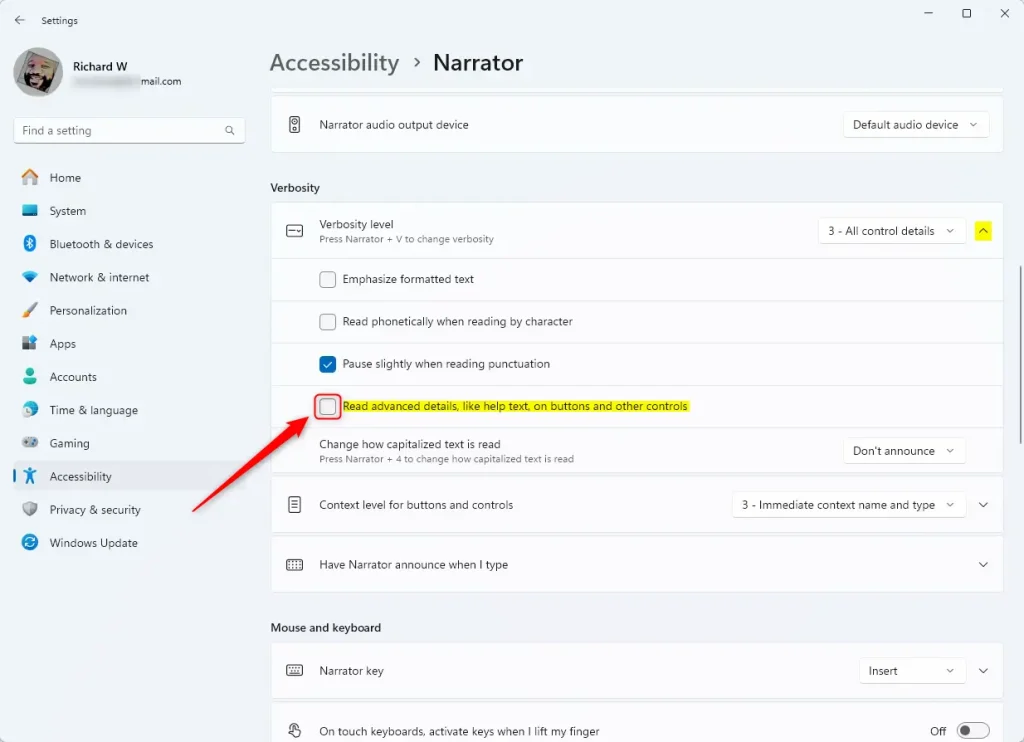
In the Narrator settings, find the section called Verbosity. Look for Verbosity level.
You’ll see a toggle box next to Read advanced details, like help text, on buttons and other controls.
Click the toggle to turn it On or Off. Choose what works best for you.
Step 4: Close Settings
When you’re done, close the Settings app.
That’s it! Your change is saved automatically.
Summary
The Narrator app in Windows 11 can read advanced details like help text and button information. You can turn this feature on or off based on what you need.
To change this setting: Open Settings using the Start menu or Windows key + I. Go to Accessibility and select Narrator. Find Verbosity level under the Verbosity section. Toggle the Read advanced details option on or off. Close Settings when done.
This simple adjustment helps you customize how Narrator describes your screen.


Leave a Reply to How to Change Narrator Modifier Keys in Windows 11 | Geek Rewind Cancel reply