How to Change Preferred Band for Wi-Fi Adapter in Windows 11


Change the preferred wireless band (6GHz, 5GHz, or 2.4GHz) for your Wi-Fi adapter in Windows 11 to get faster speeds. This tutorial covers three ways to do it: Settings, Device Manager, and Control Panel . All three end at the same adapter property, so use whichever you find easiest.
Open Settings Network & internet Wi-Fi Hardware properties Edit button > Configure Advanced tab. Select Preferred band in the Property list and choose your preferred band (2.4GHz, 5GHz, or 6GHz) from the Value dropdown, then click OK.
Why Change Your Wi-Fi Band?
Windows 11 connects to the strongest wireless signal available, but the strongest signal is rarely the fastest one. Automatic selection often lands on the older 2.4GHz band instead of a faster 5GHz or 6GHz option, because 2.4GHz travels farther and usually looks stronger.
Setting a preferred Wi-Fi band tells the adapter which frequency to favor. That can improve speed and stability. For example, you can push a streaming PC onto 5GHz instead of leaving it on a crowded 2.4GHz connection.
- A preferred band is a preference, not a guarantee. The adapter can still connect to another band if the preferred one is out of range or unavailable.
- Only one band works as the preferred option at a time.
- To force a device onto a specific band, the router must broadcast separate network names for each band, not one combined multiband name. With separate names, you can connect directly to the network name for the band you want.
- The Preferred band property depends on the adapter and its driver. If you don’t see it in the steps below, your driver doesn’t offer it. Updating the driver from the adapter or PC maker sometimes adds it.
Understanding the Three Bands
2.4GHz
The 2.4 GHz band offers speeds up to 100 Mbps using older technology. It is slower than 5 GHz, but it has a much longer range and passes through walls far better. Choose it for devices that are far from the router or behind several walls, where a faster band would drop out.
5GHz
The 5 GHz Wi-Fi band offers faster speeds, reaching up to 1 Gbps, through wider and more numerous channels. Its range is shorter than 2.4 GHz, and walls reduce it more. Weather or radar interference can occasionally affect specific 5GHz channels and keep you from reaching maximum speeds. For most people at a reasonable distance from the router, this is the best balance of speed and range.
6GHz
It requires newer hardware that supports Wi-Fi 6E, both in your adapter and in your router. If either one lacks it, 6GHz won't appear as a choice. Range is the shortest of the three, so it works best in the same room as the router or close to it.
Reference:
2.4 GHz vs. 5 GHz vs. 6 GHz: What's the Difference? - Intel This resource examines the differences between 2.4 GHz, 5 GHz, and 6 GHz frequencies and how suitable each is for different scenarios.
Option 1Change Preferred Band Using Settings
The Settings app is the quickest route in Windows 11. You open the Wi-Fi page, go to Hardware properties, and follow a link into the classic adapter properties window, where the preferred band is set. Home and Pro editions behave the same way here.
- Press Win+I on your keyboard to open Settings.
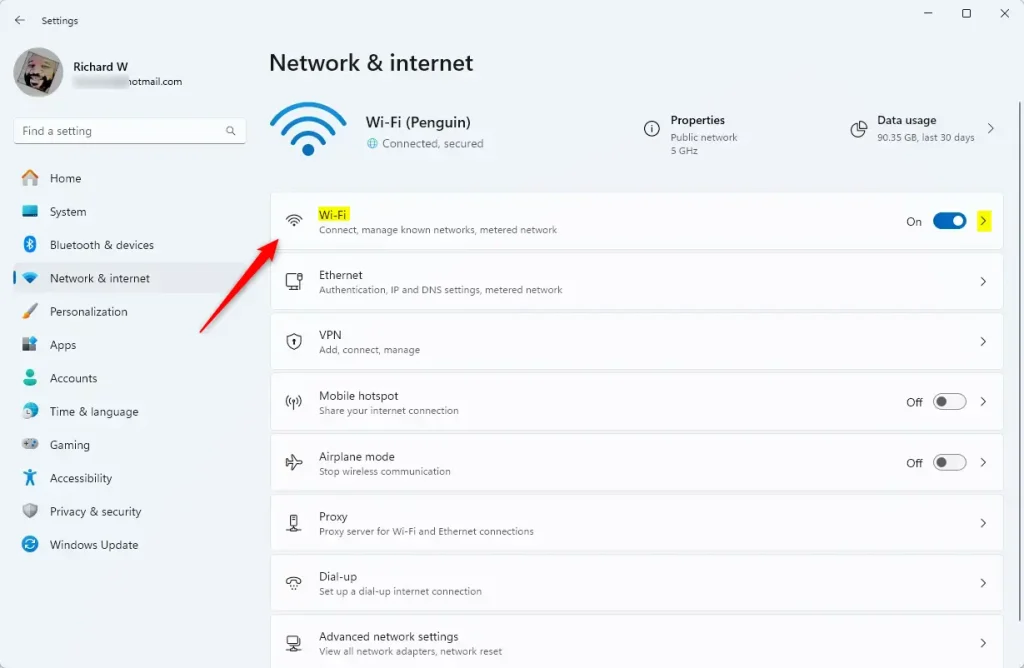
- Click or tap Network & internet on the left side, then click or tap Wi-Fi on the right side. (See screenshot below)
- Click or tap Hardware properties. You should see details for your wireless adapter, such as its name, driver version, and SSID.
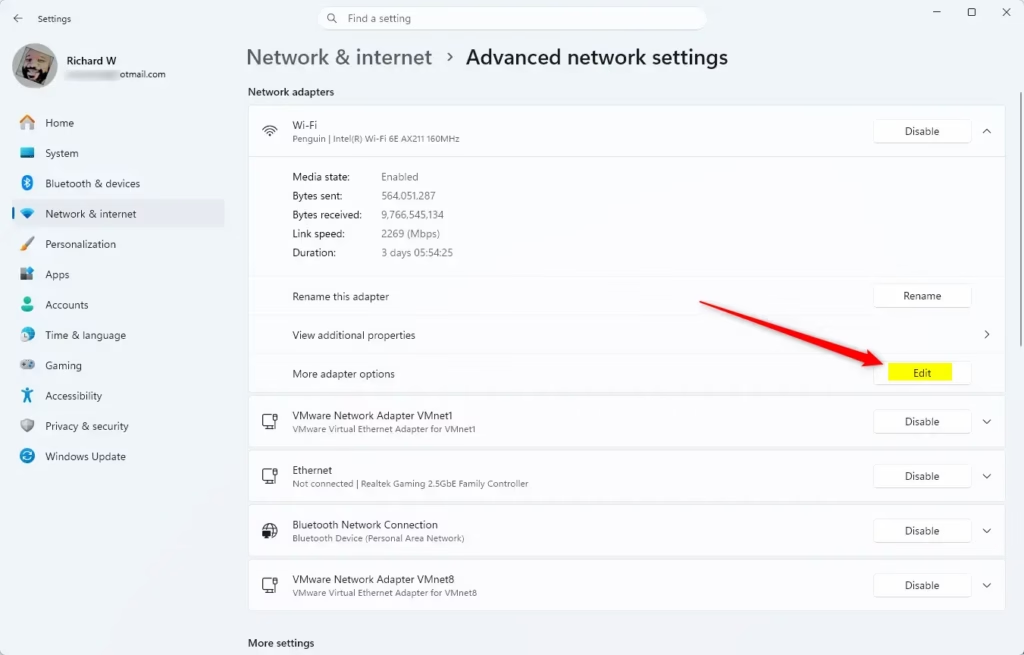
- Click or tap the Edit button next to More adapter options. The adapter's Properties window opens.
- Click or tap the Configure button. The adapter's own properties window opens.
- Set the preferred band for your Wi-Fi adapter:
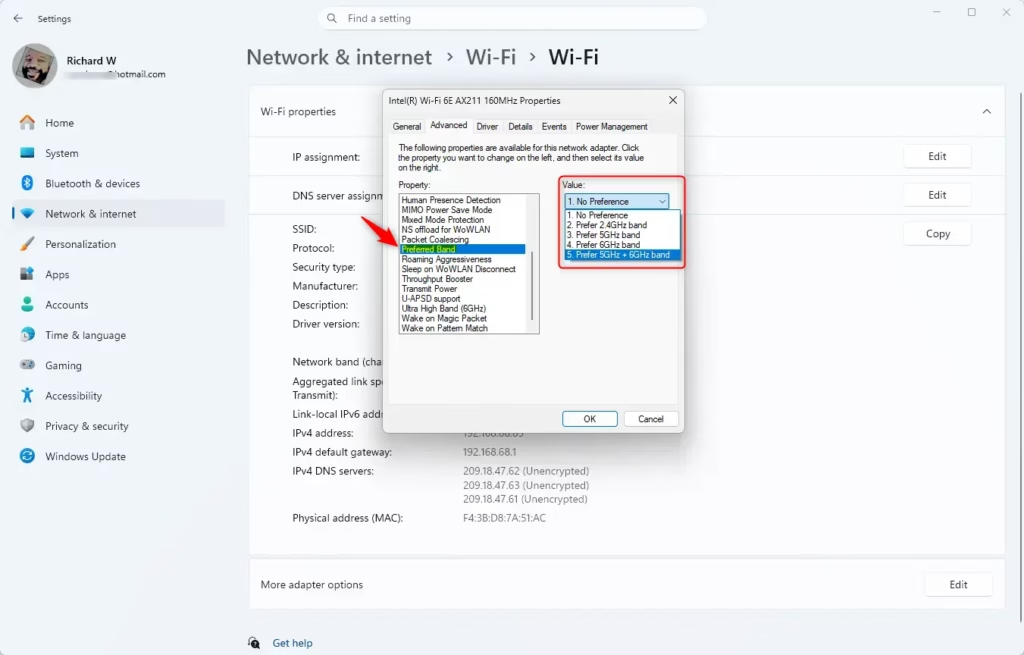
- Click or tap the Advanced tab.
- Click or tap Preferred band in the left "Property" pane. If it isn't in the list, your driver doesn't support the setting.
- Select the band you prefer in the right "Value" dropdown menu. Only bands supported by your Wi-Fi adapter are listed. The exact wording depends on the driver, for example "Prefer 5GHz band".
- Click or tap OK. The connection may drop for a few seconds while the adapter restarts, then reconnect. A full Windows restart is not normally needed.
To undo the change, repeat these steps and set the value back to the default, usually a "No preference" style option.
Option 2Change Preferred Band Using Device Manager
Device Manager gives you direct control over network adapter settings. It is useful when the Settings page doesn't show the adapter you want, or when you are already working with drivers. Changing adapter properties here may prompt for administrator approval.
- Press Win+R to open the Run dialog, then type
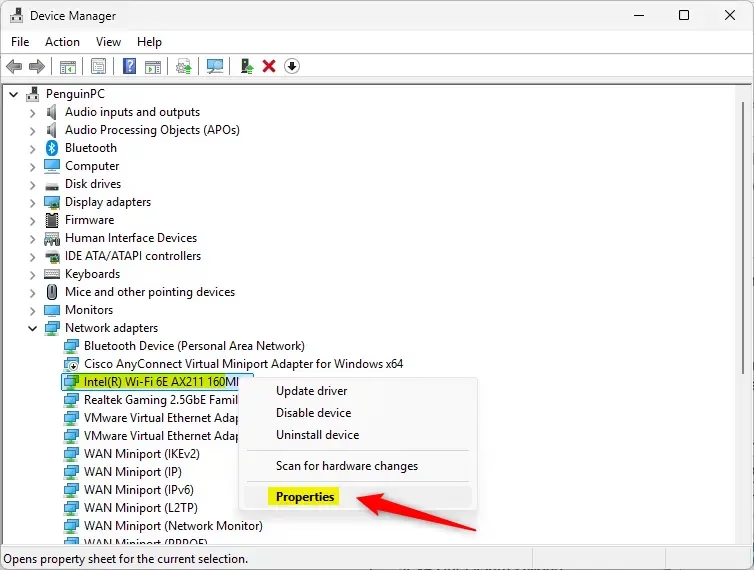
devmgmt.mscand press Enter. Device Manager opens. - Expand Network adapters. Double-click or double-tap your wireless network adapter. Its Properties window opens.
- Set the preferred band for your Wi-Fi adapter:
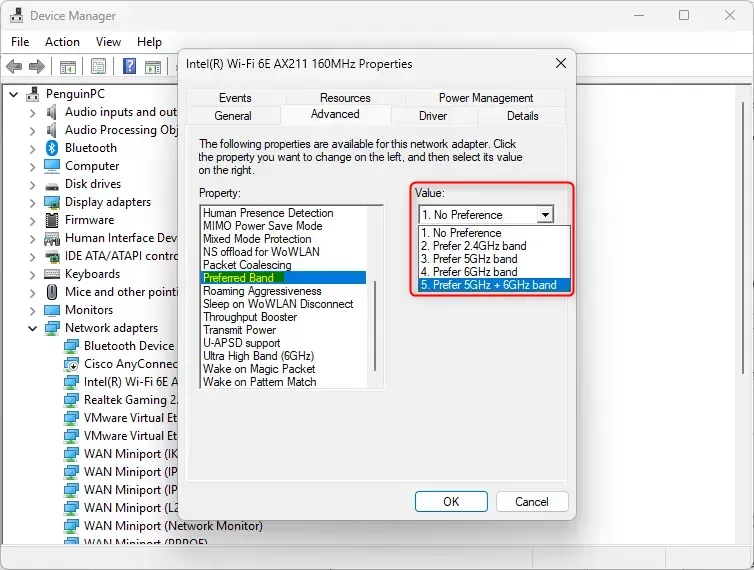
- Click or tap the Advanced tab.
- Click or tap Preferred band in the left "Property" pane. If it isn't listed, your driver doesn't offer this setting.
- Select the band you prefer in the right "Value" dropdown menu. Only bands supported by your Wi-Fi adapter are listed.
- Click or tap OK. Expect a brief disconnect while the adapter applies the change.
To undo the change, reopen the same Advanced tab and set the value back to its default.
Option 3Change Preferred Band Using Network and Sharing Center
The legacy Network and Sharing Center in Control Panel also lets you change the band. It takes a few more clicks than the other methods, but it ends at the same Advanced tab.
- Open Control Panel in icons view (large or small icons). Click or tap the Network and Sharing Center icon.
- Click or tap the Change adapter settings link on the left side of Network and Sharing Center. A list of your network connections appears.
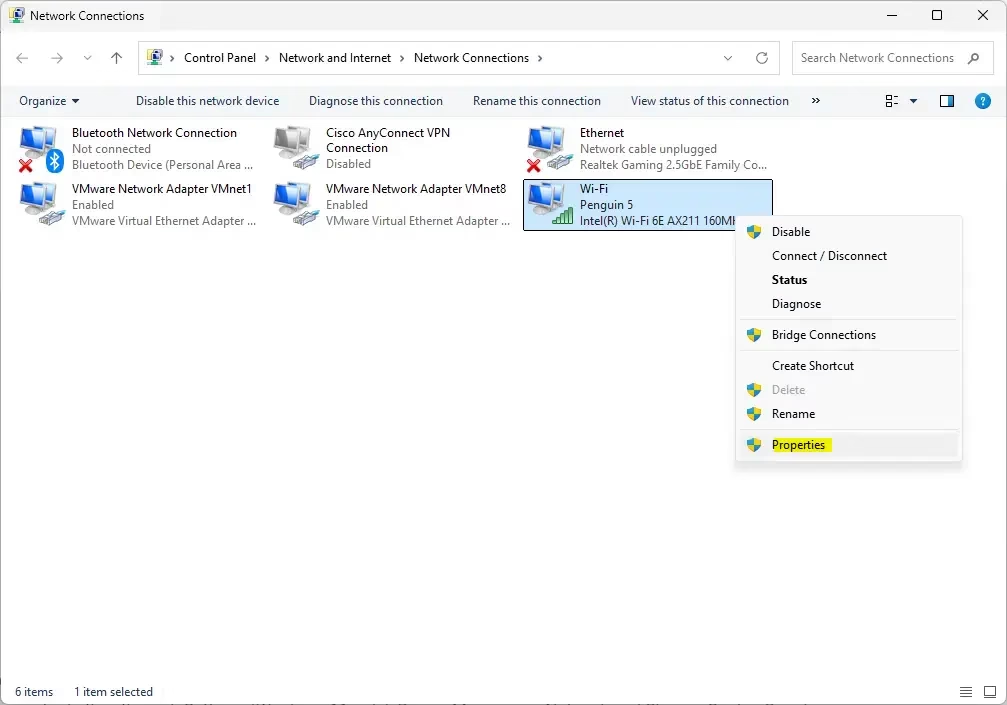
- Right-click the Wi-Fi adapter you want, then click or tap Properties.
- Click or tap the Configure button.
- Set the preferred band for your Wi-Fi adapter:
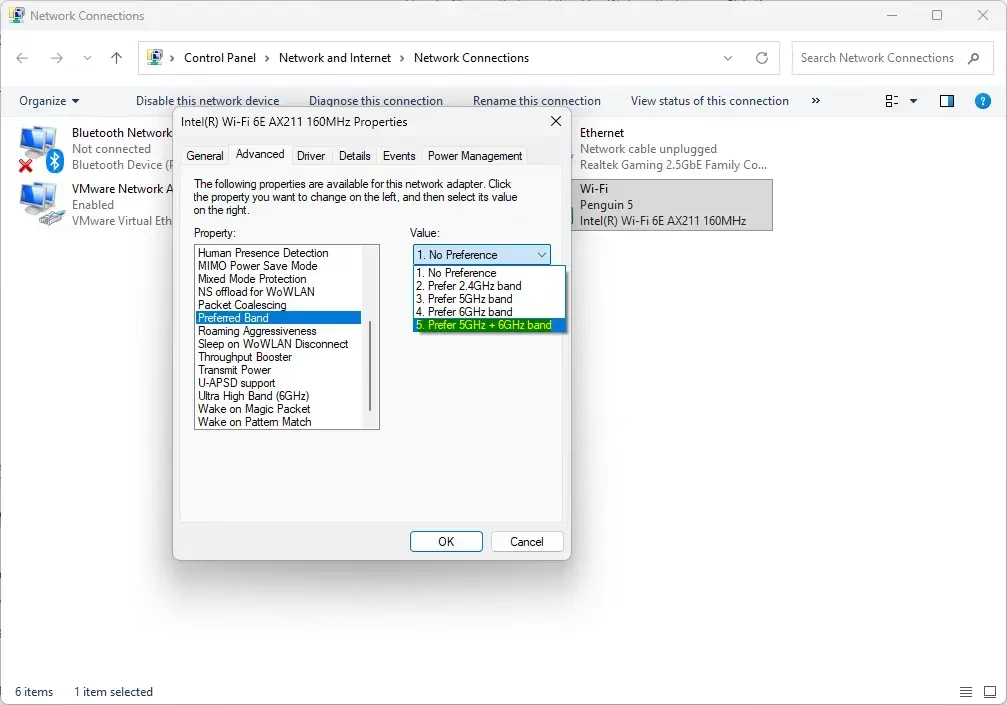
- Click or tap the Advanced tab.
- Click or tap Preferred band in the left "Property" pane.
- Select the band you prefer in the right "Value" dropdown menu. Only bands supported by your Wi-Fi adapter are listed.
- Click or tap OK. The connection may briefly drop and then reconnect.
To undo the change, open the same tab again and restore the default value.
Summary
You can change the Wi-Fi adapter's preferred band in Windows 11 using Settings, Device Manager, or Control Panel. Pick the band that fits the situation: 2.4GHz for extended range, 5GHz for a balance of speed and range, or 6GHz for maximum performance when your adapter and router both support it. If the speed doesn't improve, check that your router broadcasts separate network names for each band, and that the adapter driver is up to date.
Was this guide helpful?

About the Author
Richard
Tech Writer, IT Professional
Richard is a writer at Geek Rewind who turns complex IT tasks into clear, step-by-step guides. He draws on years of hands-on experience in system administration and enterprise IT operations, focusing on Windows, Linux and WordPress: the problems people actually run into, and the fixes that work. His server and WordPress guides come from systems he runs himself. Richard builds and maintains the platform behind Geek Rewind, from its Ubuntu servers and Nginx configuration to its custom WordPress plugins. Many new tutorials start with readers' questions, and he's always glad to answer them in the comments.


No comments yet — be the first to share your thoughts!