How to Filter Profanity in Windows 11 Voice Typing

Press Win+H to open the voice typing toolbar, click the gear icon, then toggle the Profanity filter switch on to hide swear words with asterisks or off to transcribe all words exactly as spoken. The change applies on your next dictation.
What is Voice Typing?
Voice typing in Windows 11 turns your speech into text wherever you can type. That includes Notepad, Word, a browser form and an email. You talk and the words appear at the cursor, which is often faster than typing, and it helps if typing is uncomfortable for you.
Voice typing needs an internet connection. It sends your speech to online speech recognition, which is powered by Microsoft’s Azure Speech Services, and gets text back. It also needs a working microphone that Windows is allowed to use. It works the same on Windows 11 Home and Pro.
You can also speak commands instead of dictating text. Say “delete that” to erase what you just dictated, or “select that” to highlight it.
Learn more about voice typing here: How to Use Voice Typing on Windows 11
Why Use a Profanity Filter?
The profanity filter hides swear words that voice typing picks up, so they don’t show up in your text. With the filter on, a word you said by accident, or one the recognizer misheard, doesn’t land in your document. This matters when you dictate in a shared office, in a meeting, or into a document someone else will read.
- Keep things clean: You avoid putting offensive words in a message, report or chat by accident, especially in public or at work.
- Customize your experience: You decide whether you want your speech transcribed exactly as spoken or filtered.
- Better accessibility: Voice typing is more comfortable for everyone, including people who depend on it every day and don’t want to proofread for slips.
- Easy to change: You can turn the filter on or off in a few clicks, as many times as you like.
How to Turn On or Off the Profanity Filter
You change the filter from the voice typing toolbar. You don’t need to open the Settings app, and you don’t need to restart. The change applies the next time you speak.
- Start Voice Typing: Click in a text field, such as a Notepad document, so Windows knows where to put the text. Then press the
Windows key + Hon your keyboard. The voice typing toolbar appears on your screen, usually near the top of the screen. - Open Settings : Click the gear icon on the voice typing toolbar. A small settings panel opens with the voice typing options.
- Find Profanity Filter: Look for the option labeled Profanity filter in the settings menu. If you don’t see it, your build of Windows 11 probably doesn’t have the feature yet. See the note below.
- Toggle the Filter: Turn Profanity filter on to hide bad words with asterisks (****). Turn it off to type all words exactly as you say them. To undo your change, open the same panel and flip the switch back.
The filter covers common impolite words. Don’t assume it catches every one, so read over anything important before you send it.
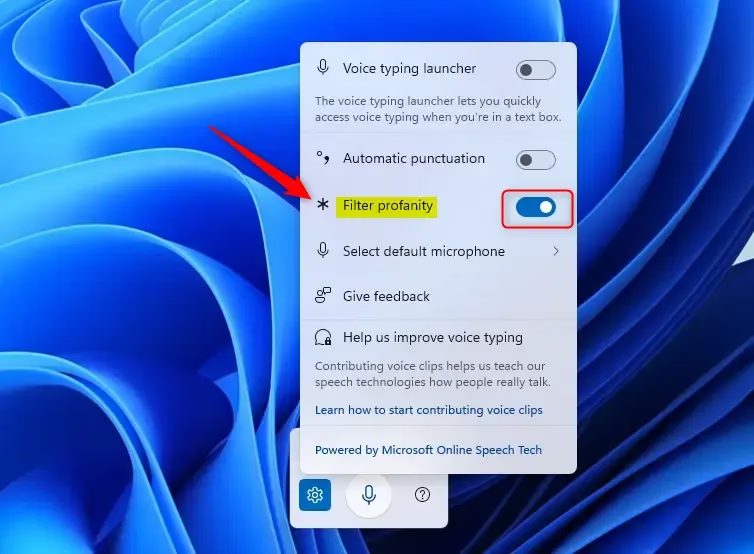
The screenshot above shows the voice typing toolbar and its settings panel, where you switch the filter on or off.
The screenshot above shows the Profanity filter option in the settings panel.
Make sure your Windows is up to date to see this option. Run Windows Update and install anything pending. If you are on a regular, non-Insider build, the option may appear later, as Microsoft brings it to more devices in stages.
Learn More
The official Microsoft Windows Insider Blog has more information about the update to Windows 11 Voice Typing. This update lets users filter out profanity during voice-to-text input, which keeps transcribed speech cleaner. Check the blog for the latest on which builds include the feature.
Summary
Windows 11's Voice Typing lets you type by talking, and its profanity filter gives you control over whether impolite words are hidden or shown. Press the Windows key and H, click the gear icon, and flip the Profanity filter switch whenever you need to.
Have a question about this guide?
Answered by AI from this guide. Good questions may be added to this page — please don't include personal details.
Did this guide fix your problem?

About the Author
Richard
Tech Writer, IT Professional
Richard is a writer at Geek Rewind who turns complex IT tasks into clear, step-by-step guides. He draws on years of hands-on experience in system administration and enterprise IT operations, focusing on Windows, Linux and WordPress: the problems people actually run into, and the fixes that work. His server and WordPress guides come from systems he runs himself. Richard builds and maintains the platform behind Geek Rewind, from its Ubuntu servers and Nginx configuration to its custom WordPress plugins. Many new tutorials start with readers' questions, and he's always glad to answer them in the comments.
No comments yet — be the first to share your thoughts!